
Quarantine Zone: The Last Check Demo launched on May 22, 2025, and is a puzzle game centered around assessing survivors of a zombie apocalypse for indications of infection. It’s a serious inspection game where mistakes are not an option. Anyone could be infected, and every decision you make impacts what unfolds next.
In the following part, we will walk you through the details steps to navigate to the Quarantine Zone: The Last Check Demo file location.
Where to Find the Quarantine Zone: The Last Check Demo File Location
Here are two ways to access the saved game files: using File Explorer or the Run command.
Way 1. Use File Explorer
Step 1. Use the Windows + E keyboard shortcut to launch File Explorer.
Step 2. Proceed to the path: C:\Users\username\AppData\Local\QZSim\Saved\SaveGames. Your saved game files can be found in the folder associated with your unique Steam ID and are in the .sav file format.
Way 2. Use Run
Step 1. Press Windows + R to open the Run dialog box.
Step 2. Type %USERPROFILE%\AppData\Local\QZSim\Saved\SaveGames and press Enter.
Now that you are aware of the Quarantine Zone: The Last Check Demo save game location, the next step is to create a complete backup of those files to avoid data loss from system crashes or other issues. In the next section, I will introduce a strong way to back up Quarantine Zone: The Last Check Demo game files.
How to Back Up Quarantine Zone: The Last Check Demo Game Files
How can you make a game backup? The best solution is to use MiniTool ShadowMaker, a top-rated PC backup software. This tool is compatible with all Windows versions and helps you back up files, folders, partitions, disks, and systems. Additionally, it offers various data backup options, such as full backup, incremental backup, and differential backup.
Now, download its trial version and utilize it for free data backup for 30 days.
MiniTool ShadowMaker TrialClick to Download100%Clean & Safe
Step 1. Open the installed backup software and click on Keep Trial to proceed.
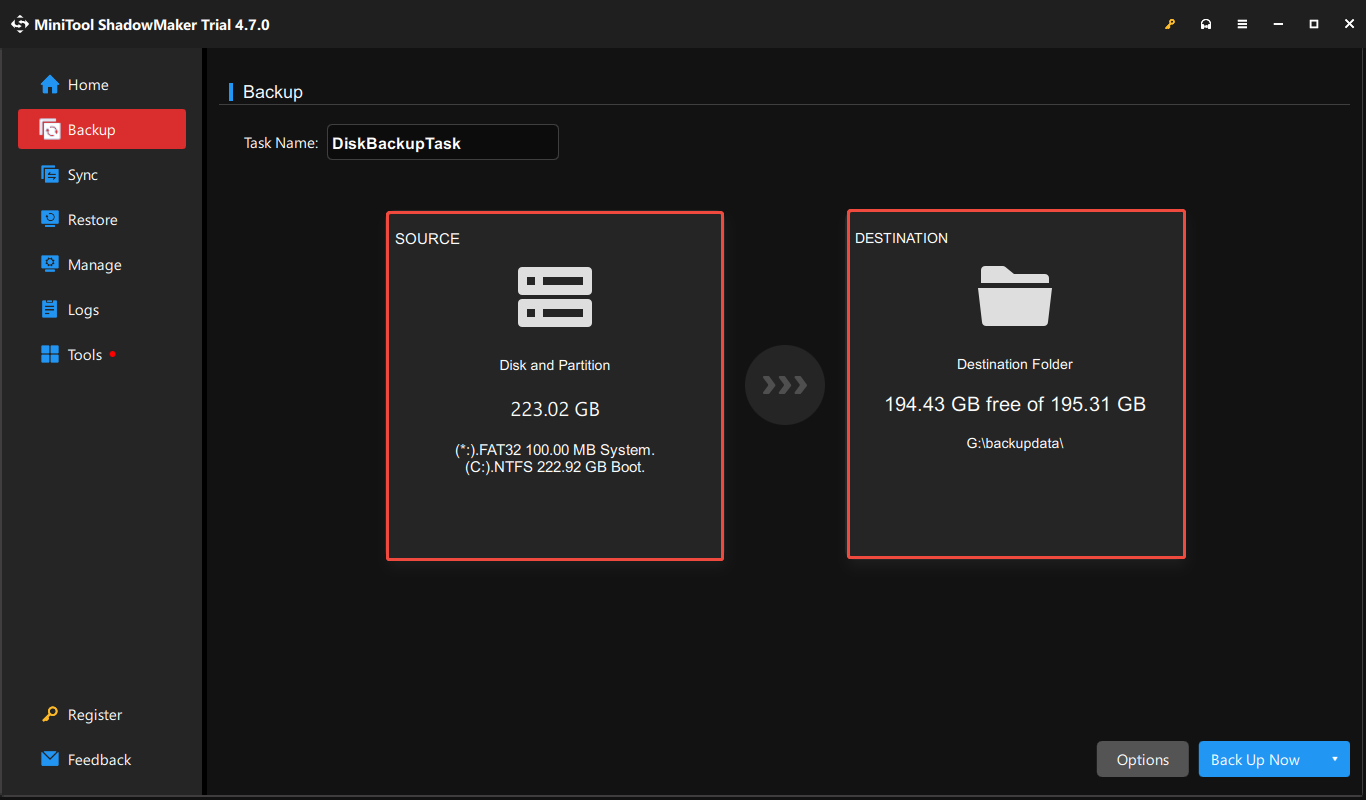
Step 2. Navigate to the Backup section, then select SOURCE > Folders and Files to choose the game data you want to back up. After that, click on the DESTINATION option to select a location to store the backup files.
Step 3 (optional). If you want to set up and adjust automatic backup, select the Options button in the lower right corner. Navigate to the Schedule Settings tab, enable it, and configure the backup frequency.
Step 4. Click Back Up Now to start the backup process.
How can you restore the backup files? Go to the Restore tab, and then click the Restore button next to the desired backup image.
How to Recover Quarantine Zone: The Last Check Demo Missing Game Files
What if the Quarantine Zone: The Last Check Demo game file missing? Fortunately, you still have the opportunity to recover your lost game files. You can utilize MiniTool Power Data Recovery, a secure and free data recovery tool for Windows, to retrieve game files.
This software can recover game files as well as various other types of data from your hard drives, SSDs, and external drives. If you are using it for the first time, you can download the free version that allows for the recovery of up to 1 GB of data and give it a try.
MiniTool Power Data Recovery FreeClick to Download100%Clean & Safe
Step 1. Launch this data recovery software to enter its main interface.
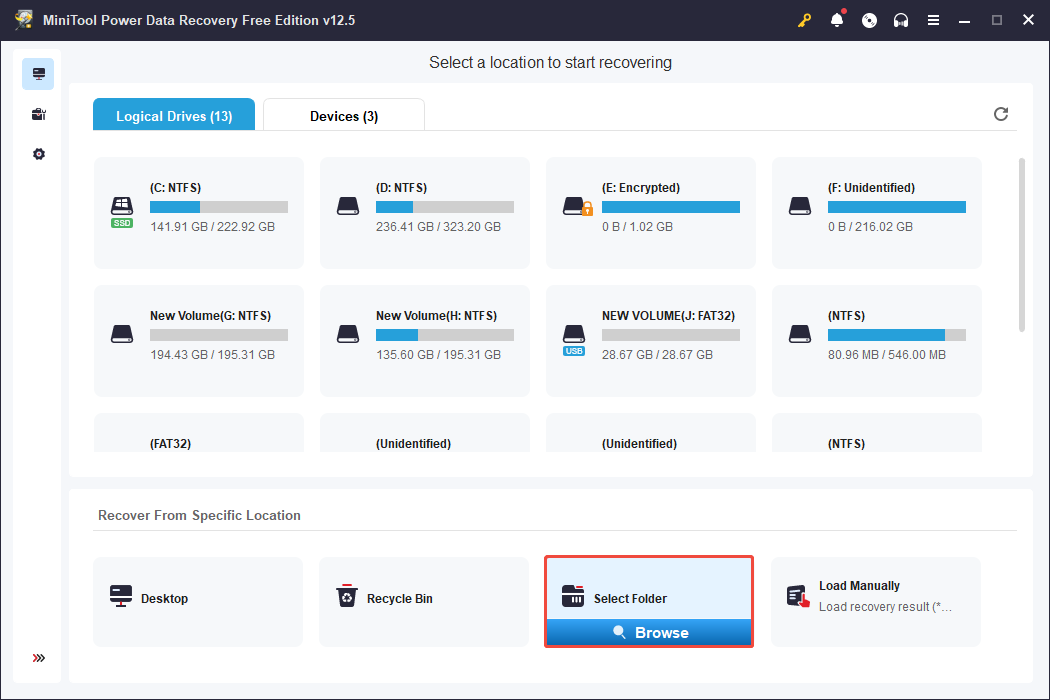
Step 2. Under the Logical Drives tab, go to the Recover From Specific Location section, choose Select Folder, and click the Browse button. Navigate to the Quarantine Zone: The Last Check Demo file location (C:\Users\username\AppData\Local\QZSim\Saved\SaveGames) and click Select Folder.
Step 3. After scanning, tick the game files. Usually, it is .sav file format. Next, click the Save button. In the pop-up window, select a new file location to store the recovered files and click OK.
Verdict
Where is the Quarantine Zone: The Last Check Demo file location on PC? Now you should know how to find it as well as how to make a game file backup with MiniTool ShadowMaker.
User Comments :