
Did you accidentally delete an important email from Telstra? Is it possible to recover? Are there any easy ways to recover it? You are in the right place. This post from MiniTool is here to help you recover deleted emails from Telstra effectively and securely.
Can You Recover Deleted Emails from Telstra
Nowadays, email has become an essential means of communication for both personal and professional purposes. Telstra Mail was launched as a successor to BigPond webmail. It was created to function as a cross-platform email service offering 10 GB of storage along with increased message size limits.
To keep the inboxes tidy and to ensure optimal performance, you may eliminate unwanted junk emails from your mailbox. As a result, you sometimes mistakenly remove important emails and later feel remorseful about it. Therefore, let’s take a moment to explore how to easily recover deleted emails from Telstra using simple methods. Read the article to discover which approach is the most suitable option to recover lost emails from Telstra.

Way 1. Recover Deleted Emails from Telstra Webmail Manually
If you accidentally deleted emails from your Telstra Webmail account and wish to recover them, the following manual steps can assist you. Telstra retains all deleted emails in the trash folder for a limited time, during which you can restore your data to your inbox. If you’re looking for a more straightforward method, feel free to skip ahead to the next section. Here are the steps to follow:
1. Connect your device to a stable internet connection and navigate to Telstra BigPond email.
2. Log in to your account using your correct email address and password.
3. Locate the trash folder, which should be visible on the left side in the corner. If you’re unable to find it, check below the Inbox, Sent Items, and Drafts folders.
4. In the trash folder, look for the deleted email you wish to recover.
5. Select the email you want and click on the menu bar, then click the Restore button.

Way 2. Recover Deleted Emails from Telstra Using Third-party Software
How to recover deleted emails from Telstra easily? If you have saved Telstra emails onto your computer, you can locate them on your PC and recover them using a professional data recovery tool.
Be careful when utilizing third-party software and make sure they are reliable and trustworthy to protect your data security. For instance, you might consider MiniTool Power Data Recovery, which is widely used by millions of individuals globally.
This software from MiniTool can recover files from various data storage devices and is compatible with all Windows versions, including Windows 11, Windows 10, Windows 8/8.1, and Windows 7. If the deleted files haven’t been overwritten by new data, this software can retrieve them from their original location.
A Telstra email you’ve downloaded is an EML file, which can be scanned by MiniTool Power Data Recovery Free. You can start by trying this tool to scan your computer and see if it can recover the required Telstra emails.
MiniTool Power Data Recovery FreeClick to Download100%Clean & Safe
Follow the instructions to recover deleted emails from Telstra.
Step 1. Scan the Partition Where the Telstra Emails Are Lost
Open MiniTool Power Data Recovery to access the home page. You will automatically begin in the Logical Drives section. Choose the target partition from which the emails were deleted and click on Scan. Please wait patiently, and let the scan complete on its own for optimal results.
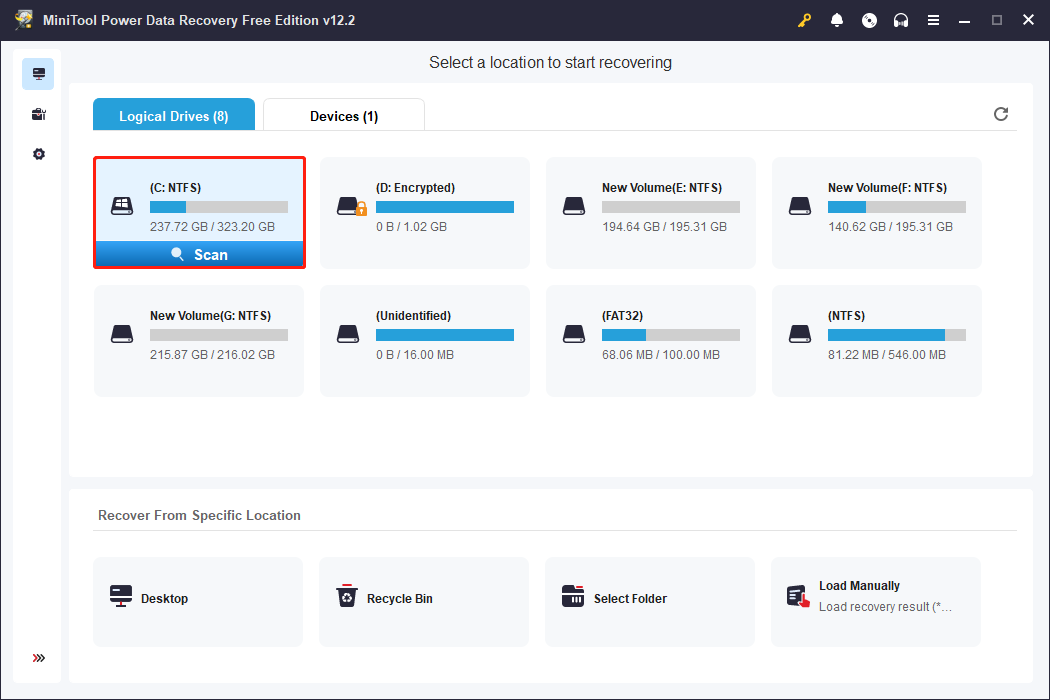
Step 2. Preview and Check the Desired EML Files
Once the scanning procedure is finished, the identified files will be categorized in the Path tab under sections like Deleted Files, Lost Files, and Existing Files. You can expand each section to locate specific items. Utilize the Filter, Type, Search, and Preview features to find the EML files.
Step 3. Save the Wanted Files
Choose the files you wish to recover and click Save. To prevent overwriting existing data, make sure to save the recovered files to a different location. Then, click OK to confirm saving the files.
The free version allows for a recovery maximum of 1GB of files. If you want to recover more files using this powerful data recovery tool, you can choose to upgrade to the advanced edition.
MiniTool ShadowMaker TrialClick to Download100%Clean & Safe

Conclusion
Don’t panic if you encounter data loss. No matter what file types or file formats you have lost, there still are opportunities to recover them until overwritten. In this post, we introduce two possible methods to help you recover deleted emails from Telstra. Hope you can successfully get them back.
User Comments :