
Do you play Rocket League on your device smoothly? You may be probably bothered by some problems like black screen, screen flickering or tearing while gaming. Don’t worry, you can find some effective solutions in this guide on MiniTool Website.
Rocket League Black Screen
Rocket League is a vehicular soccer video game published by Psyonix. You can play this game via PlayStation, Xbox, Nintendo Switch and Windows PCs. However, you may suffer from some issues like Rocket League black screen when gaming. In this guide, we are dedicated to helping you to improve your gaming experience and play the game without black screen issues.
How to Fix Rocket League Black Screen on Windows 10/11?
Fix 1: Run the Game in Windowed Mode
To solve Rocket League black screen, you can also try launching the game in windowed mode. To do so:
Step 1. Open Steam and go to Library.
Step 2. Locate Rocket League and right-click on it to choose Properties.
Step 3. Under General, click on Launch Options and enter -windowed to the text box.
Step 4. Relaunch the game to see if Rocket League screen flickering or black screen split screen disappears.
Fix 2: Turn off Game Mode
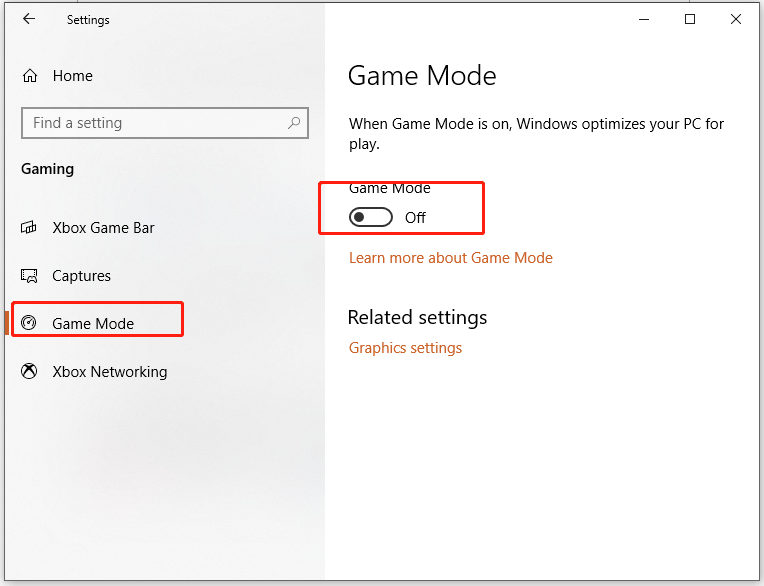
Other users reported that turning off Game Mode also help them to address Rocket League black screen. Here’s how to disable Game Mode on your Windows machine:
Step 1. Press Win + I to open Windows Settings and go to Gaming.
Step 2. Then, toggle off Captures, Xbox Game Bar, and Game Mode.
Fix 3: Run the Game Launcher as Administrator
Maybe Rocket League is not compatible with your current Windows version or it lacks administrator rights hence causing Rocket League black screen. Therefore, you can run the game launcher in compatibility mode with administrative rights.
Step 1. Right-click on your game launcher and choose Properties.
Step 2. Under the Compatibility tab, tick Run this program in compatibility mode for, and select Windows 8 or Windows 7 in the drop-down menu. Then, tick Disable fullscreen optimizations and Run this program as administrator.
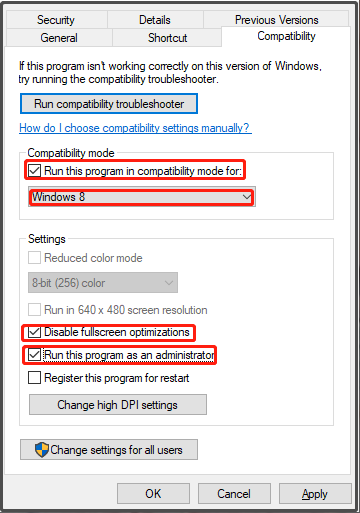
Step 3. Click on OK to save the changes.
Fix 4: Check Integrity of Game Files
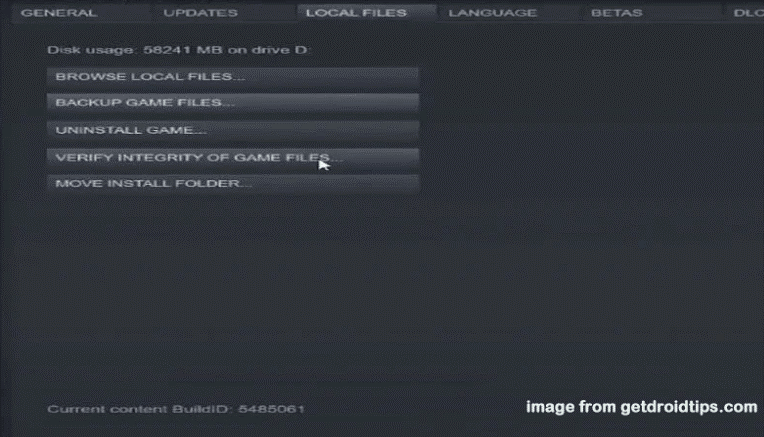
Rocket League screen goes black can also be due to the corrupted game files. Luckily, you can verify the integrity of game files in your game launcher.
Step 1. Launch the Steam client and hit Library.
Step 2. In the game library, find Rocket League and right-click on it to choose Properties.
Step 3. Under Local Files, click on VERIFY INTEGRITY OF GAME FILES to start the verification process.
Fix 5: Update GPU Driver
If you are using an outdated graphics driver, you are likely to encounter problems like Rocket League black screen, screen tearing, or freezing. To update your GPU driver, you need:
Step 1. Right-click on the Start icon and highlight Device Manager.
Step 2. Expand Display adapters and right-click on your graphics card to choose Update driver.
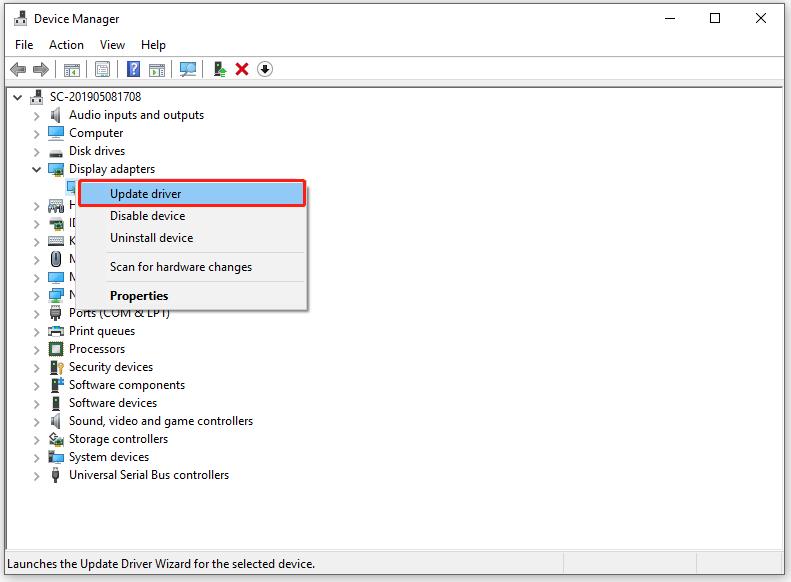
Step 3. Choose Search automatically for drivers and follow the instructions on the screen to finish the updating process.
Fix 6: Disable Antivirus Temporarily
Sometimes, your antivirus might be so protective that it blocks some safe programs by mistake. If it is the case, try to disable your antivirus software for a while.
Step 1. Click on the Start icon > open Control Panel > hit System and Security.
Step 2. Click on Windows Defender Firewall and hit Turn Windows Defender Firewall on or off.
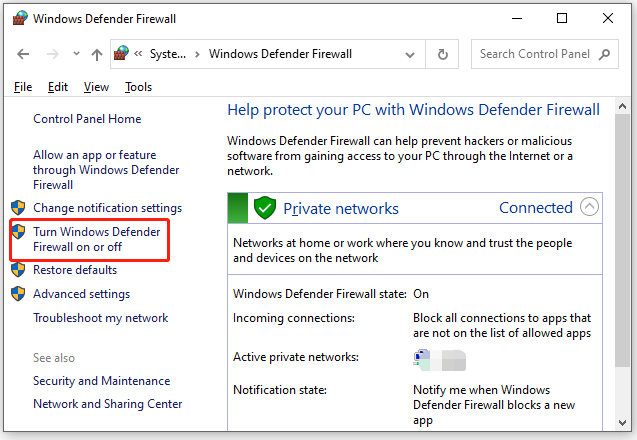
Step 3. Check Turn off Windows Defender Firewall and then relaunch the game.
Fix 7: Disable Background Applications
You had better not run too many programs when playing Rocket League or else it can also trigger Rocket League screen tearing, flickering and black issues. Here’s how to disable the background applications:
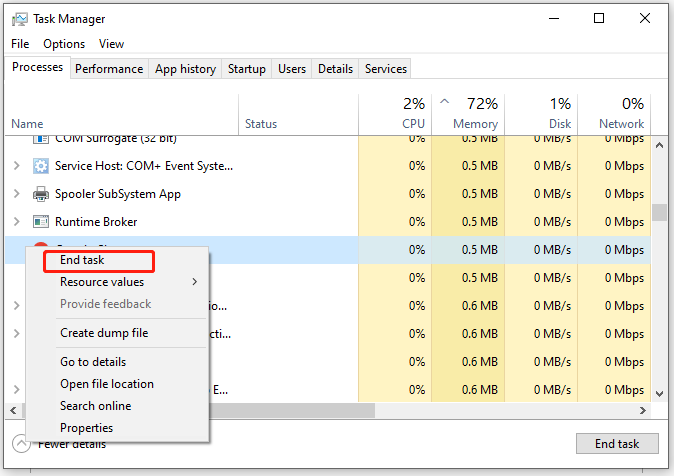
Step 1. Right-click on the taskbar and choose Task Manager.
Step 2. Under Processes, find the resource-hogging programs one by one and right-click on them to choose End task.
Fix 8: Update the Game
Usually, the newer version of the game contains the latest patches that can fix most bugs and glitches in the current game version. Therefore, you need to update your game in time.
Step 1. Launch Steam and go to Library.
Step 2. Locate the game and right-click on it to choose Properties.
Step 3. Hit the Updates button.
![[Solved!] How to Fix Rocket League High Ping on Windows 10/11?](https://images.minitool.com/minitool.com/images/uploads/2022/12/rocket-league-high-ping-thumbnail.png)
User Comments :