
Rusty’s Retirement is a real little game because it only occupies about 25% of your computer desktop. This design allows you to play the game but still access the desktop to work, watch video, or do something else. Waiting for farms and upgrading for coins and fuel can take several hours. Hence, it should come as terrible news that Rusty’s Retirement lost progress on your computer.
If you discover that your farm starts a new game, here are some possible solutions to help you find the lost progress in Rusty’s Retirement.
Way 1. Retrieve Rusty’s Retirement Lost Progres with Saved Files
This method is tested by some Steam players of Rusty’s Retirement. You may try this method first when encountering Rusty’s Retirement save lost when loading the game.
Step 1. Press Win + E to open Windows Explorer on your computer.
Step 2. Navigate to C:\Users\username\AppData\LocalLow\MisterMorrisGames\Rusty’s Retirement.
Step 3. Close the game and open the latest saved file.
After that, you can open the game to see if your farm can load your progress properly.
Way 2. Recover Rusty’s Retirement Missing Files with Software
However, the above method doesn’t work if the save folder is empty. The possible reason for the empty folder is the saved files are mistakenly deleted or lost due to other reasons.
If you haven’t emptied the Recycle Bin on your computer, you can try to find and restore the deleted saved files from the Recycle Bin.
As the last option, you can get lost Rusty’s Retirement saved files by using data recovery software. MiniTool Power Data Recovery works well in restoring lost files on your computer. You can get the free edition to scan Rusty’s Retirement saved folder to see if there are any lost saved files.
MiniTool Power Data Recovery FreeClick to Download100%Clean & Safe
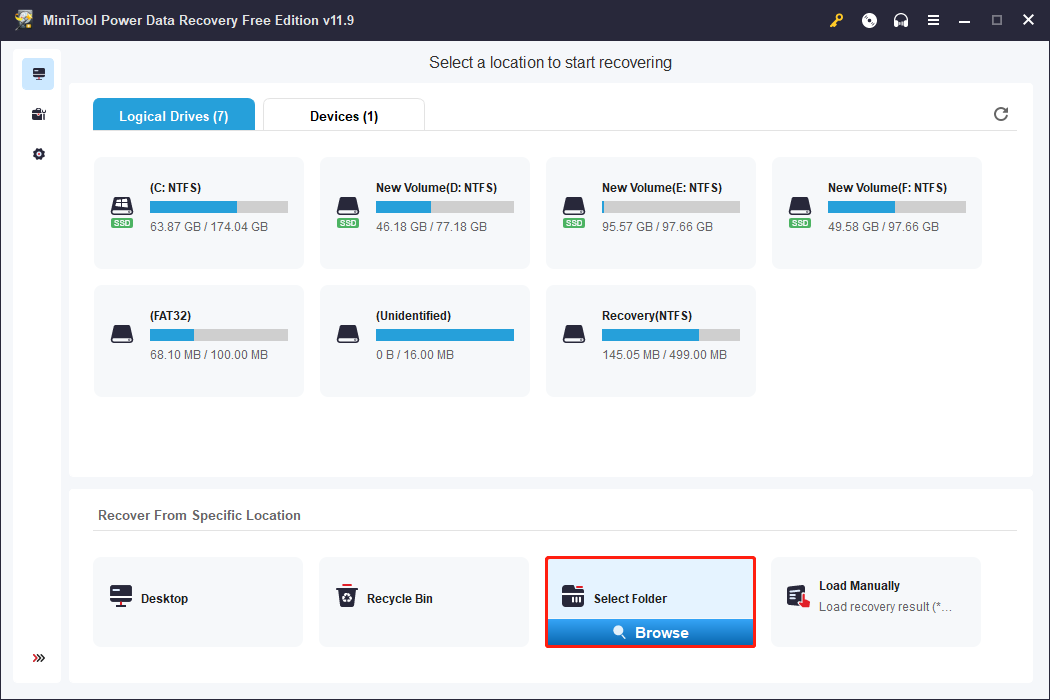
MiniTool Power Data Recovery Free allows you to restore 1GB of files for free.

Safeguard Rusty’s Retirement Saved Files
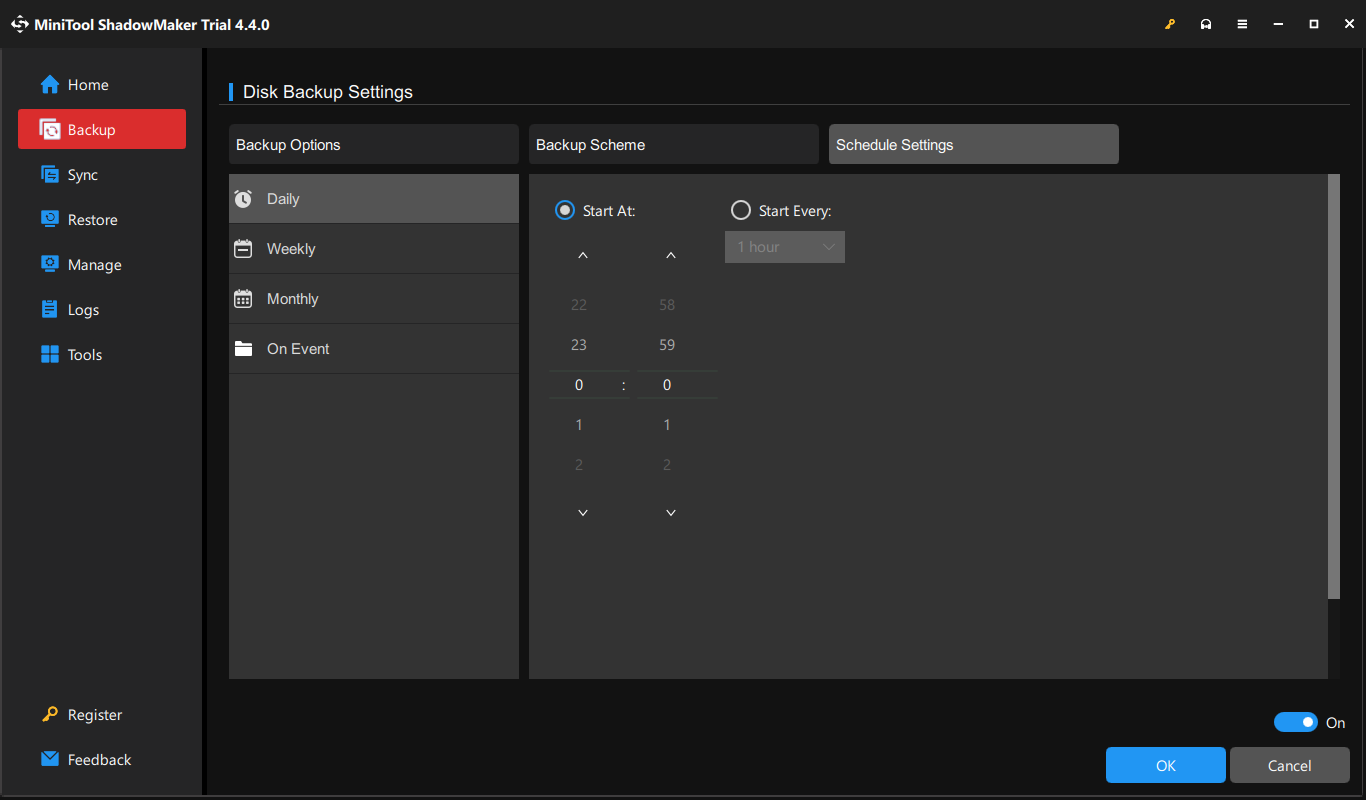
Rusty’s Retirement lost progress happens to several players. How can you prevent this situation occurs? I advise you to save your progress in time and back up the save folder for Rusty’s Retirement on your computer regularly.
You can copy and paste the save folder to another drive directly, but most people do not have a periodic backup habit. Here I suggest you use professional backup software, like MiniTool ShadowMaker. This backup service can automatically complete file backup tasks after you set a backup period. You can get this tool by clicking the download button below and experience all backup features for free within 30 days.
MiniTool ShadowMaker TrialClick to Download100%Clean & Safe
Rusty’s Retirement Save File Location
Most people wonder where Rusty’s Retirement saves files. Here I will show you:
- For Windows players: %USERPROFILE%/AppData/LocalLow/MisterMorrisGames/Rusty’s Retirement/
- For Mac players: ~/Library/Application Support/MisterMorrisGames/Rusty’s Retirement
Final Words
Rusty’s Retirement is different from other games in that it allows you to play the game while dealing with other work. You can enjoy this game in your spare time without full attention. This post helps to fix Rusty’s Retirement lost progress with two methods. Hope your diligent work can be restored with the help of this post.
User Comments :