
SD card won't format in camera is a disturbing issue that bothers a lot of photographers. If your camera is unable to format the memory card, you can implement the ways listed in this post on MiniTool Software.
Camera Cannot Format SD Card
Cameras mainly rely on memory cards to store the photos. Formatting the SD card is one of the best ways to delete unnecessary pictures or store more photos. However, some users have reported that their SD cards cannot be formatted in their cameras, including Canon cameras or other brands of cameras.
The problem of “SD card won’t format in camera” is often related to connection issues, SD card lock, memory card file system errors, etc. If your camera is unable to format the memory card, try the approaches below one by one.
Fix SD Card Won’t Format in Camera
Fix 1. Reconnect the SD Card to the Camera
When the camera SD card fails to work or is not formatted, the first thing you need to do is to rule out the connection issues. First, turn off the camera, then remove the SD card gently. After that, you can use a small soft brush or air blower to remove dust and debris from the SD card, then re-insert the card to your camera.
Next, turn on the camera, then try to format the SD card and check if it can be formatted.
Fix 2. Unlock the SD Card
Many SD card has a Lock switch that is used to control the write protection of the card. If you slide the switch to the “Lock” position, the SD card is set to read-only mode, preventing files from being edited, deleted, or new files created.
In such a situation, you might not be able to format the SD card on your camera. To address it, you need to slide the Lock switch to the other side to unlock the SD card.
Fix 3. Format the SD Card on a Computer
In addition to formatting an SD card on the camera, you can connect the card to your computer and then format it from your PC. Though you can format an SD card via File Explorer or Disk Management, we recommend you use MiniTool Partition Wizard to complete the disk formatting task.
This professional and free disk manager helps you avoid issues like “Disk Management formatting stuck”, “Windows was unable to complete the format”, and so on.
Step 1. Download, install, and run MiniTool Partition Wizard Free.
MiniTool Partition Wizard FreeClick to Download100%Clean & Safe
Step 2. Make sure the SD card partition is selected, then click the Format Partition option.
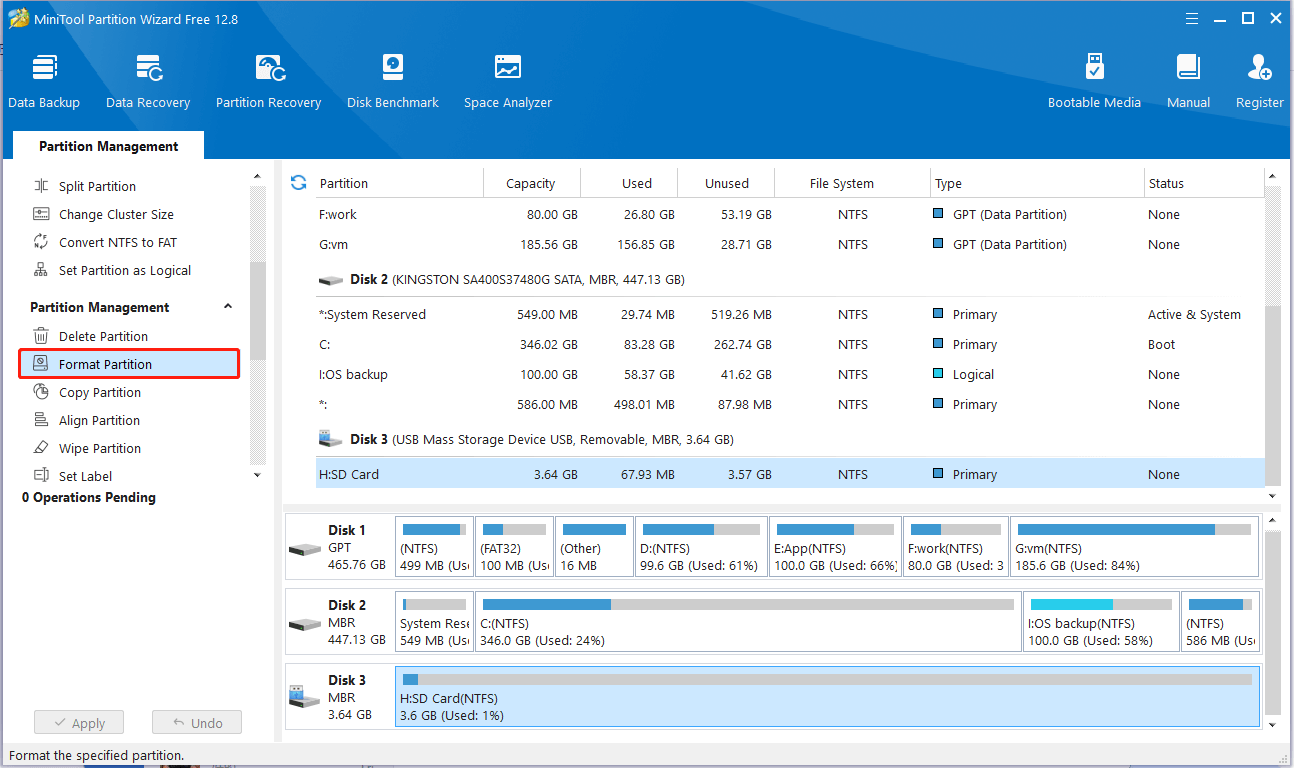
Step 3. Next, type a partition label, choose a file system, and click OK.
Step 4. Finally, click Apply to make this change take effect.
How to Recover Data From Formatted SD Card
Accidental formatting of an SD card during disk management is a frequent occurrence. In such cases, the immediate focus should be on file recovery. MiniTool Power Data Recovery is particularly useful for retrieving files from a formatted SD card.
This free file recovery tool works great on memory card recovery under different situations, such as disk formatting, accidental file deletion, SD card unrecognized, memory card file system corrupted, and so on.
MiniTool Power Data Recovery FreeClick to Download100%Clean & Safe
With only three steps, you can recover lost files from formatted camera SD cards.
- Scan the SD card.
- Preview the found files.
- Select the needed files and save them.
Wrapping Things Up
If your SD card won’t format in Canon cameras or other cameras, you can reconnect the card to the camera and try to format it again. Alternatively, you can format the memory card on a computer with the help of MiniTool Partition Wizard.
About The Author

Position: Columnist
Shirley holds a bachelor’s degree in English and has been an editor at the MiniTool Team for many years. She specializes in IT-related content, with a focus on data recovery, file backup, disk management, and other technical topics. She is committed to delivering clear, accurate, and practical solutions to help users resolve common computer issues.
User Comments :