
How to search for files with Cortana in Windows 10? You can use Windows Cortana search feature to quickly search your PC for files, apps, and settings. Check the detailed guides in this post. For Windows users, you can get some useful free tools from MiniTool Software, e.g. MiniTool Power Data Recovery, MiniTool Partition Wizard, MiniTool ShadowMaker, MiniTool Video Converter, and more.
To fast find and open a file or folder on Windows 10, you can use Cortana’s file search feature. How to search for files with Cortana in Windows 10? Below is a detailed guide.
How to Search for Files with Cortana in Windows 10
- Click the search box or Cortana icon at the bottom-left of Windows taskbar to open Cortana.
- Type what you want to search in the search box. If you want to use your voice to search the file, you can click the microphone next to the search box and talk to Cortana. To quickly evoke Cortana, you can also say to Cortana with your microphone.
- After you enter the search word, you can click Apps, Documents, Settings, Web tab, or click More -> Folders, Music, Photos, Videos to find search results of the specific category.
- Click the target file, folder, app, setting, etc. to open it, open the file location, etc.
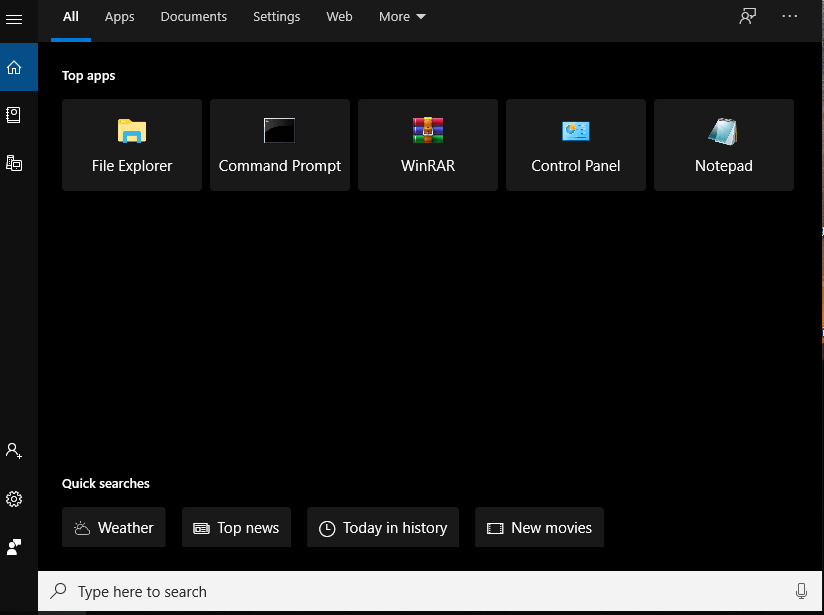
Tip: Cortana can also understand some short sentences. Therefore, you can also ask Cortana to open a file, search and display results of something on your computer, e.g. open Command Prompt app, show Word files from December, etc.
You can also try other ways to search files in Windows 10 aside from using Windows 10 Cortana to search files.
Related: How to Use Search Tool in Windows 10 File Explorer
How to Find Files by Date Modified in Windows 10
To Recover Deleted or Lost Files on Windows 10
What if you can’t find a file or folder on Windows 10? The file may be lost. You can use a free data recovery tool to recover lost/missing files on your Windows computer.
MiniTool Power Data Recovery, a clean and free data recovery program for Windows users, enables you to recover permanently deleted files or lost files from Windows PC or laptop, USB flash drive, memory card, external hard drive, SSD, and more.
MiniTool Power Data Recovery FreeClick to Download100%Clean & Safe
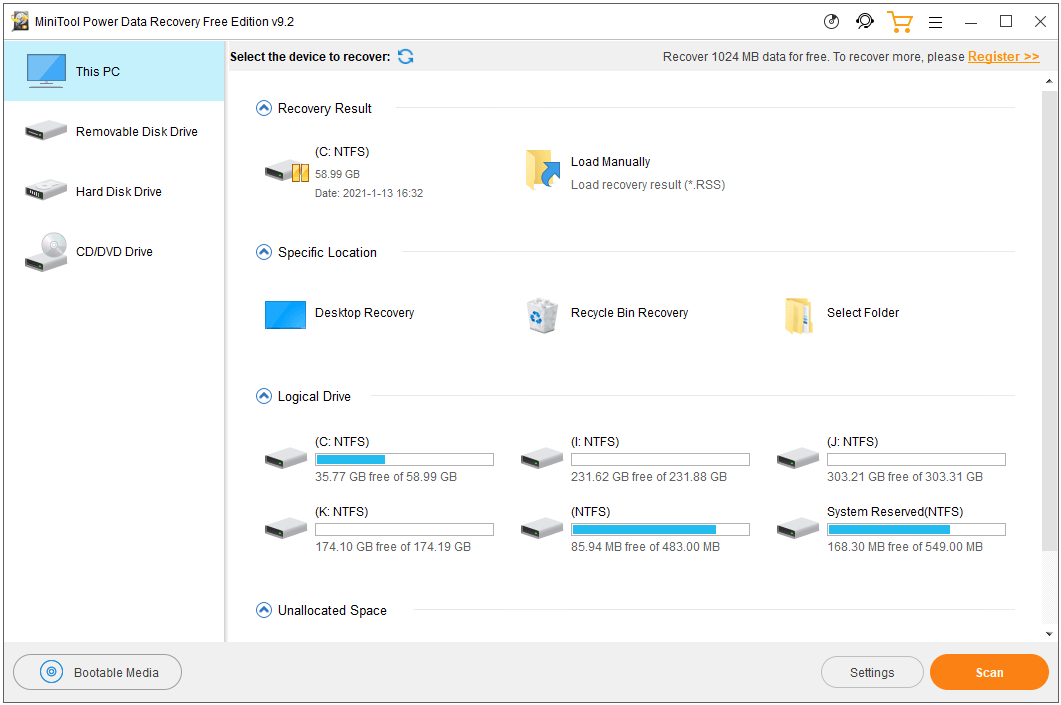
- You can download and install MiniTool Power Data Recovery on your Windows computer. Launch it.
- To recover files on PC, you can select This PC and select the target drive to scan. To recover data from an external drive, you need to connect it to your computer beforehand and select the target drive to scan.
- Click Scan button to let the software finish scanning the drive. Check the scan result to find needed files, check them and click Save button to store the recovered files in a new location.
Free Way to Back up Files on Windows 10
In case the file is lost or mistakenly deleted, it’s advised you regularly back up important files to another place.
MiniTool ShadowMaker, a professional free PC backup software, not only lets you backup and restore Windows operating system, but also lets you select and back up files, folders, and partitions. You can back up data to an external hard drive, USB flash drive, network drive, etc. It also has some other useful features like file sync, schedule automatic file backup, incremental backup, disk clone, etc.
User Comments :