
After installing Windows 11 2024 Update (24H2), you may encounter some issues. The problem of second monitor not working after 24H2 update is one of them. Why could it arise and how to deal with it? This MiniTool post explains it to you in detail.
After updating, my second monitor is displaying a lot of noise and is unusable when it is the only display. When I open my laptop lid, everything goes back to normal and works as expected. There is something in the update that broke my configuration. Any suggestions would be greatly appreciated as I don't know how to get help with a Windows Updated issue.answers.microsoft.com
The latest Windows 11 2024 Update aims to enhance connectivity by introducing Wi-Fi 7, improve productivity with new quick settings, and increase accessibility with advanced support for assistive listening devices. However, it will bring some issues after this update. The problem of second monitor not working after 24H2 update is one of them. The second monitor is important in our work. If it cannot run normally, the work may be hindered.
Why Second Monitor Not Working After 24H2 Update
When this problem arises, you may wonder what caused it. Here are some possible causes you can refer to.
- Driver issue: After the update, the graphics driver may be incompatible or have problems. You can try to roll back to the previous driver version or update to the latest driver.
- System settings issue: After the update, the system may set the second display to inactive by default. You can check and adjust the display settings in the system settings.
- Hardware compatibility issue: Some hardware devices may be incompatible with the Windows 11 24H2 version. You can try to roll back to the previous system version or check the compatibility settings of the hardware device.
Fixes for Second Monitor Not Working After 24H2 Update
Method 1: Check the Extend Option
When the problem of 2nd display not working after 24H2 update appears, you need to check the Extend option first. Here are the steps.
Step 1: Press the Win + P keys to open the Project.
Step 2: Click on the Extend option from the list.
This will make sure that the second monitor is selected for the display.
Method 2: Enable the Second Monitor in Display Settings
If the second monitor in Display settings is disabled, the problem of second monitor not detected on Windows 11 24H2 will occur. So, you need to enable the option for the second monitor in the Display settings. Here is how to do it.
Step 1: Right-click on the Start button and choose Settings to open it.
Step 2: In Settings, click on System > Display.
Step 3: Click on the Identify button to check the monitor positioning.
Step 4: Under the Multiple Displays section, choose Extend these displays or Duplicate these displays.
Method 3: Roll Back the Graphics Driver
Rolling back the GPU driver can help resolve most issues after a failed update, including the ones discussed in this article. However, because you are reverting to an outdated version, you will not be able to take advantage of any new performance enhancements in the latest update. Here is a way.
Step 1: Right-click on the Start button and choose Device Manager to open it.
Step 2: Click on the small arrow in front of the Display adapters to expand it.
Step 3: Right-click on your graphics card and choose Properties.
Step 4: Switch to the Driver tab, and click on Roll Back Driver.
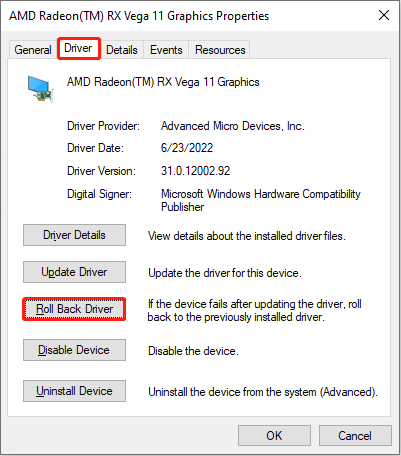
Step 5: In the new window, choose one reason why you want to do this practice and hit OK.
Follow the following wizard to complete the whole process.
Method 4: Uninstall the Display Adapter Driver
If the problem still exists, you can try uninstalling the driver. Uninstall the graphics driver doesn’t mean you will lose your display. On the contrary, your display will not stop working. The Microsoft operating system will revert to the standard VGA driver or the same default driver that was used during the original installation of the operating system. Work with the instructions below.
Step 1: Open the Device Manager and expand the Display adapters.
Step 2: Right-click on your card and choose Uninstall device.
Step 3: In the pop-up window, click on Uninstall to confirm the decision.
MiniTool Power Data Recovery FreeClick to Download100%Clean & Safe
Bottom Line
Cannot fix the problem of second monitor not detected on Windows 11 24H2? Use the methods listed in this article to deal with it. Take action now.
User Comments :