
Slack is a piece of reliable communicating software for business and it also has some problems. Slack not working is not new and luckily, it is not so difficult to handle as expected. Follow the solution in this guide from MiniTool Website, all your worries will be gone.
Slack Not Working
Slack is a hot instant messaging platform for business which allows you to send real-time messages to your workmates. Some of you may find that Slack is not working, responding, or launching at times. If you are in the same boat, don’t worry! In this post, we have come up with 8 useful solutions for you.
How to Fix Slack Not Working on Windows 10/11?
Fix 1: Check Server Status
First, you should figure out if the problem is on your end or Slack’s side. Just go to Slack’s System Status page to check if Slack is down at the moment. If so, you can do nothing but wait. If not, please move to the following solutions.
Fix 2: Check Internet Connections
Make sure that your internet connection is stable or else you will encounter Slack not responding, working or loading issue. You can launch other online apps on your computer to see if they work properly. If they are working properly, there’s nothing wrong with your network connection and you can skip to the next solution. If they also stop working, you can improve your internet connection or contact your internet service provider.

Fix 3: Run Slack as Administrator
If you don’t assign administrative rights to Slack, you can run it as an administrator to check for any improvement.
Step 1. Right-click on the shortcut of Slack on your desktop and choose Properties in the context menu.
Step 2. Under the Compatibility tab, check Run this program as an administrator and click on OK to save the changes.
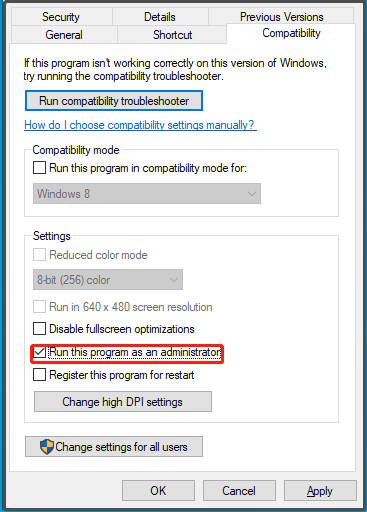
Step 3. Relaunch Slack to see if Slack not working on Windows is still there.
Fix 4: Run Slack in Compatibility Mode
If you have upgraded to the latest build of the operating system recently, there might be some compatibility issues between your device and the Slack application. in this condition, you can choose to run Slack in compatibility mode.
Step 1. Right-click on the Slack shortcut and select Properties.
Step 2. Under Compatibility, check Run this program in compatibility mode for and choose Windows 8 from the drop-down menu.
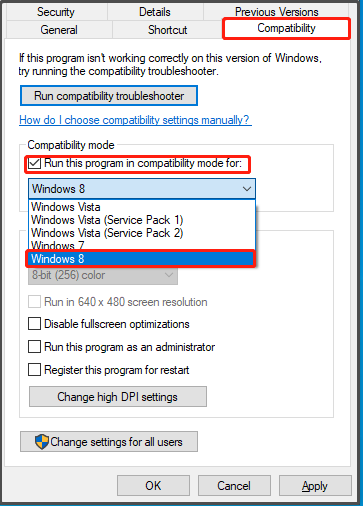
Step 3. Click on Apply & OK to apply your changes.
Fix 5: Clear Slack Cache and Data
Although the cached data in Slack can help you to improve the response rate, the accumulated cached files may result in some issues like Slack not working. If you don’t clear the cache in Slack for a long time, follow these steps:
Step 1. Launch Slack and click on the hamburger menu in the top left corner.
Step 2. Press Help > Troubleshooting > Clear Cache and Restart.
Fix 6: Turn off VPN or Change Your Region
Sometimes, using VPN connections can also introduce delays and interruptions to your network because Slack might not be compatible with them. Therefore, you had better turn off your VPN app or switch to a region where the server is working better.
Fix 7: Reinstall Slack
Chances are that some of the Slack files might be corrupted due to some unknown reason hence causing Slack not working or loading. Therefore, reinstalling the Slack app might be useful to you. Here’s how to uninstall Slack on your computer:
For Windows:
Step 1. Press Win + I to open Windows Settings.
Step 2. Click on Apps and go to Apps and features.
Step 3. Now, you can see a list of programs installed on your computer. Find Slack and hit it to choose Uninstall.
Step 4. Press Uninstall again to confirm this action and follow the rest guidelines on the screen to complete the uninstalling process.
For macOS:
Step 1. Locate Finder on your computer and find Slack from the list
Step 2. Drug Slack to Trash to uninstall it.
After the uninstalling process is down, you can go to the official website of Slack to reinstall the latest version on your device.
Fix 8: Contact the Support Team
If Slack not loading still crops up, you can try to contact the Slack Help Center and report the problem you have as detailed as you can. At the same time, you can also browse the self-help guide from there to find more possible solutions.
Don’t know how to backup your data on Windows machines? Take it easy! The free backup software – MiniTool ShadowMaker can help you to back up the desired data easily!
User Comments :