
Have you ever encountered a situation in which the Windows Start menu resets to default automatically? This situation often happens when your system reboots. You want to keep the settings but don’t know what to do? This article on MiniTool Website will give you a guide for that.
Windows Start Menu Resets to Default Automatically
Windows allows users to customize their Start settings, which allows the user to access programs and system settings quickly, as they like but some users reported that they find the Windows Start menu resets to default automatically after a system reboot.
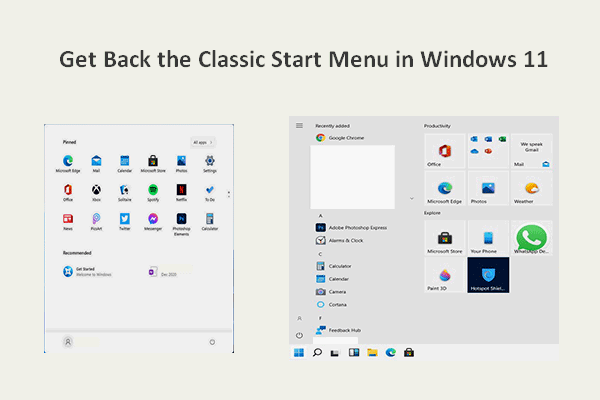
It is troublesome to re-configure the Start settings every time the computer reboots and the unwitting reset may make some re-configured data lose. We strongly advise you back up your important data, even the system to help restore what you have lost.
MiniTool ShadowMaker is an excellent and free backup program and has attracted a bunch of fans in the market. It provides you with a one-click system backup solution to facilitate the process and shorten the time. Click the following button to have a try!
MiniTool ShadowMaker TrialClick to Download100%Clean & Safe
Then, why does the issue happen and how to fix “Start menu resets to default automatically”?
The possible reasons that can trigger the situation that Start menu resets to default on reboot depend on specific situations. For example, it can happen for system file corruption, damaged Windows update installation, software conflicts, etc.
To fix those issues, you can follow the next methods based on your situation.
Fix Windows Start Menu Resets to Default Automatically
Method 1: Backup Your Start Menu
Most users can fix “Start menu resets to default automatically” by backing up the Windows Start menu. You can get your settings back for the next time when the Start menu resets to default after a reboot.
Step 1: Type Command Prompt in Search and run it as an administrator.
Step 2: Copy and paste the following commands and press Enter after each of them.
- exe export “HKCU\Software\Microsoft\Windows\CurrentVersion\CloudStore\Store\Cache\DefaultAccount” “%userprofile%\desktop\StartLayout.reg” /y
- copy “%LocalAppData%\Packages\Microsoft.Windows.StartMenuExperienceHost_cw5n1h2txyewy\LocalState\Start.bin” “%userprofile%\desktop\”
step 3: Then you will see two files named StartLayout.reg and Start.bin on your desktop. Please save them in another safe place and they can help revert your settings.
Besides, you can also directly back up your system with MiniTool ShadowMaker so that the whole settings, configurations, and data can be easily recovered.
Method 2: Use an SFC Scan
Since the issue can occur for the corrupted system files in it, you can try to use a SFC scan to fix them.
Run Command Prompt as an administrator and input the command – sfc /scannow to enter. When the verification finishes, you can close the window to try to reboot the system for checking if the “Start menu resets to default automatically” issue happen again.
Method 3: Re-Register Start Menu
Another method is to re-register the Start menu. This method works for many afflicted users and it is worth trying.
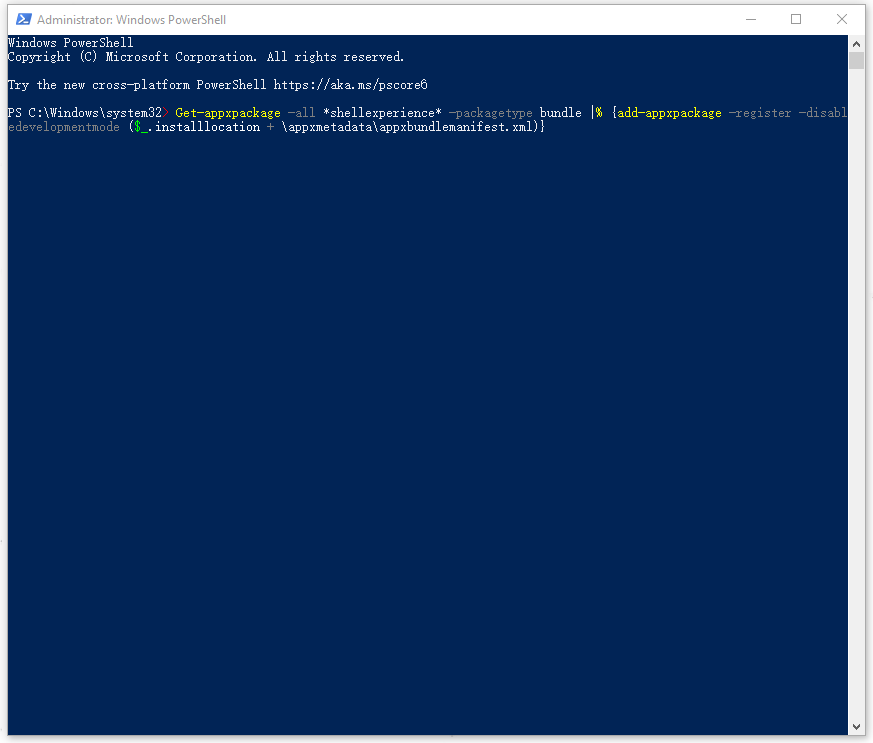
Step 1: Press Win + X and choose Windows PowerShell (Admin) from the quick menu.
Step 2: Then copy and paste the following command in the window and press Enter.
Get-appxpackage -all *shellexperience* -packagetype bundle |% {add-appxpackage -register -disabledevelopmentmode ($_.installlocation + “\appxmetadata\appxbundlemanifest.xml”)}
When the command ends, you can close the window and restart your computer to if the issue persists.
Method 4: Uninstall the Recent Update
The last method is used to cope with the corrupted updates. If you have installed the Windows update recently, you can try this fix.
Step 1: Go to Settings > Update & Security > Windows Update > View update history > Uninstall updates.
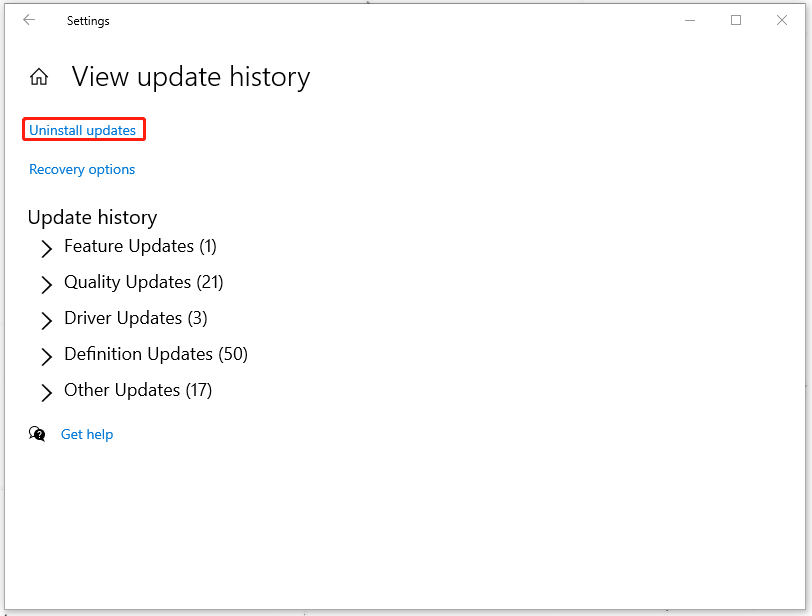
Step 2: Locate the Windows update you want to remove and right-click on it to choose Uninstall.
Bottom Line:
Still struggle with the situation when Windows Start menu resets to default automatically after boot? This article has given you some advice for that. Hope your issue has been resolved by that.
User Comments :