
Streamlabs Unable to Capture Game
Streamlabs is a versatile streaming software used by creators for broadcasting on platforms like Twitch, YouTube, and Facebook Live. But somehow, there could emerge some issues on Streamlabs, such as its game capture feature not working as expected.
Why does Streamlabs not capture your game? There are usually several possible reasons. For example:
# You select the wrong game capture source.
# Streamlabs has no essential permissions to capture the game.
# Streamlabs or the game has compatibility issues.
# Your computer is using a faulty GPU.
# Some games block capture by default.
# Other software supporting overlay or capture features on your device is interfering the Streamlabs.
Also read: Streamlabs VS OBS: Which One Is Better for Game Broadcasting
How to Fix Streamlabs Not Capturing Your Game
Before trying the following solutions, you should check online for any game-specific settings or launch options that might enable capture.
Way 1. Adjust Game Capture Settings
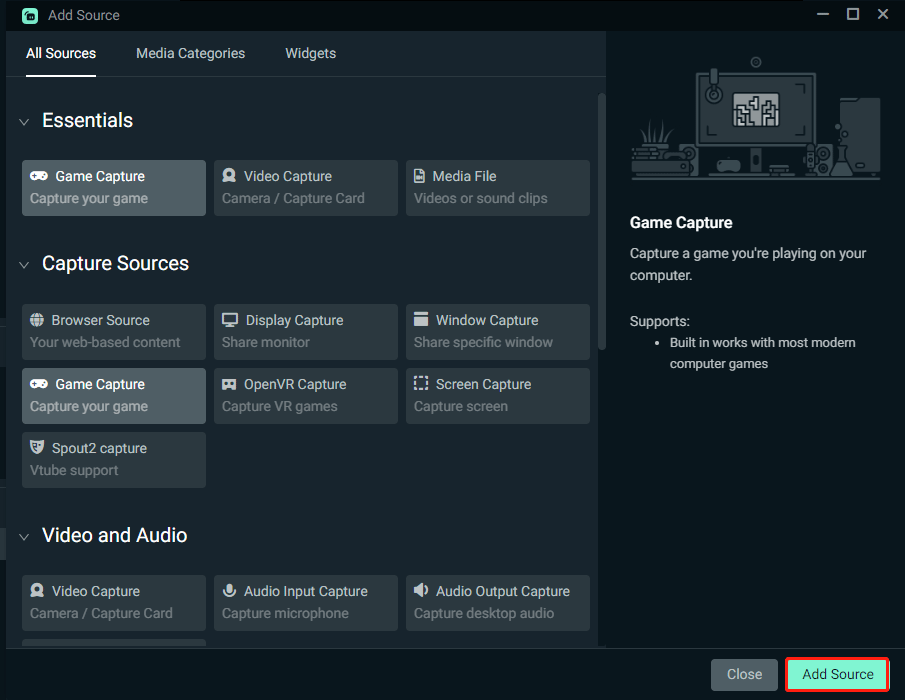
Step 1. Fire up Streamlabs and scroll down to the Sources module.
Step 2. Click on the plus icon beside Sources.
Step 3. In the Add Source window, choose Game Capture > check if you have added the game you’re playing to the list. If not, click on Add Source at the bottom to add the specific game.
Way 2. Run Streamlabs as Admin
Streamlabs not capturing your game might happen because it’s without the necessary permissions. To resolve it, try running the Streamlabs app in administrative mode by right-clicking on the Streamlabs icon and selecting Run as Administrator in the context menu.
After that, check if you can stream your game properly. If this method does not work, continue to the next.
Way 3. Change Compatibility Mode
For the specific game:
Step 1. Locate the game executable file and right-click on it to select Properties.
Step 2. Go to the Compatibility tab and check Run this program in compatibility mode for in the Compatibility mode box. Then change the version of Windows to the previous one.
For Streamlabs:
Step 1. Head to Desktop > Right-click on the Streamlabs icon > choose Properties from the shortcut menu.
Step 2. Do the same to run it in compatibility mode for a previous version of Windows.
Way 4. Open High-Performance GPU
Step 1. Press Win + S to open Windows Search and type NVIDIA Control Panel to open it.
Step 2. Find Manage 3D settings and then set Streamlabs and the specific game to use the high-performance GPU.
Once done, go to Streamlabs to check if it works fine. Or, turn to the following solution.
Way 5. Close Other Capture Programs
Make sure that you’re not running any other programs that have overlay or capture features, like Discord, NVIDIA ShadowPlay, or MSI Afterburner, since they can interfere with Streamlabs. Here’s how to check:
Step 1. Right-click on the taskbar and select Task Manager.
Step 2. Check your capture software running in the background. Right-click on it and select End task in the dropdown menu. Do the same to other capture programs.
When stopping them all, launch your Streamlabs and live the game again to see if it captures your game correctly.
MiniTool ShadowMaker TrialClick to Download100%Clean & Safe
Final Words
How to fix Streamlabs not capturing your game? This guide finds and shares 5 effective fixes, allowing you to try them until get the one that helps you solve the problem successfully. Appreciate your time!
User Comments :