
Windows is one of the most popular operating systems, and millions of people often use it on their computers. However, recently, some reports have said that Tab key is not working on Windows. Click this post from MiniTool to get the solutions.
What Prevents the Tab Key from Working on Windows?
We investigated the reasons for Tab key not working on Windows and those reasons are listed below.
TeamViewer: It is an application for remotely accessing another computer through your computer and is widely used by many people. If the TeamViewer session is in progress even if no remote session is active, TeamViewer will cause Tab key not working on Windows.
Key Issue: In some cases, the problem is not with the software, but with the keyboard. The keyboard may be malfunctioning or the Tab key may be damaged.
Now that you have a basic understanding of the reasons for the problem, we will continue to seek solutions. Ensure that the solution is implemented in the exact order provided to avoid conflicts.
How to Fix “Tab Key Not Working” on Windows
Next, we will introduce some useful solutions to fix the “Tab key not working” on Windows.
Solution 1: Physical Repair of Keyboard
If you have an old school keyboard that can be removed, you can disassemble it and use alcohol to clean it. The key may be corrupted below and cannot be repaired. In this case, you should remove another key (if it exists) from the broken board and click it in place.
Solution 2: Check for Damage
The keyboard you are using may be damaged. So in this step we will check if the problem is related to software or hardware. You can follow the steps below:
Step 1: Press the Windows + S keys at the same time to open the Search icon. Then type Notepad and select the first option to open it.
Step 2: Click the empty space to type.
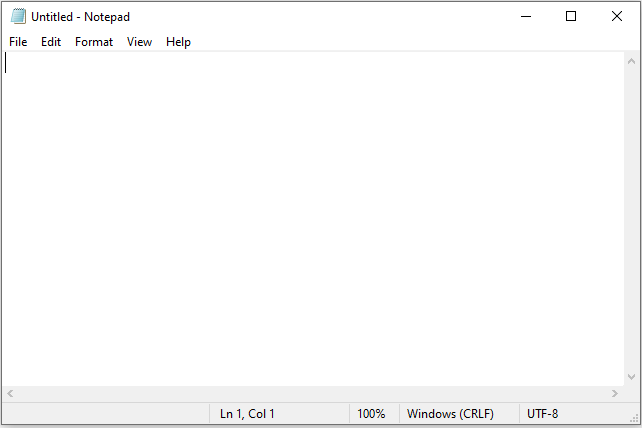
Step 3: Then press and hold Alt and press the 0,0,9 keys on the numeric keypad on your keyboard.
If the pointer skips some space on the notepad that means the Tab function is running and the problem is hardware related. If not, the issue must be related to software.
Solution 3: Close TeamViewer
If TeamViewer is active in the background, it will cause Tab key not to work on Windows. Thus, this solution is to close TeamViewer.
Step 1: Open the Task Manager by pressing the Ctrl + Shift + Esc keys simultaneously.
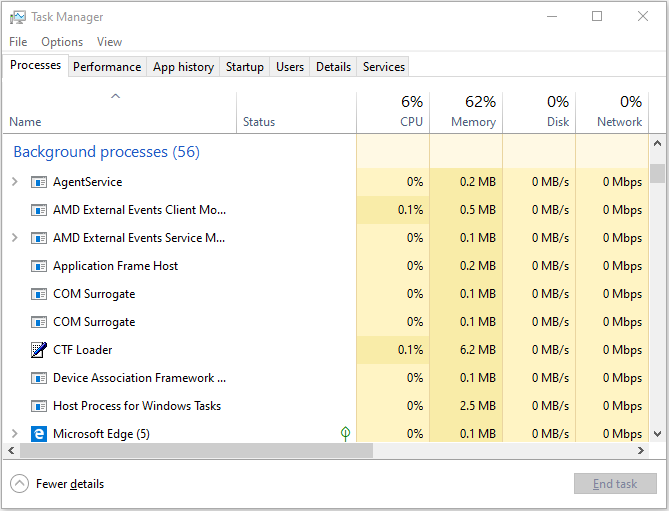
Step 2: Click TeamViewer and select the End Task button.
Then you can press the Tab key on your keyboard and check if the issue persists.
Solution 4: Restart Computer
In certain cases, restarting the computer is useful for the Tab functionality restore. Here are the steps to restart your computer.
Step 1: Press the Ctrl + Shift + Esc keys at the same time to open Task Manager.
Step 2: Navigate to the Startup tab and select TeamViewer.
Step 3: Disable it from launching at startup by clicking the Disable button.
Step 4: Restart your computer and wait for the restarting process to be completed.
Then check to see if the Tab key not working on Windows issue is still existing.
Final Words
That is all information on how to fix “Tab key not working” on Windows. When you encounter such a problem, don’t get mad. We hope one of the above solutions has solved your problem.
User Comments :