
The Last of Us Part II Remastered Stuttering/Lagging
After The Last of Us Part II Remastered was released on PC, although the overall reviews were good, some players still reported stuttering and performance issues. Here are some common problems:
- Performance issues: Some players found that the game would experience frame time fluctuations when entering new areas, causing the screen to stutter. In addition, even at the recommended medium settings, some graphics effects may be worse than the PS4 version.
- Hardware compatibility: Some players reported that the game would experience frame rate drops and stuttering when using specific hardware (such as NVIDIA RTX 3060 or AMD Radeon RX 7900 XTX).
When you encounter the problem of The Last of Us Part II Remastered lagging, you can restart Steam or the computer and verify integrity of game files first. If these basic methods cannot work, continue trying the following ways.

Fix The Last of Us Part II Remastered Freezing/FPS Drop on PC
Fix 1: Run the Game as Administrator
Running the game as an administrator can solve some issues caused by insufficient permissions. Here are the steps.
Step 1: Type the game name in the Windows search box, right-click on it, and choose Open file location.
Step 2: Right-click on the .exe file and choose Properties.
Step 3: Under the Compatibility tab, check the box for Run this program as administrator.
Step 4: Finally, click on Apply > OK to confirm the change.
Fix 2: Update the Graphics Driver
As mentioned before, the problem of The Last of Us Part II Remastered stuttering can be caused by an outdated graphics driver. So, you can try updating the driver.
Step 1: Right-click on the Windows icon and choose Device Manager.
Step 2: Click on the small arrow in front of Display adapters to expand it.
Step 3: Right-click on your card and choose Update drivers.
Step 4: In the new window, select Search automatically for drivers.
When the new updates are displayed, follow the on-screen instructions to finish the whole process.

Fix 3: Increase Virtual Memory
The decline in computer performance may also affect the smoothness of the game, causing the problem of The Last of Us Part II Remastered stuttering. Increasing virtual memory helps improve the computer’s performance.
Step 1: Type View advanced system settings in the Windows search box and press Enter.
Step 2: In the Advanced tab, click on Settings under the Performance section.
Step 3: In the pop-up window, go to the Advanced tab and click on Change under the Virtual memory section.
Step 4: Uncheck the option for Automatically manage paging file size for all drives.
Step 5: Tick the Custom size box and type the initial and maximum size in the box.
- Initial size= 1.5 × total RAM
- Maximum size= 3 × total RAM
Step 6: Finally, click on OK to make the change take effect.
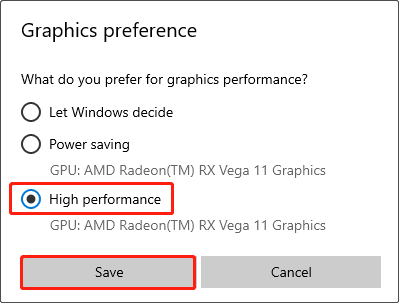
Fix 4: Run Game on Dedicated Graphics Card
A dedicated graphics card has powerful processing power and dedicated video memory, which can run high-demand games more smoothly to get better performance and image quality, solving stuttering problems.
Step 1: Press the Win + I keys to open the Settings app.
Step 2: Click on System. In the Display section, scroll down the list to find Graphics settings and then click on it.
Step 3: Under the Choose an app to set preference section, click on the box to choose Desktop app in the drop-down list.
Step 4: Click on Browse and find the game file. Expand the file to select the launcher .exe file and click on Add.
Step 5: After that, click on the app you just add and click on Options.
Step 6: Tick the High performance box and click on Save.

Fix 5: Allow the Game Through the Firewall
The game may be stuck because of a firewall, especially for online games. Allowing the game to pass through the firewall can solve this problem and ensure that the game runs normally.
Step 1: Open the Control Panel and change the view to Large icons.
Step 2: Click on Windows Defender Firewall > Allow an app or feature through the Windows Defender Firewall.
Step 3: Click on Change settings > Allow another app to add the game to the list.
Step 4: Uncheck the boxes under the Public and Private tab for the game and click on OK.
MiniTool Power Data Recovery FreeClick to Download100%Clean & Safe
Final Words
Now you can use these methods to solve the problem of The Last of Us Part II Remastered FPS drop on PC. Hope they can do you a favor.
User Comments :