
The error message, This network connection does not exist, usually appears when you try to disconnect a network drive, whose resources are used by other network drivers. This error can be caused by an outdated network adapter, misconfiguration of registry keys, antivirus software interference, etc. You can follow the steps below to fix the problem.
How to Disconnect from a Mapped Network Drive
Method 1: Disable the Windows Firewall
Sometimes, third-party antivirus software and Windows Firewall will interrupt or block the network connection. You can disable them temporarily and then try to disconnect from a mapped network drive.
Step 1: Press Win + I to open Windows Settings.
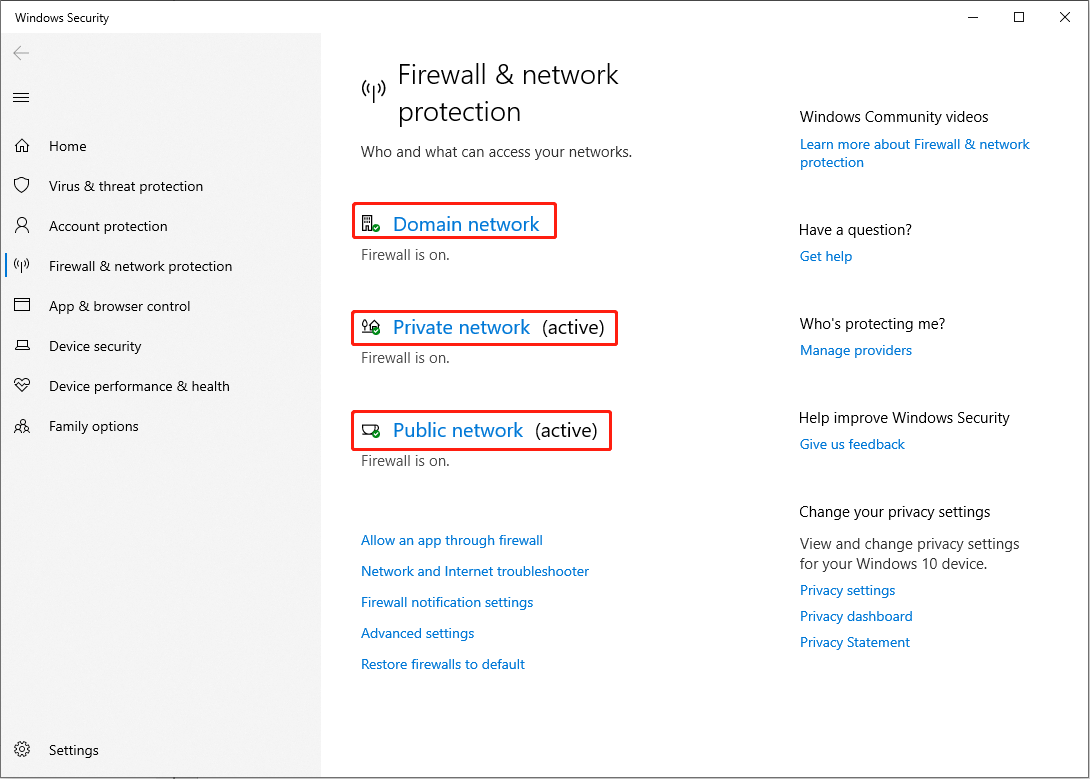
Step 2: Choose Update & Security > Windows Security > Firewall & network protection.
Step 3: You will find Domain network, Private network, and Public network choices. Choose one that you need to turn off or disable the Windows Firewall completely by clicking on them one by one.
Method 2: Update the Network Adapter
The incompatible network adapter might be the cause of this error. You can go to check whether the network adapter needs to be updated.
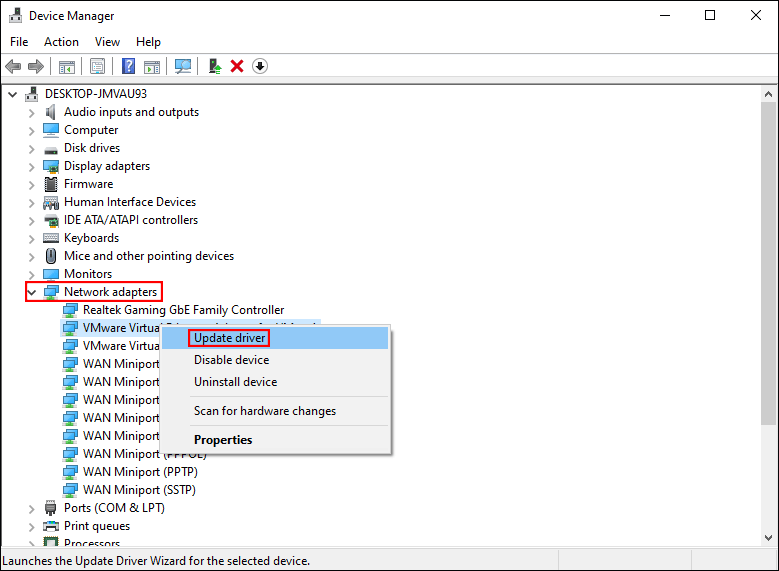
Step 1: Press Win + X and choose Device Manager from the WinX menu.
Step 2: Expand the Network adapters to find the internet adapter.
Step 3: Right-click on it and choose Update Drive from the menu.
Method 3: Delete Network Drive Related Subkeys
You can also delete the network drive-related subkeys to forcefully make changes to the mapped network drivers.
Step 1: Press Win + R to open the Run window.
Step 2: Type regedit and hit Enter to open Registry Editor.
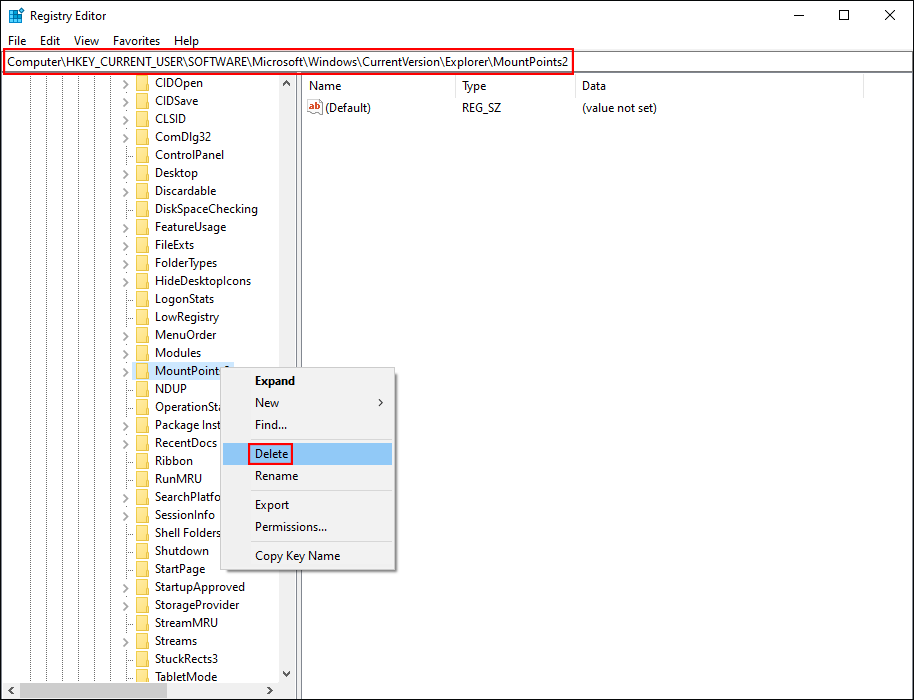
Step 3: Navigate to HKEY_CURRENT_USER > SOFTWARE > Microsoft > Windows > CurrentVersion > Explorer > MountPoints2.
Step 4: Right-click on the MountPoints2 subkey and choose Delete from the context menu.
Step 5: Shift to HKEY_CURRENT_USER > Network to delete any other keys named as the letter of a mapped network drive.
Restart the computer to fully apply the changes. You can check whether you are still unable to disconnect from a mapped network drive. If yes, move on to the next method to disconnect forcefully.
Method 4: Disconnect Using Command Prompt
The net use command is utilized to connect to, remove, and configure connections to the shared resources. When using the net use command without any parameter, it will display the list of connections. You can use it to check the network connection, then disconnect the device.
Step 1: Press Win + S and type Command Prompt into the search bar.
Step 2: Choose Run as administrator from the right pane.
Step 3: Type net use and hit Enter to list all active network connections.

Step 4: Find the network drive you want to disconnect, then type net use x: /delete /force and hit Enter. You should replace x with the drive letter of the network drive.
Method 5: Create a Batch File
Compared with the net use command, the taskkill command will end one or more processes. When you use this command with an f parameter, you are able to end all the remote processes. You can follow the next steps to try to resolve your problem.
Step 1: Press Win + S and type Notepad into the box.
Step 2: Hit Enter to open it.
Step 3: Copy and paste the following content into the text document.
@echo off
net use * /delete /y (You should replace * with the drive letter of the network drive you want to remove.)
taskkill /f /IM explorer.exe
explorer.exe
Step 4: Choose File > Save.
Step 5: Change the File name to Disconnect network driver.bat and select All files from the drop-down list of Save as type.

Step 6: Go to the location you save the file to find it.
Step 7: Right-click on it and choose Run as administrator, then follow the on-screen instructions to finish the reset steps.
When the process is completed, you can try to disconnect again to see whether the “This network connection does not exist” error message will appear.
Bonus Tip
The most important thing when using a data storage device is to safeguard your files. If your files are deleted by mistake or lost because of wrong operations, you can use a reliable data recovery software, like MiniTool Power Data Recovery, to restore them.
MiniTool Power Data Recovery is specifically designed to recover deleted files and is capable of rescuing files from various devices. You can use it to retrieve different file types, including photos, videos, documents, audio files, etc. The free edition allows you to scan and recover up to 1GB of files. Why not have a try?
MiniTool Power Data Recovery FreeClick to Download100%Clean & Safe
Bottom Line
When you try to disconnect the network drive but receive “This network connection does not exist”, try the above methods to resolve it. Hope this post can help you in time.
User Comments :