
Tomb Raider I-III Remastered not launching/loading on Windows? What measures can you take to address this annoying issue? Here this post on MiniTool Software will walk you through how to fix if Tomb Raider I-III Remastered won’t launch.
Tomb Raider I-III Remastered Crashing/Not Launching
Tomb Raider I-III Remastered is an action-adventure video game developed and published by Aspyr. It is a collection of remastered versions of the first three games in the Tomb Raider series. It is deeply loved by users due to its shocking visual spectacle, exquisite plot design, and atmospheric sound effects. However, many users found that Tomb Raider failed to launch when they planned to try out the game. This article is dedicated to solving this problem.
How to Fix if Tomb Raider I-III Remastered Not Launching/Loading
Fix 1. Check the Game System Requirements
Each game has certain computer system requirements, such as processor, memory, graphics card, operating system, etc. If your computer configuration is below the minimum requirements for the game, the gaming experience may be affected, resulting in Tomb Raider I-III Remastered not launching.
Tomb Raider I-III Remastered system requirements are as follows:
Minimum:
- OS version: Windows 7 or later
- CPU: Intel Core i3 3240 or AMD FX 4100
- Memory: 4GB
- GPU: NVIDA GT730 or AMD R7 240
- DirectX: DirectX 12
- Storage: 5GB
Recommended:
- OS version: Windows 10 64x
- CPU: Intel Pentium 4, 3.0 Ghz or Athlon 3000+
- Memory: 4GB
- GPU: GeForce 6000 Series or Radeon X series
- DirectX: DirectX 12
- Storage: 6GB
Fix 2. Run Tomb Raider I-III Remastered as Administrator
According to user experience, running Tomb Raider I-III Remastered as administrator is an effective way to resolve the “Tomb Raider I-III Remastered not loading” issue.
To run this game as an administrator, you can refer to the steps below.
Step 1. On Steam, under Library, find and right-click Tomb Raider I-III Remastered to select Manage > Browse local files.
Step 2. In File Explorer, right-click the .exe file of Tomb Raider I-III Remastered and select Properties.
Step 3. Under Compatibility, check the option of Run this program as an administrator. After that, click Apply > OK.
Now you can launch the game and check if runs smoothly.
Fix 3. Update the Graphics Driver
Having the latest graphics card drivers is crucial for your game to function properly and for optimal gaming performance. If your graphics card drivers are out of date or corrupted, Tomb Raider I-III Remastered may fail to load. Here you can see how to update graphics card drivers.
Step 1. On your taskbar, right-click the Windows logo button and choose Device Manager.
Step 2. Expand Display adapters, then right-click the target device and click Update driver.
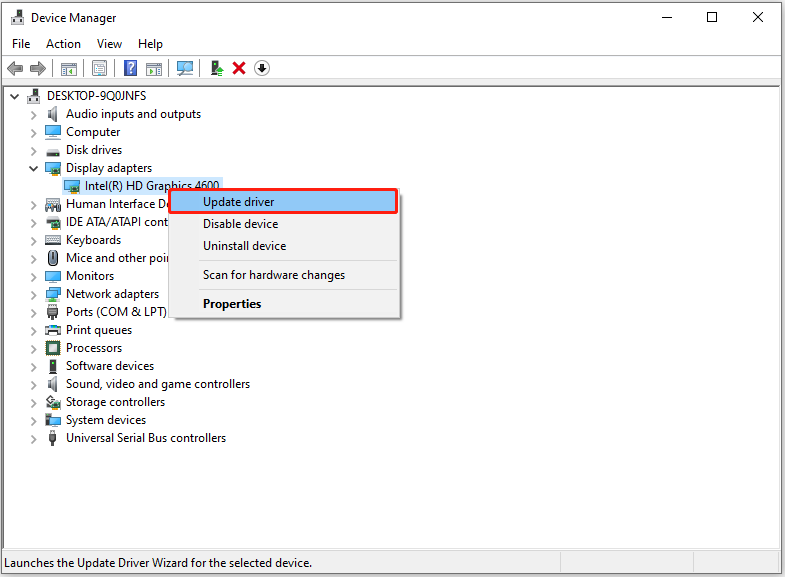
Step 3. Follow the instructions on your screen to complete the necessary actions.
Fix 4. Verify the Integrity of the Game Files
Missing Tomb Raider I-III Remastered game files may cause problems loading or starting the game. You can verify the integrity of your game files by following these steps.
First, on Steam Library, right-click Tomb Raider I-III Remastered and click Properties.
Second, move on to the Installed Files tab, then click Verify integrity of game files.
MiniTool Power Data Recovery FreeClick to Download100%Clean & Safe
Fix 5. Disable Overlays
Game overlays often provide features such as instant graphics settings adjustment, game recording, and screenshots. However, the game overlay will also occupy system resources and cause Tomb Raider I-III Remastered to crash. To resolve it, you can disable overlays. Here are some tutorials.
Final Words
Tomb Raider I-III Remastered not launching/loading? Do not worry. You can implement the methods listed below one by one until the problem has been resolved.
For further assistance from MiniTool, please contact [email protected].
About The Author

Position: Columnist
Shirley holds a bachelor’s degree in English and has been an editor at the MiniTool Team for many years. She specializes in IT-related content, with a focus on data recovery, file backup, disk management, and other technical topics. She is committed to delivering clear, accurate, and practical solutions to help users resolve common computer issues.
User Comments :