
Windows Firewall Notification Keeps Popping Up
Windows Firewall is a built-in Windows tool that can be used to effectively block suspicious and unwanted programs. By default, you will be notified when Windows Firewall blocks a program. While Windows Firewall helps protect your computer from unauthorized access, frequent pop-up Firewall notifications can interfere with work processes.
So, here we list three effective ways to help you turn off Windows Firewall notifications.
MiniTool Power Data Recovery FreeClick to Download100%Clean & Safe
How to Turn off Windows Firewall Notifications
Way 1. Via Settings
The easiest way to prevent Windows Defender Firewall notifications from popping up is to use the Windows Settings feature. The major steps are as follows.
Step 1. Open Windows Settings from the Start menu. If Windows Settings missing from the Start menu, you can access Settings by pressing the Windows + I keyboard shortcut.
Step 2. Select Update & Security. In the new window, move on to the Windows Security section, and click Firewall & network protection from the right panel. Then click Firewall notification settings > Manage notifications.
Step 3. To disable Firewall notifications, you need to switch off the option of Notify me when Microsoft Defender Firewall blocks a new app (Domain firewall, Private firewall, and Public firewall) under Firewall & network protection notifications.
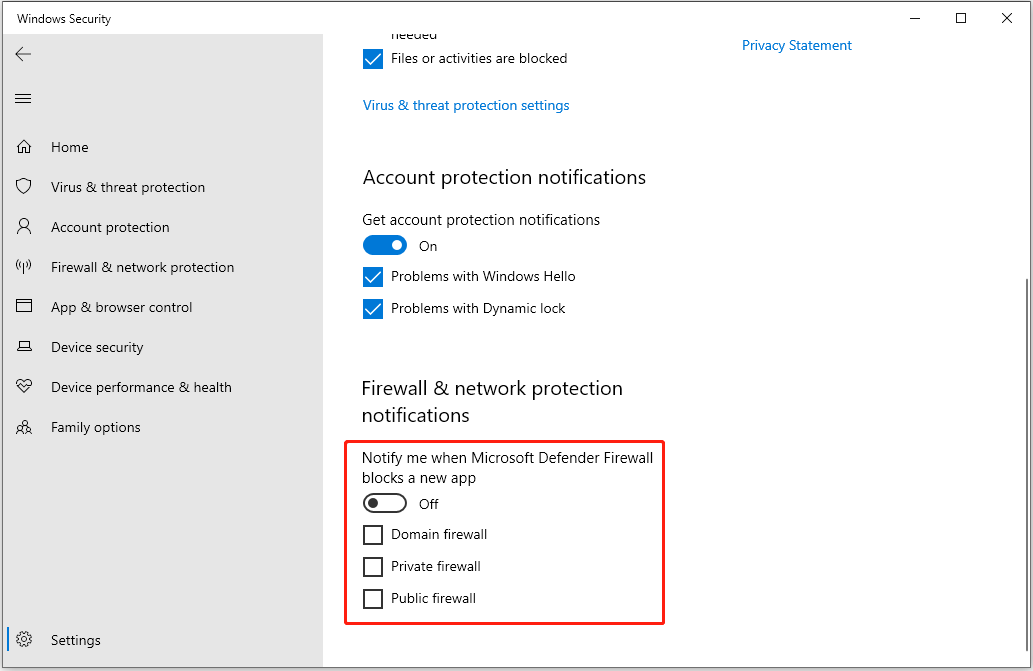
Step 4. Select the Yes button in the UAC window. If the Yes button is missing, you can find solutions from this article: How to Fix UAC Yes Button Missing or Grayed Out?
Way 2. Via the Control Panel
Control Panel is a component of Microsoft Windows that provides functions for viewing and changing system settings. Here we will show you how to turn off Windows Firewall notifications via the Control Panel.
Step 1. Type Control Panel in the Windows search box and click it from the best match result.
Step 2. In the All Control Panel Items window, select Windows Defender Firewall.
Step 3. In the left panel, click Change notification settings.
Step 4. In the pop-up window, uncheck the option of Notify me when Windows Firewall blocks a new app under Private network settings and Public network settings.
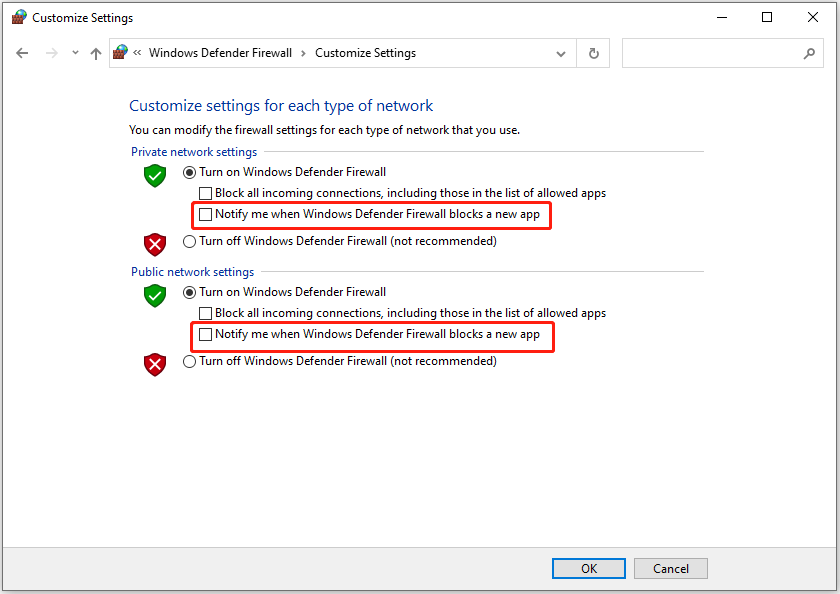
Step 5. Click the OK button to make this change take effect.
Way 3. Via Group Policy
Local Group Policy Editor is a Microsoft Management Console (MMC) snap-in that can help disable automatic updates for Microsoft Store apps, extend the Windows PIN length, and so on. Also, you can turn off Firewall notifications via Windows Group Policy.
Step 1. Open Group Policy Editor by using the Windows search box.
Step 2. In the Local Group Policy Editor window, navigate to the following location:
Computer Configuration > Windows Settings > Security Settings > Windows Defender Firewall with Advanced Security > Windows Defender Firewall with Advanced Security – Local Group Policy Object
In the right panel, click on Windows Defender Firewall Properties.
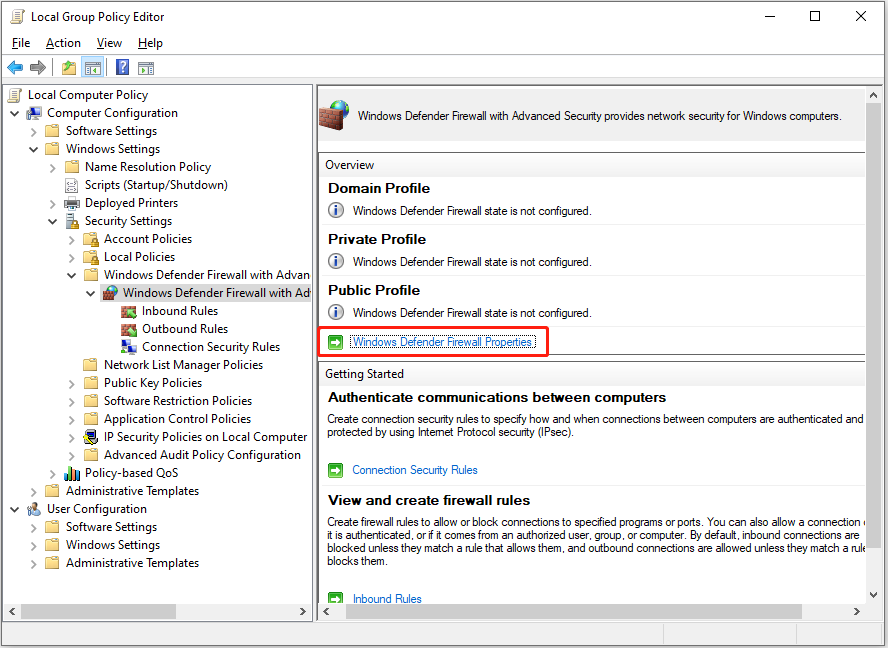
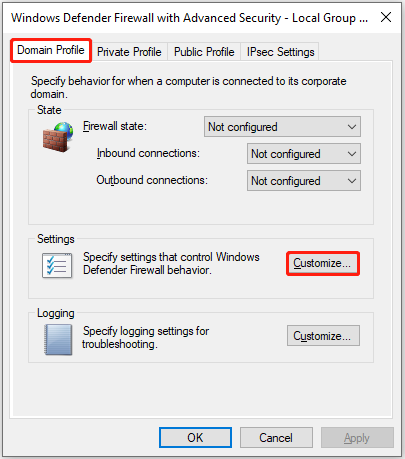
Step 3. Under the Domain Profile tab, click on Customize under the Settings section.
Step 4. In the pop-up window, next to Display a notification, select the No option from the drop-down menu. After that, click OK to save the change.
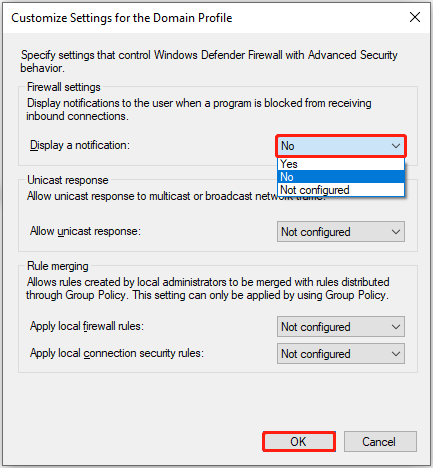
Step 5. Move on to the Private Profile & Public Profile tabs and duplicate the same process to disable the notifications for all profiles.
Bottom Line
If Windows 10 Firewall notification keeps popping up, you can try the approaches listed above to stop receiving Firewall notifications.
If you have found other feasible ways to turn off Windows Firewall notifications, welcome to send an email to [email protected].
About The Author

Position: Columnist
Shirley holds a bachelor’s degree in English and has been an editor at the MiniTool Team for many years. She specializes in IT-related content, with a focus on data recovery, file backup, disk management, and other technical topics. She is committed to delivering clear, accurate, and practical solutions to help users resolve common computer issues.
User Comments :