
Learn how to turn on or turn off mono audio on Windows 10 or 11 in this post. For more computer tips and solutions, you can visit MiniTool News Center. You can also find some useful programs from MiniTool Software website.
Mono audio combines left and right audio channels into one channel. If you want to turn on mono audio on Windows 10/11 or force Windows 10/11 to make all audio mono, you can check the detailed steps below.
How to Turn On or Off Mono Audio on Windows 10
Step 1. Press Windows + I to open Windows Settings app. Click Ease of Access. In newer Windows 10 versions, you can click Accessibility.
Step 2. Next, click Audio under Hearing in the left panel.
Step 3. In the right window, toggle the switch on of the Turn on mono audio option to turn on mono audio in Windows 10. If you want to turn off mono audio in Windows 10, toggle the switch off.
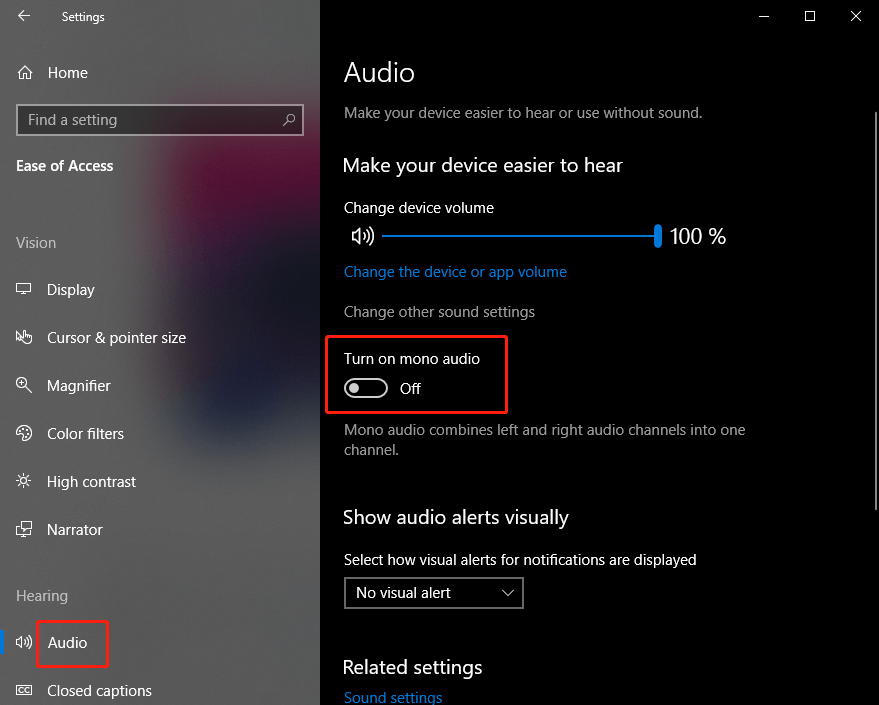
On this Windows audio settings page, you can also change device or app volume, change other sound settings, fix sound problems in Windows 10, etc.
How to Enable or Disable Mono Audio on Windows 11
Step 1. Click Start -> Settings to open the Settings app on Windows 11. Click the System tab.
Step 2. Click Sound on the right side.
Step 3. Under the Output section, you can turn on the switch of Mono audio option to turn on mono audio on Windows 11. After this, your system will combine the left and right audio channels to deliver mono sound. To turn off mono audio in Windows 11, turn off the switch.
How to Fix Sound Problems in Windows 10/11
To help users fix audio or sound problems, Microsoft provides an audio troubleshooter that is embedded in the Windows system. It helps fix audio problems automatically in Windows.
For Windows 10, click Start -> Settings -> Update & Security -> Troubleshoot. Find and click Playing Audio in the right window and click the Run the troubleshooter button to run the audio troubleshooter to detect and fix possible problems with audio.
For Windows 11, click Start -> Settings -> System -> Troubleshoot -> Other troubleshooters. Click the Run button next to the Playing Audio option to run the audio troubleshooter in Windows 11 immediately.
Free Audio Converter and Recorder for PC
MiniTool Video Converter is a 100% clean and free program that combines video/audio convert, video download, and screen record functions into one suite.
You can use MiniTool Video Converter to convert any audio to MP3 or other formats, convert any video to MP4 or other popular formats, free download YouTube video for offline playback, record Windows computer screen and audio, etc.
Download and install MiniTool Video Converter on your Windows PC or laptop and check the simple guide below.
MiniTool Video Converter FreeClick to Download100%Clean & Safe
- Launch MiniTool Video Converter. Choose a module on the main UI.
- After you click the Video Convert module, you can add the source video or audio file, click the Edit icon under the Target section, click Video or Audio tab to choose output audio or video format. Click the Convert button to convert the video/audio to the target format at a fast speed.
- You can click Screen Record mode to open the MiniTool Screen Recorder window. Choose a recording module and choose to record system audio or microphone audio or not. Click the Record button to instantly start the recording.
This post teaches you how to turn on or turn off mono audio on Windows 10/11 and offers an all-in-one tool MiniTool Video Converter for your reference. Hope it helps.
User Comments :