
The “Update and shut down” option can automatically shut down a Windows 11/10 computer after detected Windows updates are installed. However, the situation where Update and shut down doesn’t successfully shut down Windows can be confusing. In this article, MiniTool Software provides a concise overview of this issue and offers straightforward solutions.
Update and Shut Down on Windows 11/10
In general, Windows Update can automatically detect, then download and install newly-released updates for Windows. The system will run this process in the background. However, the entire Windows update process requires a Windows restart.
While you are working with your computer, you might not want to restart Windows immediately. Update and shut down of the Power options is a very useful feature for you. It can help you shut down a computer after Windows updates are successfully installed.
How to Use Update and Shut Down?
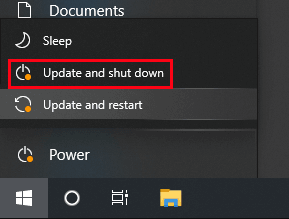
You can click the Start icon from the taskbar, then click Power and select Update and shut down from the pop-up Power options.
Update and Shut Down Doesn’t Shut Down Windows 11/10
The “Update and shut down” feature, designed to enhance user convenience, has turned into a source of vexation for many Windows users. The promise is straightforward: initiate system updates and then automatically shut down the computer, saving time and streamlining the update process. However, the reality often diverges from this expectation, leaving users befuddled as their systems refuse to power down after updates.
Try These Methods if Update and Shut Down Doesn’t Shut Down Windows 11/10
Users facing the frustration of Windows won’t shut down after a Windows update after selecting “Update and Shutdown” can employ several strategies to mitigate the issue:
1. Wait patiently
Depending on the size and complexity of the updates, the system might need more time to install and configure them. Giving the process additional time can sometimes lead to a successful shutdown.
2. Manually install Windows updates
Regularly checking for updates and installing them manually during periods of non-use can prevent last-minute update surprises when shutting down.
3. Try “Update and restart”
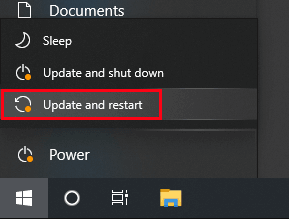
Opt for “Update and restart” instead of “Update and shut down” Restarting the system might be more effective in applying updates and ensuring a successful shutdown afterward.
4. Manual shut down your computer
If all else fails, manually shut down the computer by holding the power button for a few seconds. While this is not the recommended solution, it can be used as a last resort.

5. Ask for professional help
If the issue persists, it might be indicative of a deeper problem. Consulting professional IT support can help diagnose and resolve underlying issues causing the shutdown failures.
The “Update and Shutdown” predicament serves as a testament to the intricate tapestry woven by modern technology. While software developers strive to create user-friendly systems, the interplay of diverse hardware, software, and update processes can lead to unexpected outcomes. Microsoft’s journey in perfecting the “Update and Shutdown” experience underscores the challenge of harmonizing user expectations with the intricate workings of software development.
In the end, as users navigate the terrain of software updates and system shutdowns, a measure of patience and awareness can be the guiding light. By understanding the complexities at play, users can better appreciate the intricate balance that software developers aim to achieve while ensuring their systems remain secure, efficient, and user-friendly.
Recover Your Missing Files Using MiniTool Power Data Recovery
While using your computer, some of files might get lost or deleted by mistake. To get them back, you can try MiniTool Power Data Recovery. This software can help you scan your data storage drives to find data and recover them within some simple clicks.
MiniTool Power Data Recovery FreeClick to Download100%Clean & Safe
This software can work in various situations:
- Files and folders are deleted by mistake.
- The drive is formatted unexpectedly.
- The drive is inaccessible for some reason.
- The system is crashing.
Bottom Line
If Update and shut down doesn’t shut down Windows, you can just try the methods in this post to solve the problem. We hope these methods can reduce your anxiety.
About The Author

Position: Columnist
Stella has been working in MiniTool Software as an English Editor for more than 8 years. Her articles mainly cover the fields of data recovery including storage media data recovery, phone data recovery, and photo recovery, videos download, partition management, and video & audio format conversions.
User Comments :