
This essay released on MiniTool official web mainly teaches you how to get Twitch emotes on Discord and download/sync Twitch emotes to Discord. Besides, you can also use your own personalized emojis in Discord.
Twitch is one of the most popular live streaming services that enable you to share your daily life. It mainly involves video game live streaming including broadcasts of esports competitions.
Discord is a voice over Internet protocol (VoIP), instant messaging, and digital distribution platform that is designed for creating communities. It is mostly used for video gamers to communicate with each other.
Step 1. Connect Twitch to Discord
To make use of Twitch emotes for Discord, first of all, you have to link your Twitch account with Discord.
- Sign in to your Twitch account from a web browser.
- Open your Discord application and sign in to your Discord account.
- Navigate to User Settings > Connections.
- Click the Twitch icon. It should be in the first place in the list of services and apps that can be linked to Discord.
- It will ask for your confirmation to grant Discord the right to access Twitch account information. Just click the Authorize button to continue.
Finally, you will be told whether you have successfully integrated Discord with Twitch or not.
Step 2. Enable Emotes for Twitch on Discord
Then, you need to permit Twitch to use emotions on Discord.
- Go to Server Settings > Integrations.
- Select Twitch.
- Check the Allow Emoticons option.
You can also add your Twitch channel to this Discord server by checking the Allow Emoticons option. At the same time, you can tick “Allow synced subscribers to use your Twitch Custom Emoticons in Discord”.
Step 3. Authorize access for Custom Emotes
- Go to target server’s Server Settings > Roles.
- Select Default Permissions in the left section.
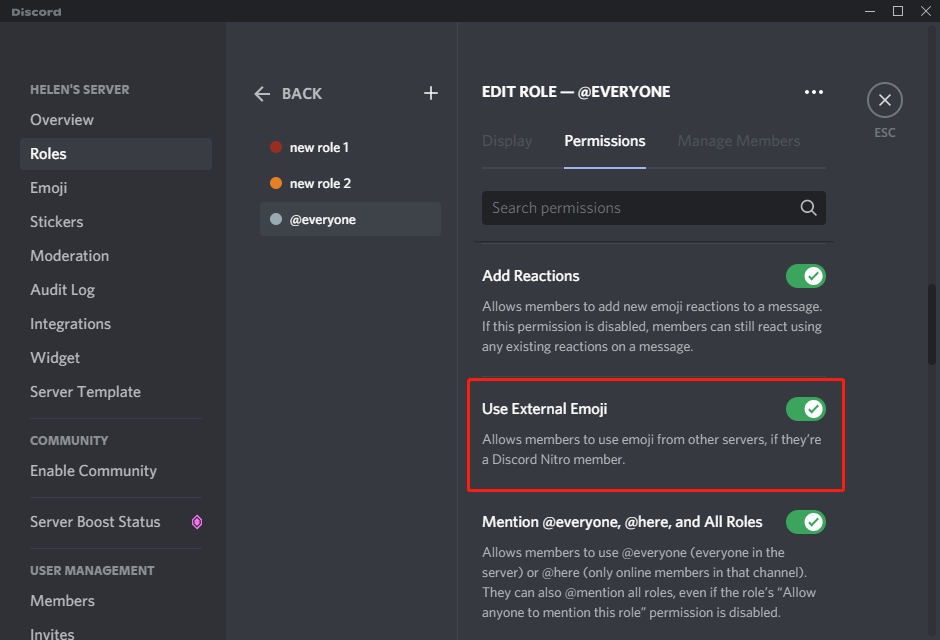
- Scroll down the list of permissions, find and switch on Use External Emoji.
- Don’t forget to click the Save Changes button that pops up immediately when you alter some permission.
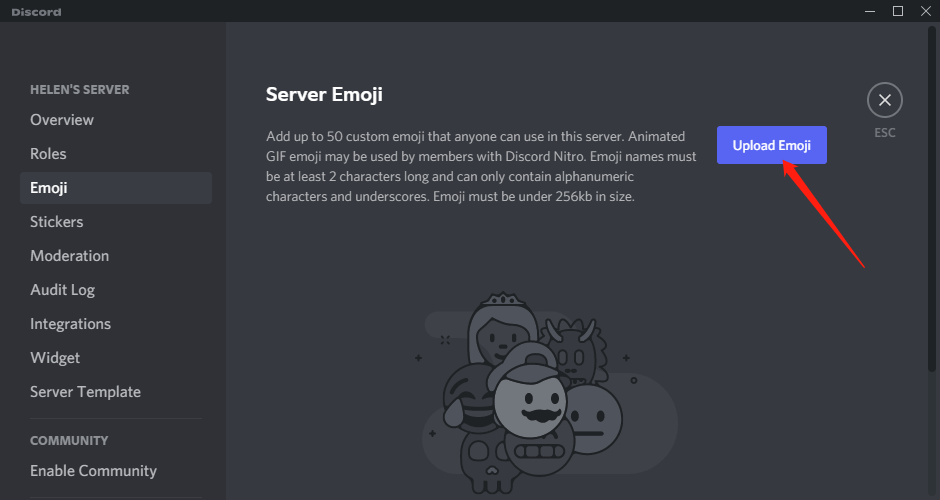
What’s more, you can add extra emotes customized by yourself to Discord. Shift to the Emoji tab under Server Settings and click on the Upload Emoji button in the left area.
Also read:
- Can New Discord Members See Old Messages? Yes or No?
- How Long Does It Take for a Discord Account to Delete or Disable?
- How to Change Age on Discord & Can You Do It Without Verification
- Discord Spotify Listen Along: How to Use & Fix It’s Not Working?
- Discord Twitter Webhook by Zapier, IFTTT & Twitter Discord Bots
About The Author

Position: Columnist
Helen is a tech writer with over 10 years of experience. She specializes in creating easy-to-follow guides for video editing, media file conversion, and computer performance. Helen doesn't just write—she tests every software herself and listens to feedback from users and experts. Her goal is to make complex programs simple so that everyone can solve their tech problems with confidence.
User Comments :