
When you see User OOBE Broker in your Task Manager, you may wonder what it is. If you find User OOBE Broker causes the high CPU issue, you can choose to disable it. Now, this post from MiniTool tells you what User OOBE Broker is and how to disable it.
User OOBE Broker
When you open Task Manager on Windows, you may see the User OOBE Broker process or UserOOBEBroker.exe.
What it is? UserOOBEBroker.exe is an executable file developed by Microsoft. It’s an integral part of Windows 10, which comes preinstalled with the Windows Modules Installer Worker in Windows 10. and the OOBE is the abbreviation of Out of Box Experience.
It’s safe and not a virus. However, some users find that User OOBE Broker is running in the background and cause high CPU issue. Here are the details:
For the past little while I have noticed that the User OOBE Broker process has been running in the background. My understanding is that OOBE is tied the blue box that asks you set up Windows and guide through various configurations. However, I have been using Windows (10) for sometime now question why this process is continuing to run after I have already installed Windows. – from Miacrosoft
To get rid of the User OOBE Broker issue, you can choose to disable it. Continue to read the next part to disable it.
Related article: What Is the USO Core Worker Process and How to Fix the Issue?
How to Disable User OOBE Broker
Method 1: Via Task Manager
First, you can try to disable User OOBE Broker via Task Manager. Here is how to do that.
Step 1: Right-click the taskbar and then choose Task Manager.
Step 2: Switch to the Details tab.
Step 3: Find Details from the list. Select the process and click End task.
Step 4: Reboot your computer.
Method 2: Via Settings
You can also try to disable User OOBE Broker via Settings. Follow the guide below:
Step 1: Press the Win + I keys together to open the Settings application.
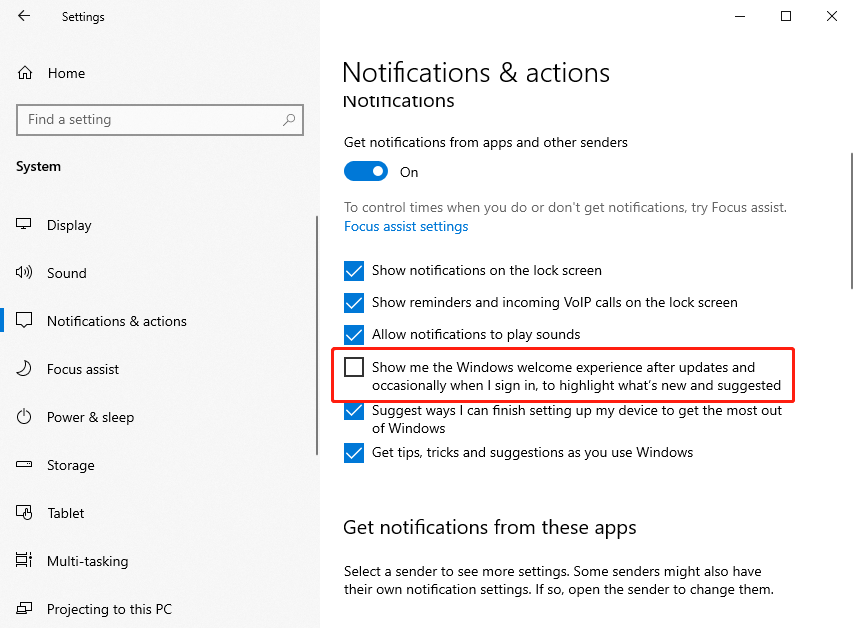
Step 2: Click System. On the left section, click Notifications and actions.
Step 3: Uncheck the Show me the Windows welcome experience after updates and occasionally when I sign in to highlight what’s new and suggested box.
Method 3: Via Creating a New Account
The third method for you to disable User OOBE Broker is via creating a new account. To create a new Microsoft account, this post – How to Add or Remove a User/Microsoft Account on Windows 11 is what you need.
Final Words
To sum up, this post has shown what the User OOBE Broker process is and how to disable User OOBE Broker. If you have any problem with User OOBE Broker, you can leave a message in the comment zone.
User Comments :