
Local Group Policy is a way to configure computer and user settings. You can tweak policy settings to satisfy your requirements. MiniTool compiles several methods to help you view the applied group policies; thus, you can directly modify the applied policies without navigating layer by layer. Please keep reading and try the methods below.
Method 1: View the Applied Group Policies Using the Sort or Filter Options
You can directly filter applied policies in the Local Group Policies Editor with its own features, like the Sort or Filter options. How can you use these two features? Here is the guidance.
Step 1: Press Win + R to open the Run window.
Step 2: Type gpedit.msc and hit Enter to open the window.
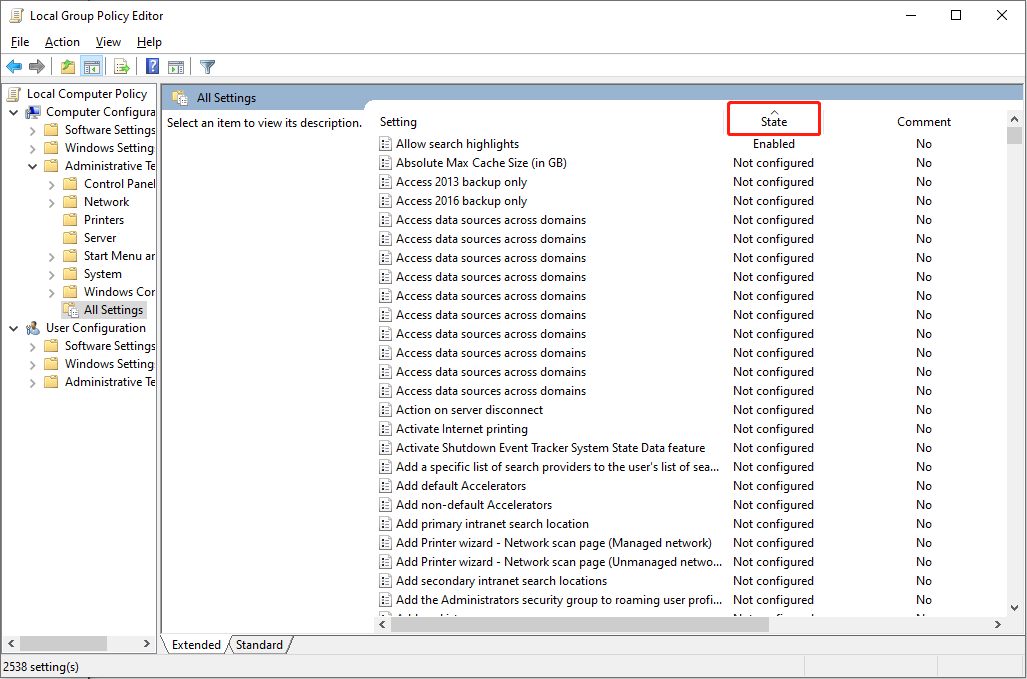
Step 3: Head to Computer Configuration > Administrative Templates > All Settings. All policies are listed here. You can click the State button at the top of the toolkit. All these policies will be resorted based on their status.
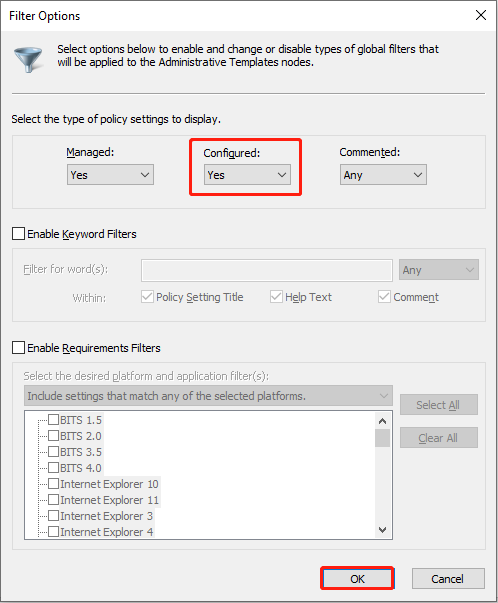
To use the Filter function, you can right-click on any folder and choose Filter Options from the context menu. In the following window, you should opt for Yes from the dropdown menu of Configured and click OK. Afterward, you can find there are only enabled policies on the window.
Method 2: View the Applied Group Policies Using the Resultant Set of Policy Tool
The Resultant Set of Policy (RsoP) is a plain and clear platform that displays all enabled and unconfigured policies. Here are the steps to open and use the Resultant Set of Policy.
Step 1: Press Win + R to open the Run window.
Step 2: Type rsop.msc and hit Enter to open this tool. This tool filters out disabled policies on your computer. You can see all the enabled and not configured policies and check their functions on the Resultant Set of Policy.
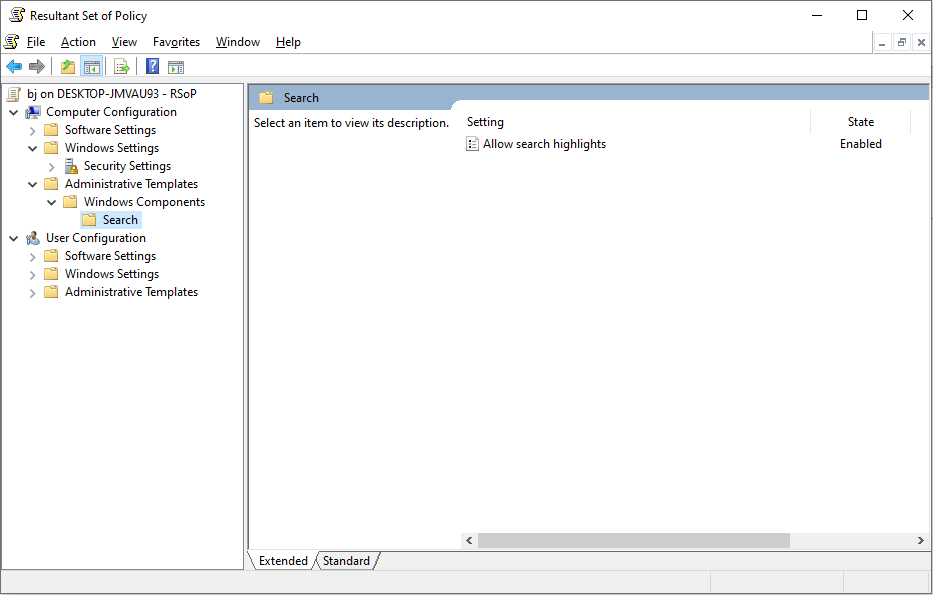
Please note that the RSoP group policy can’t be modified. If you want to make changes to any policies, you should open the Local Group Policy Editor to continue.
Method 3: View the Applied Group Policies with Command Prompt
The last method is to check the applied group policy via command line. Command Prompt is an interface that users can directly communicate with their computers. You can execute the corresponding command line to achieve your goal via Command Prompt, like viewing the applied policies.
Step 1: Type Command Prompt into the Windows Search bar, right-click on the best-matched option, and choose Run as administrator from the context menu.
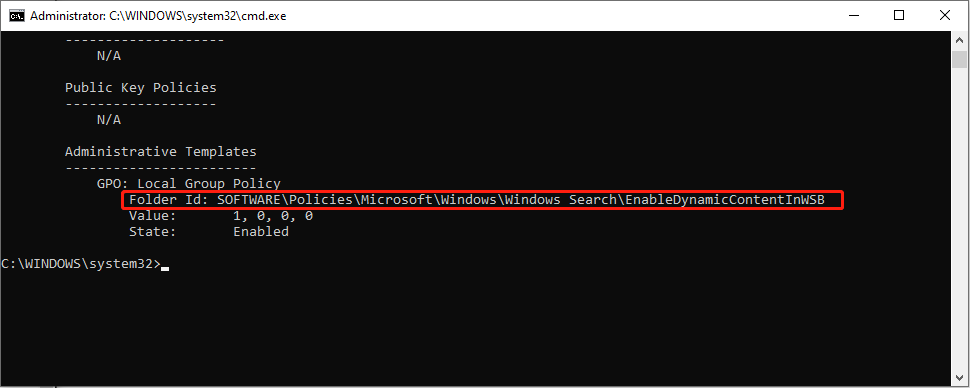
Step 2: Type gpresult /Scope Computer /v and hit Enter to execute this command line. If you want to check the policies enabled with your account, run gpresult /Scope User /v instead.
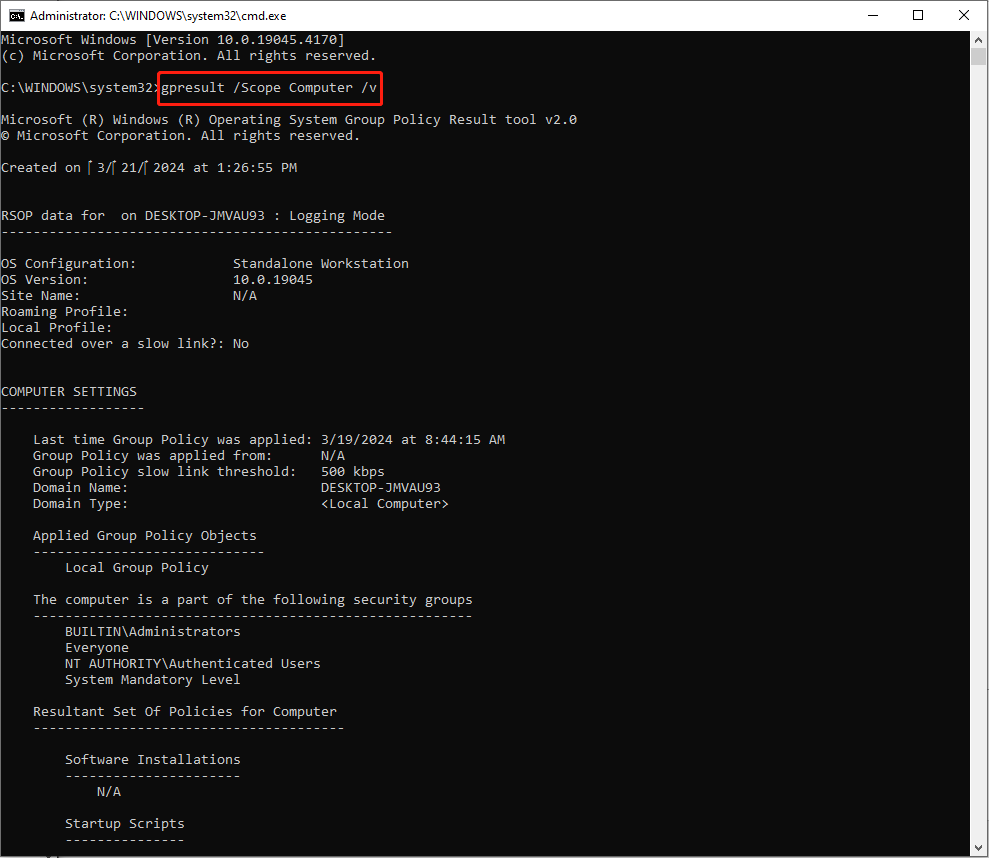
You can find the specific information of the enabled policy after running this command line, including its path and state.
Final Words
You should know how to check the group policy applied on a computer after reading the above content. When you need to tackle computer issues or modify settings, try these methods to quickly locate the applied policies on your computer.
MiniTool also develops several robust software for computer management. MiniTool Power Data Recovery is one of the best free data recovery software in the data recovery market. It supports you to recover files like pictures, documents, videos, audio, etc. from different devices.
MiniTool Power Data Recovery FreeClick to Download100%Clean & Safe
You can get MiniTool Power Data Recovery Free to scan your wanted files and recover 1GB of files for free.
User Comments :