
Voicemeeter Driver Preventing 24H2 Update
Windows 11 24H2, also known as Windows 11 2024 Update, has attracted many users to install to enjoy many new features and improvements. If you haven’t upgraded to this major version, you may take measures to install it. However, the issue of Voicemeeter driver preventing Windows 11 24H2 happens on your PC.
To be specific, you get the Voicemeeter Driver error on the Windows 11 Setup window. A message says, “Your PC has a driver or service that isn’t ready for this version of Windows. Windows Update will automatically offer you this version of Windows once the issue has been resolved”.
In some forums like Reddit, there are many complaints about this frustrating issue. As the error message stated, the culprit is the Voicemeeter driver. You need to completely uninstall it and then try to install Windows 11 24H2.
Below, we will walk you through the troubleshooting process in the step-by-step guide, and you will know what you should do to remove that driver.
MiniTool ShadowMaker TrialClick to Download100%Clean & Safe
Uninstall Voicemeeter with Driver Store Explorer
According to some users, the issue of Voicemeeter driver preventing Windows 11 24H2 still occurs even though they have uninstalled Voicemeeter, the audio mixer application. Such a case may stem from Voicemeeter not being completely removed.
To fully uninstall Voicemeeter, follow these instructions:
1. In your browser, visit the website https://github.com/lostindark/DriverStoreExplorer.
2. Click the latest version under Releases on the right side and tap on the .zip file under Assets to download.

3. Extract all the contents of this ZIP file and then double-click on the Rapr.exe file to run Driver Store Explorer.
4. After opening this uninstaller, go to Options and tick Use DISM. Then, locate the Voicemeeter driver file like vbvoicemeetervaio64_win10.inf, check the box of it, and then hit Delete Driver(s).
Restart your PC and try to install Windows 11 24H2. The Voicemeeter driver error won’t appear.
Reinstall Voicemeeter & Uninstall Driver
In case of Windows 11 24H2 Update failing due to Voicemeeter driver, if you have already uninstalled Voicemeeter, try to reinstall it once again, but do not restart.
Then, go to Device Manager, expand Sound, video and game controllers, right-click on Voice Meeter, and choose Uninstall device.
Refresh your installation tool and install Windows 11 24H2. It should go through.
This way is offered by a Reddit user, so have a try.
Run CMD to Delete Voicemeeter Driver
If you have already uninstalled Voicemeeter but still fail to install the Windows 11 24H2 update, consider running Command Prompt to delete the driver since the simple uninstallation is not enough.
Here is how to do that:
Step 1: Launch Command Prompt as an administrator.
Step 2: In the CMD window, type pnputil /enum-drivers /class MEDIA and press Enter. This enumerates audio devices. Find the item related to Voicemeeter, like vbvoicemeetervaio64_win10.inf, and note down the OEM number assigned to it.
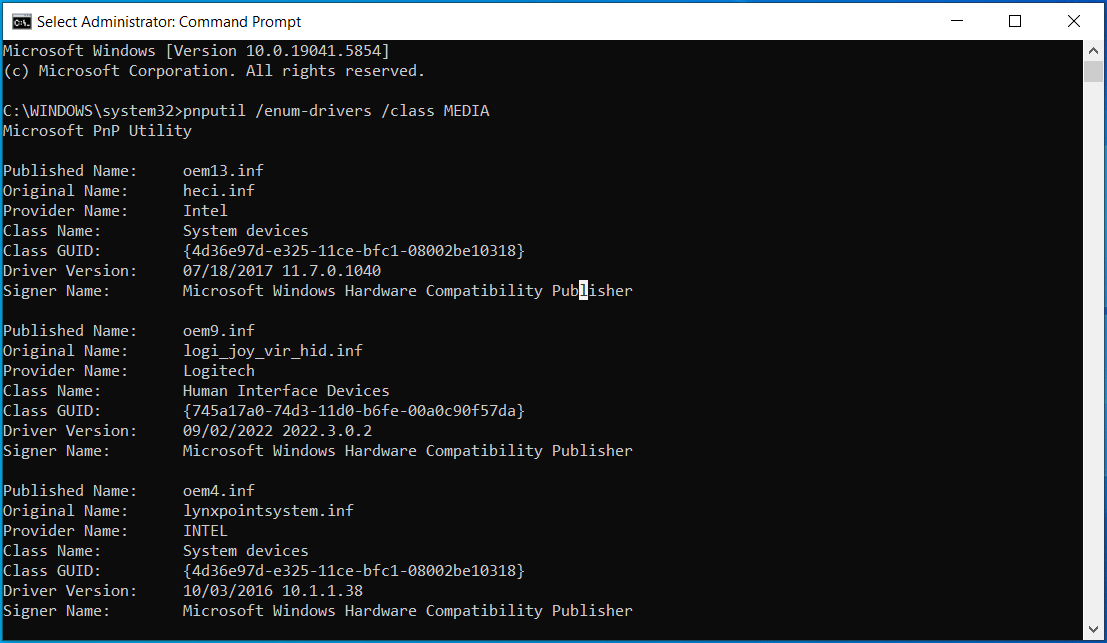
Step 3: Run pnputil /delete-driver oemnumber.inf /force to force delete the driver.
Final Words
Are you struggling with Voicemeeter driver preventing Windows 11 24H2? Don’t panic. Through the solutions in this guide, you can easily get rid of the Voicemeeter Driver error and successfully upgrade to 24H2.
By the way, be sure to back up your PC before the installation for safety. Get MiniTool ShadowMaker for the backup now.
About The Author

Position: Columnist
Vera has been working at the MiniTool Team for over 10 years as a technical editor and content writer. She mainly focuses on disk and partition management, data recovery, Windows backup and restore, and PC troubleshooting. Through in-depth software testing and hands-on experience, she has helped users solve a wide range of computer problems and better protect their data on Windows devices.
User Comments :