
How do I backup my WeChat chat history to my new phone? How do I backup my WeChat data on my iPhone? From this post, you can find the answers to these questions. MiniTool will show you many details on WeChat backup including the desktop WeChat backup and mobile app data.
WeChat is a famous social media, instant messaging, and mobile payment tool that comes from China, developed by Tencent. It is widely used by users all over the world. It can be installed on iOS and Android & Windows devices to send text and voice messages, order food delivery, play small games, shop online, etc.
WeChat plays an important role in life and work, so it is very significant to keep WeChat data secure. Data may be deleted unexpectedly due to some reasons like technical issues, human mistakes, etc. WeChat backup is the topic we will talk about here and you can find how to back up WeChat in multiple aspects.
How to Backup WeChat on PC
WeChat offers a Windows version for you to log in to this app on your PC for sending messages to your contacts. You can use the desktop version to create a WeChat backup to PC.

When using WeChat for Windows, you can choose to sync the chat history between the phone and the computer. If you don’t sync, only the chat history recorded on the PC is backed up. See how to back up WeChat on PC:
Step 1: Launch WeChat for Windows and sign in it by scanning the QR code.
Step 2: Tap on the three horizontal lines menu and then tap on Migrate & Backup > Backup and Restore > Back up on PC.
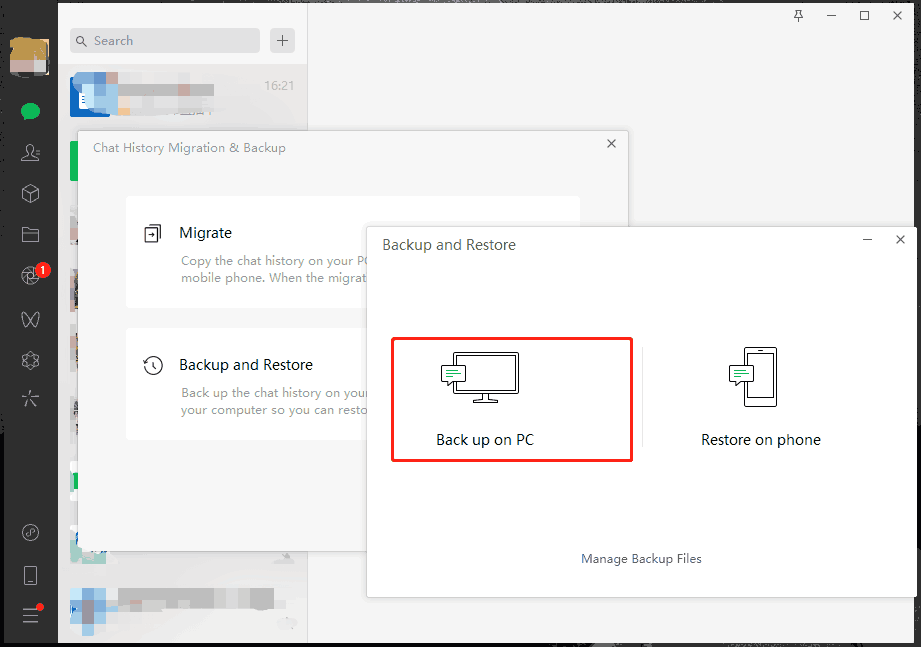
To change a backup directory, you can click the Manage Backup Files button.
Step 3: Confirm on your phone to start the backup.
Pay attention to something:
- Make sure your phone and PC are connected to the same internet network.
- You can choose one or more chat histories to back up to your PC. The backup time depends on the data size.
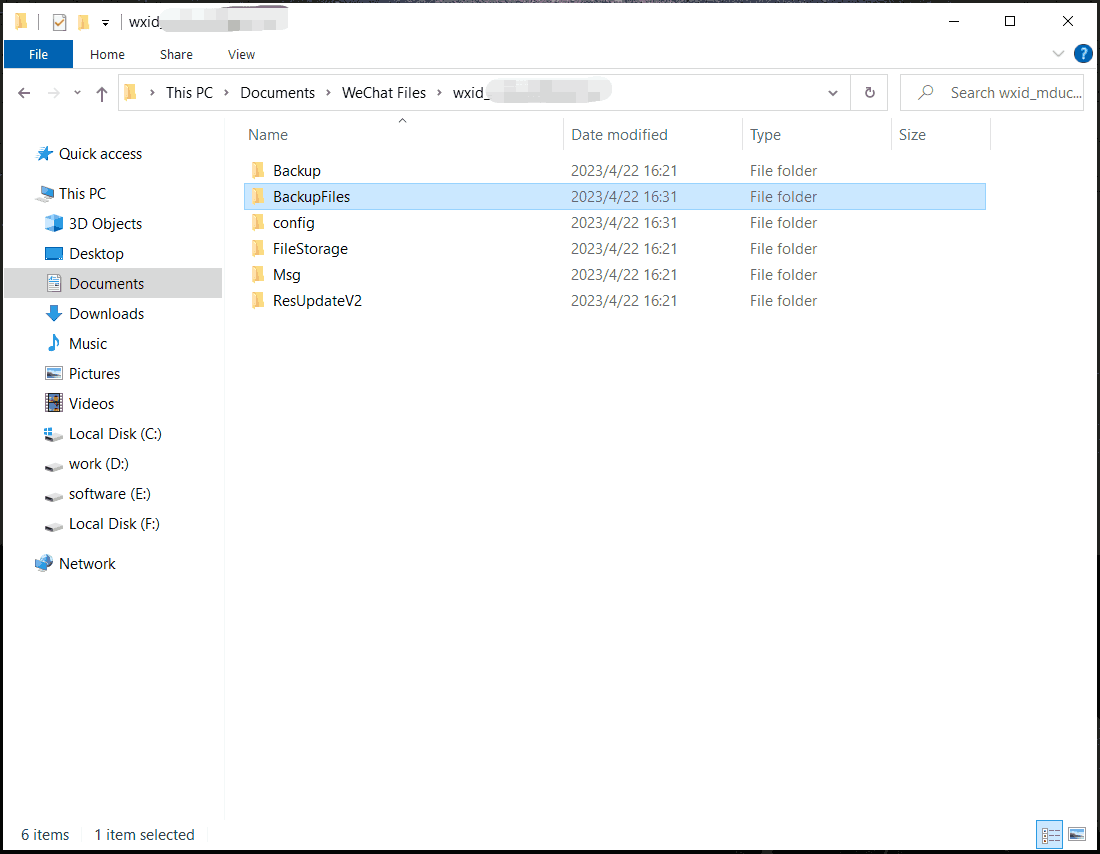
- After the backup finishes, go to the default WeChat backup file location (C:\Users\username\Documents\WeChat Files\wxid_xxx) and you can see a folder called BackupFiles.
Besides WeChat data, if you store many important files on your PC, you had better create a backup for them. To do this thing, you can choose to use the professional backup software – MiniTool ShadowMaker. It supports automatic, incremental, and differential backups.
MiniTool ShadowMaker TrialClick to Download100%Clean & Safe

How to Back up WeChat Data on iPhone/Android Phone
Export Personal Data of WeChat (Only for US or EU Users)
If you are a US or EU user, you can create a WeChat backup by exporting personal data.
Step 1: Open your WeChat on your phone.
Step 2: Navigate to Me > Settings > Account Security > More Settings > Export Personal Data.
Step 3: Link your WeChat to an email and verify this email.
Step 4: Choose the data type of WeChat and start the export process. You will get an email with a download link to download the exported data.
This way cannot create a backup for the chat history but helps to back up your personal account data, contacts data, moments data, favorites data, and location & login data.
WeChat Backup to iCloud/iTunes
If you are an iOS user, you can choose to back up WeChat to iCloud or iTunes. Note that iCloud cannot enable you to back up all WeChat histories except photos and videos. Just go to Settings, tap on your Apple ID, and tap on iCloud. Then, enable WeChat backup to let iCloud back up your WeChat data.
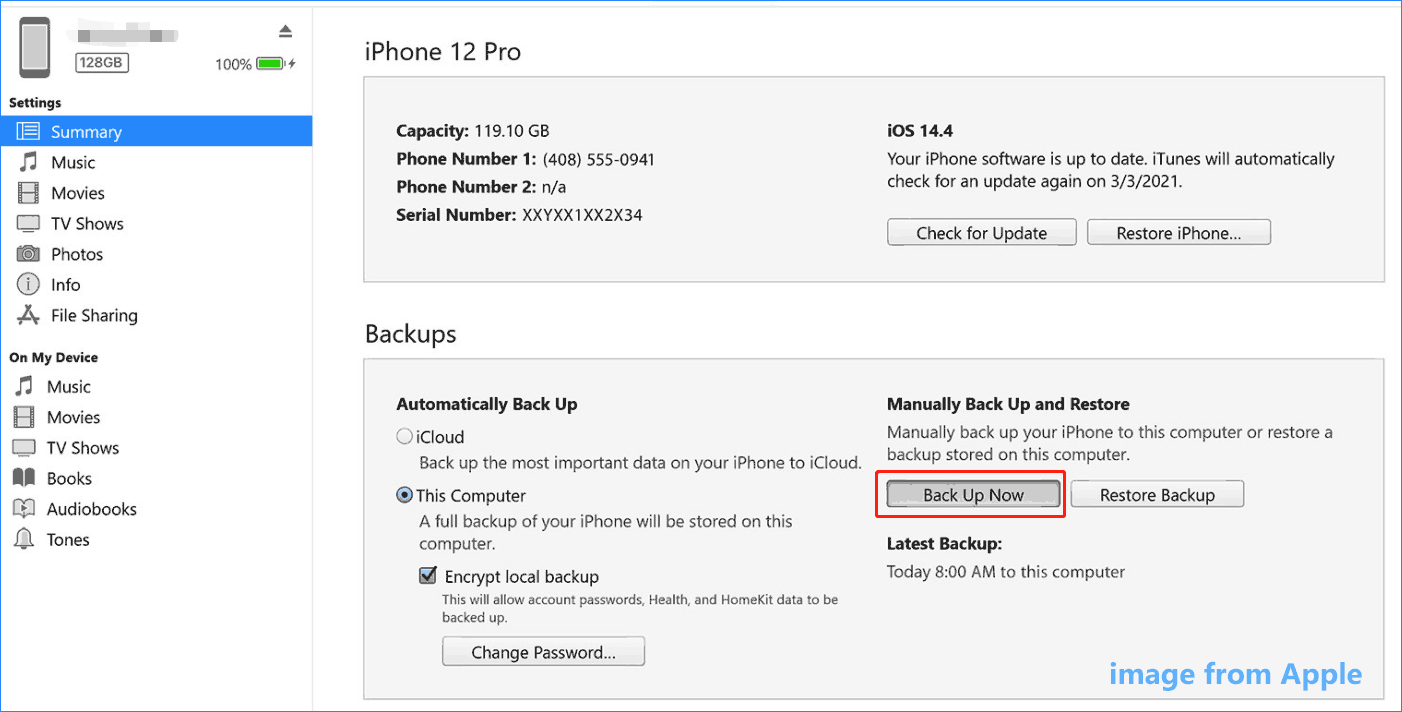
If you want to back up your WeChat history, use iTunes. Just connect your phone to your PC, open iTunes, and log in. Under the Summary category, click Back Up Now to start WeChat backup.
Back up WeChat to Google Drive
When searching for “how to back up WeChat” or “how to back up WeChat history Android” online, you may find there is another way besides those mentioned above and it is WeChat backup to Google Drive. Just open this cloud storage service, go to My Drive, and upload your files/folders to start the backup. On your Android phone, go to Settings > Account and Backup > Backup > Backup now. The steps may be different based on the phone brand.
How to Backup WeChat to New Phone
If you want to switch to a new phone, you can back up WeChat data to another phone via the migrate feature.
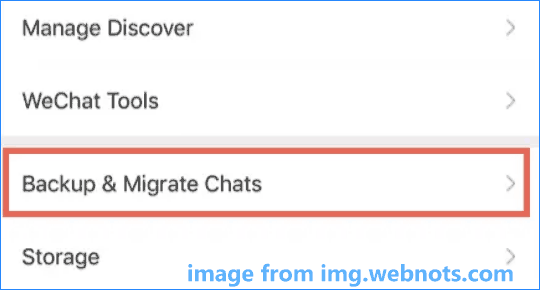
Step 1: On Android, open the WeChat app, go to Me > Settings > Chats > Backup & Migrate Chats. On iPhone, go to Me > Settings > General > Backup & Migrate Chats.
Step 2: Tap on Migrate Chats to Another Device and choose the chat history.
Step 3: Use your new phone to scan to log in to the same account and scan the QR code. After some time, the WeChat data will be backed up to the new phone.

Verdict
That’s all the information on WeChat backup including how to back up WeChat to PC via WeChat for Windows, how to back up WeChat to iCloud/iTunes & Google Drive, and how to backup WeChat to a new phone. Hope this post could be helpful to you.
About The Author

Position: Columnist
Vera has been working at the MiniTool Team for over 10 years as a technical editor and content writer. She mainly focuses on disk and partition management, data recovery, Windows backup and restore, and PC troubleshooting. Through in-depth software testing and hands-on experience, she has helped users solve a wide range of computer problems and better protect their data on Windows devices.
User Comments :