
Taskbar is an important function of Windows 10. However, when you use it, you may encounter the “taskbar turned white” issue. You may have many questions, such as why is my taskbar white? How to fix the issue? Now, this post from MiniTool tells you the answer.
You click the taskbar to access frequently used applications, services, view time, etc. The taskbar is always visible unless you choose to hide it when inactive. However, when the taskbar suddenly turns white for no reason, it may be disturbing.
Why Is My Taskbar White?
You may choose to hide the taskbar when you don’t need it, but there are reports that many people repeat that their Windows 10 taskbar has turned white. You may ask – why is my taskbar white? The taskbar may have turned white because it has taken a hint from the desktop wallpaper, also known as the accent color.
Then, I will introduce how to fix the “taskbar turned white” issue.
How to Fix the “Taskbar Turned White” Issue
Fix 1: Change Taskbar Settings
You can change taskbar settings to fix the windows 10 white taskbar issue. Follow the steps below to do that:
Step 1: Right-click the taskbar to choose Taskbar Settings.
Step 2: Click the Clours tab and uncheck the Start, taskbar and action centre option.
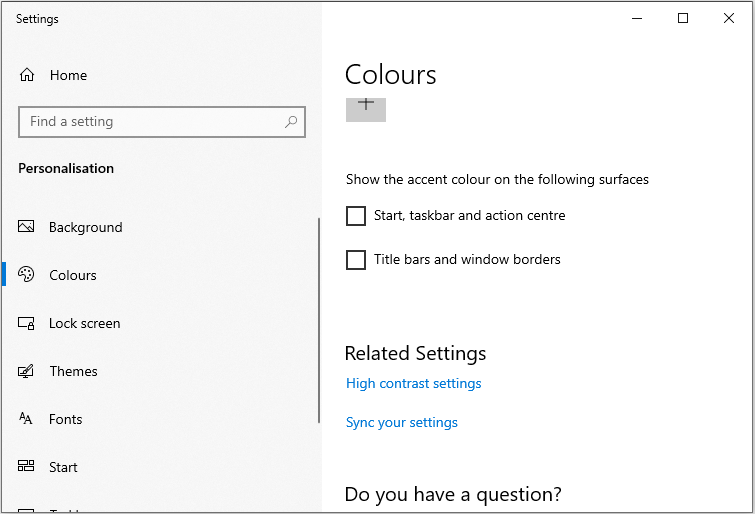
Step 3: If you want to choose a specific color, uncheck the Automatically pick an accent color from my background option. Then, you can choose the color that you want to set.
After that, you can check to see if the “taskbar turned white” issue has been fixed. If not, try the next solution.
Fix 2: Change Windows 10 Region Settings
You can also try to change Windows 10 region settings to fix the “taskbar turned white” issue. Here is how to do that:
Step 1: Open the Settings application and click the Time & Language part.
Step 2: Then, click the Region tab, then you can choose the region under the Country or region part.
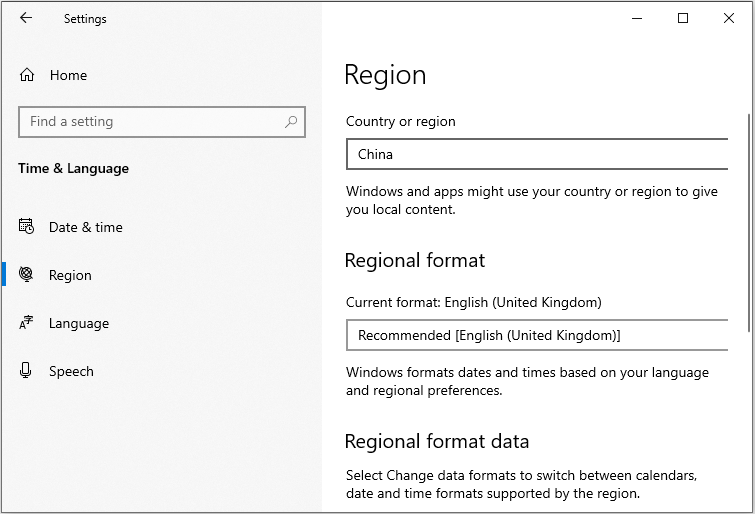
Step 3: Sign out your account and log back into your account.
Now, the issue should be fixed. If not, try the next solution.
Fix 3: Use Registry Editor
The last method for you to fix the windows 10 white taskbar issue is to use Registry Editor. The steps are as follow:
Step 1: Press the Win+R keys at the same time to open the Run dialogue box. Then, type regedit in the Run box and click the OK button.
Step 2: Then, you should go to the following path:
HKEY_CURRENT_USER\Software\Microsoft\Windows\CurrentVersion\Search\Flighting\0\WhiteSearchBox.
Step 3: Double-click the Value key and set value to 0.
Step 4: You need to click the OK button.
After that, you should restart your PC and check if the taskbar turned white issue has gone.
Final Words
After reading this post, you should know “why is my taskbar white” and how to fix the annoying issue. If you encounter some related issues, you can let us know in the comments. We will reply to you as soon as possible.
User Comments :