
This guide from MiniTool provides a comprehensive overview of Windows 10 KB5063159, covering what this update is for, how to download and install it properly, and what to do if the installation fails. Continue reading to get detailed information.
What Is Windows 10 KB5063159 & Why Was It Released
KB5063159 is an out-of-band update for Windows 10 released by Microsoft on June 16, 2025. Why did Microsoft release this update only one week after the June Patch Tuesday update KB5060533?
It has been verified that some devices, especially Surface Hub V1, were unable to boot properly after installing KB5060533. Affected devices displayed a “Secure Boot Violation” error or even encountered a blue screen, severely impacting system usability and posing a risk of data loss.
To quickly and effectively resolve this issue, Microsoft released KB5063159 as a replacement for KB5060533. All essential security and quality improvements are retained.
If you are using a Surface Hub V1 device and experiencing the Secure Boot Violation error, installing this update can help prevent the issue.
Windows 10 KB5063159 Download and Install
Windows 10 out-of-band update KB5063159 is available on both Windows Update and Microsoft Update Catalog. So, you can download and install KB5063159 using the way you want.
MiniTool ShadowMaker TrialClick to Download100%Clean & Safe
From Windows Update:
Step 1. Press the Windows + I key combination to open Settings.
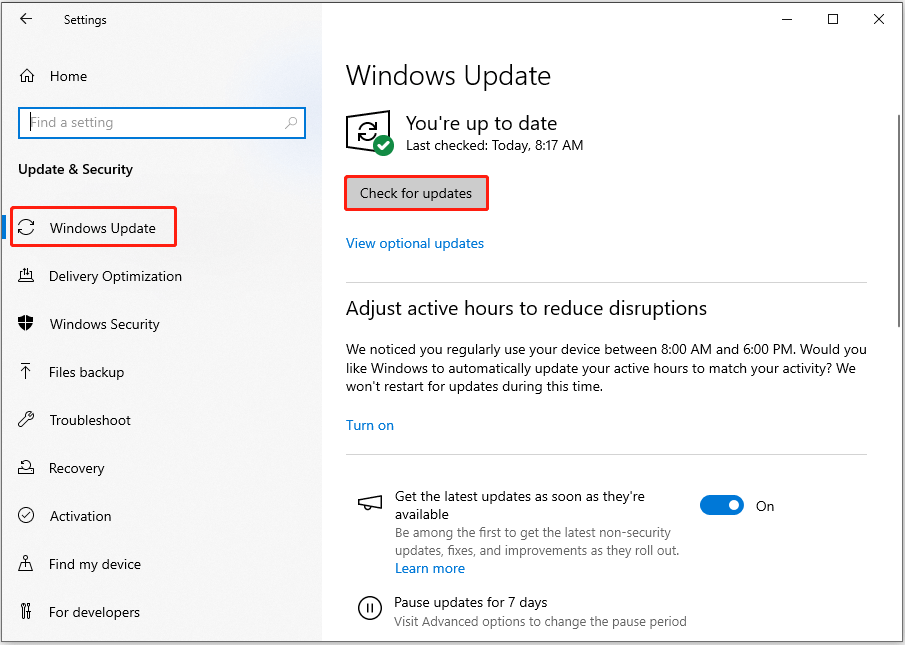
Step 2. Go to Update & Security > Windows Update.
Step 3. In the right panel, click Check for updates to download and install KB5063159.
From Microsoft Update Catalog:
Step 1. Visit the Update Catalog page for KB5063159. Click the Download button next to the update package that matches your system version.
Step 2. In the new pop-up window, click the blue link to download the .msu file.
Step 3. Run the .msu file and install KB5063159.
What if KB5063159 Fails to Install
If KB5063159 fails to install, either with an error or no warning at all, here are some solutions you can use to fix it.
Way 1. Run Windows Update Troubleshooter
The Windows Update troubleshooter is the built-in tool to detect and resolve issues with Windows updates. You can run it first of all to troubleshoot the problem of KB5063159 not installing.
- Open Settings and navigate to Update & Security > Troubleshoot > Additional troubleshooters.
- Expand Windows Update and click Run the troubleshooter.
- Wait for the process to complete. After that, download and install KB5063159 again.
Way 2. Clear Windows Update Cache
Corrupted update cache files can also cause update failures. So, it is necessary to clear the cache and check whether the problem can be solved.
Step 1. Press Windows + R to open Run, type services.msc in the box, and press Enter.
Step 2. Scroll down to locate the Windows Update service, right-click it, and choose Stop.
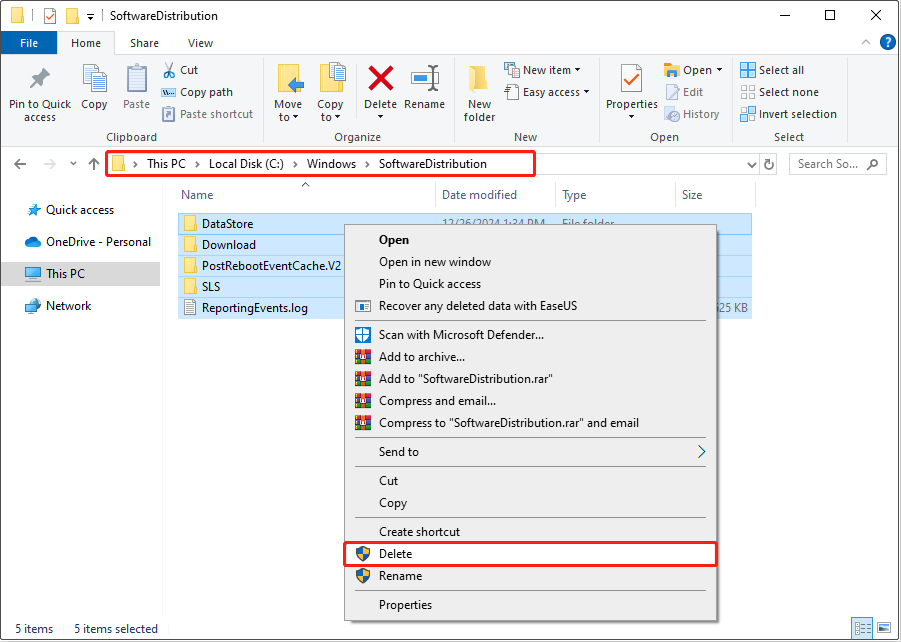
Step 3. Open File Explorer and navigate to this location: C:\Windows\SoftwareDistribution. Then, delete all files and folders inside this directory.
Step 4. Go back to the Services window, and start the Windows Update service.

Way 3. Free up More Disk Space
To install Windows updates successfully, you need to make sure your device has enough available disk space. You can free up disk space by running Disk Cleanup or using a third-party tool like MiniTool System Booster.
This professional and green PC tune-up utility offers a Deepclean feature that helps thoroughly remove junk files and optimize your system.
MiniTool System Booster TrialClick to Download100%Clean & Safe
Wrapping Things Up
In a word, this article provides detailed information about Windows 10 KB5063159 download and installation, along with solutions in case the update fails to install. Hope you have found the answers you were looking for.
About The Author

Position: Columnist
Shirley holds a bachelor’s degree in English and has been an editor at the MiniTool Team for many years. She specializes in IT-related content, with a focus on data recovery, file backup, disk management, and other technical topics. She is committed to delivering clear, accurate, and practical solutions to help users resolve common computer issues.
User Comments :