
What Is New in Windows 11 24H2 KB5055627
Windows 11 24H2 KB5055627 is a preview update released on April 25, 2025. It mainly brings fixes and improvements to the Recall feature, Click to Do feature, blue screen errors, file system issues, and more. Here are the key improvements and fixes:
- Recall feature: Recall is a new feature that automatically takes screenshots of your activities on the computer, such as browsing websites, writing documents, and so on. If you forget where you saw something, you can describe it in natural language, and Recall will help you quickly find the content from that moment.
- Click to Do feature: This feature allows you to quickly take action on selected items. For example, clicking on an image will bring up options like blurring the background, erasing objects, or removing the background, etc.
- Enhanced Windows Search: This improvement makes it easier to find documents, photos, and settings by simply typing what you are looking for, without needing exact file names.
In addition, this update also includes several other new features and bug fixes:
- Fixed the blue screen error that occurred after installing the April 2025 security update.
- Resolved an issue affecting internet connectivity after resuming from sleep mode.
- Addressed improper display of JPEG image contents.
- Fixed issues with the taskbar and Start button.
- …
How to Download Windows 11 24H2 KB5055627
Windows 11 24H2 KB5055627 is an optional update. If you choose not to install it now, the changes will be included in the next security update. Also, some of the features mentioned above may not show up on your computer after you install this update since they are rolled out gradually.
MiniTool ShadowMaker TrialClick to Download100%Clean & Safe
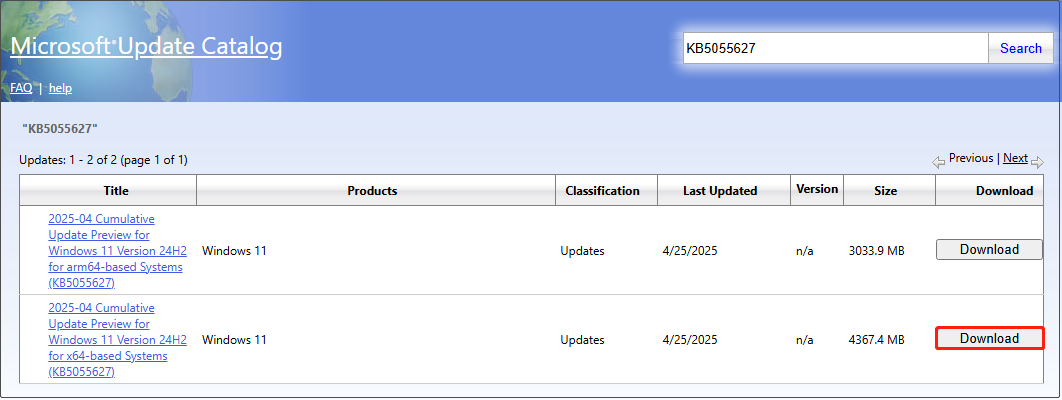
There are two ways to download and install KB5055627. The easiest one is to go to Settings > Windows Update and click Check for updates in the right panel to download and install it.
Alternatively, you can go to the Microsoft Update Catalog for KB5055627 to download the offline .msu installer.
How to Fix if KB5055627 Fails to Install
“The problem that I am having is, whenever I am downloading the update KB5055627, it does that just fine. However, when it gets to the installation of the update it gives me “Install error - 0x800f0991”. If more information is needed to help a guy out, please let me know! Thank you!”reddit.com
Are you encountering the KB5055627 not installing issue like the user above? If yes, you can use the following fixes to resolve it.
Method 1. Run the Windows Update Troubleshooter
When you encounter any update issues, the first troubleshooting step is to run the Windows Update troubleshooter. It can help detect and resolve related problems.
Step 1. Open Settings by using the Windows search box.
Step 2. In the left sidebar, choose System.
Step 3. Click Troubleshoot > Other troubleshooters. Next, find the Windows Update option and click the Run button next to it.

Method 2. Reset Windows Update Components
Resetting the components is also an effective method to fix Windows update issues. Here is how to operate:
Step 1. Open Notepad.
Step 2. Copy and paste the following command lines, and then save the Notepad file as Fix.bat.
SC config trustedinstaller start=auto
net stop bits
net stop wuauserv
net stop msiserver
net stop cryptsvc
net stop appidsvc
Ren %Systemroot%\SoftwareDistribution SoftwareDistribution.old
Ren %Systemroot%\System32\catroot2 catroot2.old
regsvr32.exe /s atl.dll
regsvr32.exe /s urlmon.dll
regsvr32.exe /s mshtml.dll
netsh winsock reset
netsh winsock reset proxy
rundll32.exe pnpclean.dll,RunDLL_PnpClean /DRIVERS /MAXCLEAN
dism /Online /Cleanup-image /ScanHealth
dism /Online /Cleanup-image /CheckHealth
dism /Online /Cleanup-image /RestoreHealth
dism /Online /Cleanup-image /StartComponentCleanup
Sfc /ScanNow
net start bits
net start wuauserv
net start msiserver
net start cryptsvc
net start appidsvc
Step 3. Right-click the Fix.bat file and choose Run as administrator. Wait for the command lines to be executed in Command Prompt. After that, restart your computer and check if KB5055627 can be downloaded and installed.
Method 3. Move the $WinREAgent Folder to Another Location
Moving the $WinREAgent folder to another location before the update is installed can also be helpful. Go to your C drive and find the $WinREAgent folder. Copy it and paste it to your desktop or another location. Next, go to the C drive and delete the folder. After that, you can complete the Windows 11 24H2 KB5055627 download and install. Once it is done, you can move the $WinREAgent folder back.
Bottom Line
To sum up, this post introduces how to download and install Windows 11 24H2 KB5055627 and how to fix it if it fails to install. I believe you can install it successfully after trying the solutions above.
About The Author

Position: Columnist
Shirley holds a bachelor’s degree in English and has been an editor at the MiniTool Team for many years. She specializes in IT-related content, with a focus on data recovery, file backup, disk management, and other technical topics. She is committed to delivering clear, accurate, and practical solutions to help users resolve common computer issues.
User Comments :