
A new Windows 11 build is available in the Dev and Beta Channels, It is titled Windows 11 Insider Preview 22598.1 (ni_release). This update updates the wallpaper feature and adds new Task Manager shortcuts. Of course, there are some other changes and fixes. MiniTool Software shows some related information in this post.
Release Date: April 13, 2022
Windows 11 Build 22598 Is Available Now
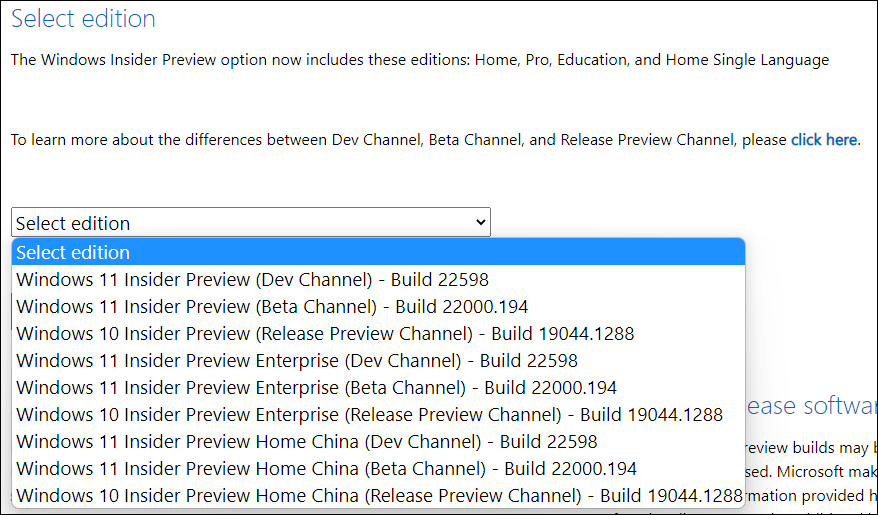
Microsoft has released Windows 11 Insider preview build 22598 to Insiders in the Dev Channel and the Beta Channel. The ISO images for this build are also released on the Windows Insider Preview Downloads page.
There are a few changes and improvements in this build. But it contains some fixes that can improve users’ experience. Microsoft also updates Media Player for Windows 11 (Version 11.2203.30.0) in this build.
Changes and Improvements in Windows 11 Insider Preview 22598
- Microsoft has updated the taskbar tooltip on the volume icon to reveal when users are using the spatial sound feature.
- Windows Spotlight on the desktop is available on some devices. This feature is still under trying. Microsoft just try it on limited devices at first.
- Microsoft is trying to display 4K desktop backgrounds in Windows Spotlight.
- The tooltip on the volume icon has been updated. It can tell you when you’re using spatial sound.
Fixes in Windows 11 Insider Preview 22598
- Fixed an issue where if you used keyboard focus on the taskbar, hovers like previews would stay up during all taskbar interactions.
- Fixed an issue that causes taskbar badges to come back after explorer.exe crashes even if you had them turned off in the Settings app.
- Fixed an issue where some mouse move events weren’t being passed to apps for icons in the system tray.
- Fixed a crash issue when you select the More button in the Recommended section of the Start menu.
- Fixed the context menu not render completely sometimes and be transparent in File Explorer
- Find more fixes.
How to Get Windows 11 Insider Preview 22598?
Way 1: Upgrade to Windows 11 Insider Preview Build 22598 via Windows Update
At first, you need to make sure that your computer can run Windows 11. Here is how to check: Compatibility Test: How to Check if Your PC Can Run Windows 11?
If you want to use Windows 11 preview build 22598, you need to first join the Dev Channel or the Beta Channel of the Windows Insider Program. Then, you can go to Windows Update to get this build.
Step 1: Join the Dev Channel or the Beta Channel of the Windows Insider Program.
Step 2: Press Win + I to open the Settings app.
Step 3: Go to Update & Security > Windows Update.
Step 4: Click Check for updates.
Step 5: If Windows 11 build 22598 is available, it will be automatically downloaded and installed on your device.
Step 6: Restart your computer to complete the whole installation.

Way 2: Clean Install Windows 11 Build 22598 Using an ISO File
You can also clean install Windows 11 on your device.
Step 1: Back up your files and system using MiniTool ShadowMaker (a professional data backup software for Windows).
MiniTool ShadowMaker TrialClick to Download100%Clean & Safe
Step 2: Check if your PC can run Windows 11.
Step 3: Create a Windows 11 Installation USB drive.
Step 5: Shut down your computer and then boot the device from the USB drive.
Step 6: When you see the Windows Setup interface, click Next to continue.
Step 7: Follow the on-screen instructions to complete the whole installation.
Step 8: Complete the Windows 11 out-of-box experience.
If your important files are lost and there is no available backup file, you can use MiniTool Power Data Recovery (dedicated data recovery software that can work on all versions of Windows) to rescue them.
MiniTool Power Data Recovery TrialClick to Download100%Clean & Safe
![How to Recover Lost and Deleted Files in Windows 11? [6 Ways]](https://images.minitool.com/minitool.com/images/uploads/2021/08/how-to-recover-deleted-files-windows-11-thumbnail.jpg)
About The Author

Position: Columnist
Stella has been working in MiniTool Software as an English Editor for more than 8 years. Her articles mainly cover the fields of data recovery including storage media data recovery, phone data recovery, and photo recovery, videos download, partition management, and video & audio format conversions.
User Comments :