
Microsoft released a major update to Windows 7 called Service Pack 1 (SP1) in February 2011. Although now Microsoft has ended the support for Windows 7, there are still some Windows 7 users who want to download Windows 7 Service Pack 1. This post from MiniTool provides a detailed guide.
Microsoft has ended support for Windows 7 ends on January 14, 2020. It’s recommended to you use the latest Windows operating system – Windows 11 to continue receiving security updates from Microsoft.
Some users are sticky to using Windows 7 and want to download Windows 7 Service Pack 1 for PC’s security. The following provides features of Windows 7 Service Pack 1 and tells you how to download and install it.
Helpful Tip:
If you are using a dual-boot system with Windows 7, 10, or 11, it is advisable to have data recovery software installed in case of potential file loss.
MiniTool Power Data Recovery is fully compatible with Windows 11/10/8.1/8 and supports recovering photos, videos, audio files, documents, and emails.
Download the free edition to recover up to 1 GB of data at no cost.
MiniTool Power Data Recovery FreeClick to Download100%Clean & Safe
What Is Windows 7 Service Pack 1
What is Windows 7 Service Pack 1? It brings a large number of bug fixes and security fixes to Windows 7. Keeps the security features of the operating system up-to-date, which in turn helps improve system reliability.
- It improves the reliability of HDMI audio device connections.
- It improves the compatibility of programs.
- It enhances visualization capabilities.

How to Check If Service Pack 1 Is Installed Windows 7
How do I know if I have Service Pack 1 for Windows 7? To do that, here are the steps:
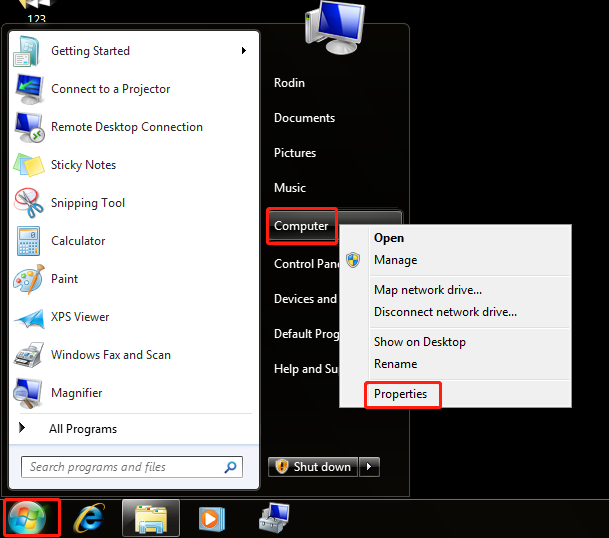
Step 1: Select the Start button and right-click Computer to select Properties.
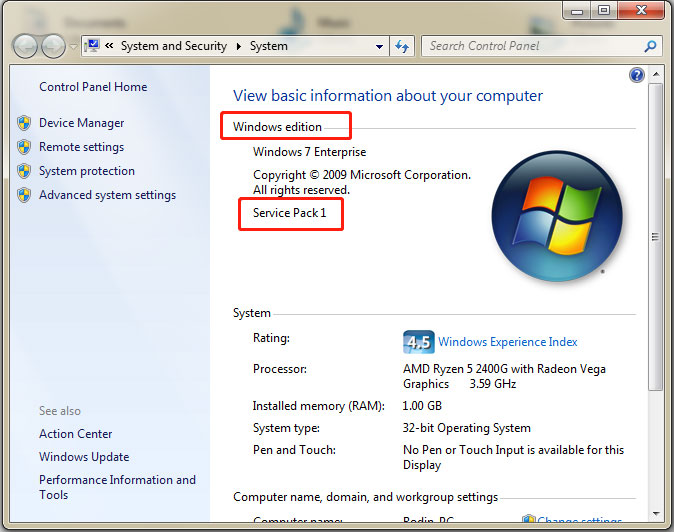
Step 2: Then, you can check if Service Pack 1 is listed under the Windows edition part.
Windows 7 Service Pack 1 Download and Install
If Windows 7 Service Pack 1 is not installed on your PC, you can download and install Windows 7 Service Pack 1 by following the below instructions. There are two ways for you – via Windows Update or Microsoft Update Catalog.
Way 1: Download and Install Windows 7 Service Pack 1 via Windows Update
Step 1: Click the Start menu > Control Panel.
Step 2: Go to System and Security > Windows Update > Check for updates.
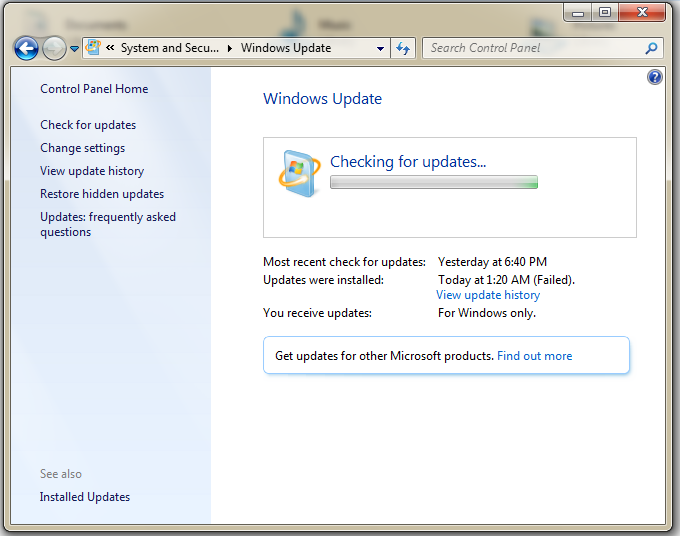
Step 3: If any important updates are found, select the link to view available updates. Then, select Service Pack for Microsoft Windows (KB976932) and then select OK.
Step 4: Click Install updates and follow the on-screen instructions to install Windows 7 Service Pack 1.
Way 2: Download and Install Windows 7 Service Pack 1 via Microsoft Update Catalog
You can also download and install Windows 7 Service Pack 1 via Microsoft Update Catalog.
Step 1: Go to the Windows 7 Service Pack 1 download page.
Step 2: Select the Download link that corresponds to your version of Windows 7. You can also search for Windows 7 Service Pack 1 (KB976932) or Windows 7 Service Pack 1 KB976932 directly.

Step 3: After downloading the package, double-click the exe file to install it.
How to Uninstall Windows 7 Service Pack 1
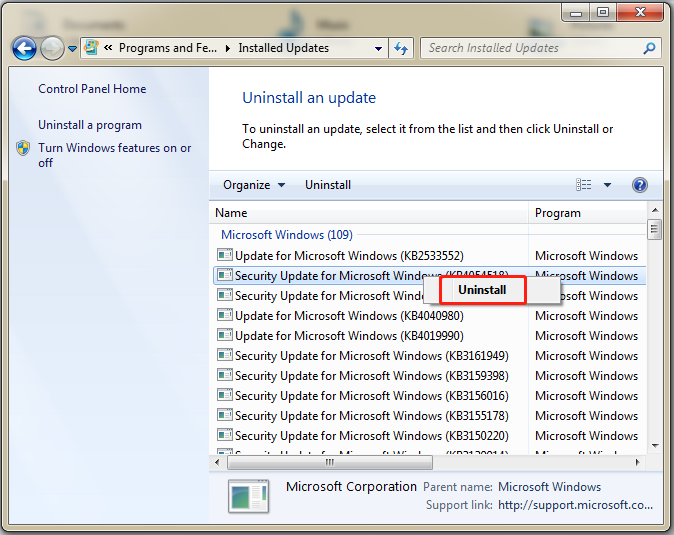
How to uninstall Windows 7 Service Pack 1? To do that, go to Contro Panel > Programs > Programs and Features > View installed updates. Find and right-click Windows 7 Service Pack 1 to choose Uninstall.
Final Words
What is Service Pack 1? How to check if Service Pack 1 is installed Windows 7? How to uninstall Windows 7 Service Pack 1? How to update Windows 7 Service Pack 1 offline? How to get Windows 7 Service Pack 1 download 64-bit? You can find answers in the above content.
About The Author

Position: Columnist
Shirley holds a bachelor’s degree in English and has been an editor at the MiniTool Team for many years. She specializes in IT-related content, with a focus on data recovery, file backup, disk management, and other technical topics. She is committed to delivering clear, accurate, and practical solutions to help users resolve common computer issues.
User Comments :