
Windows 10 found errors on this drive appears when there are some bad sectors or corrupted system files on your computer. Therefore, it is essential to take some measures before the disk suffers from severe damage. With the help of solutions on MiniTool Website, you can fix this issue easily.
We Found Errors on This Drive
If are prompted by the Windows found errors on this drive error message, it might due to the bad sectors and faulty system files. The complete error message is:
Windows found errors on this drive that need to be repaired. Close this dialog box and then repair the drive.
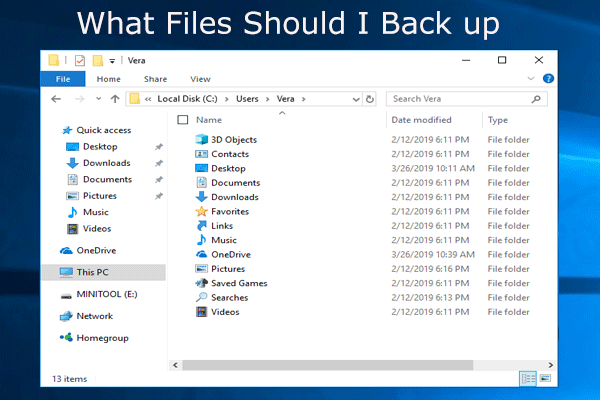
Even occasional hard disk failures can trigger severe damage or costly data loss. Therefore, you must follow these guidelines carefully and back up your crucial data in advance.
Suggestion: Back up the Data on the Drive Before Proceeding
As mentioned earlier, you need to back up your important data beforehand. However, what should you choose among multiple backup software in the market? Here, a reliable backup software – MiniTool ShadowMaker is more favorable by most Windows users.
This tool offers a variety of backup services for you to choose from, including backing up files, folders, systems, disks, and partitions. Here’s how to create a file backup with this tool:
Step 1. Run this freeware and click on Keep Trial.
MiniTool ShadowMaker TrialClick to Download100%Clean & Safe
Step 2. In the Backup functional page, go to SOURCE > Folders and Files to select the important files on the disk that you are dealing with. In DESTINATION, you can choose an external hard drive or USB flash drive as a destination path for the backup task.
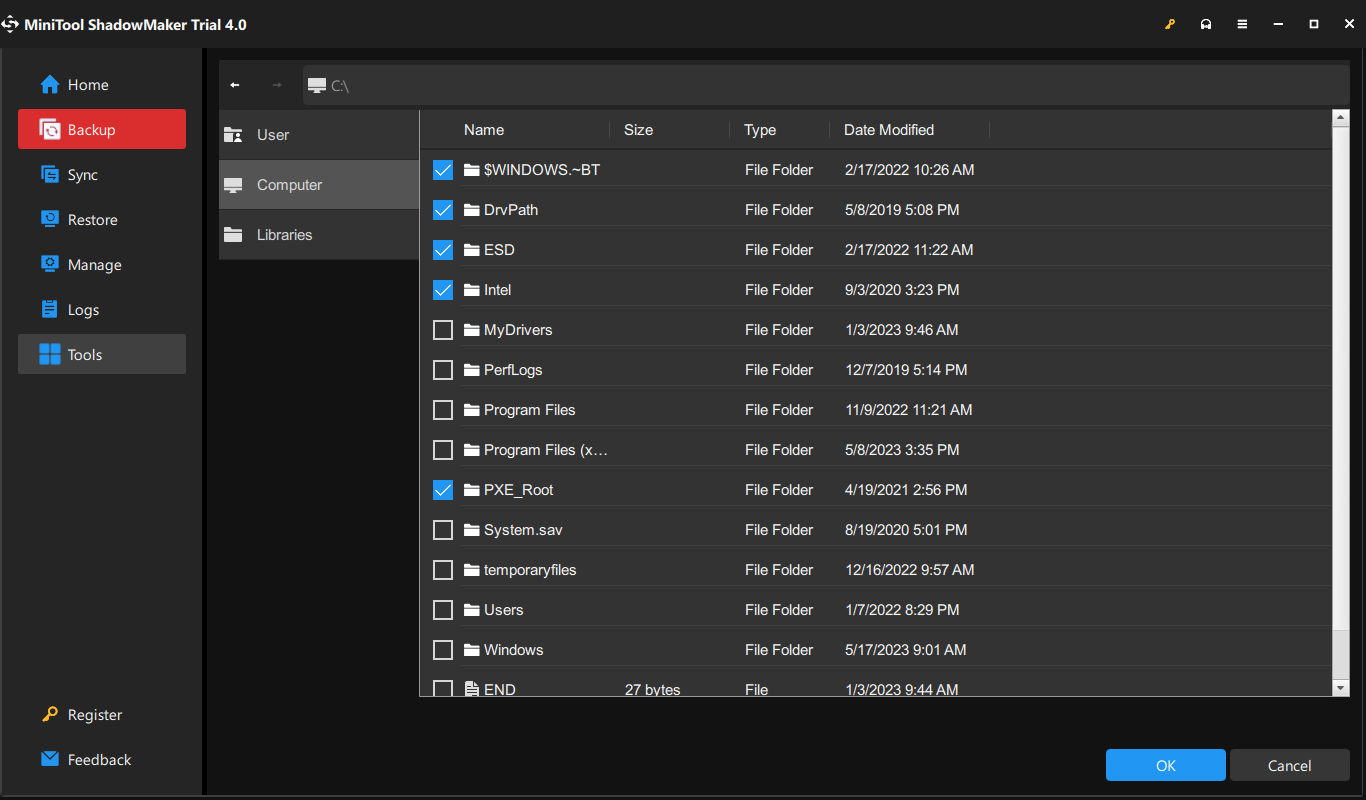
Step 3. Click on Back Up Now to start the process right now.
How to Fix Windows Found Errors on This Drive?
Fix 1: Run CHKDSK
To check and fix bad sectors on your PC, you can use the inbuilt utility – CHKDSK.
Step 1. Run Command Prompt with administrative rights.
Step 2. Type the following command in the command window and hit Enter. Replace c with your target drive letter.
chkdsk c: /f /r
Step 3. After the process is done, reboot your system.
Fix 2: Check Security and Maintenance
You can check your computer’s healthy in the Security and Maintenance screen. As long as you computer is booting, it can help you to identify issues with the hardware and software.
Step 1. Type control panel in the search bar and hit Enter.
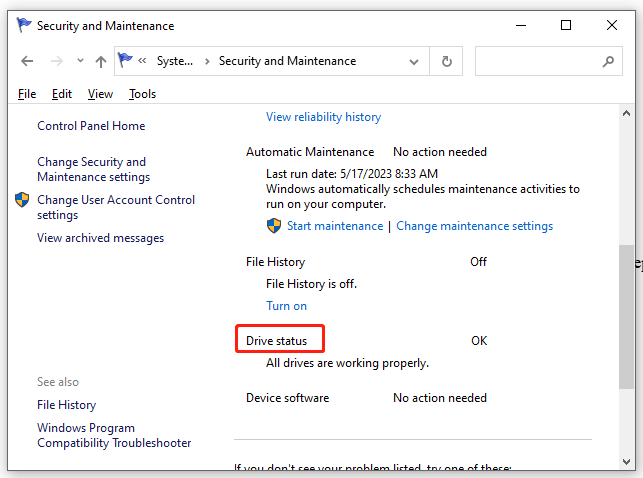
Step 2. Go to System and Security > Security and Maintenance > expand Maintenance to check Drive status.
Fix 3: Run SFC & DISM
The presence of corrupted system files can also be a possible culprit of repair this drive Windows found errors Windows 10. Follow these steps to repair them:
Step 1. Run Command Prompt as an administrator,
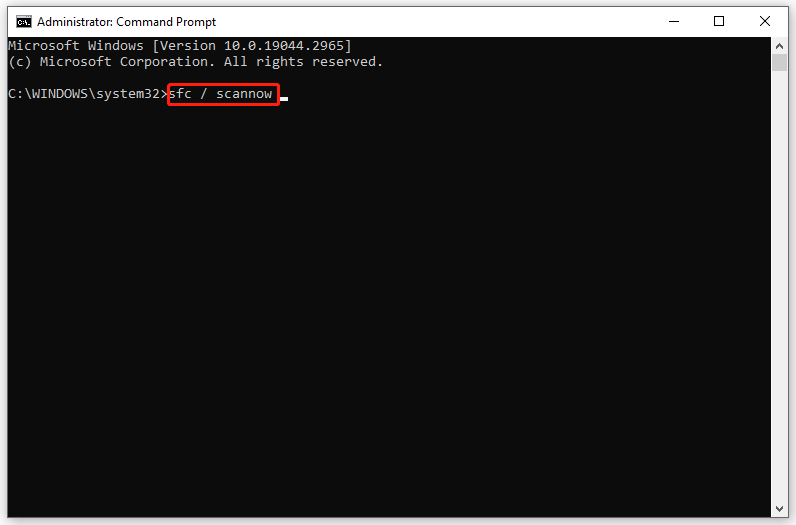
Step 2. In the command window, type sfc / scannow and hit Enter.
Step 3. After the process is complete, restart your system, launch an elevated Command Prompt and then run the following command one by one:
DISM.exe /Online /cleanup-image /scanhealth
DISM.exe /Online /cleanup-image /restorehealth
DISM /Online /cleanup-Image /startcomponentcleanup
Step 4. Restart your PC.
Fix 4: Use PowerShell
When encountering the Windows found errors on this drive warning message, you can use the repair feature in Windows PowerShell.
Step 1. Press Win + X to open the Quick menu and select Windows PowerShell (Admin).
Step 2. Type Repair-Volume C –Scan and hit Enter. Replace C with your drive letter.
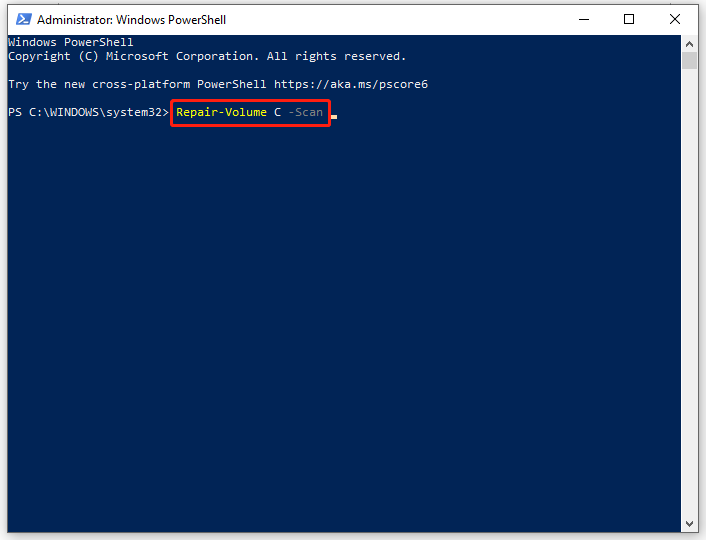
Step 3. If an error is detected, run this command: Repair-Volume C –OfflineScanAndFix.
Step 4. Restart your computer to see if Windows found errors on this drive is fixed.
User Comments :