
Some people encountered that their Windows Search keeps popping up by itself and disturbs the normal operations in Windows. You may look for some useful fixes for troubleshooting and in this article on MiniTool Website, we will list the methods one by one. That will be helpful.
Windows Search Menu Opening by Itself? Fixed Here
Windows Search box constantly pops up? This issue has been reported by many Windows users. You can’t stop the pop-up and interrupt your other operations in Windows. It is quite annoying! But don’t worry, there are some easy tips you can try for troubleshooting “Windows Search menu opening by itself”.
- Remove all peripheral devices to keep away from any interruptions.
- Check if you accidentally press the Windows key or the key gets stuck so the Search menu keeps opening.
- Restart your computer.
If all the above quick tips can’t get rid of the issue, you can go to the next troubleshooting methods.
Suggestion:
Since the possibility that your computer will get stuck when Windows Search menu opening by itself, it is hard to proceed for the next moves. It is highly recommended that you should back up your system in advance so that you can directly recover it. MiniTool ShadowMaker, free backup software, can meet the demand.
MiniTool ShadowMaker TrialClick to Download100%Clean & Safe
You can use the tool to perform a 3-2-1 backup for better system protection. When you get into trouble, all data in your system can be protected.
Fix 1: Check for Touchpad Gesture
If you are using a laptop, you may check for the touchpad gesture and disable the three-finger gestures command. Sometimes, you can mistakenly touch the trogger gesture for Search menu keeps opening.
Step 1: Open Settings by pressing Win + I and go to Bluetooth & devices.
Step 2: Click Touchpad and then expand Three finger gestures.
Step 3: Change the Taps option to Nothing.
Fix 2: Run the Search and Indexing Troubleshooter
Dedicated troubleshooter can help you get rid of some related issues, so you can try to use the Search and indexing troubleshooter.
Step 1: Go to Start > Settings > Update & Security > Troubleshoot.
Step 2: Click Additional troubleshooters from the right panel and scroll down to click Search and Indexing to click Run the troubleshooter.
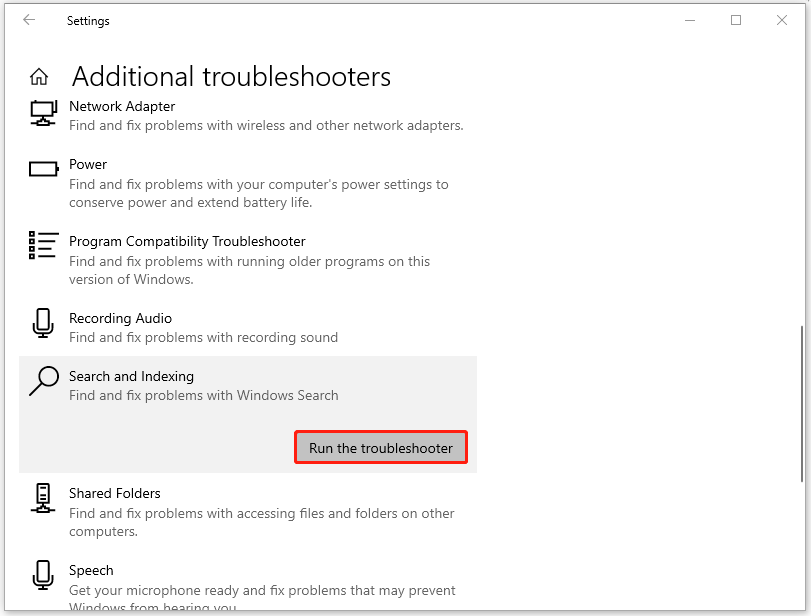
Then you can follow the instruction to finish the work and restart your computer to see if the issue is removed.

Fix 3: Restart the Windows Search Service
The Windows Search service will run in the background to ensure the Windows Search feature runs normally.
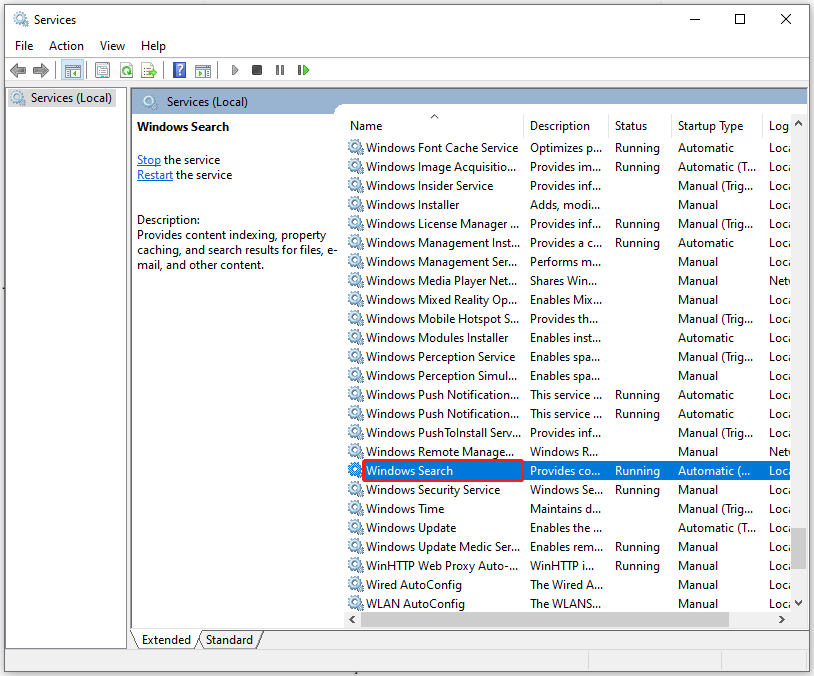
Step 1: Open Run by pressing Win + R and input services.msc to enter the Services window.
Step 2: Scroll down to locate and right-click on the Windows Search service to choose Stop. Wait for some time and then right-click on it to choose Start.
Fix 4: Run SFC and DISM Scans
If all the above methods can’t work and Search menu keeps opening, you can run SFC and DISM scans to fix the corruptions.
Step 1: Type Command Prompt in Search and choose Run as administrator.
Step 2: Input sfc /scannow and press Enter to execute the command.
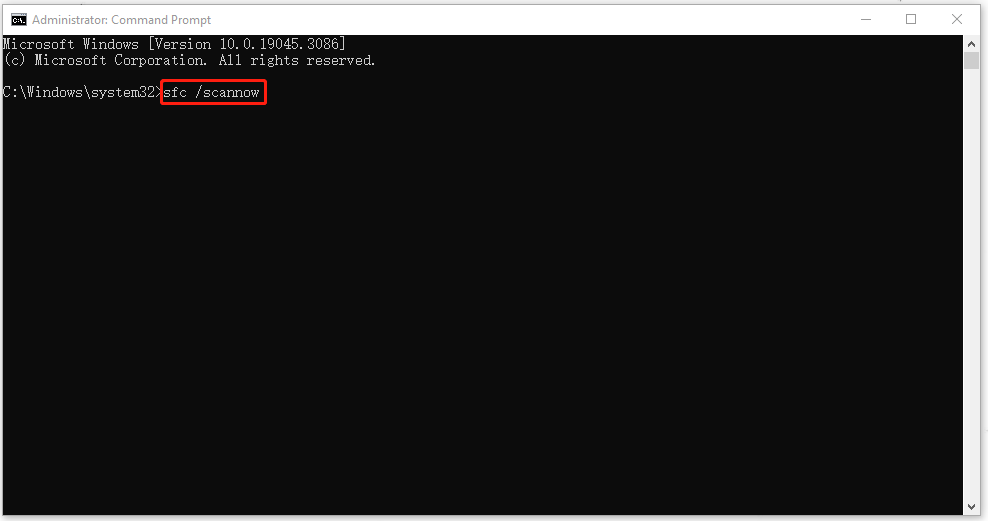
This command can help scan for and repair the system file corruptions. When it starts, you need to wait until the verification ends. Then you can restart the computer and check if the error has been removed.
If not, you can run Command Prompt as an administrator and execute this DISM command: DISM /Online /Cleanup-Image /RestoreHealth.
![CHKDSK vs ScanDisk vs SFC vs DISM Windows 10 [Differences]](https://images.minitool.com/minitool.com/images/uploads/2020/03/chkdsk-vs-scandisk-vs-sfc-vs-dism-thumbnail.jpg)
Bottom Line:
Windows Search menu opening by itself? The above methods can help your resolve this issue and you can follow them for troubleshooting.
User Comments :