
Wreckfest 2 Not Saving
Wreckfest 2, the next evolution of full-contact racing, features improved physics with its enhanced engine, even higher crash fidelity, and more intricate component damage simulation. You must have witnessed the absolute best-in-class car destruction and truly epic moments of chaos.
The problem is Wreckfest 2 not saving. When playing Wreckfest 2, the save that you load when logging in is different from where you actually are when the game loads. That can drive you to despair.
What causes Wreckfest 2 not saving error?
- Corrupted game files – incomplete downloads or sudden power outages during updates can lead to corrupted game files, preventing the game from saving properly.
- Not enough storage space – a lack of available space on your hard drive can prevent the game from creating new save files.
- Insufficient permissions – it may fail to save your progress due to without necessary permissions.
- Antivirus interference – antivirus software might mistakenly block the game from writing files.
What can you do to get them back? Keep digging.
How to Fix Wreckfest 2 Save File Missing
1. Verify Integrity of Game Files
Verifying the integrity of game files can help identify and repair any corrupted or missing files that may be causing the Wreckfest 2 not saving error. This progress ensures that all game files are present and in their correct state, potentially resolving issues related to save file creation and storage. Here are the steps for Steam:
Step 1. Open the Steam app > go to its LIBRARY > locate Wreckfest 2.
Step 2. Right-click on the game and choose Properties.
Step 3. Navigate to the Installed Files tab > click on Verify integrity of game files.
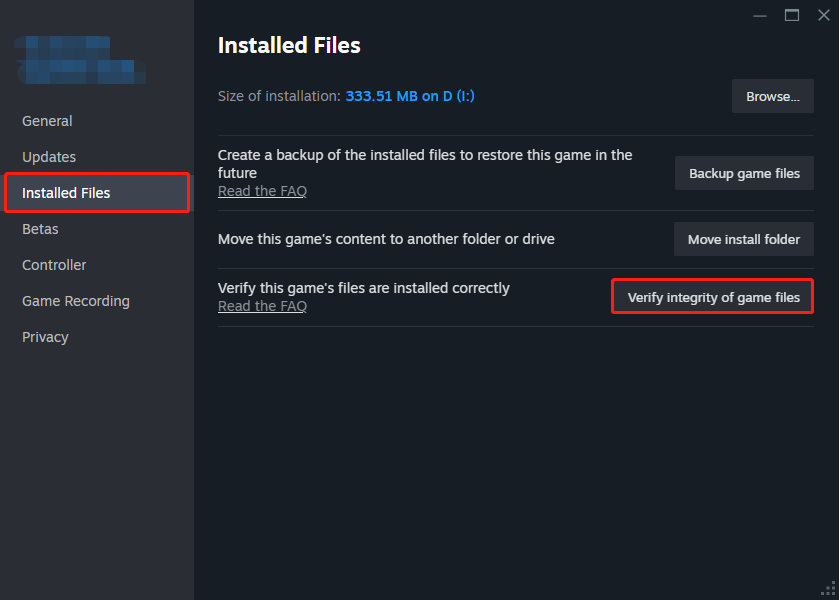
Wait for the process to complete and restart the game.

2. Run Wreckfest 2 as Administrator
By running the game with administrator privileges, give it the necessary access to create and modify save files, potentially fixing the not saving error. This can be useful if the Wreckfest 2 save file location is in a protected place in your system. To do that:
Step 1. Locate Wreckfest 2 installation folder and right-click on its executable file to select Properties.
Step 2. Go to the Compatibility tab > check the box next to Run this program as an administrator > click on Apply & OK.
Relaunch the game and check if the saving issue is resolved.
3. Reinstall Wreckfest 2
A clean reinstallation removes any potentially corrupted files or incorrect settings that might be causing Wreckfest 2 not saving.
First, if possible, back up your existing save files by copying them from Wreckfest 2 save file location to a safe folder.
Then, through Control Panel or Steam, uninstall Wreckfest 2.
Finally, reinstall the game from Steam. Once installed, launch it and check if the saving issue persists. If successful, copy your backed-up save files back to the correct location.
Back up Wreckfest 2 Save File Location Manually
To be honest, it’s a good idea to back up your game saves to a safe destination like an external hard drive. With data backup, you can perform disaster recovery when suffering system issues, hard drive crashes, natural disasters, and more.
MiniTool ShadowMaker is your optimal choice as it allows you to backup files & folders, partitions & disks, systems, sync files, and clone disks for free in your first 30 days.
Step 1. Click on the download button below to install this 30-day free trial and then launch it by hitting Keep Trial.
MiniTool ShadowMaker TrialClick to Download100%Clean & Safe
Step 2. Navigate to the Backup page > choose SOURCE to pick out the game saves you plan to back up > turn to DESTINATION to select a storage path for the backup task.
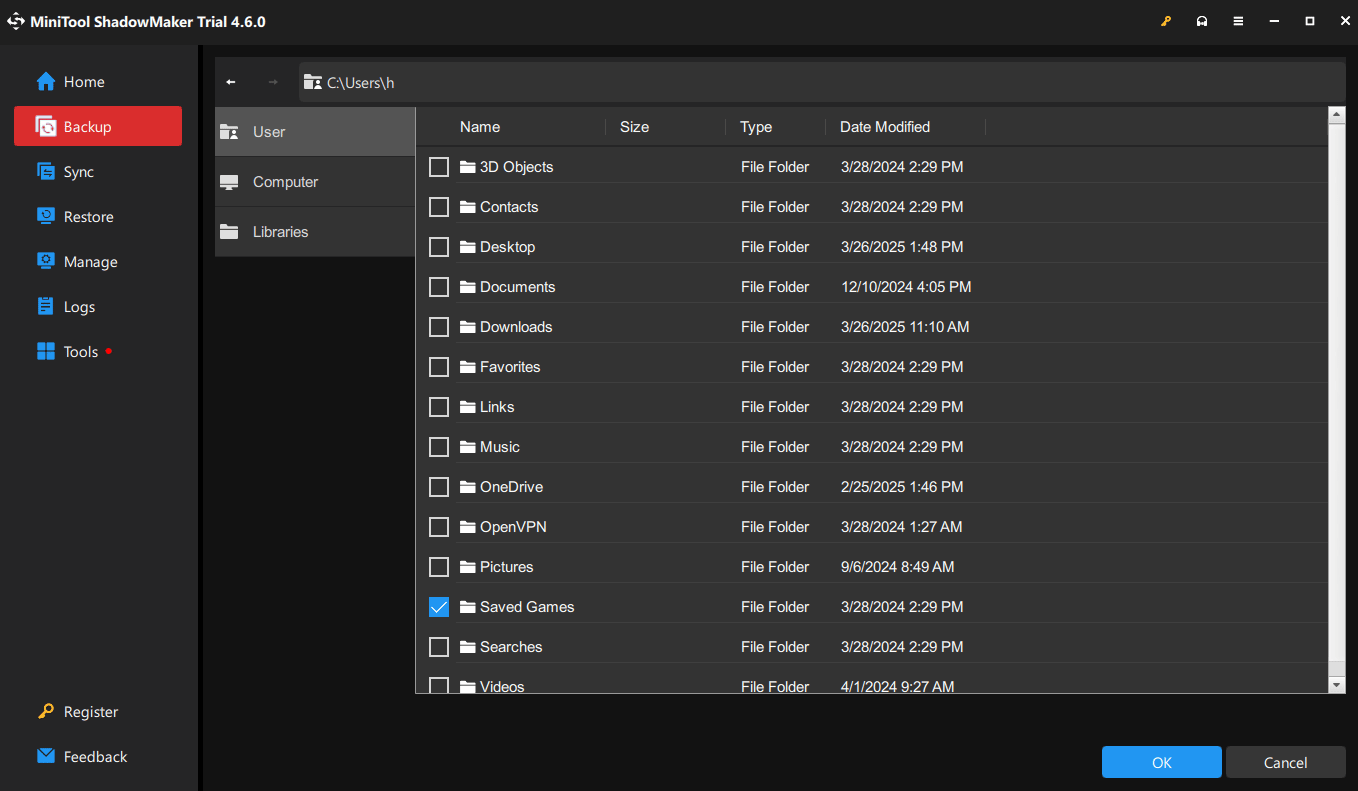
Step 3. Click on Back Up Now to start.
Final Words
Hopefully, you can smoothly resolve the Wreckfest 2 not saving error on your PC and ascend to the throne of racing and on your way to victory.
User Comments :