
WslRegisterDistribution Failed With Error 0x80004005 Windows
WslRegisterDistribution failed with error 0x80004005 is a common issue when setting up or using Windows Subsystem for Linux (WSL). WSL allows you to use Kali Linux or Ubuntu on your Windows machine, but this error can prevent the installation or startup of a Linux distribution.
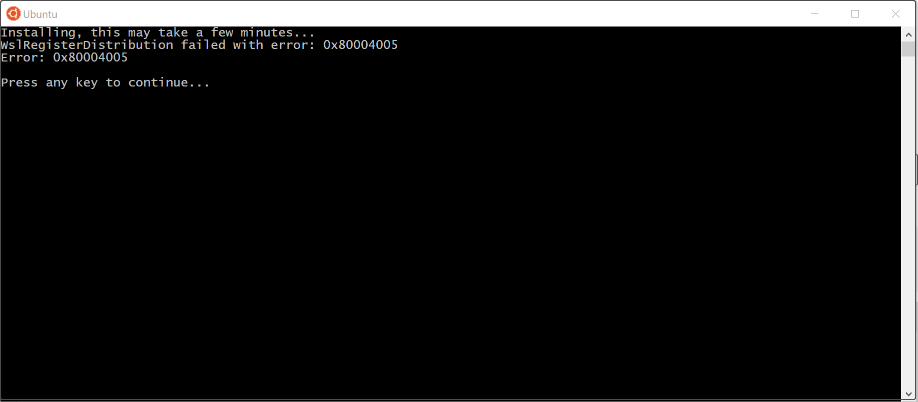
The WslRegisterDistribution failed error 0x80004005 may be caused by improper configuration of the LxssManager service, outdated Windows versions, incomplete WSL installations, and so on. Below are several solutions to help you fix this error and get WSL working smoothly again.
How to Fix WslRegisterDistribution Failed Error 0x80004005
Fix 1. Set LxssManager to Start Automatically
If the LxssManager service that is responsible for managing the WSL environment is not running, it may cause the error code 0x80004005. You can set to start this service automatically by using the Registry Editor.
Step 1. Press Windows + R to open Run, and then type regedit in the text box and press Enter.
Step 2. Navigate to this location:
Computer\HKEY_LOCAL_MACHINE\SYSTEM\CurrentControlSet\Services\LxssManager
Step 3. In the right panel, double-click on the Start DWORD value. In the value data box, type 2 and click OK.
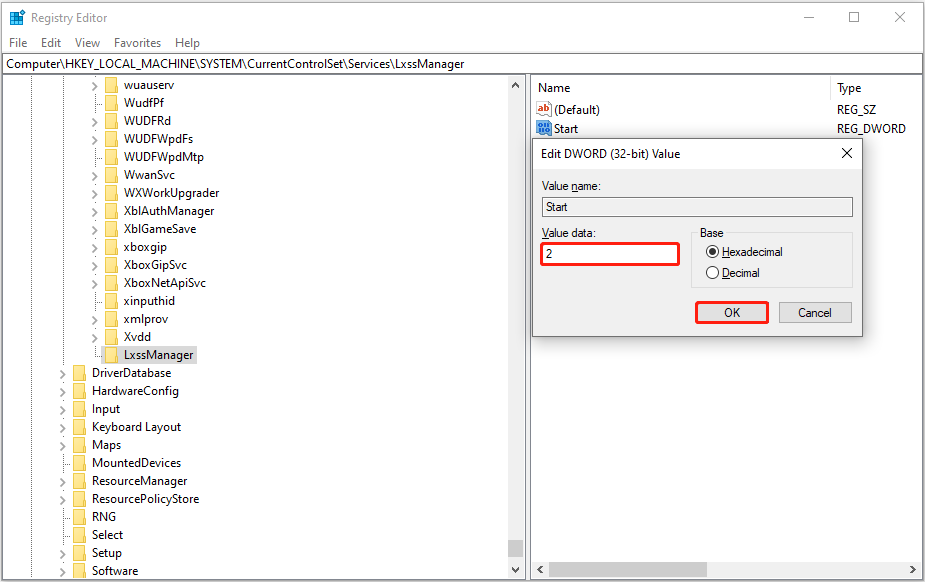
Step 4. Reboot the computer and check if the 0x80004005 error disappears.
If the issue persists, you can execute a command line to enable the WSL feature:
- Right-click the Start button and choose Windows PowerShell (Admin).
- Type Enable-WindowsOptionalFeature -Online -FeatureName Microsoft-Windows-Subsystem-Linux and press Enter to execute it.
- Type Y and press Enter when you are asked to confirm the operation.
- Restart the computer and verify if it helps.
Fix 2. Disable and Enable Windows Subsystem for Linux
Disabling and then re-enabling the Windows Subsystem for Linux (WSL) feature can also help resolve the WslRegisterDistribution failed with error 0x80004005 issue. Here are the steps.
Step 1. Type Control Panel in the Windows search box and press Enter to access it.
Step 2. In the upper right corner, set it to view all items by large or small icons. Then click Programs and Features > Turn Windows features on or off.
Step 3. Uncheck the option of Windows Subsystem for Linux and click OK.
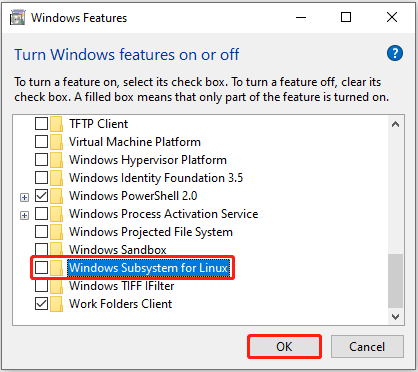
Step 4. Restart your computer, and then re-enable the Windows Subsystem for Linux feature.
Fix 3. Update WSL
Ensuring that you have the latest version of WSL can also help resolve the WslRegisterDistribution failed error. To update WSL, follow these steps:
- Type PowerShell in the Windows search box, and then select Run as administrator under Windows PowerShell.
- Input wsl –update and press Enter.
Fix 4. Install WSL From the Microsoft Store
If the WslRegisterDistribution failed with error 0x80004005 still showing up, reinstalling WSL from the Microsoft Store can help resolve the problem. Visit the Windows Subsystem for Linux download page, and click the Install button to get WSL installed on your computer.
Fix 5. Update Windows
Sometimes, WslRegisterDistribution failed with error 0x80004005 due to outdated systems. You should always keep your system up-to-date to fix security vulnerabilities, address bugs, and enhance system performance.
Before proceeding with any system update, it is always a good idea to back up your important files. Windows updates typically go smoothly, but sometimes unforeseen issues occur. Backing up your data or system ensures that you can restore it easily if anything goes wrong. To back up files, you can use Windows built-in tools, such as File History or Windows Backup and Restore. Or, you can use professional backup software, MiniTool ShadowMaker (30-day free trial).
MiniTool ShadowMaker TrialClick to Download100%Clean & Safe
Once you’ve completed your backup, follow the steps below to ensure your Windows system is fully updated.
- Press Windows + I to open Settings.
- Select Update & Security. In the Windows Update section, check for available updates and install them.
Bottom Line
Faced with the WslRegisterDistribution failed error 0x80004005, you can check whether the LxssManager service is started, WSL or Windows is updated, and more. I hope the information above can help you a lot.
About The Author

Position: Columnist
Shirley holds a bachelor’s degree in English and has been an editor at the MiniTool Team for many years. She specializes in IT-related content, with a focus on data recovery, file backup, disk management, and other technical topics. She is committed to delivering clear, accurate, and practical solutions to help users resolve common computer issues.
User Comments :