
Xbox Cloud Gaming Not Working
What is Xbox Cloud Gaming? Xbox Cloud Gaming is a way to access Xbox games without owning an Xbox console. This is Microsoft’s approach, where they provide users with regularly updated game library content, allowing them to use the games on devices that they probably already have.
The idea is that you will be able to play games over the network and do so anywhere, without having to purchase and download games separately. To use the Xbox Cloud Gaming service, you first need to have the Premium version of Game Pass membership.
There are some users report that they have issues with the Xbox Cloud Gaming service, which is Cloud Gaming not working. Examples like unstable networks, corrupted cache, compatibility problems, software glitches, and account issues might lead to problems with Cloud Gaming.
Now, let me show you how to fix Xbox Cloud Gaming not working in the following fixes.

How to Fix Xbox Cloud Gaming Issues?
Before proceeding with solutions, you should ensure that your device supports and is compatible with Xbox Cloud Gaming.
Option 1. Restart Your PC
Quickly restarting the device is often a simple and effective solution. The process of restarting is equivalent to giving the device a deep cleaning: it terminates all running programs, releases the occupied system resources, and reloads the necessary configuration files.
Option 2. Check Your Network
Cloud Gaming is a technology that transfers the running and rendering processes of games to remote servers via the internet. The player’s device only needs to receive and display the compressed game images and send the player’s operation instructions back to the server in real time.
This model significantly reduces the requirements for local hardware performance, enabling users without high-performance game consoles or computers to enjoy high-quality game content.
However, the successful operation of Cloud Gaming is highly dependent on a stable and fast network connection. To ensure a good experience with Xbox Cloud Gaming, your internet speed not only needs to meet the minimum requirements but should also try to choose a high-speed and stable network environment.
Option 3. Update Your Xbox
As developers continuously release updates to fix known bugs, optimize performance, and add new features, older versions may not be compatible with the latest system environment or other software, resulting in malfunctions and compatibility issues. Check your game files and applications to ensure they are up to date:
Step 1. Launch the Xbox app for PC, click on your Profile picture, and select Settings.
Step 2. Go to the About tab > App Updates.
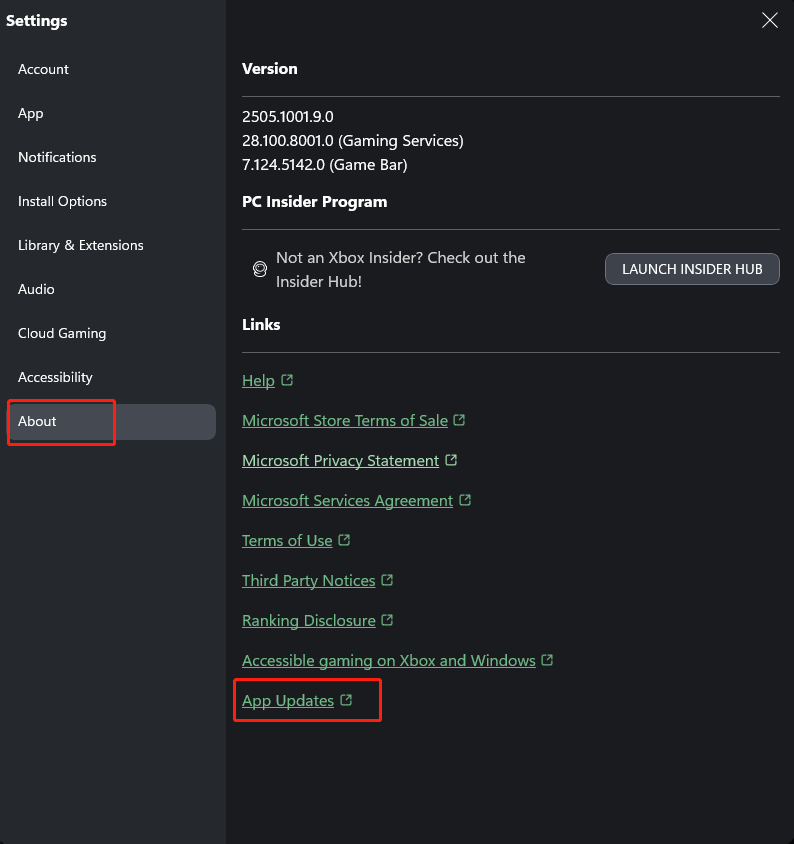
Step 3. Then you can check your Xbox app on PC version number and then manually update it.
Option 4. Repair Your Xbox
If Xbox Cloud Gaming not working is not fixed, you can also try repairing Xbox on PC. Here’s how to do that:
Step 1. Right-click on the Start button and choose Settings from the dropdown menu.
Step 2. Select Apps and under the Apps & features section, find the Xbox app.
Step 3. Choose Xbox and click Advanced options.
Step 4. Scroll down to find and hit the Repair button to repair problems with Cloud Gaming.
You can also click on Reset if it doesn’t work.
MiniTool ShadowMaker TrialClick to Download100%Clean & Safe
In the End
After reading this guide, you can tell what Xbox Cloud Gaming is and how to address Xbox Cloud Gaming not working. Hope it can help you get rid of this problem and enjoy your game.
User Comments :