
When you find that your hard drive space is full, you may want to know what is taking up space on the hard drive. This article provides different methods to find out and free up the hard drive using Windows Settings, MiniTool Partition Wizard, and File Explorer.
What Is Taking Up Space on My Hard Drive?
Storage is a critical component that directly impacts whether your computer runs smoothly or crashes. You should typically know what is taking up space on hard drive when you encounter the following scenarios:
- System performance drops: If your computer becomes sluggish, takes longer to boot, or apps respond slowly.
- Update failures: When you cannot install important Windows updates due to “low disk space” errors.
- Error message: If you see pop-up notifications like “You’re running low on disk space” or see a red storage bar in your File Explorer.
- Application issues: When programs frequently freeze, crash, or fail to save new files.
Hard drive space stores everything from your visible personal documents to hidden system files that Windows requires to function. They are typically divided into these main categories:
- Apps & features: Includes all software, games, and Windows features installed on your system.
- System & reserved: Essential files such as the Windows operating system itself (typically exceeding 20GB), hibernation files (hiberfile.sys), and virtual memory (pagefile.sys).
- Temporary files: Includes the Recycle Bin, browser caches, and Windows Update cleanup files. These files can be safely deleted to free up several gigabytes of space.
- Documents, Pictures, and Videos: Your personal files, typically stored in the default user folder.
Sometimes, your drive appears full even when your visible folders look small. This is often due to hidden files:
- System Restore Points: Snapshots of your PC’s state, allowing you to undo changes. They can accumulate and occupy significant space over time.
- Windows Update Cache: Leftover installation files from previous updates, often found in the Windows.old folder after a major upgrade.
- App Caches: Hidden data stored by apps like Spotify, Chrome, or Adobe to improve speed, often located in the hidden AppData folder.
How to See What Is Taking Up Space on Hard Drive on Windows?
To see what is taking up space on hard drive, you can use built-in system settings for a quick overview, a third-party disk space analyzer for a detailed visual map of individual files, or File Explorer for large files.
Method 1. Use Settings
This is the standard method to see a category-based breakdown of your drive. Follow the steps below to learn how to check hard drive space:
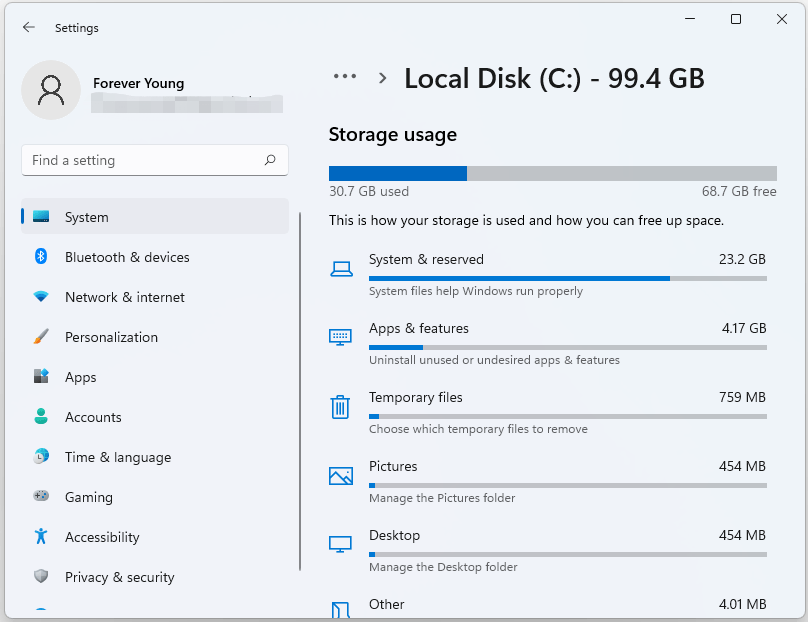
- Press Win + I to open Settings. Then go to System > Storage.
- Under your main drive (usually Local Disk C:), you will see categories like Apps & features, and Temporary files.
- Click Show more categories to see a full list, including System & reserved, Pictures, Documents, etc.
You can click on a category (e.g., Apps & features) to see specific items and sort them by size to find the biggest files taking up the most space.
Method 2. Use MiniTool Partition Wizard
MiniTool Partition Wizard is a great choice for checking disk space usage. Different from Windows Settings, it offers a more integrated interface and comes with multiple options for you to choose from.
This tool scans your drive and provides a hierarchical view of files and folders sorted by size. Furthermore, this space analyzer displays file sizes in more intuitive units like GB/MB/KB/B, instead of all in KB like File Explorer.
MiniTool Partition Wizard FreeClick to Download100%Clean & Safe
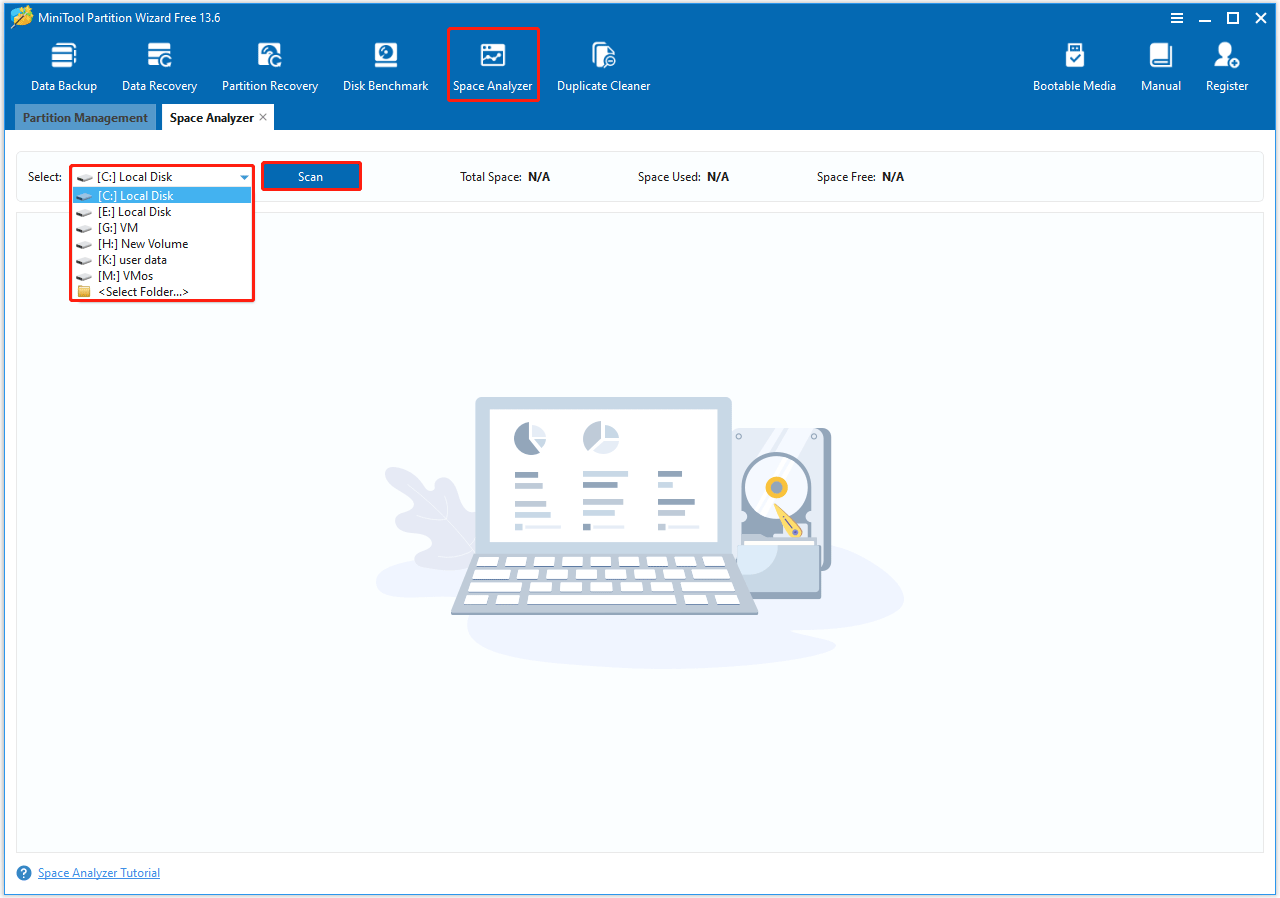
Step 1. Download, install, and launch this software. On its main interface, click the Space Analyzer feature on the top toolbar.
Step 2. Choose a partition to scan from the drop-down menu and click Scan.
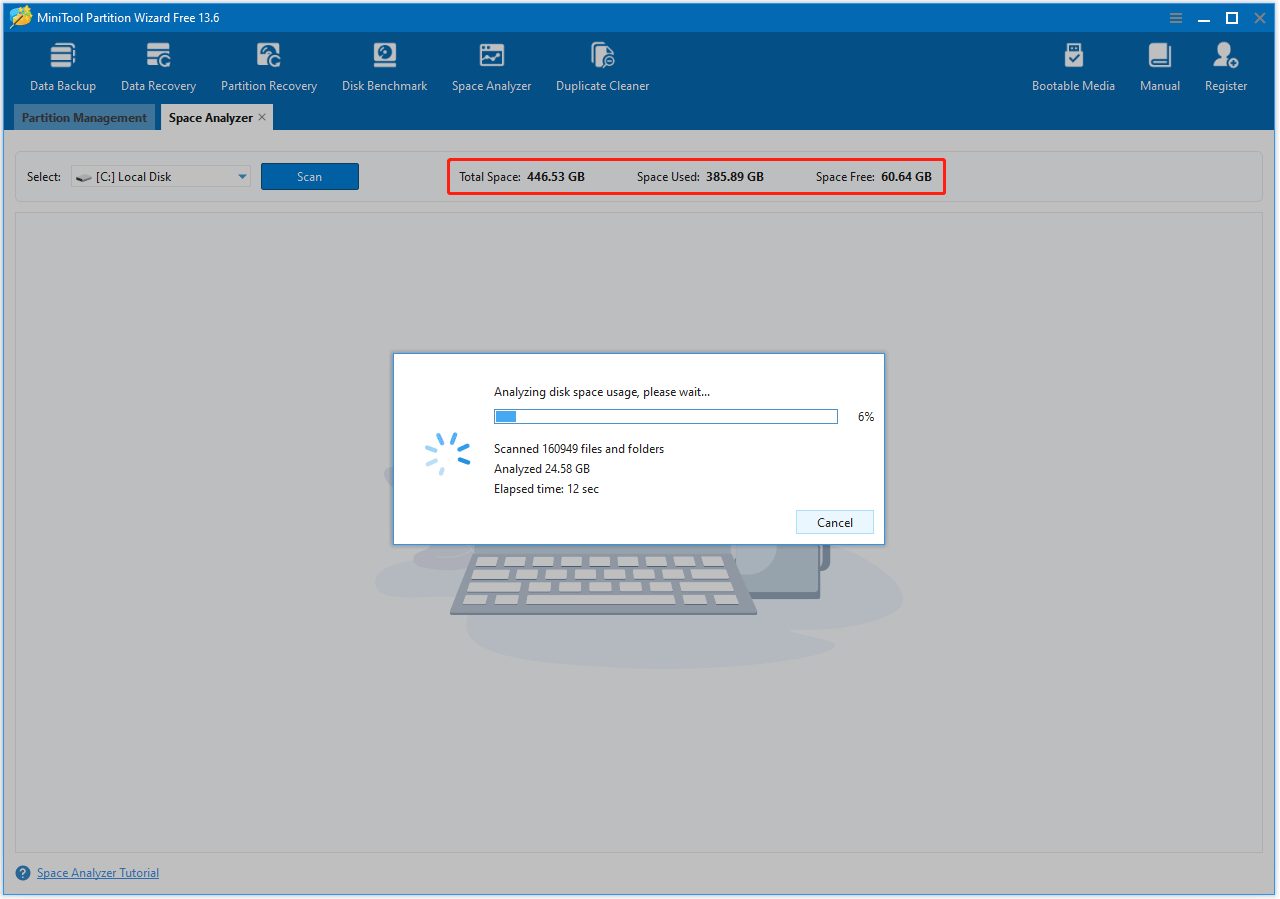
Step 3. Wait for the scanning process to be complete, and you can see the scanning drive’s Total Space, Space Used, and Space Free.
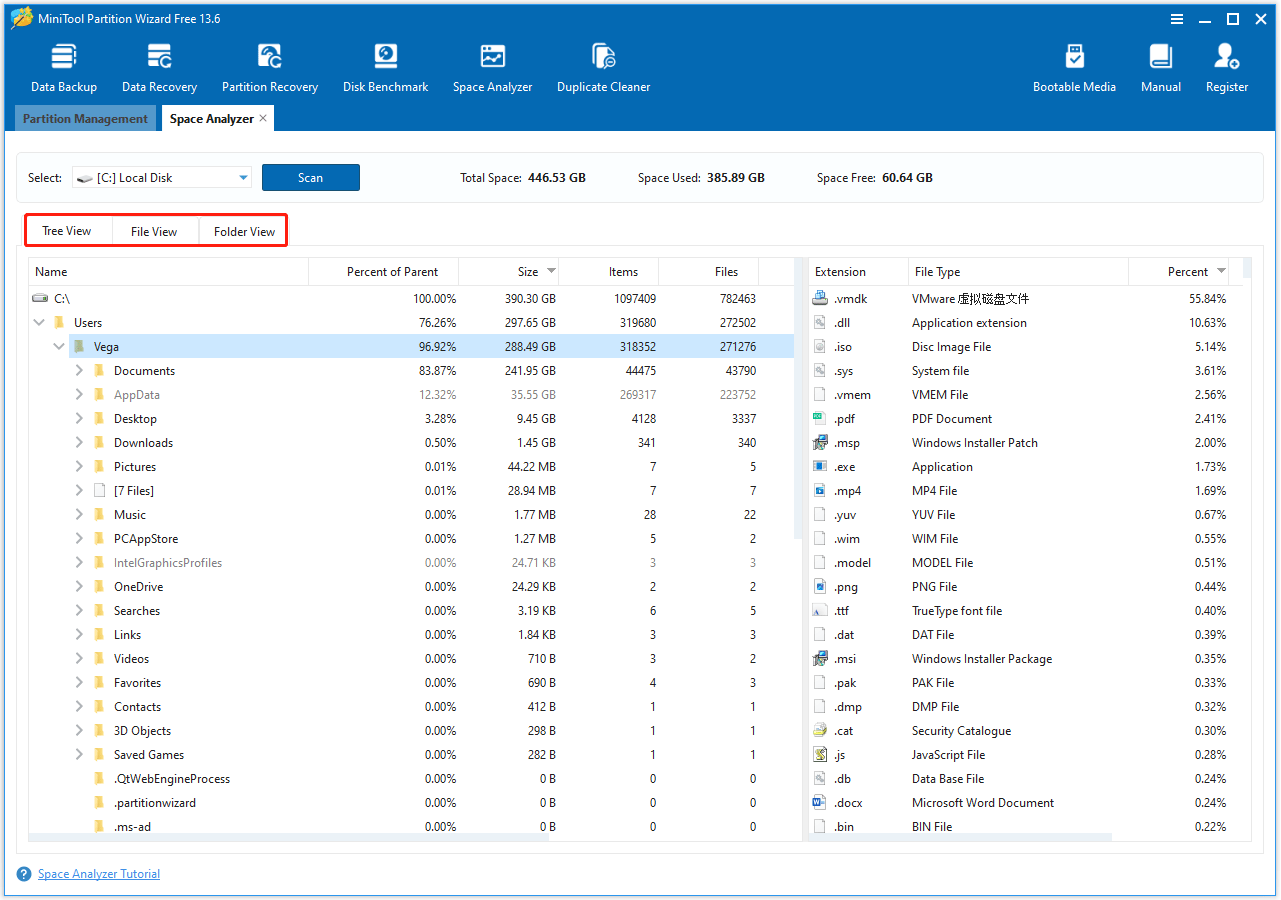
Step 4. After scanning is complete, this tool displays the scan results in Tree View, File View, and Folder View.
- Tree View: It presents a hierarchical view of files and folders. Each folder can have a number of subfolders.
- File View: It displays all the files in descending order by file size. You can choose File Search Filter to check a specific file’s size with Match file name only or Match entire path.
- Folder View: It lists all files in folders. Choose Show all directories to list all folders and show which directory is taking too much space. Choose Show last level directories to navigate folders to the last level.
Method 3. Use File Explorer
You can manually find what is taking up space on your hard drive by using File Explorer.
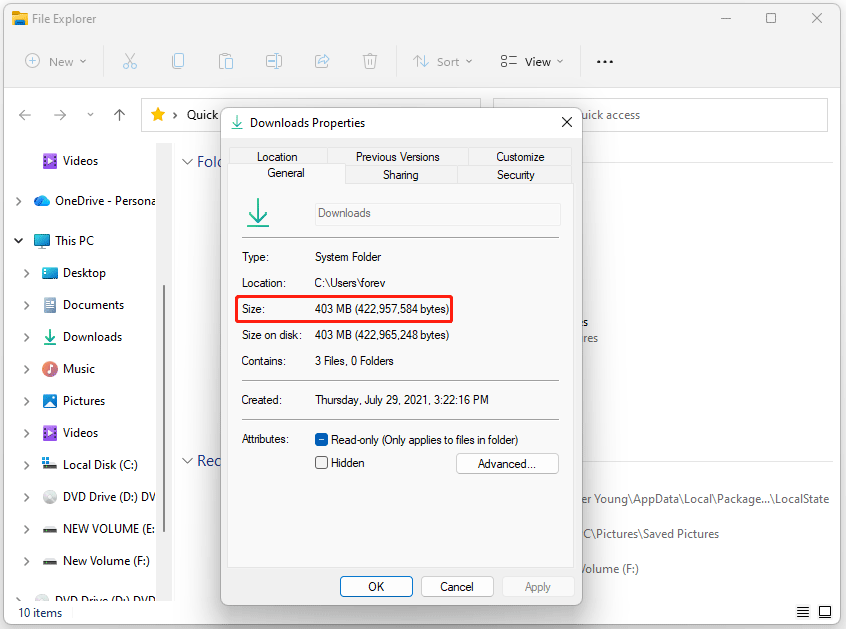
Press Win + E to open File Explorer. In the left action panel, you can see your different folder categories, like Desktop, Documents, Downloads, Music, Pictures, and Videos. To know the size of each one, right-click it, select Properties, and you can see its Size.
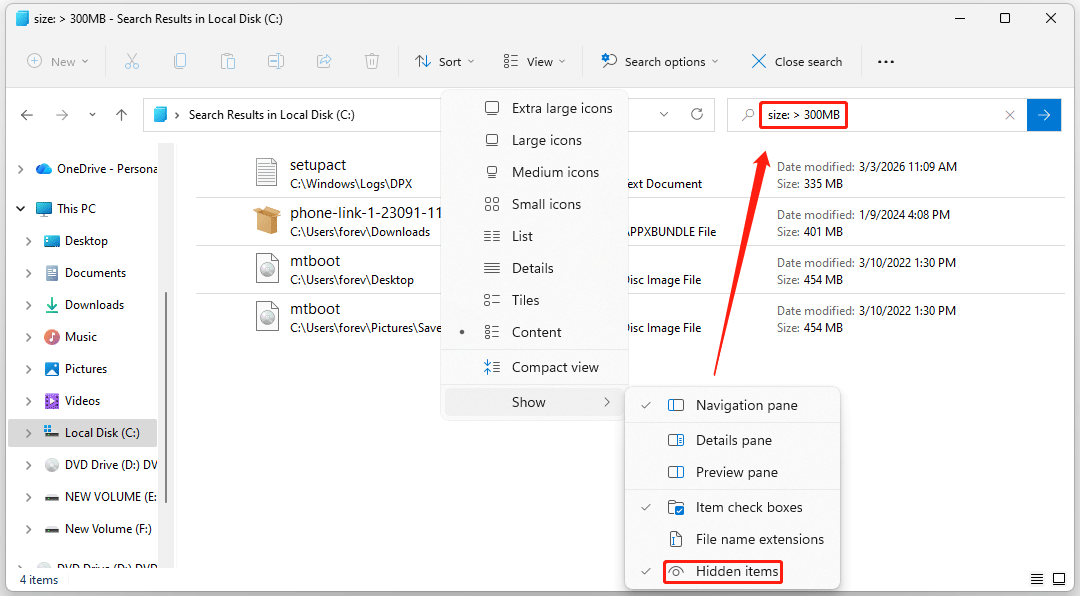
To find the large files, open a partition (C: drive, for example). Click View > Show > Hidden items. In the Search bar, type this command: Size: > *MB. * should be replaced accordingly. Press Enter, and File Explorer will list all files larger than *MB in the drive.
How to Free Up Disk Space on Windows?
After finding out what is taking up space on hard drive, you should try the following approaches to free up disk space.
Method 1. Use Settings to Clear Temporary Files
Temporary files include app and internet temp files, old versions of Windows updates, Downloads, Recycle Bin, Thumbnails, Direct Shader Cache, etc. Clearing them can free up disk space.
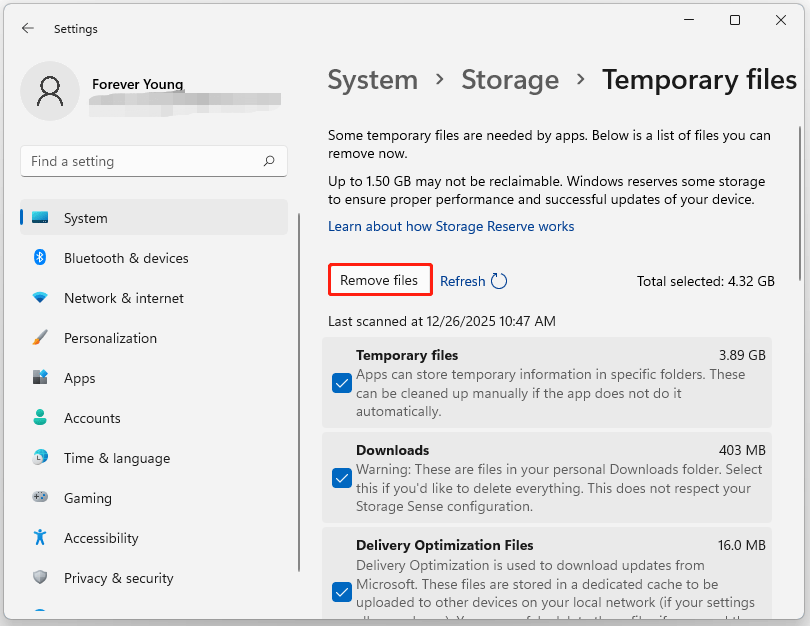
- Go to Settings > System > Storage.
- In the right panel of Storage, click the Temporary files category.
- Check boxes to select files to remove.
- Click Remove files.
Method 2. Uninstall Unused Apps
Unused apps can consume a significant amount of disk space. So, uninstalling them can save some space. Here are the steps:
- Go to Settings > System > Storage.
- In the right panel, click Apps & features.
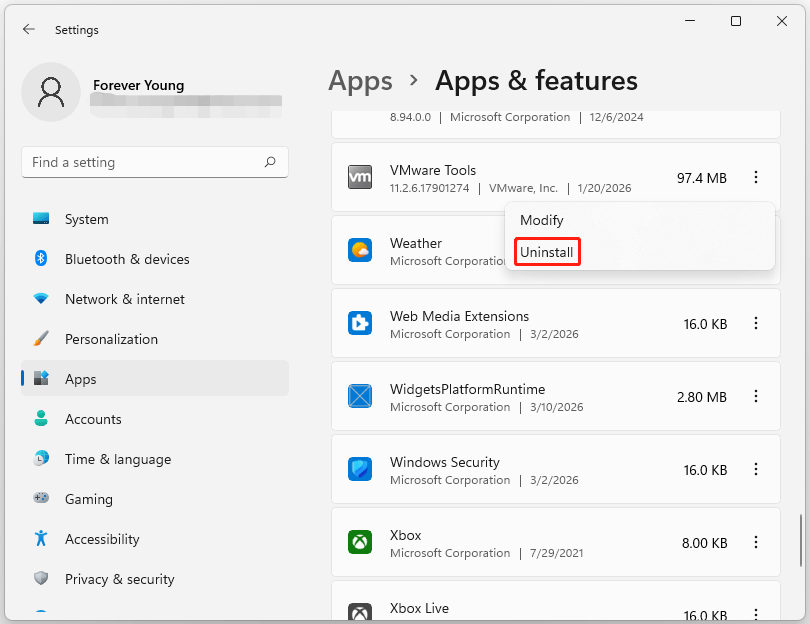
- Scroll down to find apps that you don’t use and then click the three-dot icon.
- Click Uninstall.
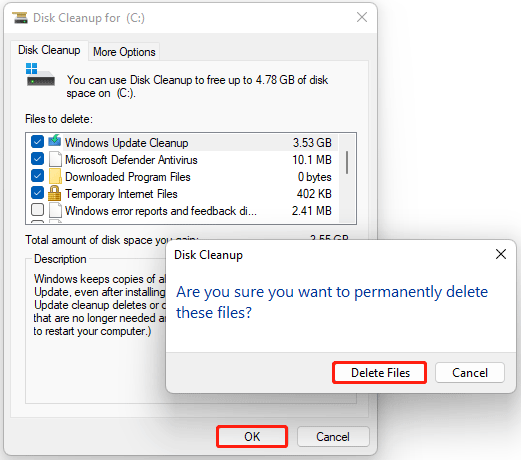
Method 3. Use Disk Cleanup to Remove Unnecessary System Files
To use Disk Cleanup for deep-cleaning unnecessary system files, follow these steps:
- Type Disk Cleanup in the Search bar and press Enter.
- Choose your main drive (usually C:) and click OK.
- Once the window opens, click Clean up system files at the bottom left.
- Windows will recalculate. Check the boxes for these high-impact items: Windows Update Cleanup, Microsoft Defender Antivirus, and Device Driver Packages.
- Click OK, and then Delete Files.
Method 4. Delete Duplicate Files
Finding and deleting duplicate files is one of the most effective ways to reclaim space without losing any new data. Windows does not have a built-in one-click duplicate file finder, so you will need to use a third-party program.
MiniTool Partition Wizard is a duplicate cleaner that helps you detect and delete duplicate files stored across your PC with just a few clicks.
MiniTool Partition Wizard FreeClick to Download100%Clean & Safe
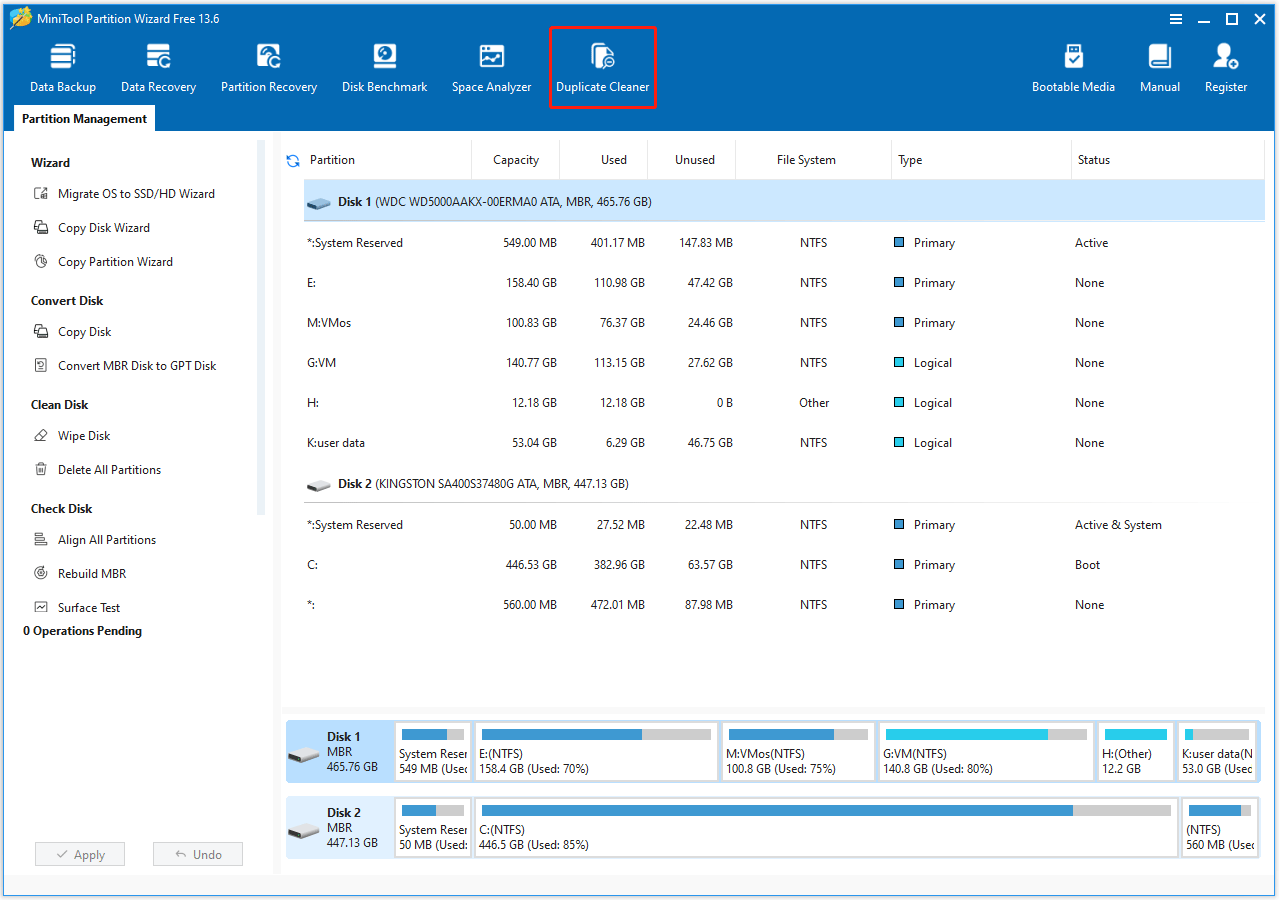
Step 1. Launch MiniTool Partition Wizard to enter its main interface. Then click the Duplicate Cleaner feature on the top toolbar.
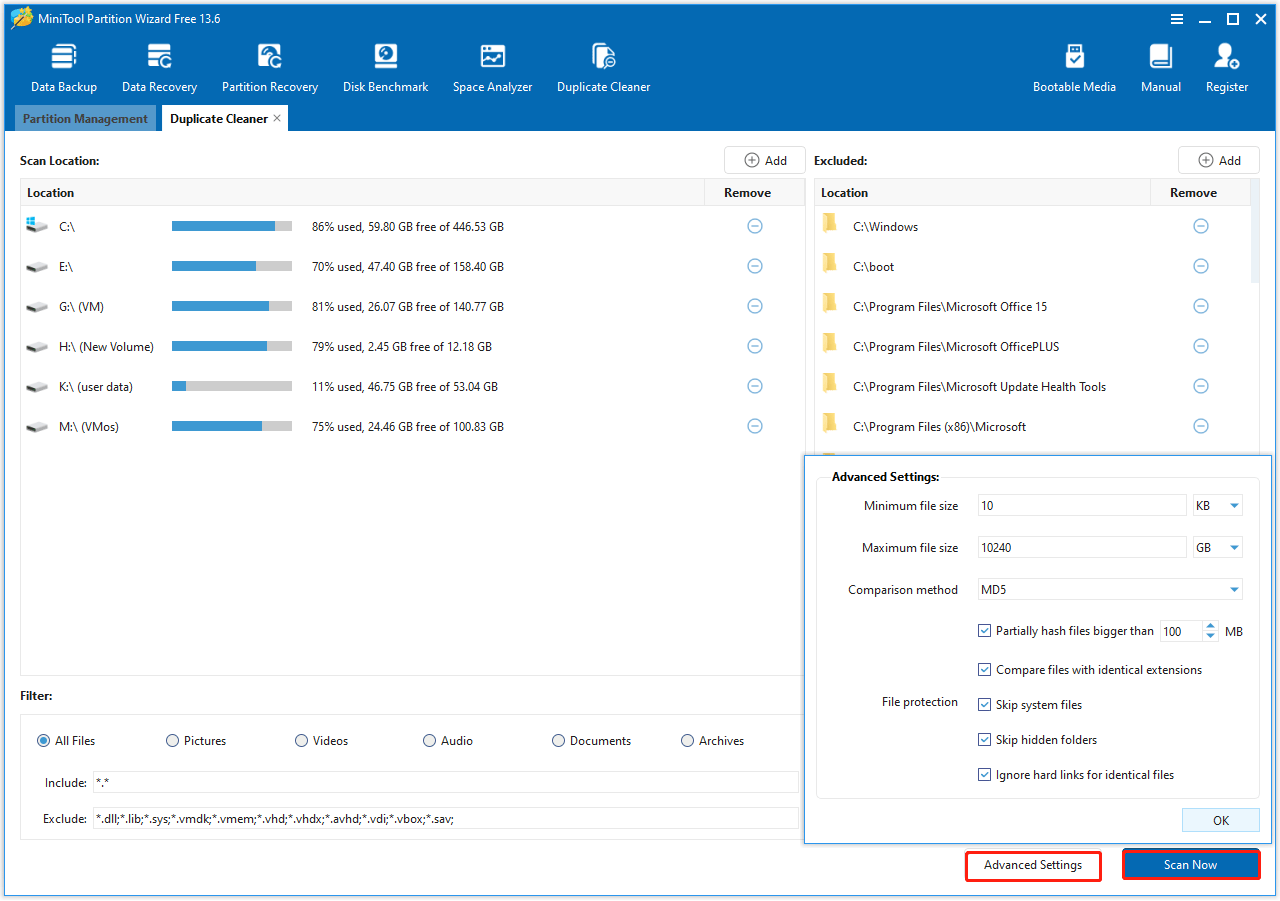
Step 2. In the following interface, configure the scan settings, including location and file type. Then click Scan Now. You can click the Advanced Settings to adjust file size, choose the hash comparison method, and set file protection options for a more precise scan.
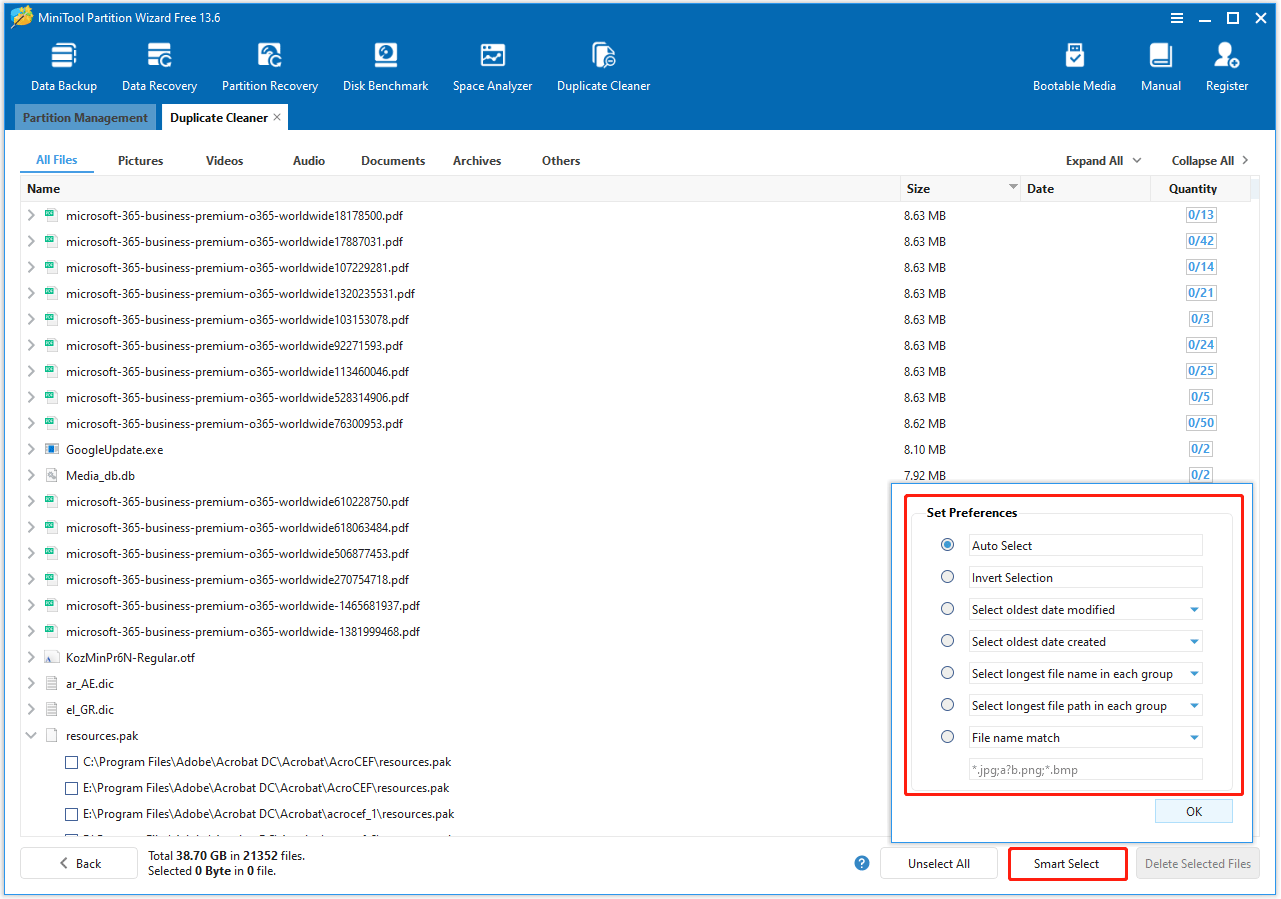
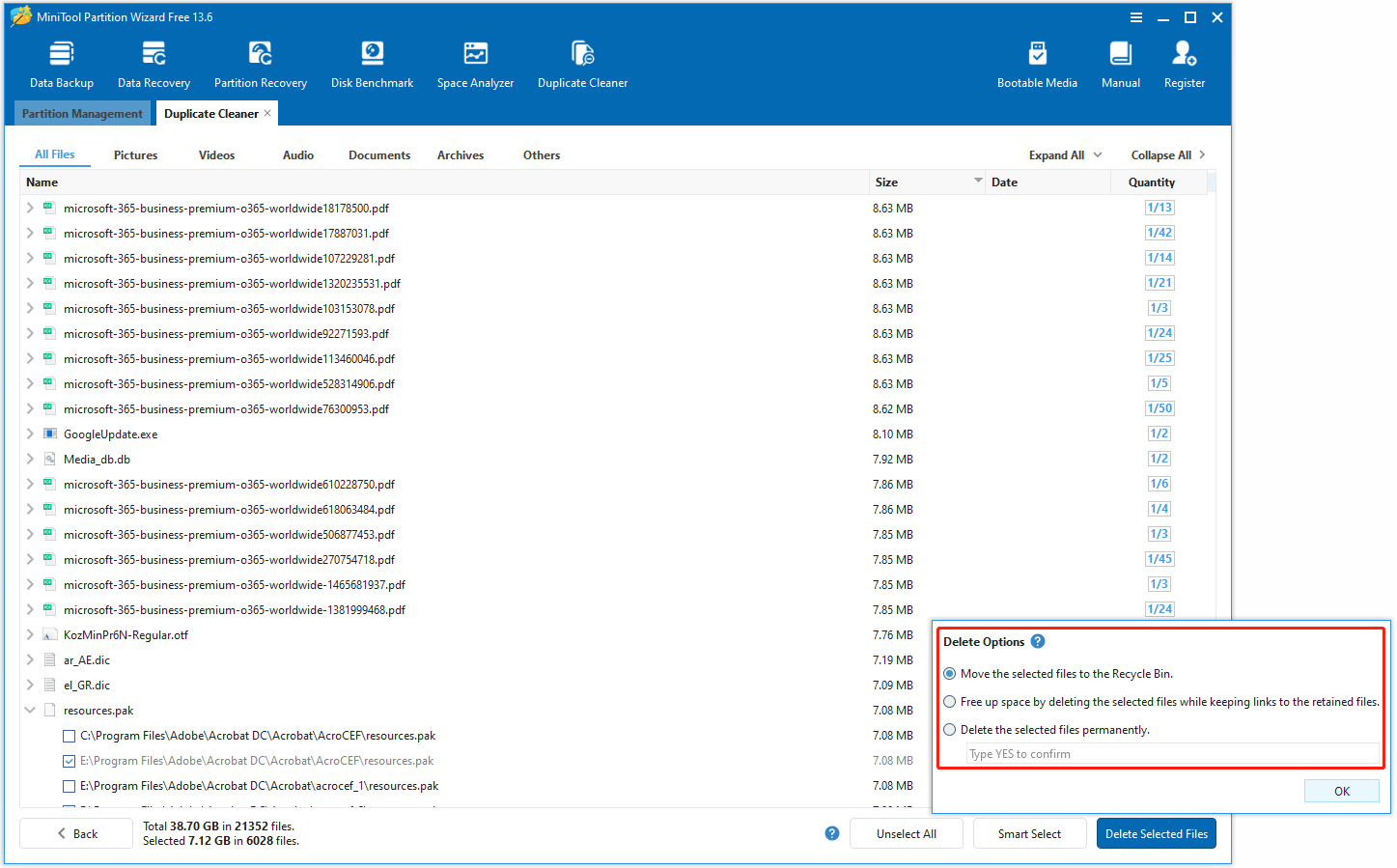
Step 3. After scanning, the results will show all duplicate files with their size and quantity. Click Smart Select and then select different selection methods according to your needs.
Step 4. Click Delete Selected Files to choose different deletion options. Then click OK to start the deletion of duplicate files.
Method 5. Disable Hibernation
Hibernation requires a significant amount of space on your hard drive to store information in the hiberfil.sys file. If your disk is full, you can disable hibernation to free up space.
- Type cmd in the search bar.
- In the search results list, right-click Command Prompt and then select Run as administrator.
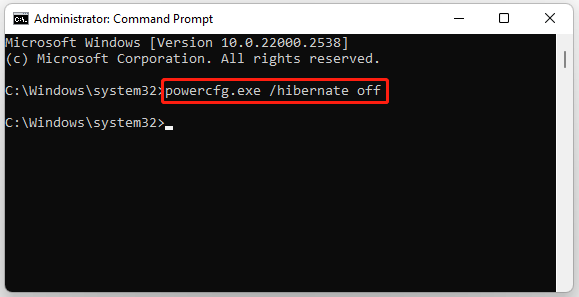
- Once Command Prompt opens, type powercfg.exe /hibernate off, and then press Enter.
Method 6. Move Personal Files to Cloud or External Drive
To free up disk space, you can move personal files (photos, videos, or documents) to an external hard drive or cloud storage (OneDrive, Google Drive).
What Is Taking Up Space on My Hard Drive FAQ
Bottom Line
How to see what is taking up space on C drive? This guide offers different approaches to do that. If your disk is full, try the methods above to free up disk space.
For any questions and suggestions related to MiniTool Partition Wizard, just contact us by sending an email via [email protected].
User Comments :