
Quick Answer
Hard drives generally come in two different form factors — 2.5-inch and 3.5-inch.
- 2.5-inch HDDs are commonly used in laptops and portable storage devices due to their smaller form factor and lower power consumption.
- 3.5-inch HDDs are recommended for desktops and servers because they offer higher capacities and a lower cost per terabyte.
2.5 VS 3.5 HDD: What Are the Differences?
To quickly understand the differences between 2.5-inch and 3.5-inch HDDs, check the comparison table below.
| Feature | 2.5-inch HDD | 3.5-inch HDD |
| Size | Smaller and lighter | Larger and heavier |
| Use case | Laptops and portable drives | Desktops, NAS, and servers |
| Power consumption | Lower | Higher |
| Capacity | Smaller | Larger |
| Speed | Slower | Faster |
| Price per TB | Higher | Lower |
| Shock resistance | Higher | Lower |
2.5 vs 3.5 HDD: Size
The most obvious difference between 3.5 vs 2.5 HDD is the hard drive size. The 2.5 inch HDD is normally around 3 inches wide, whereas the 3.5 inch HDD is around 4 inches wide in diameter.
2.5 inch HDDs are smaller in length, width and height than the 3.5-inch HDDs. They are also designed to be compact so that their thin dimension can be put to maximum advantage where less space is available.
The weight of 2.5 inch HDDs is much less than 3.5 inch HDDs.
2.5 vs 3.5 HDD: Use Case
In general, the 2.5 inch HDDs are used in the laptop, while the 3.5 inch HDDs are mostly used in desktop computers and Servers.
However, this does not mean that 2.5-inch HDDs cannot be installed on desktop computers. You can connect it to a desktop in the same way as a 3.5-inch HDD as long as it has the same ports as a desktop computer. Or else, an adapter is required.
Additionally, a 2.5 inch hard drive is the standard size of large capacity SSD drives and also the standard size for portable external HDD.
2.5 vs 3.5 HDD: Power Consumption
A 2.5 inch HDD has smaller mechanical parts, thus consuming less power than the 3.5 inch hard drives even though they are with similar specifications. Besides, the read and write power rating of 2.5 inch HDDs is around half of the read and write power rating of 3.5 inch HDDs with similar specifications.
2.5 vs 3.5 HDD: Storage Capacity
When it comes to hard drive storage capacity, it would an essential factor to consider because large capacity of hard drive is able to store more files and data.
Generally speaking, 3.5 inch HDDs have far greater range of storage capacities than the 2.5 inch HDDs. Through comparison, you can find that the maximum storage capacity available in 3.5 inch HDDs is around twice than the storage capacity of 2.5 inch HDDs.
On the market, it is hard to find a 2.5″ hard disk drive that is larger than 2TB, which mainly considers the fact that SSDs are now cheaper than ever. Western Digital made the largest 2.5-inch HDD with 6TB. While a 3.5-inch HDD can offer up to 32TB capacity.
So, if you want to store more files and data, the 3.5 inch HDDs would be a better choice.
2.5 vs 3.5 HDD: Data Transfer Speed
The data transfer speed of 3.5 inch HDDs is usually greater than the 2.5 inch HDDs. One of the reasons is that the 3.5 inch HDD can hold more sectors per track on the disk platter.
So, if the spin speed is the same, as for 2.5 vs 3.5 HDD, 3.5 inch HDD can read more sectors than 2.5 inch HDD so that it can transfer more data and files.
For example, most 3.5-inch HDDs offer 7200 RPM, making the data transfer rate faster. Usually, the average rate is 80MB/s to 160MB/s read & write speeds. While a 2.5-inch HDD with 5400 PRM offers around 100MB/s write and read speeds.
2.5 vs 3.5 HDD: Price
As for selecting 2.5 inch HDD or 3.5 inch HDD, the prices of these two hard drives should be considered. Compared with 3.5 inch HDDs, the 2.5 inch HDD is more expensive because the 2.5 inch HDDs have the following features:
- Tighter and smaller construction.
- Complex design making it consuming less power.
So, with these features, the 2.5 inch HDD would be more difficult to design so it is more expensive.
2.5 vs 3.5 HDD: Shock Resistance
2.5-inch HDDs offer better shock resistance than 3.5-inch drives because of their smaller and lighter design.
In addition, 2.5 inch HDD may also be equipped with accelerometers which can detect that HDD is dropped and immediately cause the HDD to park its heads to minimize the damage from the shock.
If the hard drive is broken due to the physical damage, the data and files on it will lose and it will not be recovered. So, the factor of hard drive shock resistance is also important.
3.5 vs 2.5 HDD: Which HDD Should You Choose?
The best HDD depends on your PC and needs. Refer to the table below to quickly choose the right HDD.
| Your Need | Recommended HDD |
| Upgrade a laptop | 2.5-inch HDD |
| Build or upgrade a desktop | 3.5-inch HDD |
| Use an external portable drive | 2.5-inch HDD |
| Set up NAS or home storage | 3.5-inch HDD |
| Store large files | 3.5-inch HDD |
In short, a 2.5-inch HDD is recommended for laptops or portable hard disks. A 3.5-inch HDD is more suitable for desktop computers, NAS, and servers.
2.5 VS 3.5 HDD Differences: Size, Speed, Capacity, and PowerClick to Tweet
How to Replace or Upgrade Your HDD Without Reinstalling Windows
If you want to replace the hard drive with a new 2.5-inch or 3.5-inch HDD without reinstalling Windows, cloning is a practical choice.
It helps transfer system files, apps, personal files, and other data to another drive. Compared to a fresh installation, this method is usually convenient.
So, if you want to upgrade to a larger hard drive or upgrade HDD from 2.5 inch to 3.5 inch without data loss, what can you do?
To upgrade computer hard drive, MiniTool ShadowMaker is strongly recommended. It is a piece of SSD cloning software and a USB clone tool, which can upgrade hard drive or clone OS to another hard drive without data loss.
So, in the following part, we will show you how to upgrade hard drive from 2.5 inch to 3.5 inch without data loss.
Now, here is the tutorial.
1. Click the following button to download MiniTool ShadowMaker or you can choose to purchase an advanced edition.
MiniTool ShadowMaker TrialClick to Download100%Clean & Safe
2. Install and launch it on your computer.
3. Click Keep Trial.
4. After entering its main interface, go to the Tools page.
5. Click Clone Disk to continue.
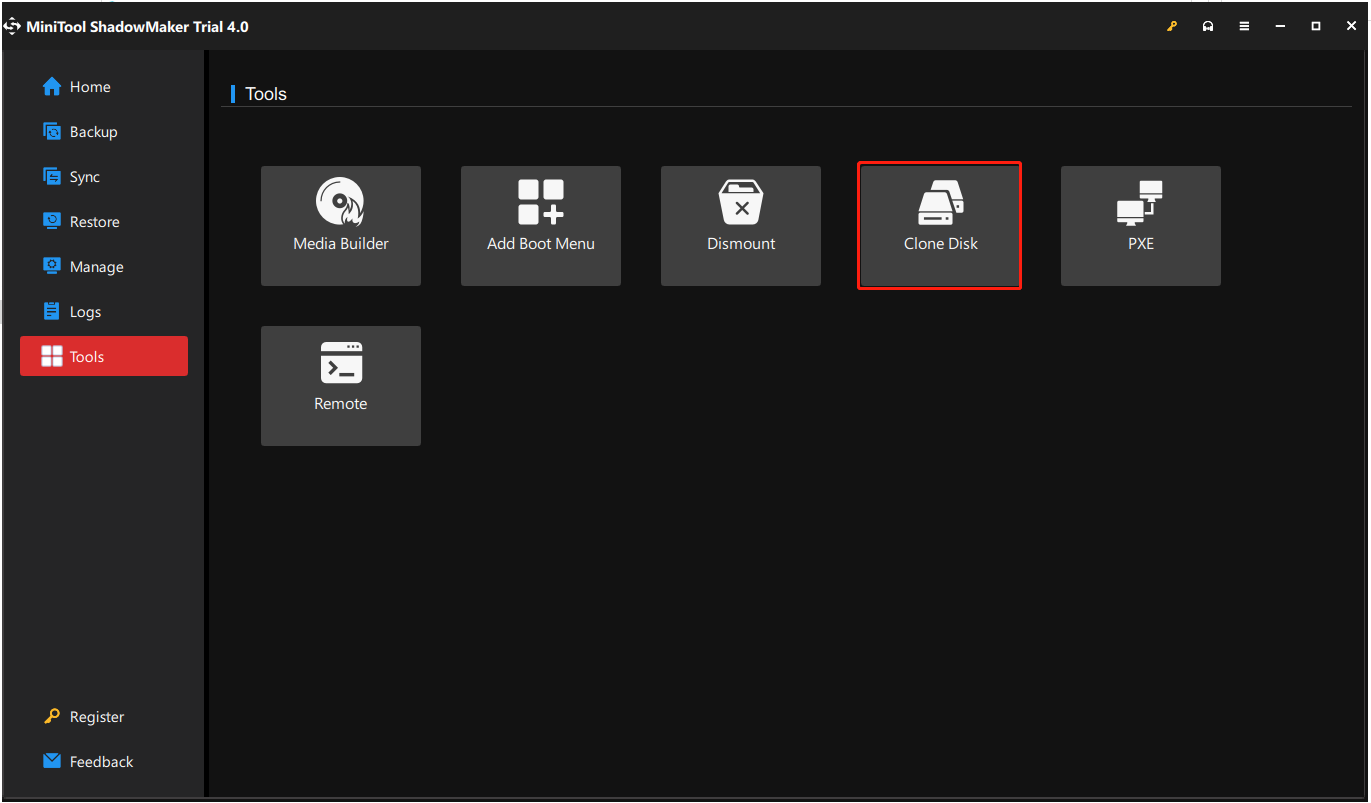
6. Choose the disk clone source. You can choose the original system disk as the disk clone source and then click Next.
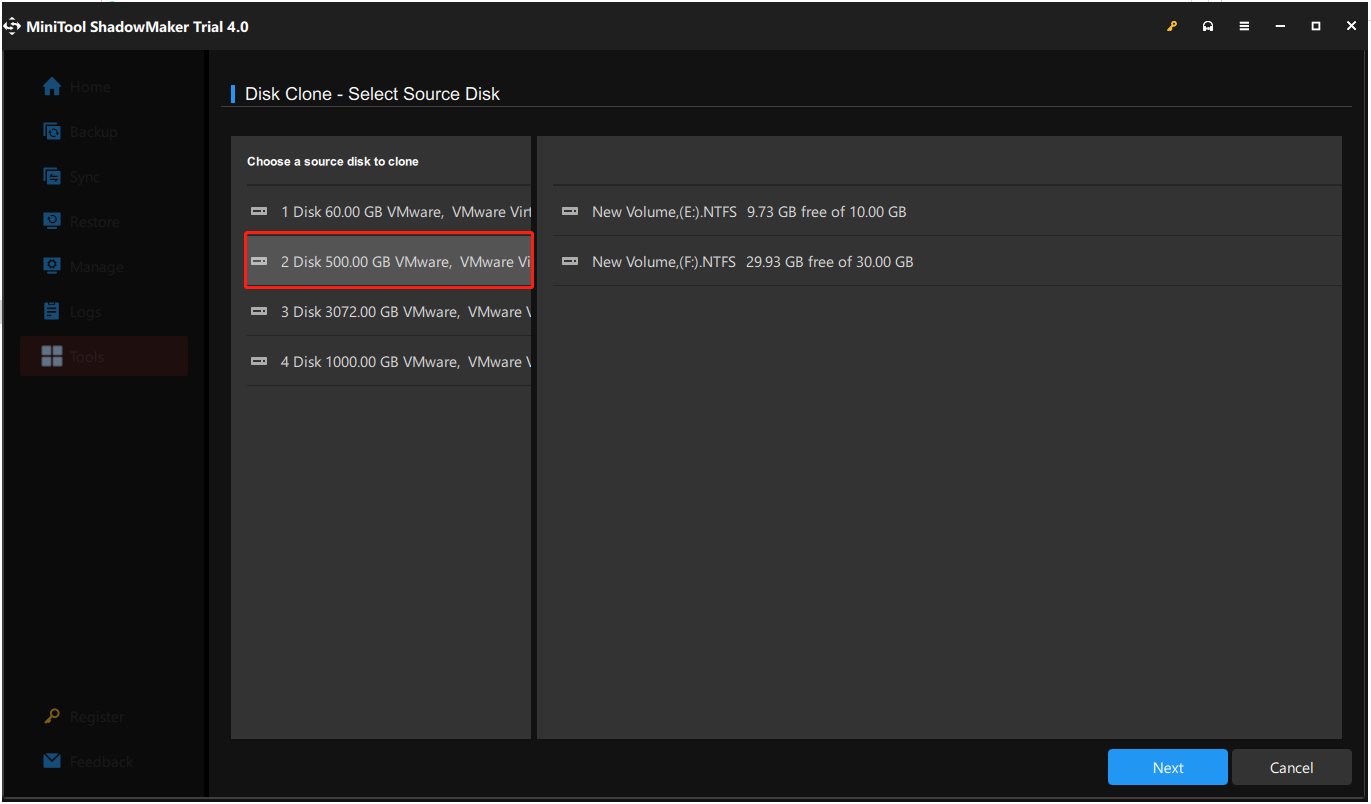
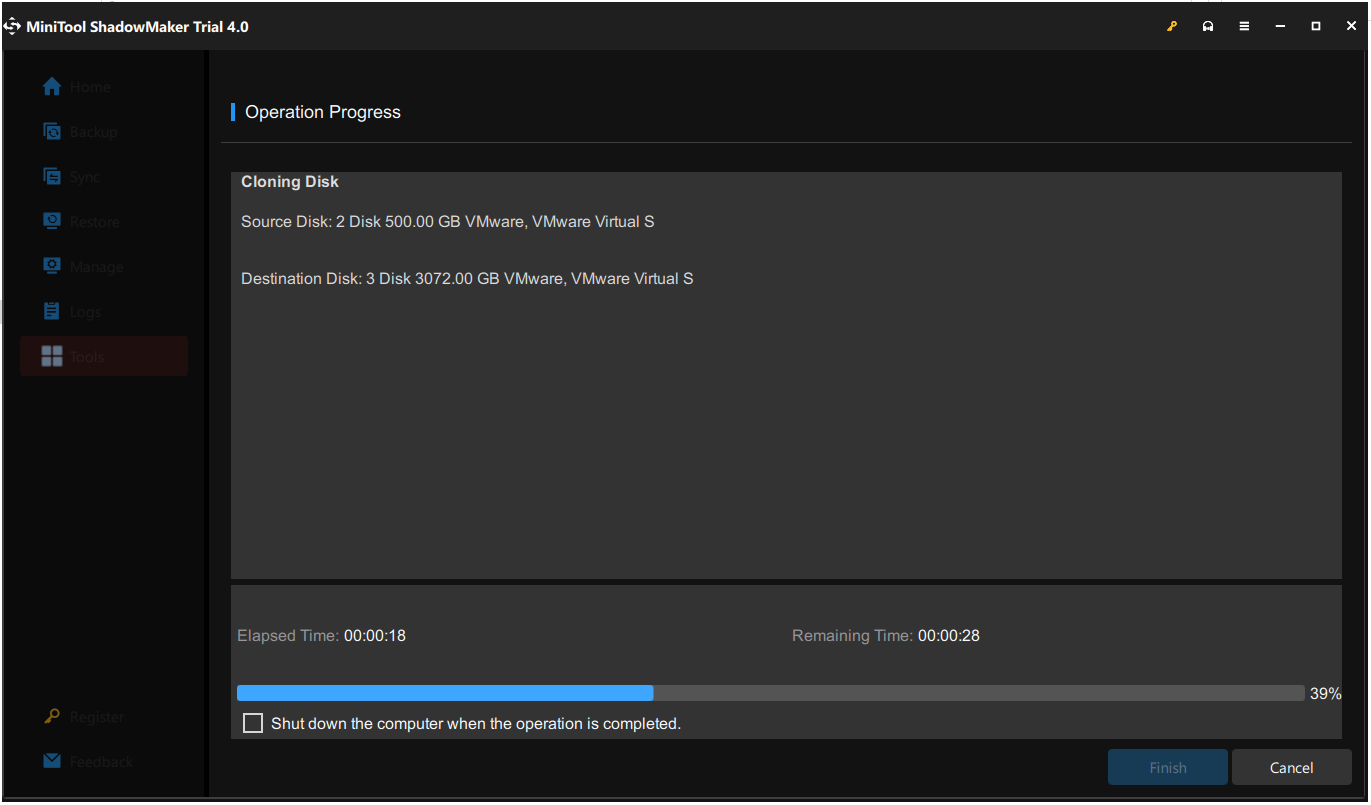
7. Choose a target disk and then click Start.
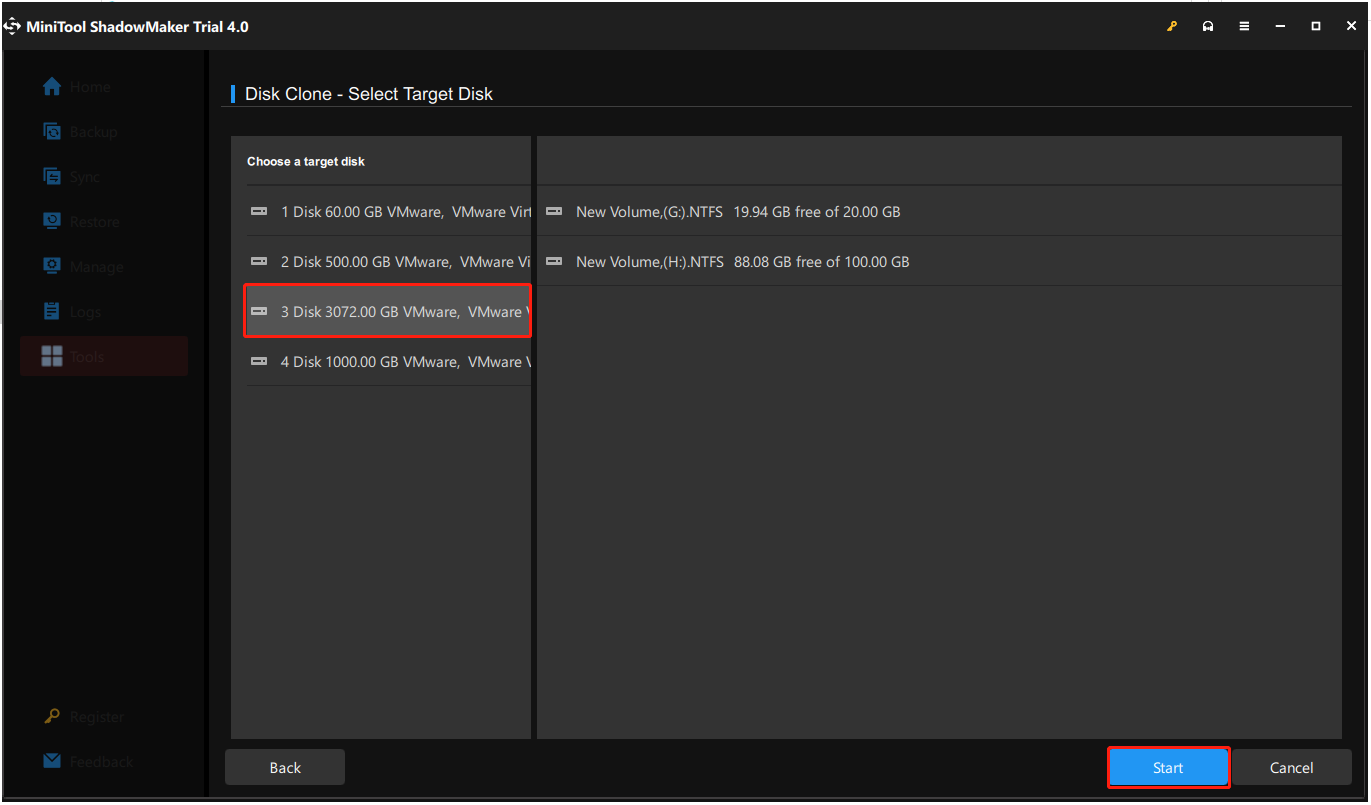
Then the disk cloning process will begin. The cost time depends on the number of files on the hard disk. Please do not interrupt the disk clone process until it is finished.
Bottom Line
As for 2.5 vs 3.5 HDD, this post shows their differences focusing on several aspects, such as size, power consumption, capacity, speed, and price. If you have a different idea with 2.5 HDD and 3.5 HDD, you can share it in the comment zone.
If you have any problem with MiniTool ShadowMaker, please feel free to contact us via emai at [email protected] and we will reply to you as soon as possible.
2.5 vs 3.5 HDD FAQ
About The Author

Position: Columnist
Vera has been working at the MiniTool Team for over 10 years as a technical editor and content writer. She mainly focuses on disk and partition management, data recovery, Windows backup and restore, and PC troubleshooting. Through in-depth software testing and hands-on experience, she has helped users solve a wide range of computer problems and better protect their data on Windows devices.
User Comments :