
Backing up a BitLocker-encrypted drive in Windows 11/10 helps protect your data against hardware failure, system crashes, and Windows updates. Discover how to back up an encrypted drive with MiniTool ShadowMaker in this guide.
Quick Answer: Can You Backup a BitLocker Drive?
Yes. You can backup a BitLocker drive without decrypting it. Modern backup software like MiniTool ShadowMaker can read unlocked BitLocker partitions and create backups.
This means you don’t have to turn off BitLocker, but it requires you to unlock the drive first.
Based on what you want to protect, follow the methods below:
| Goal | Backup Method |
| Protect personal files | File backup |
| Back up the whole encrypted hard drive | Disk backup |
| Back up encrypted C: drive | System backup |
| Clone a BitLocker drive to another drive | Disk clone |
What Is a BitLocker-Encrypted Drive?
A BitLocker-encrypted drive refers to a drive that uses Microsoft’s built-in security feature, BitLocker, to protect your data. This tool encrypts all files on that drive to prevent unauthorized users from accessing data without the correct password or recovery key.
Windows provides BitLocker to encrypt internal drives, including the system (C:) drive, and BitLocker To Go to encrypt removable drives, such as USB flash drives and external hard drives.
Why Backup a BitLocker Drive?
Although encryption can safeguard your data from unauthorized access, it is not a backup solution. You still need to create a backup for your encrypted drive for some reasons.
- The drive may fail or be accidentally formatted, resulting in data loss.
- Losing the recovery key or password can lock you out of the data.
- Even encrypted drives can be infected with ransomware, and backups can restore data without paying a ransom.
- BitLocker can sometimes lock you out of the computer when it detects changes to your hardware, BIOS/UEFI settings, or an unstable TPM. Having a backup ensures you can access the data.
How to Backup a BitLocker-Encrypted Drive with MiniTool ShadowMaker
MiniTool ShadowMaker is a professional Windows backup software that supports backing up BitLocker-encrypted drives without turning off BitLocker.
As long as this encrypted drive is unlocked in Windows, this program can access the data and create a backup. MiniTool ShadowMaker allows you to back up files, folders, partitions, disks, and systems.
Additionally, you can schedule automatic backups to run daily, weekly, monthly, or when a specified event occurs. Moreover, it supports incremental and differential backups to reduce storage space.
MiniTool ShadowMaker TrialClick to Download100%Clean & Safe
Test Environment:
- Windows 10, 22H2 on an SSD
- Encrypted drive G:
Follow the steps below to backup a BitLocker drive in Windows 11/10.
Step 1: Unlock the BitLocker drive if the drive is locked.
1. Press Win + E to open File Explorer.
2. Double-click the locked drive to open a window. In my case, it is G:.
3. Enter your password to unlock this drive.
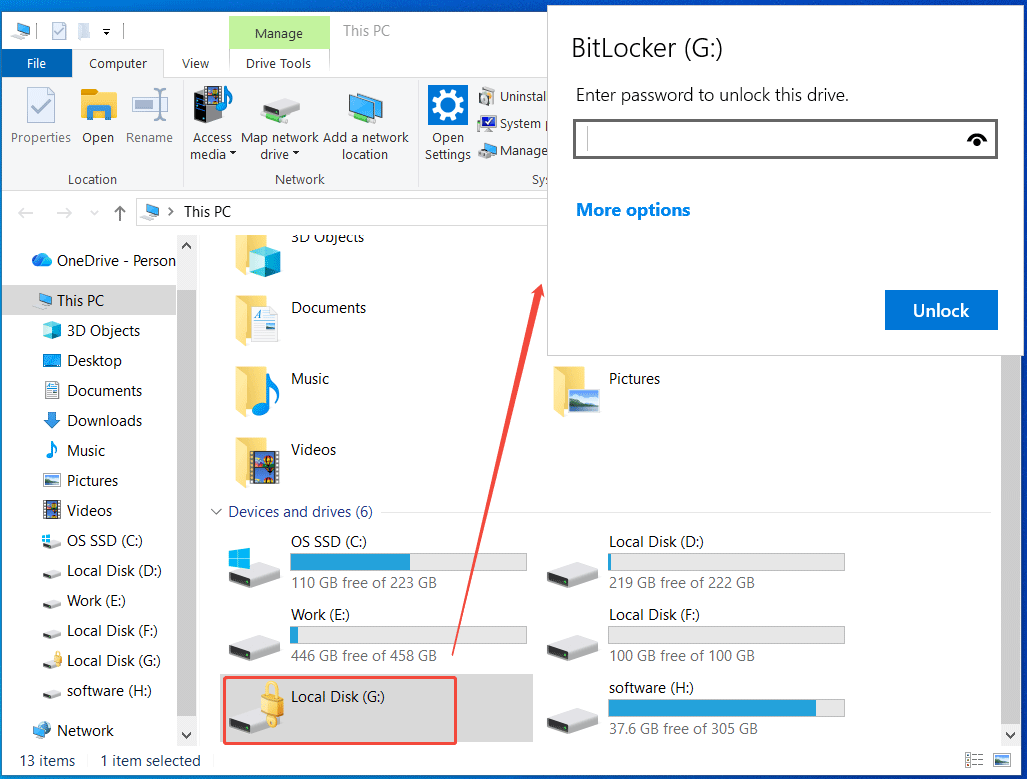
After unlocking, your encrypted drive becomes accessible.
Step 2: Launch MiniTool ShadowMaker to create data backups.
1. Connect a USB drive or external hard drive to your computer.
2. Open this program and navigate to the Backup tab.
3. Click SOURCE > Folders and Files, browse to the unlocked BitLocker drive, and select the files or folders you want to back up.
4. Go to DESTINATION, choose the connected USB drive or external drive, and click OK.
5. Click Back Up Now to begin the data backup task immediately.
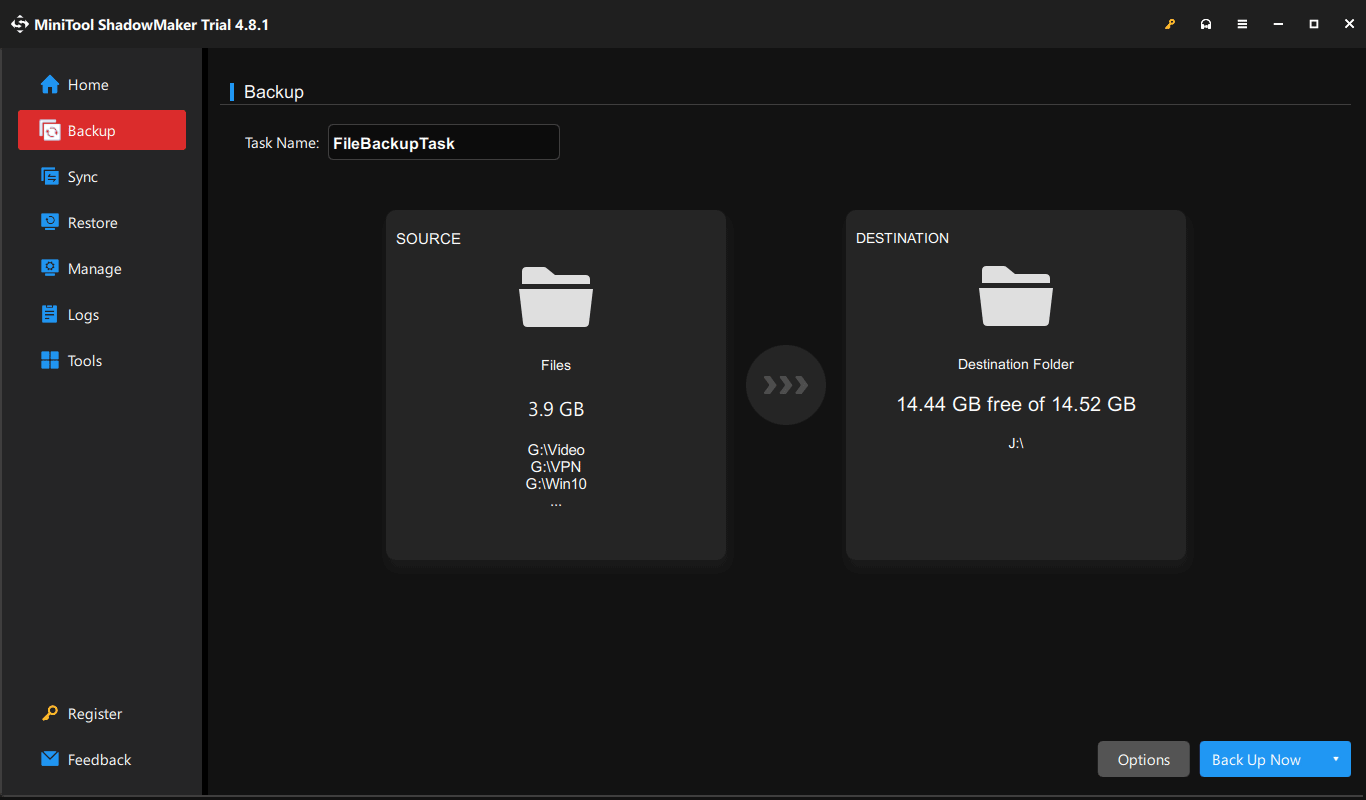
Once the task begins, MiniTool ShadowMaker creates a compressed backup image of the selected data while maintaining full encryption throughout the process.
Bonus: Clone BitLocker Hard Drive to Another Disk
In addition to the backup feature, MiniTool ShadowMaker supports cloning a BitLocker hard drive to another disk for a drive upgrade.
Step 1: Connect a new disk to the computer.
Step 2: Go to the Tools tab on the left side.
Step 3: Click Clone Disk to proceed.
Step 4: Select the BitLocker-encrypted disk as the source drive and choose the new disk as the target drive.
Step 5: Click Start to begin cloning.
Best Practices for Secure Encrypted Drive Backup
Creating a backup is just the first step. Following the practices below helps ensure your backups are reliable and your data can be recovered when needed.
- Back up your drive regularly with MiniTool ShadowMaker.
- Follow the 3-2-1 backup rule (3 copies of your data, 2 different storage devices, and 1 offsite copy).
- Save backups to a different drive (USB drive, external drive, or NAS) instead of the same BitLocker-encrypted drive.
- Save your BitLocker recovery key separately to keep it safe.
- Verify your backups regularly to ensure they can be restored successfully.
- Create bootable rescue media to quickly restore your PC after a system crash or severe data loss.
Backup a BitLocker-Encrypted Drive FAQ
Conclusion
It is important to back up a BitLocker-encrypted drive to prevent data loss from a failing hard drive or a permanent lockout. Using the dedicated backup software such as MiniTool ShadowMaker, you can easily create backups without disabling BitLocker.
If you have any questions while using MiniTool software for backup, feel free to contact us at [email protected].
About The Author

Position: Columnist
Vera has been working at the MiniTool Team for over 10 years as a technical editor and content writer. She mainly focuses on disk and partition management, data recovery, Windows backup and restore, and PC troubleshooting. Through in-depth software testing and hands-on experience, she has helped users solve a wide range of computer problems and better protect their data on Windows devices.
User Comments :