
Backing up your PC before major system changes can help prevent data loss and ensure quick recovery when system issues occur. This guide explains how to back up files and systems using MiniTool ShadowMaker before a Windows update, BIOS update, and system reset.
Why Backup PC Before Major System Changes
Major system changes can affect system stability, hardware compatibility, and overall performance. A PC backup protects your personal files, apps, and operating system if something goes wrong.
- Prevents data loss: Major system upgrades (upgrading Windows 10 to Windows 11) or Windows updates (KB installations) can sometimes crash or freeze, resulting in data loss.
- Acts as an Undo button: If a new system version or software patch causes severe compatibility issues, a full system backup can restore your computer to its working state.
- Preserves configurations: Restoring from a system crash is faster if you have a full system image. This avoids reinstalling Windows, applications, and settings.
What to Back Up Before Major System Changes
Before making a major system change, it is recommended to back up files and the system to an external hard drive or USB drive.
The following are essential items to back up:
- Personal data: Documents, photos, downloads, desktop tiles, videos, and other important data should be backed up.
- The entire system: Create a full copy of the operating system, installed apps, system configurations, and hidden partitions so you can restore Windows if an update or installation fails.
- Apps and keys: Export your browser bookmarks and backup software license keys.
When Should You Back Up Before a System Change
Always create a backup before a major system change, especially when the change could affect your files, system, or settings.
The following are common situations:
| System Change Type | Recommended Backup | Importance |
| Before starting the upgrade, such as upgrading Windows 10 to Windows 11 | System + files | Protects files and the system if the upgrade causes compatibility issues or fails. |
| Before installing Windows updates | System + files | Prevents file loss and provides a recovery point if the update causes errors, crashes, or boot issues. |
| Before resetting the PC | System + files | Protects personal files and provides a recovery option when the reset fails or removes needed data. |
| Before a BIOS/firmware update | Important files | Avoids data loss caused by a failed update. |
| Before replacing a motherboard | Important files | Prevent data loss caused by accidents during the hardware replacement process. |
How to Back Up Before a Windows 10 Upgrade, BIOS Update, and Other System Changes
The guide below covers how to back up your PC before system changes, including Windows upgrades, BIOS updates, PC resetting, and motherboard replacements.
Back Up System or Files with MiniTool ShadowMaker
Backing up your PC is simple with reliable backup software like MiniTool ShadowMaker.
Designed for Windows, it provides comprehensive data protection, allowing you to back up files and create a system backup before major changes. In addition, this tool supports disk and partition backup and recovery.
Moreover, MiniTool ShadowMaker includes advanced options, such as automating backups, creating incremental & differential backups, choosing compression levels, and verifying backups.
MiniTool ShadowMaker TrialClick to Download100%Clean & Safe
Follow these steps to create a system image and back up files before a BIOS update, system upgrades, and PC resetting.
Step 1: Connect a USB flash drive or an external hard drive to your computer.
Step 2: Launch MiniTool ShadowMaker and navigate to the Backup tab.
Step 3: Select the backup source depending on the system changes you will make.
- Create a system image: System drives are automatically selected, so skip to the next step.
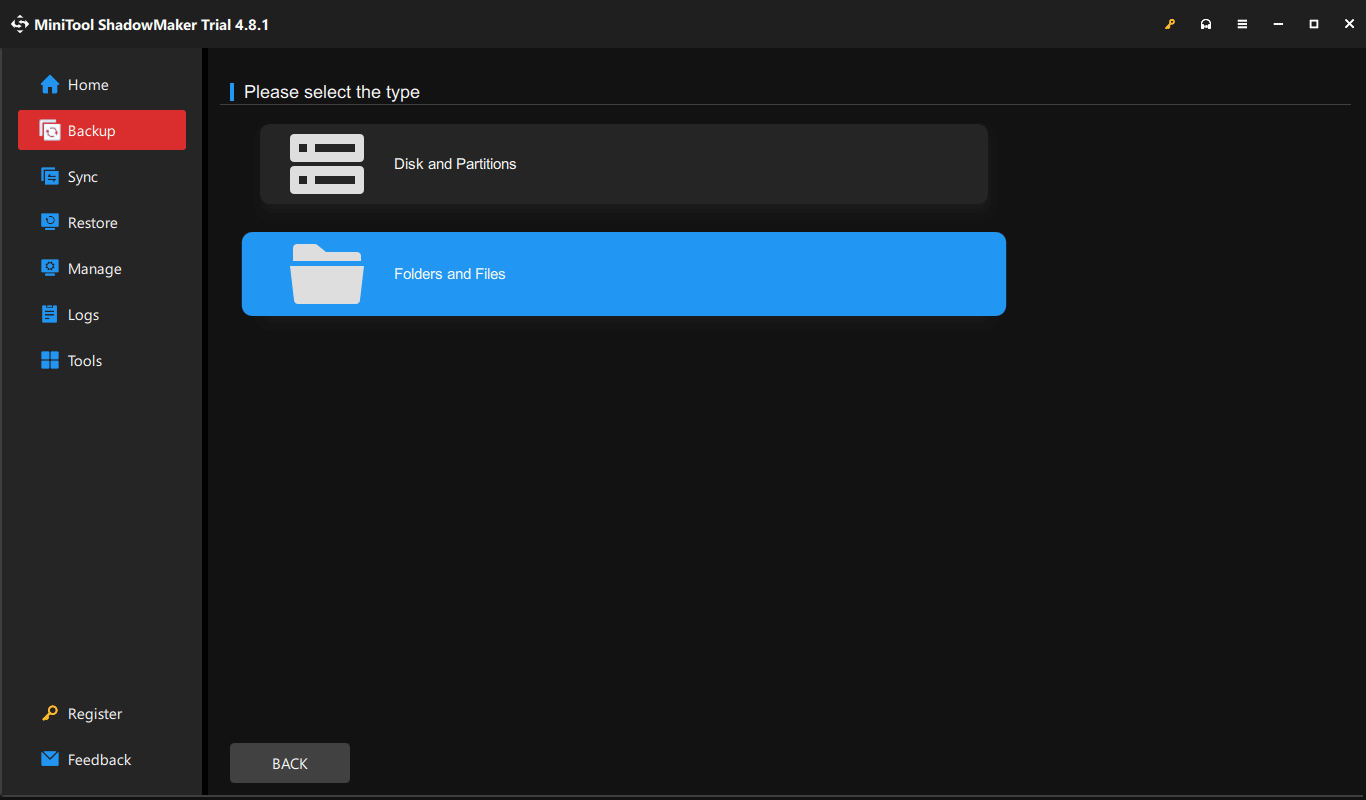
- Back up files: Click SOURCE > Folders and Files, choose the items you need to back up, and click OK.
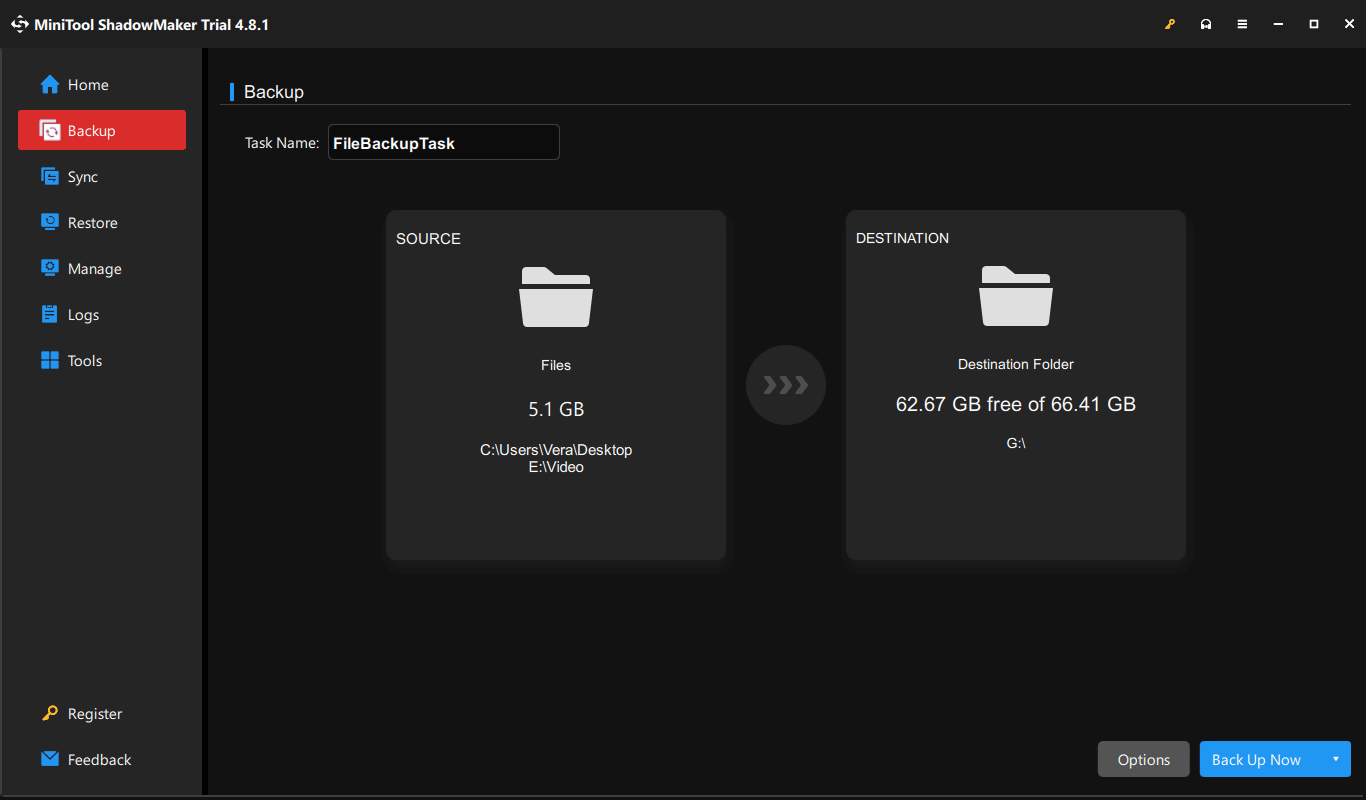
Step 4: Go to DESTINATION to choose a backup destination, such as an external drive or USB drive.
Step 5: Click Options under Backup to make advanced settings if necessary. For example, set scheduled backups in Schedule Settings and configure incremental or differential backups in Backup Schemes.
Step 6: Click the Back Up Now button to start the backup.
After completing the backup before major system changes, install the new security or feature update, upgrade to a new system build, or perform a BIOS update.
Restore After a Failed System Change
If a system change goes wrong, use the created backup to restore the system to a previous working state or restore deleted/lost files.
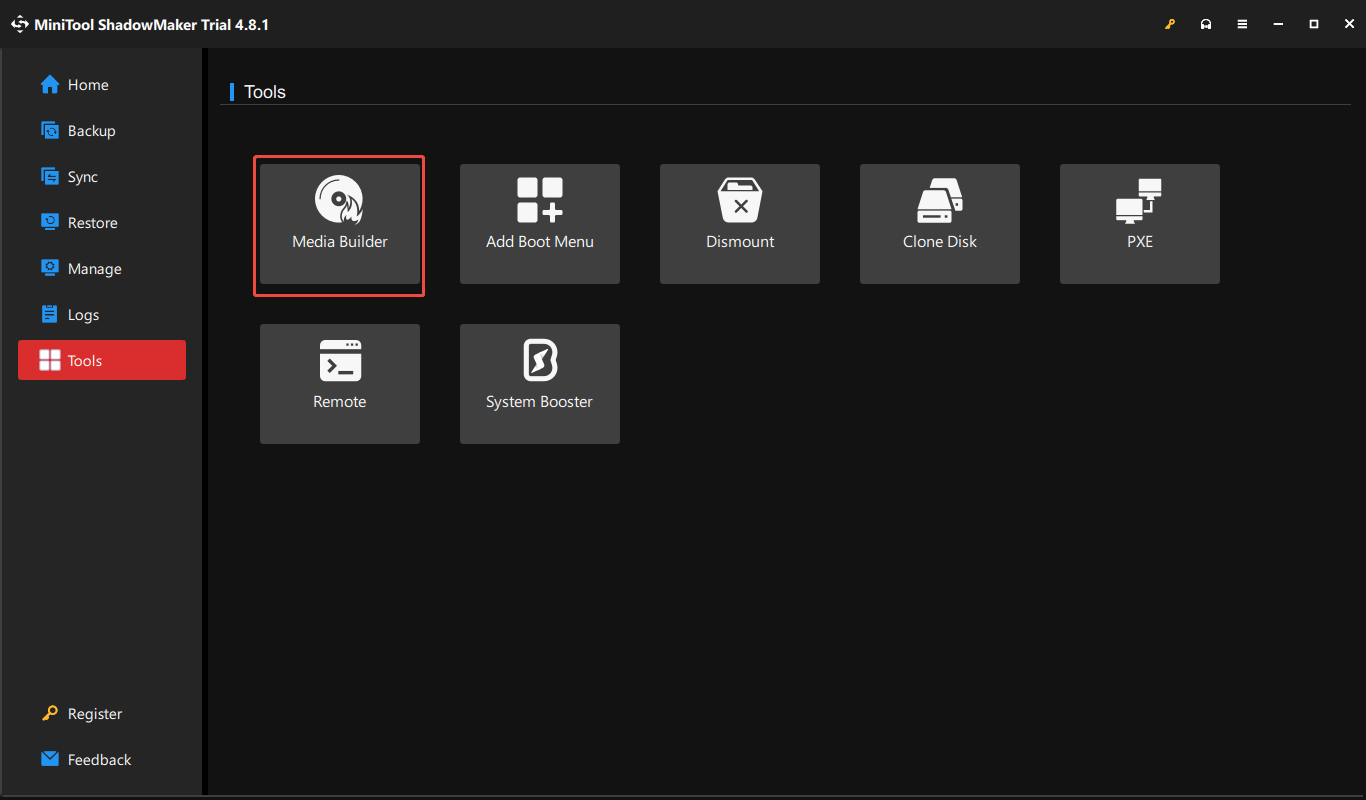
When Windows cannot boot, bootable media can help access the recovery environment and restore the system. MiniTool ShadowMaker offers the Media Builder tool to create a WinPE bootable USB drive or CD/DVD and perform the recovery.
Backup PC Before Major System Changes FAQ
Conclusion
Making a backup before major system changes, such as BIOS updates, PC resetting, and Windows updates, can protect your files and system from unexpected failures. MiniTool ShadowMaker offers a simple and flexible way to create a system backup and back up files.
When encountering issues with our software, please send an email to [email protected].
About The Author

Position: Columnist
Vera has been working at the MiniTool Team for over 10 years as a technical editor and content writer. She mainly focuses on disk and partition management, data recovery, Windows backup and restore, and PC troubleshooting. Through in-depth software testing and hands-on experience, she has helped users solve a wide range of computer problems and better protect their data on Windows devices.
User Comments :