
You can use MiniTool ShadowMaker to create a system image backup of Windows 11 and save it to a USB drive for system protection. Launch the program, select the required system partitions as the backup source, choose the USB drive as the destination, and start the process.
Why Back Up Windows 11 to a USB Drive?
Creating a Windows 11 system image on an external USB storage device offers several benefits:
- Disaster recovery: A system image allows you to restore Windows, installed programs, and settings to an earlier state after a system crash or other serious failure.
- Easy portability: A USB drive provides a portable storage option for keeping your system image backup.
- Offline storage: You can disconnect the USB drive after backing up to protect your system image from ransomware, malware, and accidental changes.
Use MiniTool ShadowMaker to Create a System Image on USB
MiniTool ShadowMaker is reliable backup software for Windows 11/10, helping create a system image and back up files, folders, disks, and partitions. It allows you to store backups to various locations, such as the local drive, external drive, USB flash drives, NAS, and a shared folder.
If you want to regularly back up your data or system, MiniTool ShadowMaker can satisfy your needs. It offers an option to enable you to set a schedule plan so that you can create automatic backups every day, every week, every month, or on an event, greatly safeguarding the device.
For data backup, especially when you create a number of documents at intervals, it is necessary to create incremental or differential backups with this backup software.
To back up Windows 11 to USB, free download and install its Trial Edition on Windows 11, then take action.
MiniTool ShadowMaker TrialClick to Download100%Clean & Safe
How to Create System Image Windows 11 on USB
Follow the step-by-step guide to create Windows 11 system image on USB:
Step 1: Connect a USB drive to your Windows 11 PC. Ensure that it is recognized by Windows and has enough free space to store the system image.
Step 2: Launch MiniTool ShadowMaker and click Keep Trial to enter the Home interface.
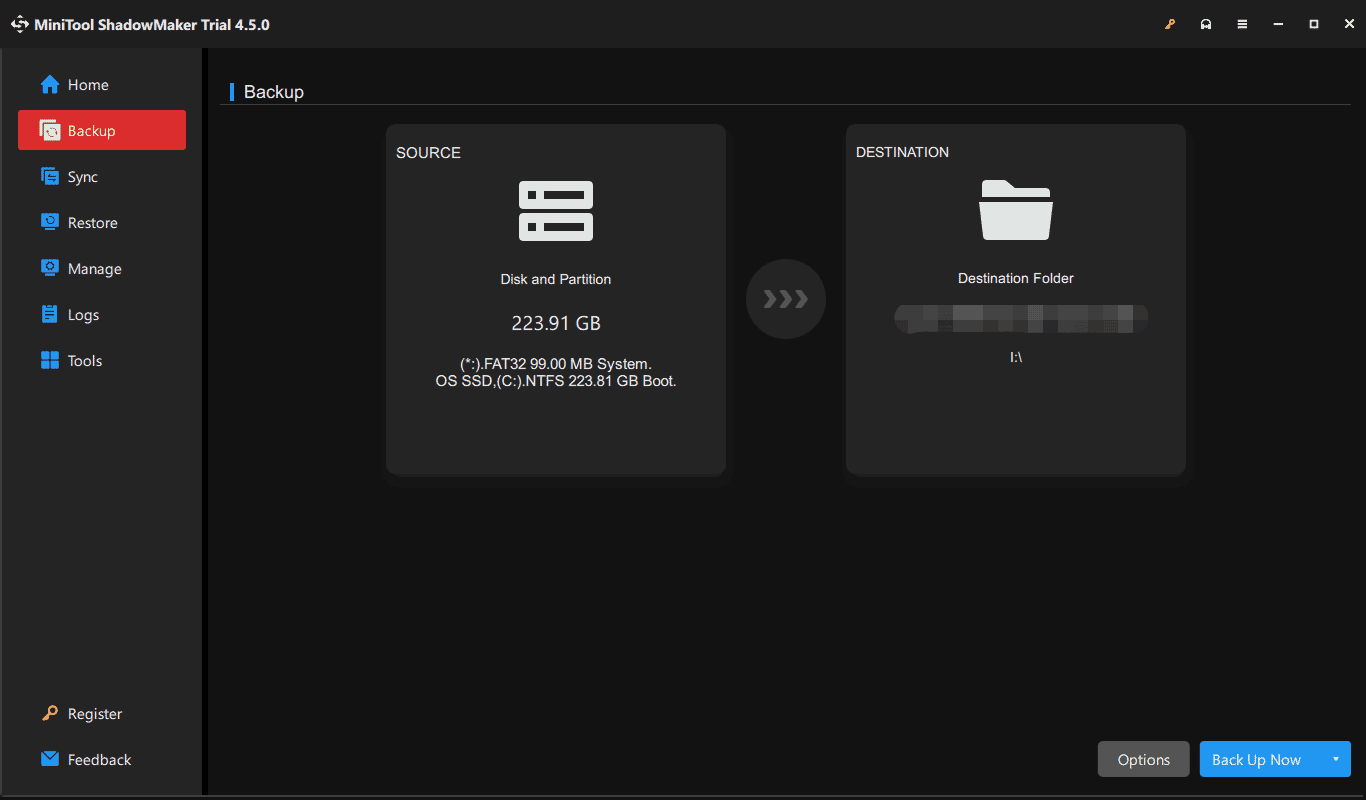
Step 3: To create a system image, access the Backup page from the left pane. By default, system partitions for Windows 11 to run have been selected and you just need to tap DESTINATION, choose your USB drive to store the system image file, and click OK.
Step 4: Hit Back Up Now to begin creating a Windows 11 system image to a USB drive.
Step 5: Go to Media Builder under Tools to create bootable media. You can use it to boot your PC and restore Windows 11 from a system image if Windows fails to start.
Can You Use Backup and Restore to Backup System to USB?
No. Windows 11 includes the legacy Backup and Restore (Windows 7) tool, which allows you to create a system image backup. However, you cannot choose a USB flash drive or thumb drive to save the backup.
But if you create data backup using Set up backup, a USB drive is available.
To access this backup program:
Go to Control Panel (viewed by large icons) via the search box.
2. Click Backup and Restore (Windows 7).
3. Choose Create a system image.
4. Decide where to save the backup.
When selecting a USB drive, you will receive a message saying:
“The drive cannot be used to store a system image because it is not formatted with NTFS”.
If you format it to NTFS, then you see another error “The drive is not a valid backup location”.
That is because of a limitation of the Windows built-in backup tool. It is recommended to back up Windows 11 to an external USB hard drive.
USB Drive Compatibility
Here is a table comparing the supported USB storage devices of MiniTool ShadowMaker and Windows Backup and Restore.
| USB Storage Device | MiniTool ShadowMaker | Backup and Restore (Windows 7) |
| USB flash drive | Supported | Not supported as a system image destination |
| External USB HDD | Supported | Supported |
| External USB SSD | Supported | Supported |
Verdict
This post offers a full guide on “how to create system image Windows 11 on USB”. To easily back up Windows 11 to USB, run the powerful software, MiniTool ShadowMaker. Its user interface is friendly and features are comprehensive to satisfy your needs.
If you encounter issues with this software, contact us at [email protected].
Create System Image Windows 11 on USB FAQ
About The Author

Position: Columnist
Vera has been working at the MiniTool Team for over 10 years as a technical editor and content writer. She mainly focuses on disk and partition management, data recovery, Windows backup and restore, and PC troubleshooting. Through in-depth software testing and hands-on experience, she has helped users solve a wide range of computer problems and better protect their data on Windows devices.
User Comments :