
The “Default Boot Device Missing or Boot Failed” error can be caused by incorrect BIOS settings, corrupted BCD, inactive partitions, or a failing drive. To fix it, MiniTool recommends checking BIOS settings, repairing startup files, activating the correct partition, or replacing the drive.
Quick Answer
If you see “Default Boot Device Missing or Boot Failed”, your PC cannot find the drive containing Windows or cannot load the boot files. First, check the BIOS boot order, make sure Windows Boot Manager is selected, then repair startup files using Windows Recovery Environment. If the drive is not detected, check the SSD/HDD health or replace it.
What Does Default Boot Device Missing or Boot Failed Mean
The “Default Boot Device Missing or Boot Failed” error is a startup error that appears when your computer cannot boot into Windows normally.
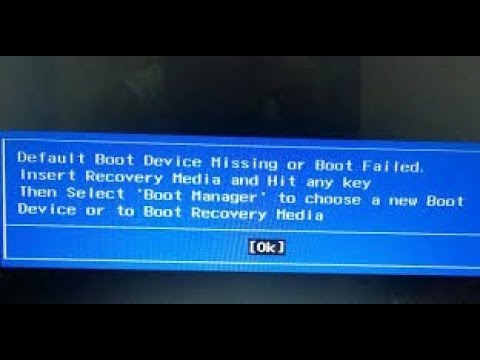
A default boot device refers to the drive that contains the operating system, usually an HDD, SSD, or NVMe drive. During startup, BIOS or UEFI checks this device and loads the Windows boot files. If the system cannot start from the selected boot device, this error message appears. This error prevents your computer from accessing Windows and requires troubleshooting before the system can boot successfully.
What Causes Default Boot Device Missing or Boot Failed
The “Default Boot Device Missing or Boot Failed” error can happen when your computer cannot detect the correct boot device or access the Windows startup files. Common causes include:
- Incorrect BIOS/UEFI boot order
- Windows boot files are corrupted
- Wrong boot mode settings
- System partition is not active
- SSD or HDD problems
How to Fix Default Boot Device Missing Or Boot Failed?
- Change BIOS settings.
- Set the primary partition as active.
- Run Startup Repair.
- Replace a hard drive.
How to Fix Default Boot Device Missing or Boot Failed?
In this part, we will show you how to solve the error of boot device missing or boot failed.
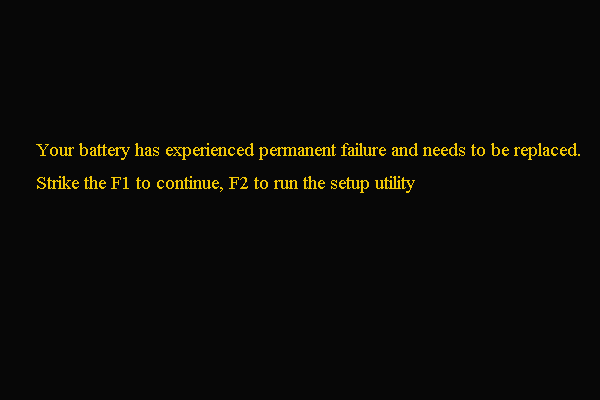
Solution 1. Change BIOS Settings
Incorrect BIOS boot settings are one of the most common reasons for this error. Check whether Windows Boot Manager or the system drive is selected as the first boot option.
Now, here is the tutorial.
1. Restart your PC.
2. When the initial startup screen with the Lenovo logo appears, immediately press the hotkey to enter the BIOS. Generally, the hotkey is F2, but the actual key may vary due to the different computer brands. You can check your laptop or system motherboard manufacturer’s site to confirm the key.
3. In the BIOS setup window, navigate to the Boot tab.
4. Check and change the boot order. Make sure your PC’s hard drive is in the first place. If not, change the hard drive boot order.
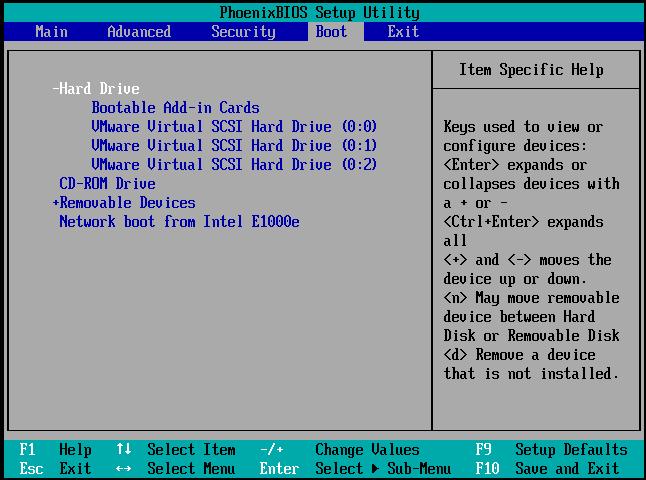
5. Then highlight Boot Mode, change from UEFI to Legacy Support.
6. Then press F10 to save the changes and exit.
After that, reboot your laptop or computer and check whether the error default boot device missing or boot failed is solved. If this solution is not effective, try another one.
Solution 2. Set the Primary Partition as Active
If the primary partition is not active, you may also come across the error default boot device missing or boot failed. So, in order to fix this error, you can choose to set the primary partition as active.
Now, here is the tutorial.
1. Boot the computer from the Windows installation media. If you don’t have one, download Windows Media Creation Tool to create one.
2. Then boot your computer from the Windows installation media.
3. Next, select the language, time and keyboard input.
4. Click Repair your computer.
5. Next, choose Troubleshoot > Command Prompt to continue.
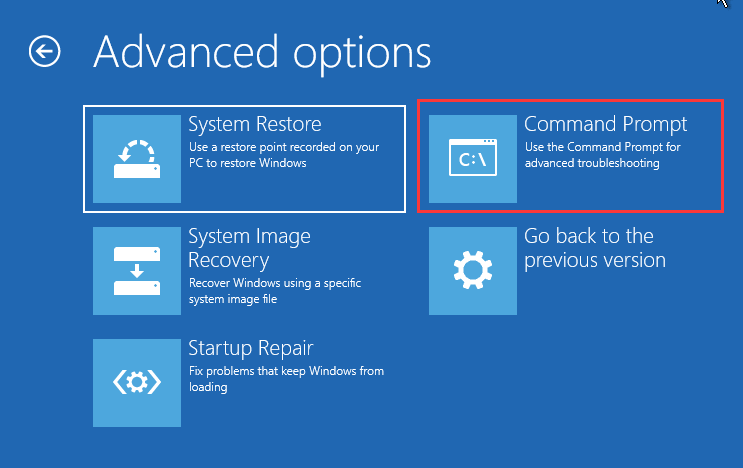
6. Then input the following commands.
diskpart
list disk
select disk 0 (where 0 is the disk’s number where the Windows Operating System is installed on)
list partition
select partition 1 (where 1 is the Primary Partition, where Windows Operating System is installed on)
active
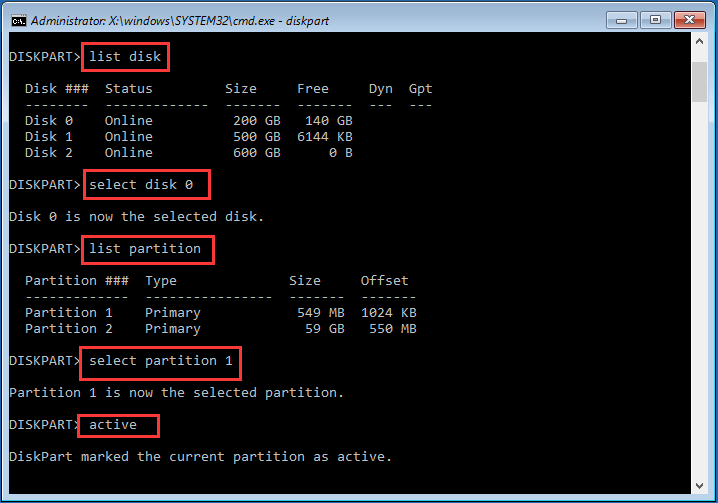
7. Then exit the command line window.
After all steps are finished, remove the Windows installation media and reboot your computer. Then check whether the error default boot device missing or boot failed is solved.
Solution 3. Run Startup Repair
If you encounter the error default boot device missing or boot failed, you can run the Windows Startup Repair which will fix all Windows errors.
Now, here is the tutorial.
- Boot your computer from the Windows installation media.
- Then select the language, time and keyboard input.
- Then click Repair your computer.
- Next, click Troubleshoot > Startup Repair to continue.
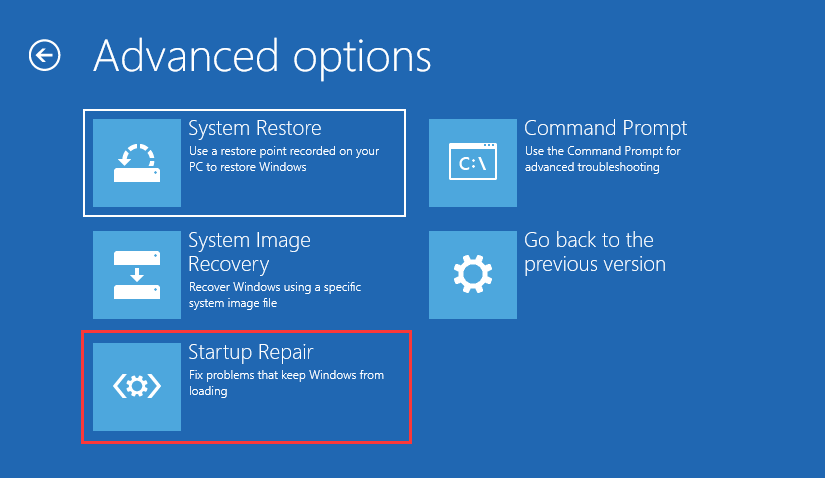
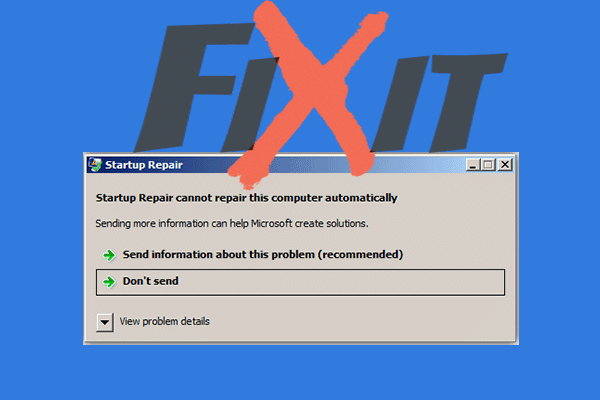
After that, Startup Repair will begin to scan the problems on your computer and fix them. When the whole process is finished, reboot your Lenovo or Acer computer and check whether the default boot device missing or boot failed error is removed.
Solution 4. Replace a Hard Drive
If the above solutions do not fix the “Default Boot Device Missing or Boot Failed” error, your HDD or SSD may have hardware issues. A damaged or failing drive can prevent your computer from detecting Windows and starting normally.
Before replacing the drive, it is recommended to recover important files first, especially if you do not have a recent backup. You can use a professional partition manager, such as MiniTool Partition Wizard, to create bootable media and recover files from a computer that cannot boot.
After recovering your data, you can replace the faulty HDD/SSD and reinstall Windows or restore the system from a backup image.
So, in order to recover data from the detective hard drive, the professional partition manager – MiniTool Partition Wizard Pro Ultimate is strongly recommended. MiniTool Partition Wizard Pro Ultimate also enables you to repair partition, check hard drive for errors, extend partition, etc.
In order to recover data from defective hard drive, this user-friendly tool is competent. Now, we will show you the detailed operation instructions.
1. Click the following button to purchase the MiniTool Partition Wizard Pro Ultimate.
MiniTool Partition Wizard DemoClick to Download100%Clean & Safe
2. Then install it on a normal computer since your computer has failed to boot due to the error default boot device missing or boot failed.
3. Launch it.
4. After entering its main interface, click Bootable Media feature to create the bootable media which can be used to boot the abnormal computer.
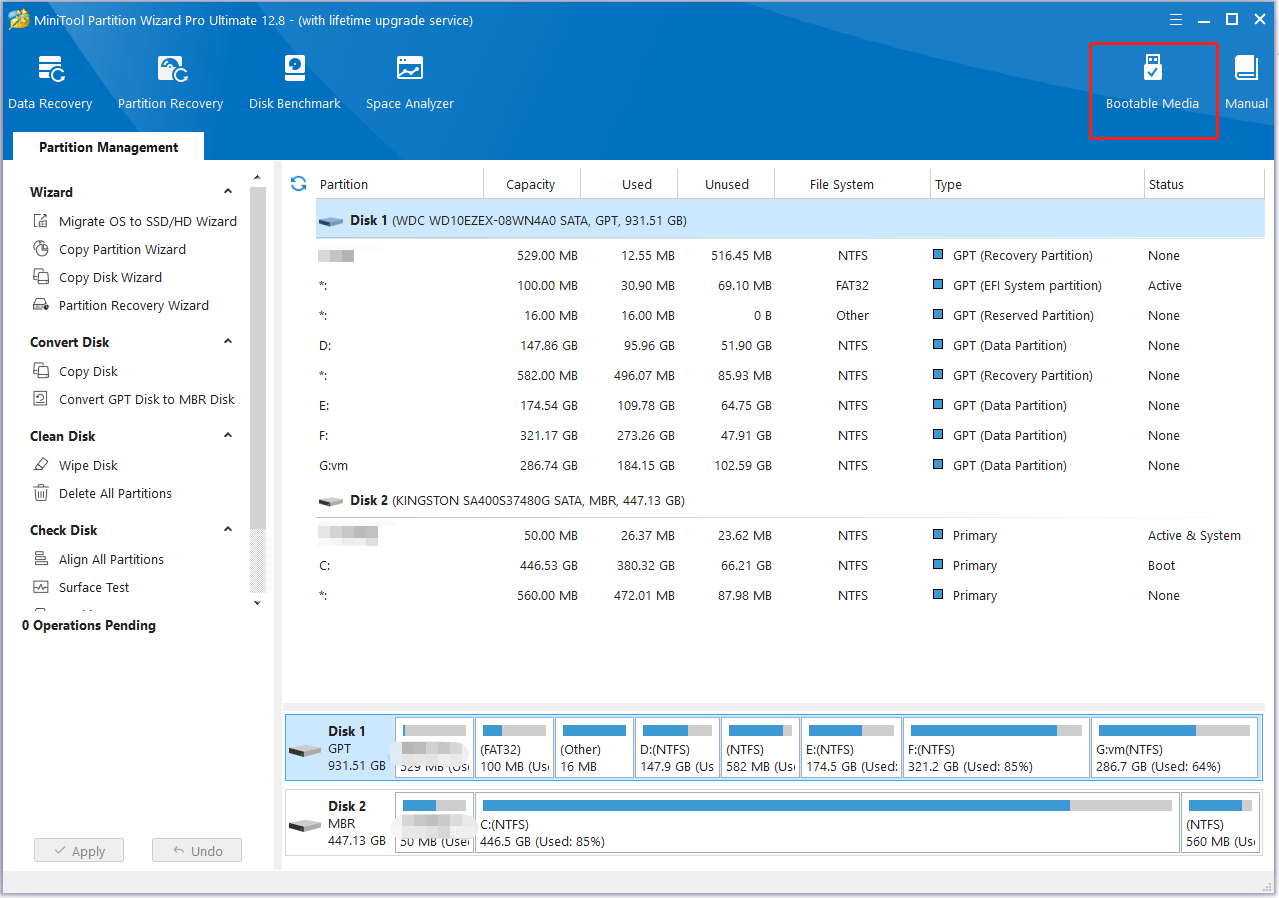
5. Then follow the on-screen instructions to continue.
6. After creating the bootable media, connect it with the abnormal computer which has encountered the default boot device missing or boot failed error.
7. Then enter the BIOS settings to change boot order and boot the computer from the bootable media.
8. After that, you will enter the MiniTool Recovery Environment.
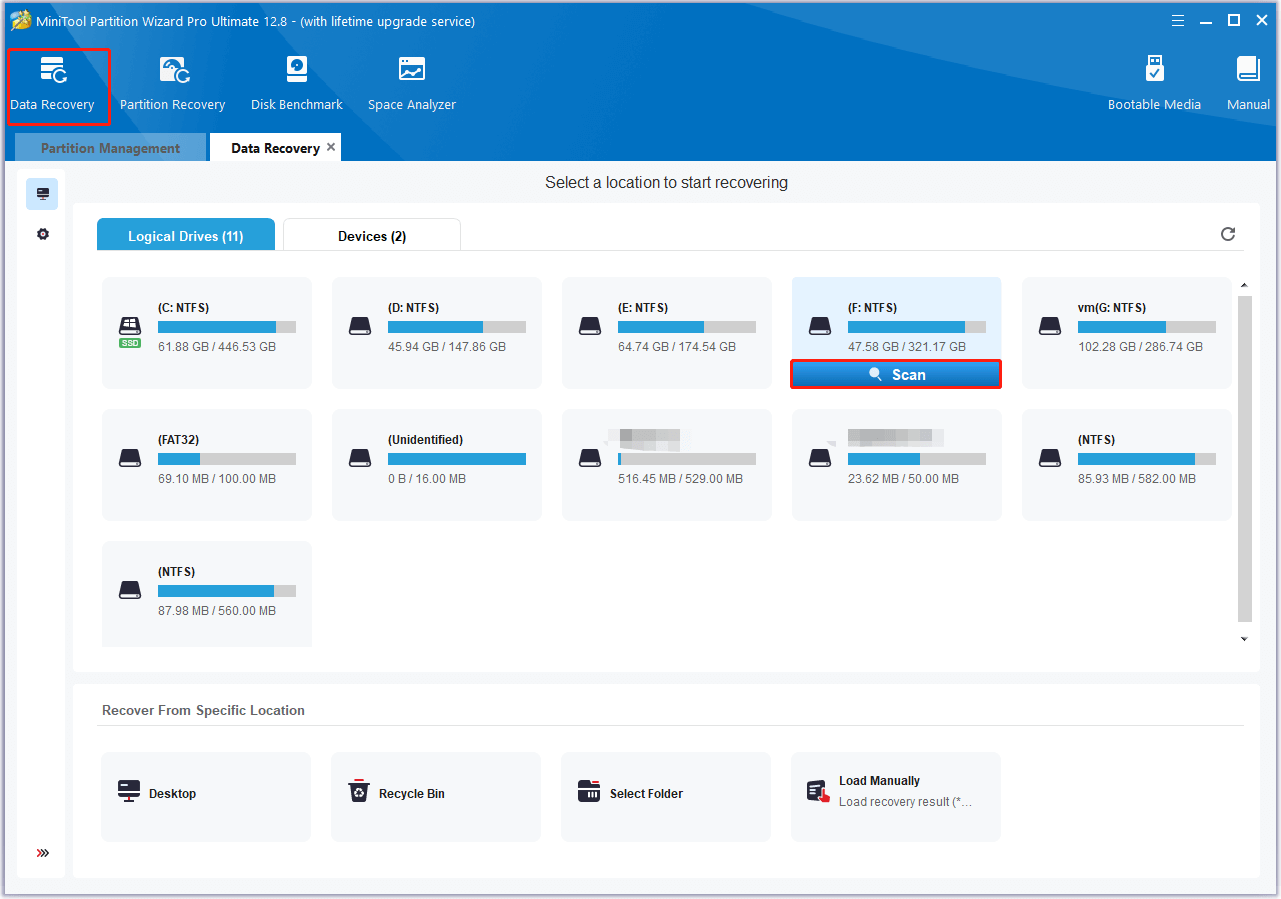
9. In the pop-up window, click Data Recovery. Then select the partition which holds important files and click Scan.
10. Then the scanning process will begin. If you have found the files you need, you can pause or stop the scanning process by clicking the Pause or Stop button. Check the files you need and click Save.
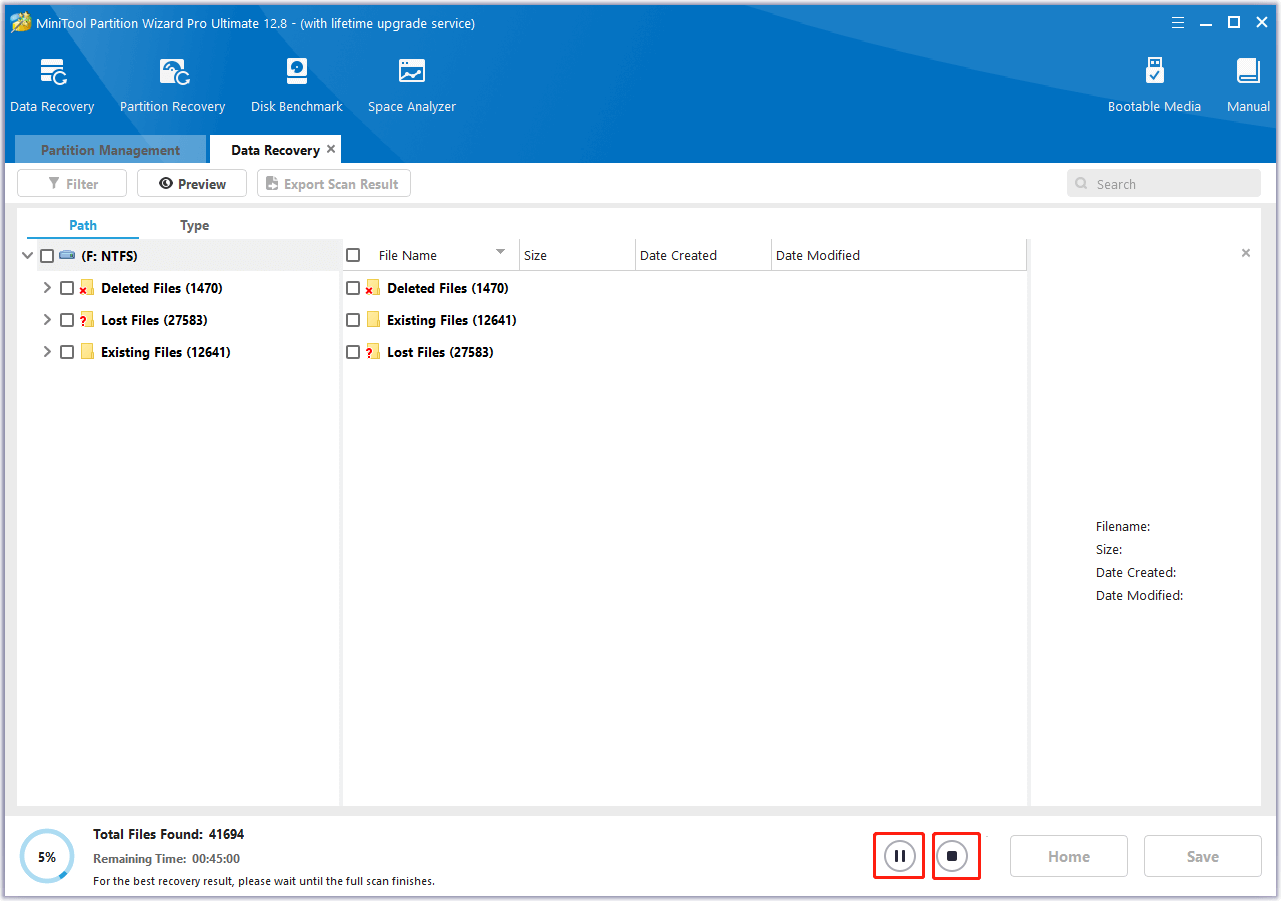
11. After that, save the files to another location. When all steps are finished, you have recovered the important files. Then you can go ahead to replace a hard drive or an SSD.
If your computer is under warranty, you may be able to send your defective hard drive to your PC manufacturer and have it replaced. If your computer is out of warranty, you can choose to buy a new hard drive or SSD for your PC and reinstall Windows 10 to it.
After replacing a hard drive, you would not come across the default boot device missing or boot failed issue again.
How to Fix Default Boot Device Missing or Boot FailedClick to Tweet
How to Prevent Default Boot Device Missing Error in the Future
The “Default Boot Device Missing or Boot Failed” error can sometimes happen unexpectedly due to system failures, disk problems, or corrupted boot files. Creating regular backups is an effective way to protect your data and restore your computer when startup issues occur.
MiniTool ShadowMaker is a reliable backup solution that allows you to create system images, back up files, and schedule automatic backups. With a system backup, you can restore Windows to a working state without reinstalling the operating system or losing important data.
To avoid future boot problems, it is recommended to:
- Create a system image backup regularly.
- Back up important files to an external drive or cloud storage.
- Create bootable recovery media before serious system failures occur.
Now, we will show you how to back up the operating system.
1. Click the following button to download MiniTool ShadowMaker and you can choose to purchase an advanced edition.
MiniTool ShadowMaker TrialClick to Download100%Clean & Safe
2. Install it on your computer and click Keep Trial.
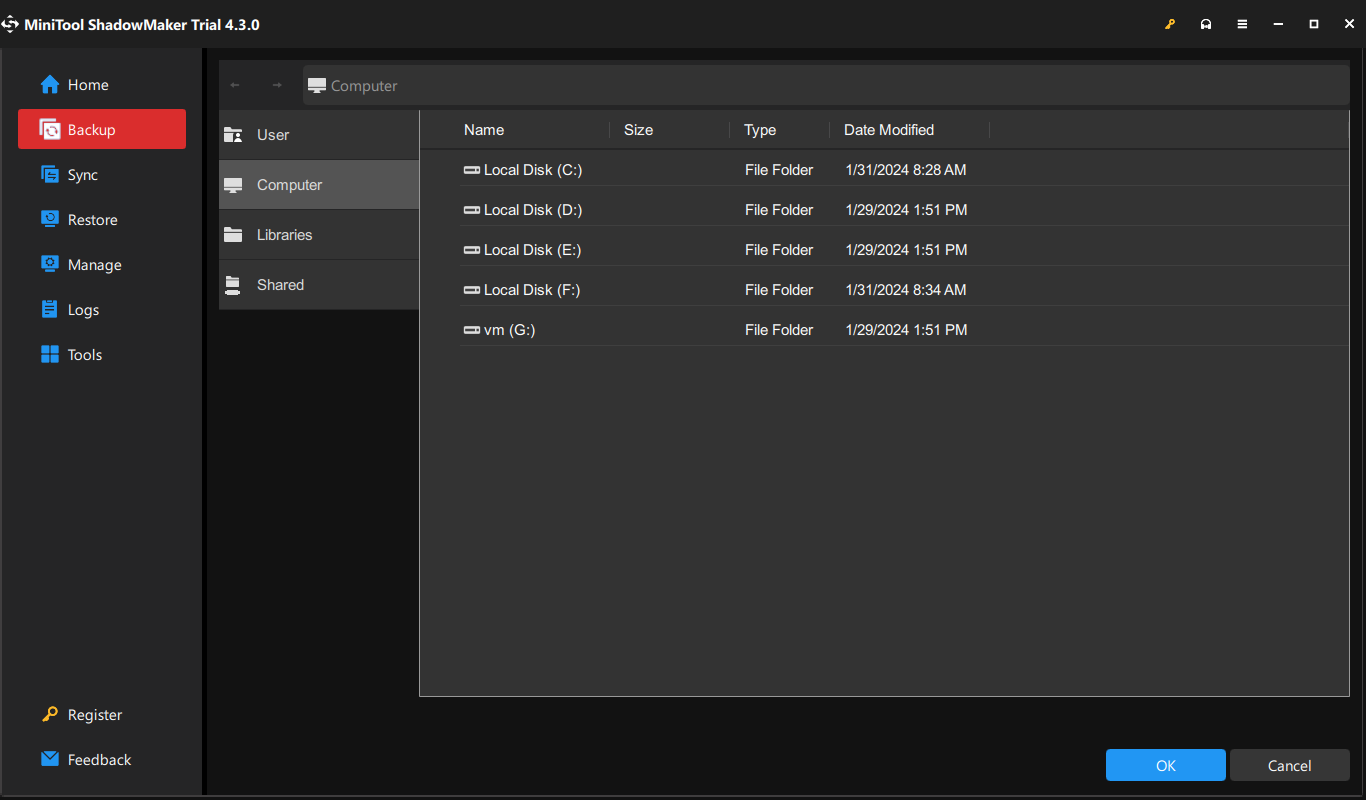
3. MiniTool ShadowMaker is designed to back up the operating system, so it chooses the OS the backup source by default. You can also click the SOURCE module to change the backup source.
4. Then click DESTINATION module to select a target disk. It is recommended to choose an external hard drive as the backup destination. Then click OK.
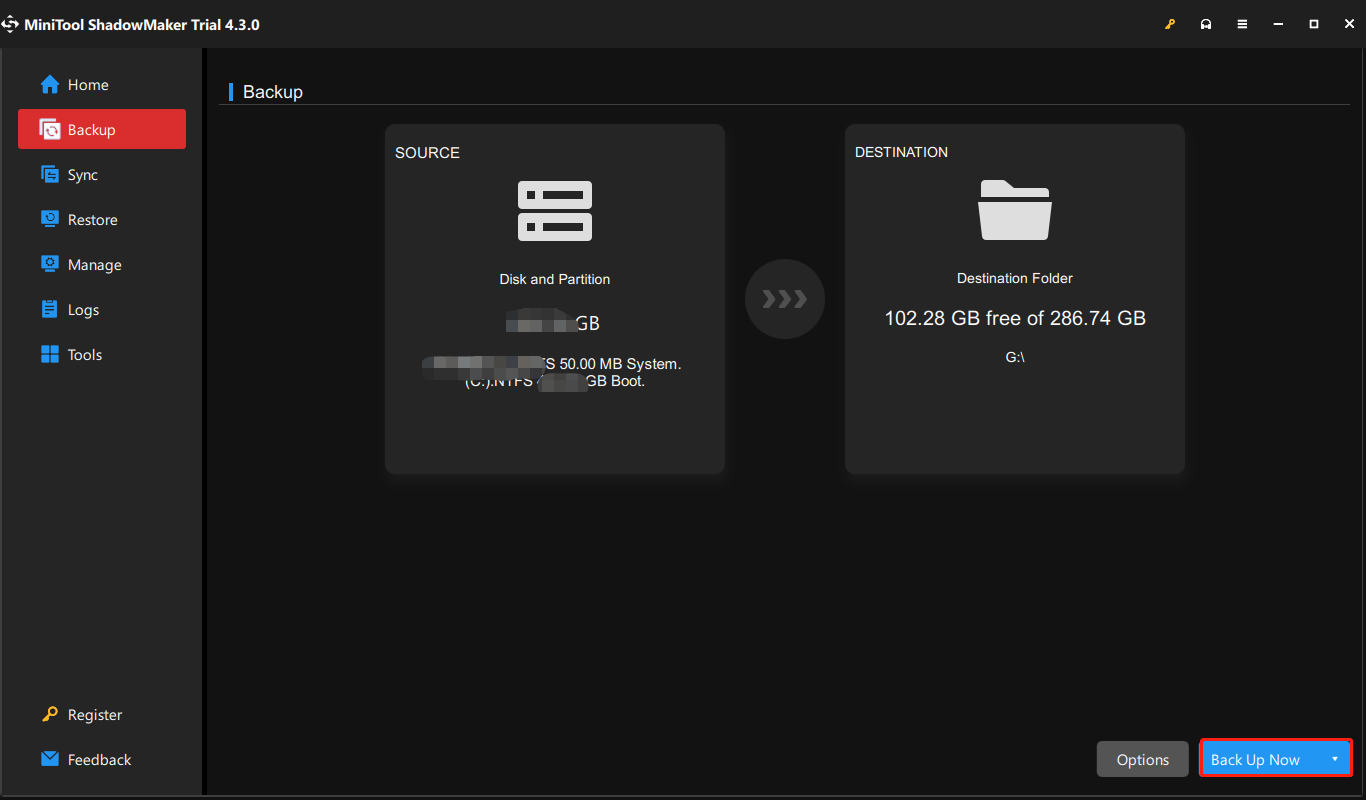
5. After selecting the backup source and destination, you can start backing up. Thus, click Back Up Now to continue.
When the backup process is finished, you have backed up the operating system and files. So, when you encounter the default boot device missing or boot failed again or some other Windows errors, you don’t worry about data loss. In addition, with the system backup image, you can restore your computer to an earlier state when encountering some errors.
Default Boot Device Missing or Boot Failed FAQ
Bottom Line
The “Default Boot Device Missing or Boot Failed” error occurs when your computer cannot find a bootable drive, often due to incorrect BIOS settings, corrupted boot files, or a failing hard drive.
To fix this, check your BIOS settings, repair startup files, set the active partition, or replace the drive if needed. Regular data backups can help prevent loss. For issues with MiniTool software, contact us at [email protected].
About The Author

Position: Columnist
Charlotte is a technology columnist with a strong focus on the Windows operating system, specializing in disk management, backup, and data recovery. She is passionate about analyzing computer errors, identifying root causes, and delivering practical solutions. In her free time, she stays updated on the latest developments in computer systems and hardware while continuously learning new technologies to broaden her expertise. Her writing style is clear and easy to understand, making complex technical topics accessible even to users with limited computer knowledge.
User Comments :