
Error code 0x8000ffff typically occurs during Windows 11 updates. To fix it, run Windows Update Troubleshooter, reset the Microsoft Store cache, use DISM & SFC, check related Windows services, or install the update through Microsoft Update Catalog.
What Causes Error Code 0x8000FFFF in Windows 11?
The 0x8000ffff error code typically occurs during a Windows update or another system operation. Common causes include:
- Corrupted system files: If your system has corrupted system files, you may experience a range of issues, including some issues updating Windows.
- Critical services not running: Windows Update and other related services are not running.
- Software conflicts: Third-party security software or VPN/proxy settings may interfere with Windows Update.
- Windows Update component corruption: Damaged update components may prevent an update from completing.
- Microsoft Store glitches: A corrupted Store cache can cause the error code when accessing or updating Store apps.
How to Fix Error Code 0x8000FFFF
Fix 1: Run Windows Update Troubleshooter
As Windows 11/10 built-in tool, Windows Update Troubleshooter allows you to detect and fix errors related to corrupted updates or other Windows updates issues. Now, try to run it to check if any issues can be detected and fixed.
Step 1: Press Windows + I together to open the Settings window.
Step 2: Select System and click Troubleshoot from the right menu.
Step 3: Click Other troubleshooters to expand all troubleshooters, and then click Run next to the Windows Update section.
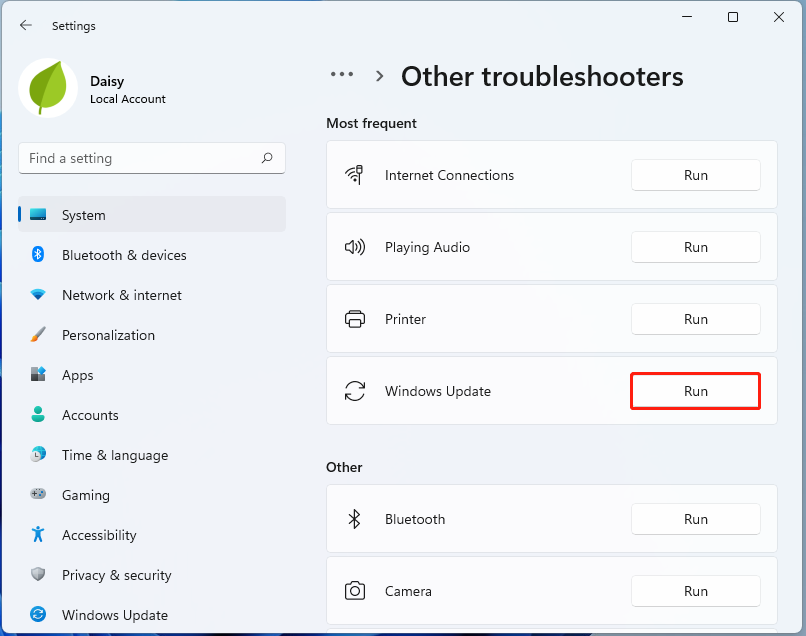
Step 4: Now, this troubleshooter will scan issues associated with the Windows Update components. If any fixes are identified, click Apply this fix and follow the on-screen instructions to complete the repair.
Fix 2: Reset Windows Store Cache
WSReset.exe is a troubleshooting tool that is used to reset Windows Store. You can clear the Windows Store cache to fix the error code 0x8000ffff in Windows 11. Here’s how to do that.
Step 1: Open the Run window by pressing Windows + R keys together.
Step 2: Input WSReset.exe in the Run window and click OK.
Step 3: Then a command prompt window will appear. After a few seconds, Windows Store will open.
Fix 3: Run DISM and SFC to Repair System Files
Corrupted or missing Windows system files may cause the update error code 0x8000ffff. To scan and repair your system files, you can try running an SFC (System File Checker) or DISM (Deployment Image Servicing and Management) scan.
Microsoft recommends running DISM first, followed by SFC.
Here is how to do that:
Step 1: Type cmd in the search box, and then right-click the Command Prompt app to select Run as administrator.
Step 2: Run the DISM.exe /Online /Cleanup-image /Restorehealth command.
Step 3: Type the sfc /scannow command. This process may take you much time to scan, please wait patiently.
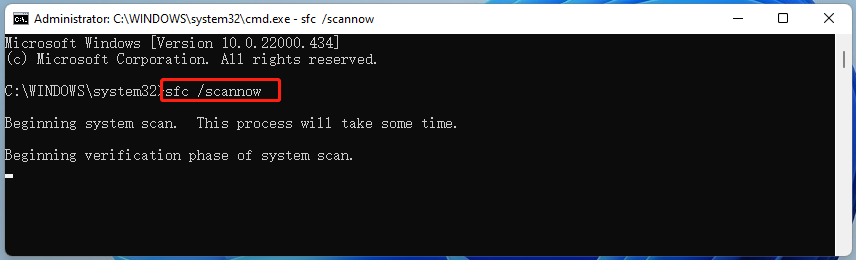
Once done, reboot your PC and check if the error code 0x8000ffff gets fixed.
Fix 4: Disable .NET Framework
Incompatible .NET Framework components may interfere with the update process, resulting in error code 0x8000ffff in Windows 11. Try disabling it temporarily.
Follow the steps below:
Step 1: Press Windows and R to open the Run dialogue. Type appwiz.cpl and click OK.
Step 2: In the Programs and Features interface, click the Turn Windows features on or off link.
Step 3: Uncheck all the .NET Framework entries and click OK.
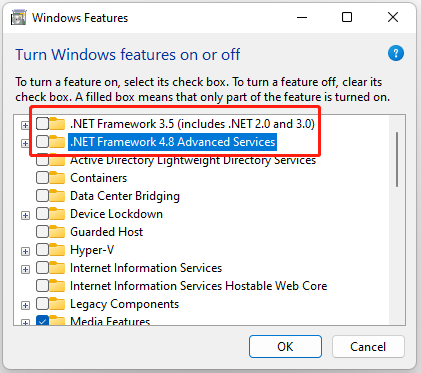
Step 4: Once done, restart the computer to make the changes take effect. Then, try to run Windows updates again.
Also see:
- Microsoft .NET Framework 4.8 Download & Install for Windows 11/10
- NET Framework 4.8.1 Free Download & Install for Windows 11/10
Fix 5: Turn on Cryptographic Services
You can also try enabling the Cryptographic service and see if it makes any difference. Follow the steps given here to turn on the cryptographic service on your PC.
Step 1: Press the Windows + R keys together to open Run. Then, type services. msc and press the Enter key.
Step 2: The list of services will be displayed. Right-click the Cryptographic Services and select Properties.
Step 3: Under Startup type, select Automatic and click the Start button to enable it.
Fix 6: Check for Software Conflicts
Third-party antivirus or other security software sometimes blocks Windows Update. If the error code appears after installing software, temporarily uninstalling or disabling it can help.
After completing the update, re-enable or reinstall it.
Fix 7: Turn off Proxy Settings
If you use proxy settings for your work, this may be causing the Windows 11 update error code 0x8000ffff. You can try to disable the proxy server and get the Internet connection without a proxy to fix the issue. Here is how to do that:
Step 1: Press the Windows + R keys to open the Run dialogue box. Then, type inetcpl.cpl and click the OK button.
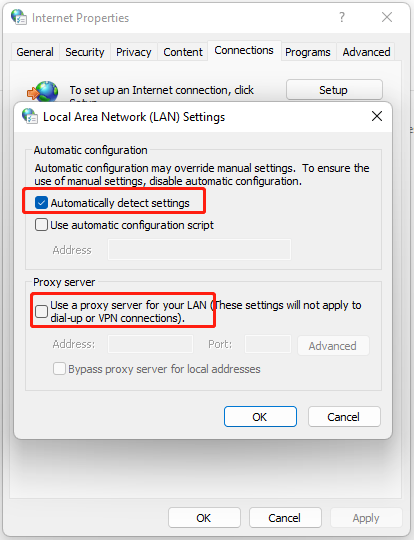
Step 2: Click the Connections tab and click the LAN settings button.
Step 3: Uncheck the Use a proxy server for your LAN box and check the Automatically detect settings box in the Local Area Network Settings window. Then, click the OK button.
Fix 8: Update via Windows Update Catalog
If Windows Update repeatedly fails with the error 0x8000ffff, download the Windows update from Microsoft Update Catalog. It is a Microsoft website that contains all the Windows updates released so far.
Step 1: Go to the Microsoft Catalog on your browser. Search for the update in which you are getting this error.
Step 2: Select the Download link that corresponds to your version of Windows 11.
Step 3: After downloading the package, double-click the exe file to install it.
Fix 9: Perform an In-place Upgrade
An in-place upgrade reinstalls Windows while allowing you to keep your personal files and apps. When other troubleshooting methods fail, it can be a practical choice.
Step 1: Go to the Windows 11 Download page.
Step 2: Under the Download Windows 11 Disk Image (ISO) part, click the drop-down menu to choose Windows 11 (multi-edition ISO) and click Download.
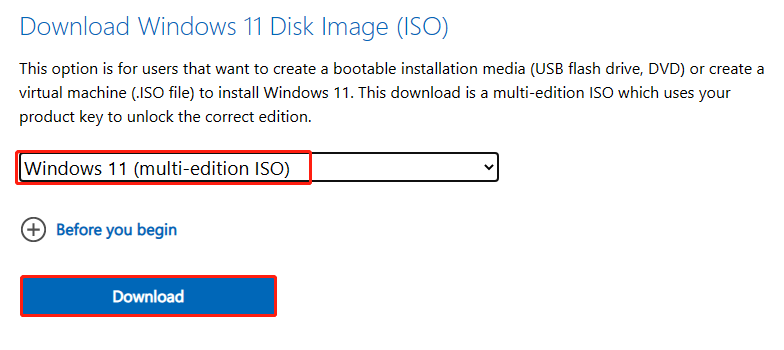
Step 3: Then, you need to choose a language by clicking the drop-down menu. After choosing it, click the Download button.
Step 4: Next, click the 64-bit Download button to start the downloading process.
Step 5: When the file has been downloaded, right-click it and select Mount from the context menu.
Step 6: Choose the mounted drive and then double-click the Setup file option to begin the installation.
Step 7: Then, click the Not right now button. Navigate to Next > Accept. During the process, select all the items you want to keep.
Step 8: Finally, click the Install button and wait for the process to complete.
Suggestion: Back up Your PC Before Updating to Windows 11
Before any operations to the Windows operating system like Windows update, it is advised to back up your PC since Windows updates can lead to some issues. Besides, PC backup and recovery can guarantee minimized system downtime. Also, you can choose to back up your data regularly to keep files safe.
To do this work, MiniTool ShadowMaker is a good assistant that can be compatible with Windows 11/10/8/8.1/7. With it, you can back up and restore files, folders, disks, partitions, and Windows systems. Besides, you can use it to clone your hard drive and sync files.
MiniTool ShadowMaker TrialClick to Download100%Clean & Safe
Step 1: Launch MiniTool ShadowMaker Trial Edition in Windows 11.
Step 2: Go to the Backup interface, and you can see system partitions are selected as the backup source.
To back up important files, click SOURCE > Folders and Files and choose the items you want to back up.
Step 3: You only need to click DESTINATION to choose a path to save the system image file.
Step 4: Click Back Up Now to execute the backup task at once.
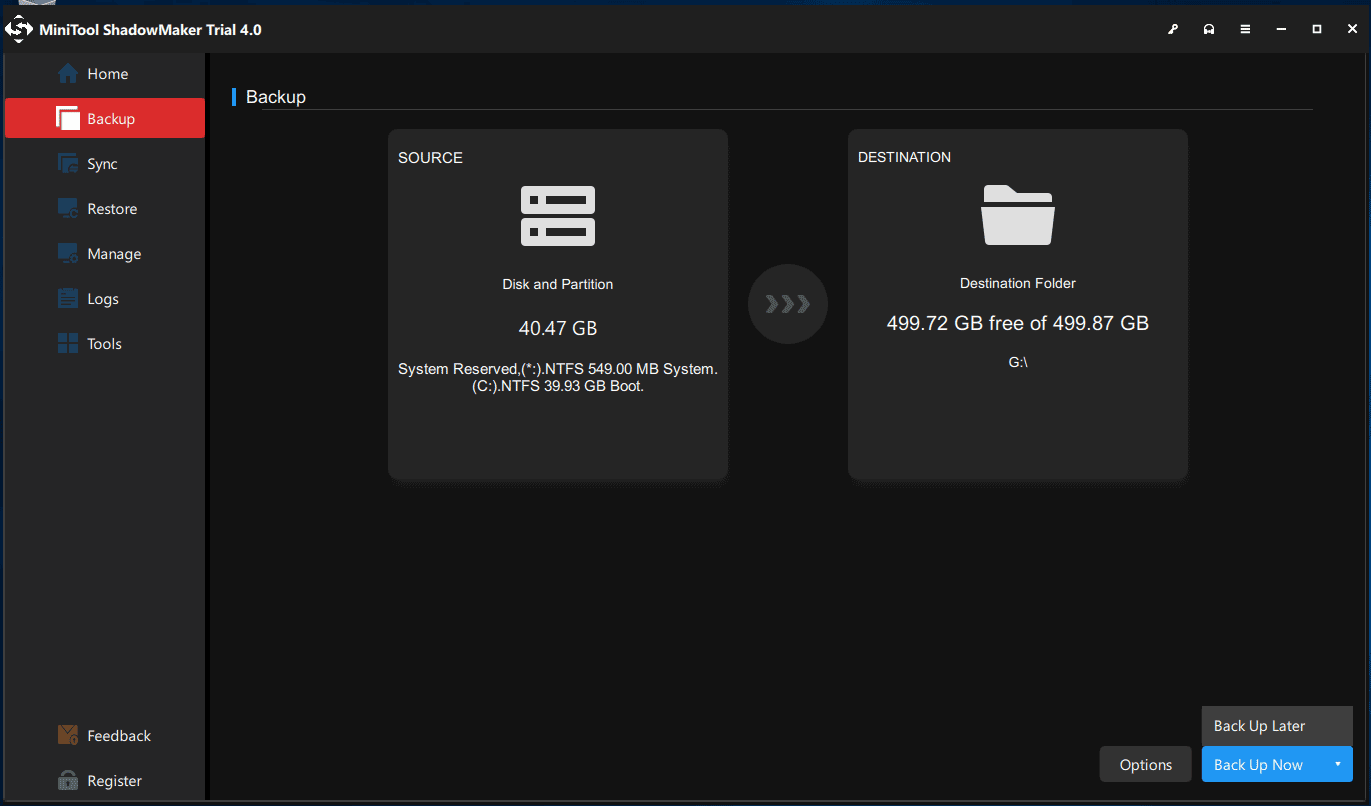
After that, you are advised to click Tools > Media Builder to create a bootable medium with a USB hard drive, USB flash drive, or CD/DVD disc.
Bottom Line
In conclusion, this post has introduced several useful methods to fix the error code 0x8000ffff in Windows 11. If the 0x8000ffff error code occurs, try these methods. If you have any better solution to fix the issue, you can share it in the comment zone.
It is recommended to back up your PC to better safeguard your computer. Thus, if you have any problem with MiniTool ShadowMaker, please feel free to contact us via email at [email protected] and we will reply to you as soon as possible.
Error Code 0x8000FFFF Windows 11 FAQ
About The Author

Position: Columnist
Vera has been working at the MiniTool Team for over 10 years as a technical editor and content writer. She mainly focuses on disk and partition management, data recovery, Windows backup and restore, and PC troubleshooting. Through in-depth software testing and hands-on experience, she has helped users solve a wide range of computer problems and better protect their data on Windows devices.
User Comments :