
This guide from MiniTool explains how to factory reset Windows Server 2022 using a system image backup or installation media. Before resetting, back up important files to avoid data loss.
If your Windows Server 2022 system has serious configuration issues, crashes frequently, or needs to be prepared for a fresh start, factory resetting can help restore it to a clean state.
However, unlike Windows 11/10, Windows Server does not provide a built-in “Reset this PC” option. This guide shows two ways to reset Windows Server 2022 safely.
Quick Answer
How to Factory Reset Windows Server 2022?
Windows Server 2022 does not include the “Reset this PC” feature available in Windows 11/10. To factory reset it, you can either restore the server using a system image backup or reinstall Windows Server 2022 with installation media.
Why Factory Reset Windows Server 2022?
Factory resetting Windows Server 2022 can help resolve serious system issues or restore the server to a clean state before redeployment. Common situations include:
- The server fails to boot or crashes repeatedly.
- System files or settings become corrupted.
- You want to remove existing applications and configurations.
Before you begin, back up important data to avoid unexpected data loss.
Back up Important Data before Factory Resetting Windows Server 2022
Before performing a factory reset, create a backup of important files, system settings, and server configurations. A reset may remove installed applications, customized settings, and data stored on the system partition.
You can use Windows built-in backup tools or third-party backup software to protect your data. A system image backup is recommended because it allows you to restore the entire server environment when needed.
For users who need an easier backup solution, MiniTool ShadowMaker supports file, partition, disk, and system backups on Windows Server 2022/2019/2016 and Windows 11/10/8/7, etc. It provides robust data protection and allows users to move Windows to another drive.
MiniTool ShadowMaker TrialClick to Download100%Clean & Safe
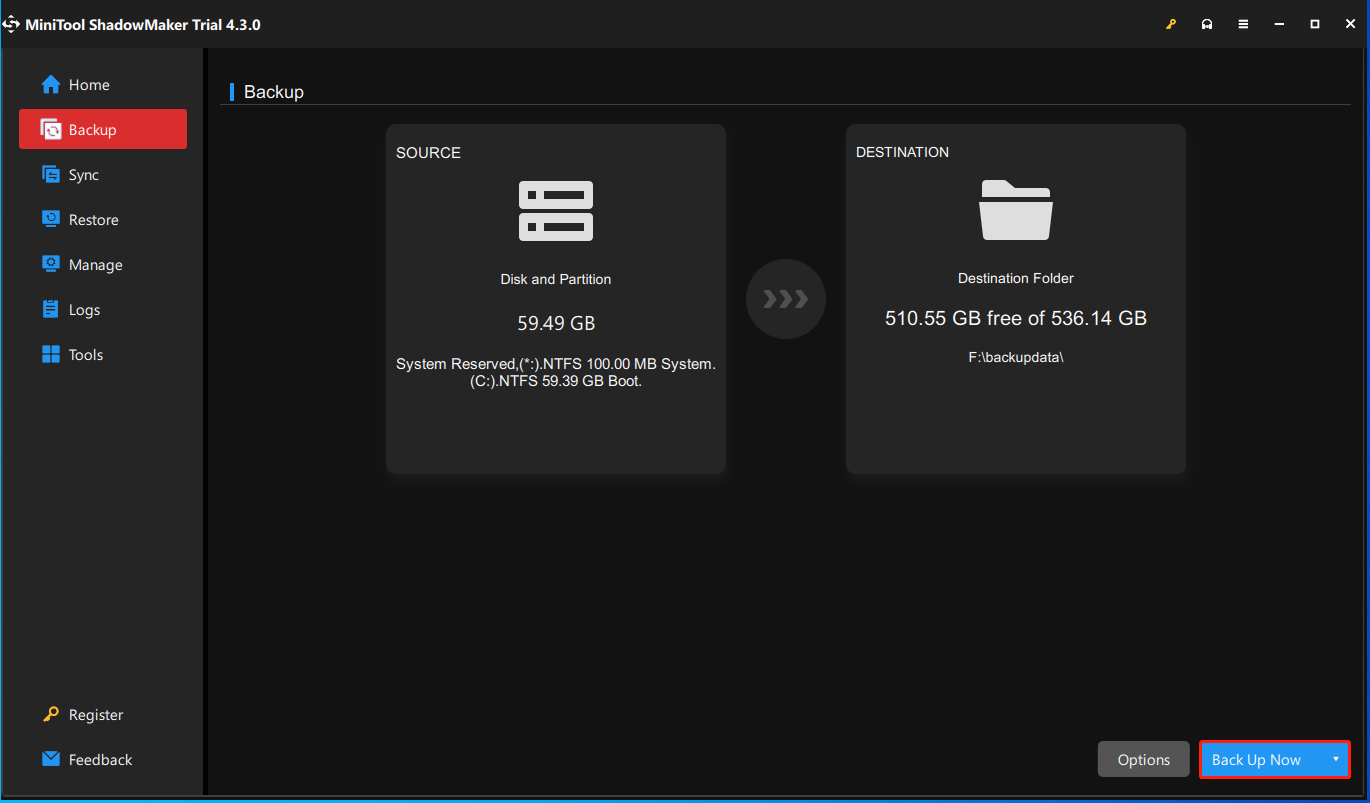
Step 1: Install MiniTool ShadowMaker on your computer and then launch it to keep using the trial edition.
Step 2: On the Backup interface, you see system partitions are selected as the backup source. To back up your files, click SOURCE > Folders and Files, then check all the items you want to back up and click OK.
Step 3: Click DESTINATION to decide where you want to store the backups. Usually, it can be an external hard drive, USB drive, SSD, etc.
Step 4: Finally, click the Back Up Now button to execute the backup task.
How to Factory Reset Windows Server 2022
There are two common ways to factory reset Windows Server 2022. The best option depends on whether you already have a system image backup. The table below compares the two methods to help you choose the right one before following the detailed steps.
| Method | Recommended When | What You Need | Data Retained |
| System Image Recovery | You have a recent system image backup | System image backup | Restores the server to the backup state |
| Installation Media | No backup is available or you want a clean start | Windows Server 2022 installation media | Removes existing system settings and installed apps |
Method 1: Factory Reset Windows Server 2022 Using a System Image
First, create a Windows Server 2022 system image. This backup allows you to restore the operating system, system settings, and installed programs after resetting.
To do that, go to Server Manager > Tools > Windows Server Backup > Backup Once…. Then, choose System state as the backup source and choose another drive as the destination. Click Next to start the backup process.
After creating the backup image, you can start to factory reset Windows Server 2022.
1. Press the Windows + I keys together to open the Settings application.
2. Go to Update & Security > Recovery > Restart Now.
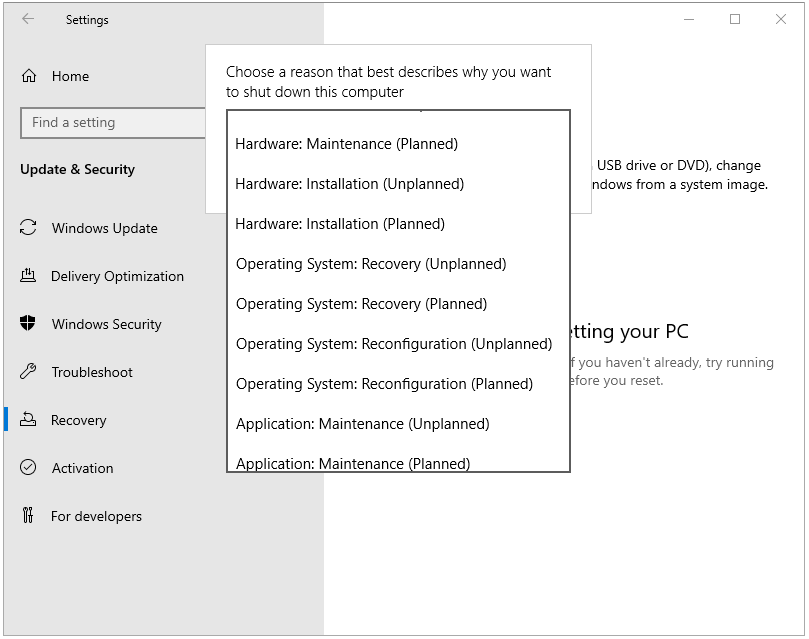
3. Choose a reason that you want to shut down the computer and here you can choose Operating System: Reconfiguration (Planned).
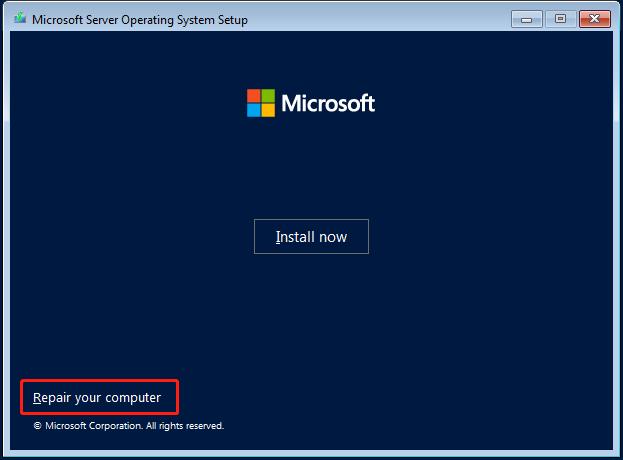
4. Then, your PC will enter the system setup page. Select the language and other preferences then click Next. Then, click Repair your computer.
5. Under the Choose an option page, choose the Troubleshoot option to continue.
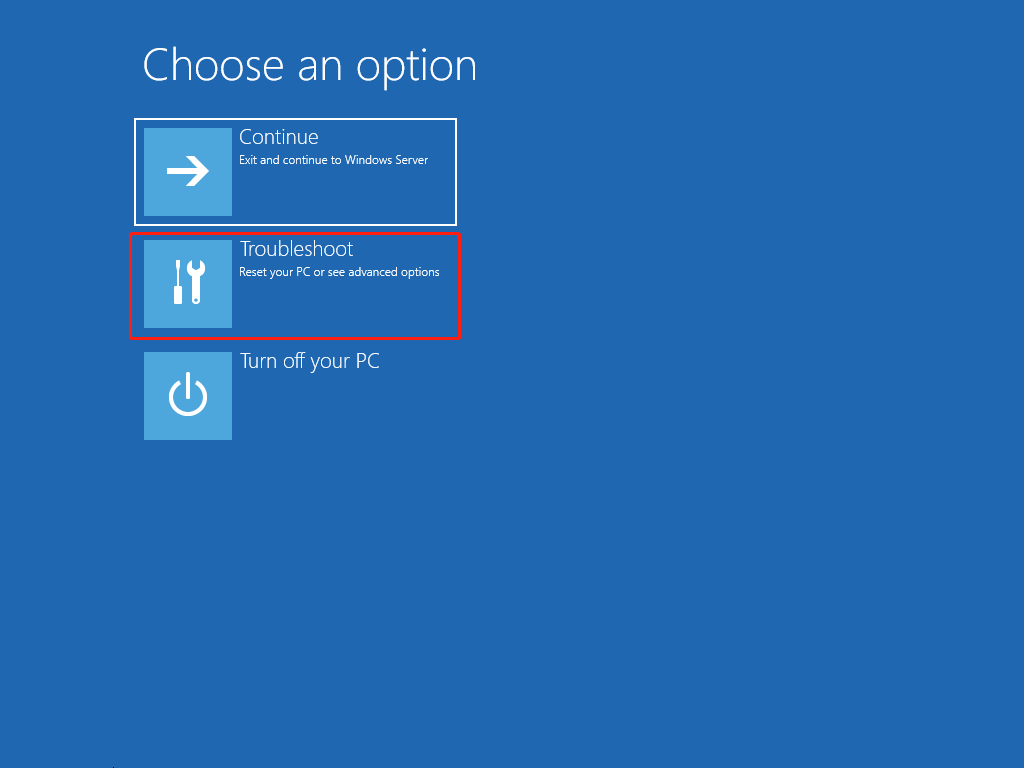
6. Then, you can see the Advanced options page. Choose System Image Recovery to continue.
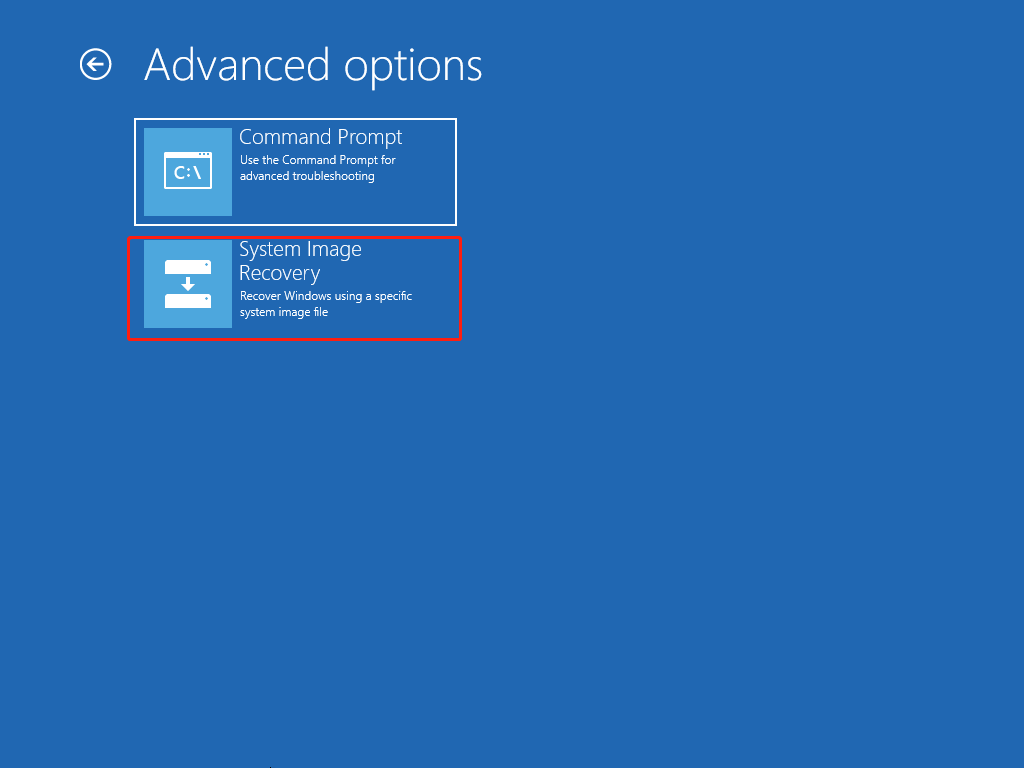
7. Next, choose Windows Server. Then, select a system image backup and click Next.
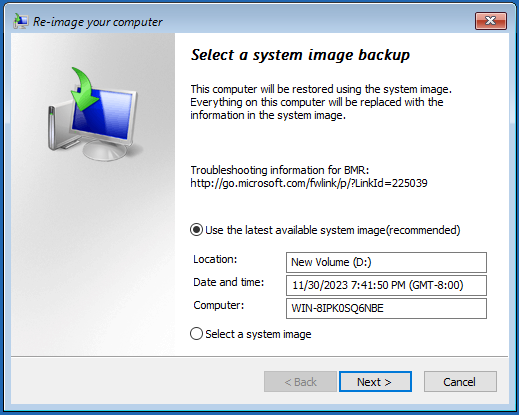
8. Then, you can choose Format and repartition disks or Only restore system drives. Click Next to continue.
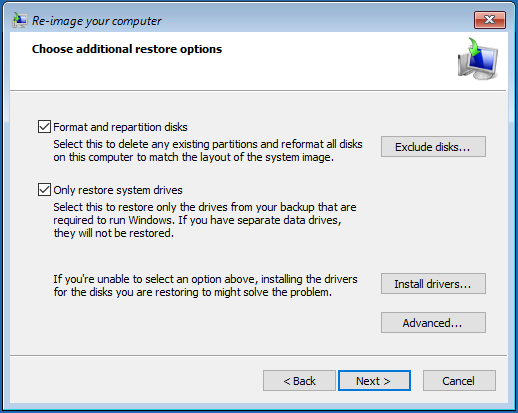
9. Then, it will start to reset your Windows Server 2022.
Method 2: Reset Windows Server 2022 with Installation Media
If you do not have a system image backup or your server cannot boot normally, reinstalling Windows Server 2022 with installation media is another option.
You need a Windows Server 2022 installation disk to access the WinRE (Windows Recovery Environment) to perform the factory reset. You can use the previous installation media but if you don’t have one, you can create it with the following steps:
1. Go to the Windows Server 2022 official download page to download the ISO file.
2. Burn it to your USB drive.
3. Insert a USB drive that contains the Windows Server installation disk into your PC.
4. Enter the BIOS by pressing a certain key (different PC brands may use different BIOS hotkeys) and change the boot order to make your PC boot from the USB drive.
5. Click the Install now button on step 4 in the first method to initiate the installation process for Windows Server 2022.
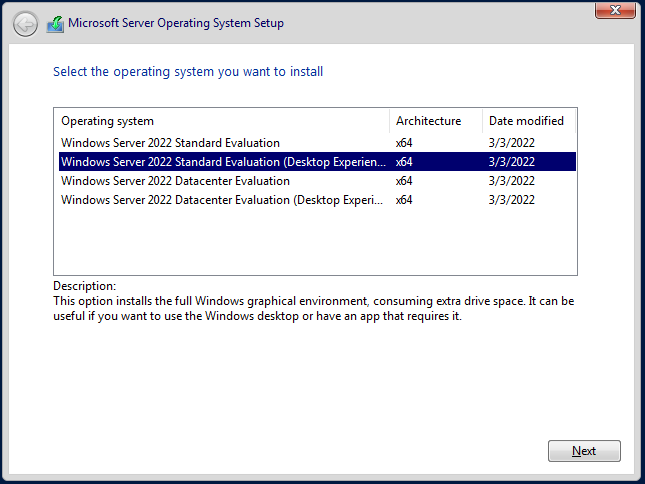
6. Select the operating system you want to install. Here, you can choose Windows Server 2022 Standard (Desktop Experience).
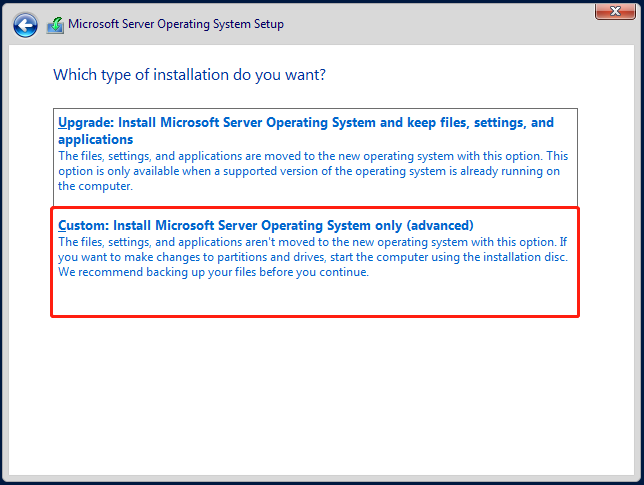
7. Select Custom: Install Microsoft Server Operating only (advanced).
8. Select the hard drive to install Windows Server 2022. Then, click Next.
9. Now the installation will begin and can patiently wait for the process. After installation, click Restart now. Then, you can start to configure your Windows Server 2022.
Factory Reset Windows Server 2022 FAQ
Final Words
This guide explains how to factory reset Windows Server 2022 using either a system image backup or Windows Server installation media. Choose the method that best fits your situation, and remember to back up important files before resetting to avoid data loss.
If you encounter any issues while using MiniTool software, please contact our support team at [email protected] for assistance.
About The Author

Position: Columnist
Charlotte is a technology columnist with a strong focus on the Windows operating system, specializing in disk management, backup, and data recovery. She is passionate about analyzing computer errors, identifying root causes, and delivering practical solutions. In her free time, she stays updated on the latest developments in computer systems and hardware while continuously learning new technologies to broaden her expertise. Her writing style is clear and easy to understand, making complex technical topics accessible even to users with limited computer knowledge.
User Comments :