
AppData folder can grow rapidly over time, causing AppData too large errors or AppData folder taking up a large amount of C drive space. This post introduces how to fix AppData too big error on Windows 11.
The AppData folder is a hidden system directory that stores user-specific settings, temporary files, caches, and other data for applications installed on your Windows 11 computer. It’s located at: C:\Users\[YourUsername]\AppData.This folder contains three subdirectories:
1. Local: Stores data specific to your user account that doesn’t roam with your profile.
2. LocalLow: Contains low-integrity application data.
3. Roaming: Holds data that should follow your user profile across multiple computers in a domain.
Some users find that AppData folder is too big on Windows 11 and their PC becomes slow. In this comprehensive guide, we’ll explore why your AppData folder grows excessively large and provide step-by-step solutions to fix AppData too big error.
Why Does AppData Become Too Large
Several factors contribute to the “AppData too big error” issue:
- Accumulated temporary files and caches
- Leftover data from uninstalled applications
- Excessive browser cache and website data
- Large application logs and error reports
- Game saves and downloadable content
- Email attachments stored locally by email clients
- Outdated Windows update files
Next, let’s see how to fix AppData too big error on Windows 11/10.
Method 1: Move the AppData Folder (Advanced)
First, you can move the AppData folder to another location to fix the issue. However, Windows applications usually expect AppData to remain in its default location. Using symbolic links is an effective way to redirect the file path.
You need to notice that moving AppData can break some applications if not done correctly. Thus, make sure you have backed up your system to avoid accidental data loss. MiniTool ShadowMaker is a piece of free backup software known for its excellent backup features and advanced services.
You can use it to back up system with one click and other backup targets are available, such as files & folders and partitions & disks. Furthermore, it can start automatic backups after configuring the schedule settings. You can also use it to move Windows to another drive.
1. Download, install, and launch MiniTool ShadowMaker. Then click Keep Trial.
MiniTool ShadowMaker TrialClick to Download100%Clean & Safe
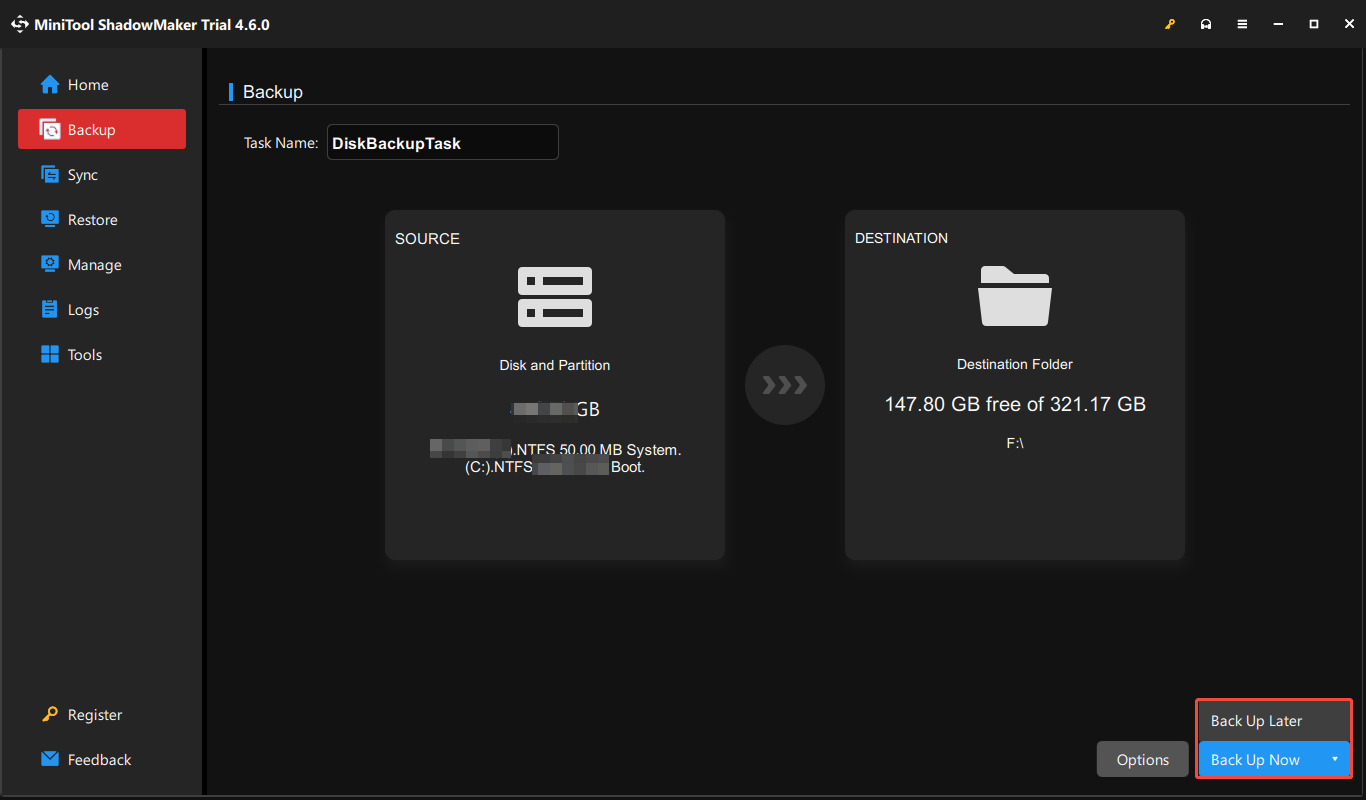
2. After entering its main interface, go to the Backup page. MiniTool ShadowMaker chooses the operating system as the backup source by default.
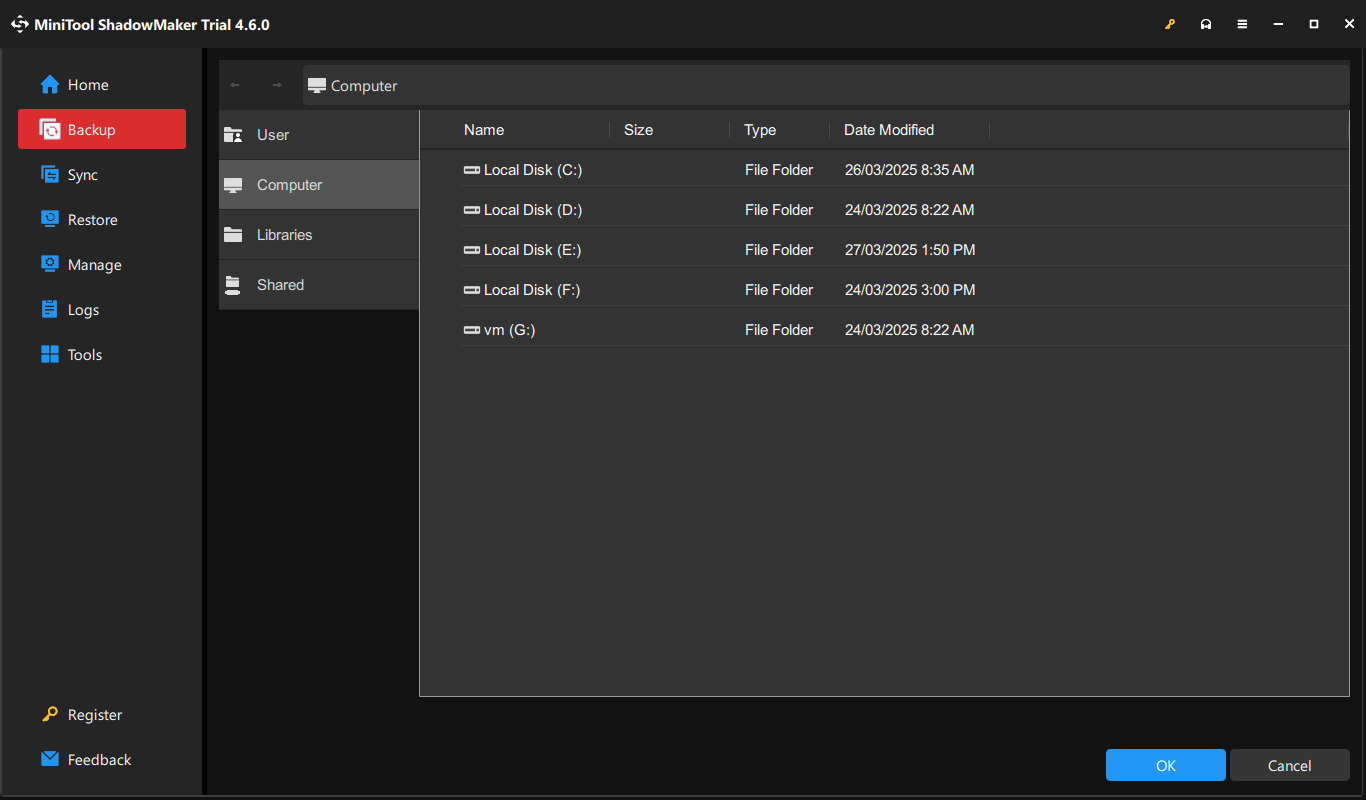
3. Then click DESTINATION to choose a target disk to save the backup image. It’s recommended to choose the external hard drive as the destination.
4. Now, click Back Up Now to start the backup process. Or, you can click Back Up Later to delay the backup task. Then, you can find the task on the Manage page.
Then, you can move the AppData folder to another drive:
1. Create a new folder on another drive (such as D drive)
2. Open Command Prompt as administrator.
3. Run these commands and press the Enter key after each one. You need to replace paths as needed.
- robocopy “C:\Users\[User]\AppData\Local” “D:\AppData\Local” /mir /xj
- rmdir “C:\Users\[User]\AppData\Local” /s /q
- mklink /j “C:\Users\[User]\AppData\Local” “D:\AppData\Local”
4. Repeat for the Roaming and LocalLow folders if needed.
Method 2: Use Windows Built-in Disk Cleanup
You can use Windows built-in disk cleanup tool to fix AppData too big error. It can delete unnecessary files on your computer and save space. Here is how to use it:
1. Type Disk Cleanup in the Search box and select the first option.
2. Disk Cleanup tool will launch. Select the C drive and click on the OK button.
3. Find and click the Clean up system files button
4. The Disk Cleanup tool will launch again. Keep the Drive selection as C disk and click the OK button.
5. Wait for the utility to scan the system. Then, click the OK button.
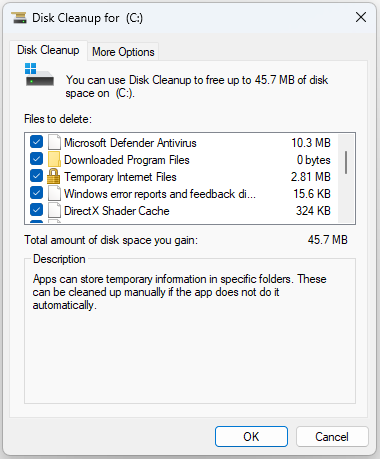
6. Disk Cleanup will reconfirm your decision. Click the Delete files button.
Method 3: Manually Clean AppData Contents
You can manually clean temp files and browsers caches in the AppData folder to fix the AppData too big error on Windows 10.
1. Open File Explorer by pressing Windows + E keys together
2. Navigate to C:\Users\[YourUsername]\AppData.
3. Click View and check Hidden items.
4. Navigate to AppData\Local\Temp. Select all files and delete them.
5. Clear browser caches:
- For Chrome: AppData\Local\Google\Chrome\User Data\Default\Cache
- For Edge: AppData\Local\Microsoft\Edge\User Data\Default\Cache
- For Firefox: AppData\Local\Mozilla\Firefox\Profiles\[profile]\cache2
Method 4: Use Storage Sense
Windows 11 includes a feature called Storage Sense that automatically cleans temporary files. It may fix AppData too big error.
1. Press the Windows + I keys to open the Settings app.
2. Navigate to System > Storage. Turn on Storage Sense.
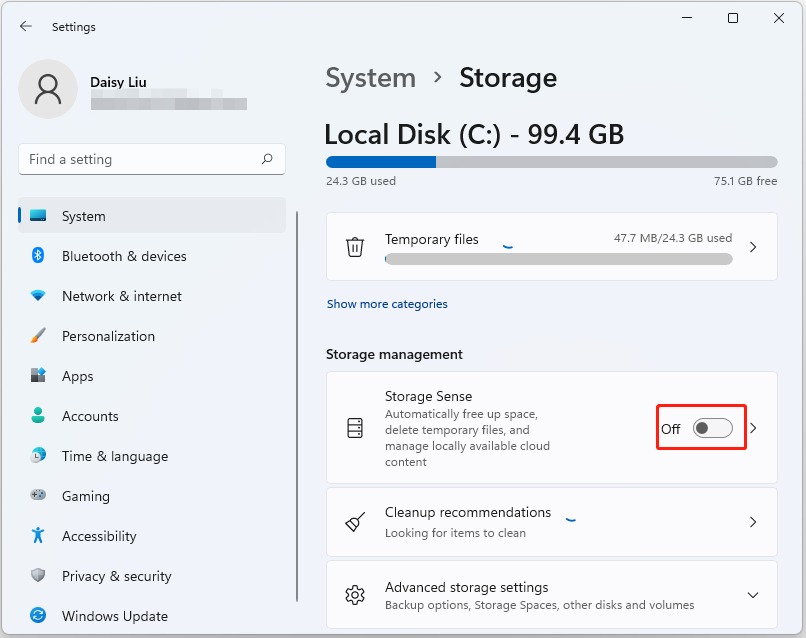
3. Then, a pop-up Free up space window will appear. Click the Enable button.
Method 5: Uninstall Unnecessary Applications
Many applications leave behind large amounts of data in AppData. Uninstalling unnessary application can reduce the size of AppData folder.
1. Open Settings > Apps > Installed apps.
2. Find and uninstall programs you no longer use.
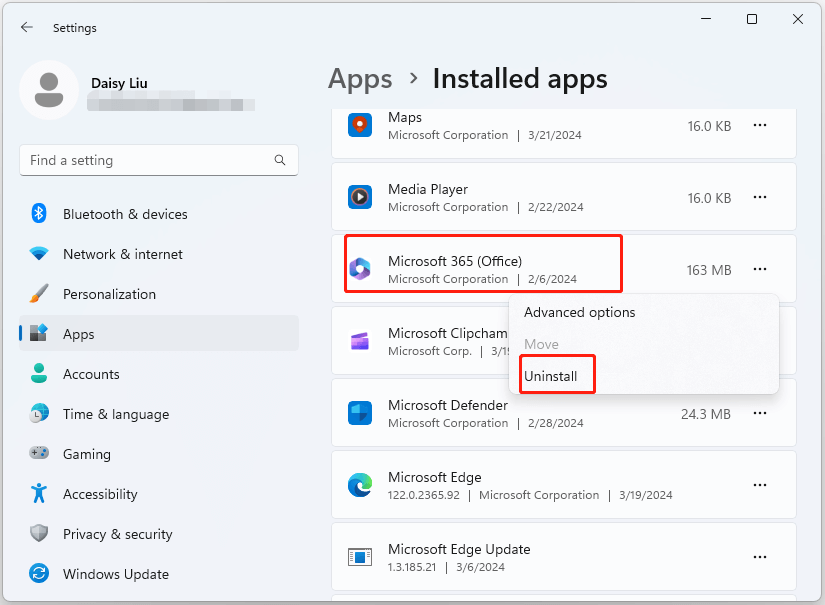
3. After uninstallation, check AppData for leftover folders from these apps.
Method 6: Clear Specific Application Data
Some applications (like Spotify, Steam, Zoom, or Adobe products) store large caches. You can choose to clear the specific application data, which may be helpful to remove AppData too big error.
Prevent the AppData folder from Becoming Excessively Big
How to prevent the AppData folder from becoming excessively big in the future? There are some tips:
- Schedule monthly cleanups using Storage Sense or third-party tools.
- Regularly clear browser caches and limit storage for websites.
- Configure apps like email clients to limit local storage of attachments.
- Combine cloud services and local app storage for file storage.
- Occasionally check AppData size to catch problems early.
Final Words
By following these methods, you can effectively fix AppData too big error on Windows 11, reclaim valuable disk space, and keep your system running smoothly. Regular maintenance will prevent the folder from becoming excessively large in the future.
User Comments :