
You can easily delete shadow copies on Windows 11, Windows 10, and Windows Server through several ways to free up disk space. They include using System Properties, Disk Cleanup, Command Prompt, and PowerShell.
What Is Shadow Copy
Shadow Copy is known as VSS or Volume Snapshot Service. It creates backup copies or snapshots of computer files and volumes, even if they are in use. It is available in Windows XP, Vista, 7, 8, 10, 11, and Windows Server 2003, 2008 (R2), 2012, 2016, 2019, and 2022.
Your shadow copies are usually located on the C:/ partition and stored in the System Volume Information folder.
Why Should You Delete Shadow Copies
There are 3 main reasons:
Free up disk space: Excessive volume shadow copies can consume a lot of storage space, resulting in low disk space. Deleting them can free up much space.
Remove outdated restore points: If you no longer need older restore points, deleting them helps reclaim storage.
- Possess security risks: Volume shadow copies may bring some security risks. For example, attackers may find SAM files in volume shadow copies and read user password hashes, and even use them to log in to remote servers.
How to Delete Shadow Copies on Windows 11/10/Server?
There are 4 deletion methods. If you are not sure which method to use, check the quick comparison.
| Method | Best for | Specific Copy Deletion |
| System Properties | Simple and quick cleanup | No |
| Disk Cleanup | Basic disk cleanup | No |
| Command Prompt | Precise control | Yes |
| PowerShell | Advanced users | Yes |
Way 1: Via System Properties
To delete shadow copies on Windows 10/11/Windows Server, you can use System Properties. Here are the steps:
For Windows 11/10
Step 1: Press the Windows + R keys together to open the Run dialogue box.
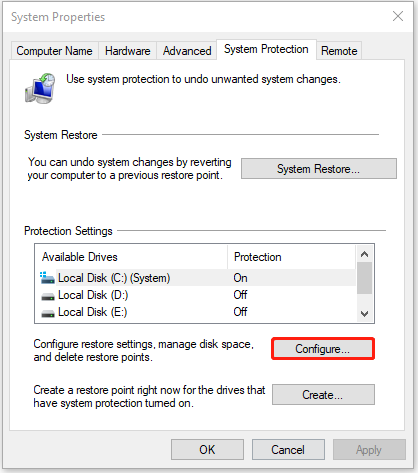
Step 2: Type SystemPropertiesProtection in the box and press Enter to open the System Properties window.
Step 3: Now, you are under the System Protection tab. Click the Configure… button.
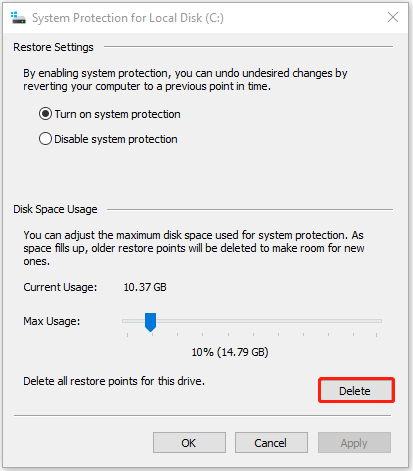
Step 4: Click the Delete button. When you see a warning message, please click the Continue button to delete all shadow copies.
For Windows Server
Step 1: Open File Explorer by pressing the Windows + E keys together.
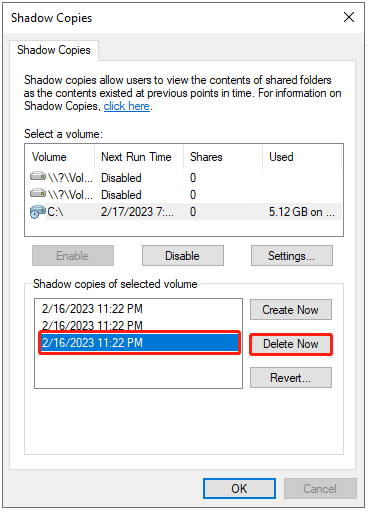
Step 2: Click This PC and right-click your C drive to choose Configure Shadow Copies….
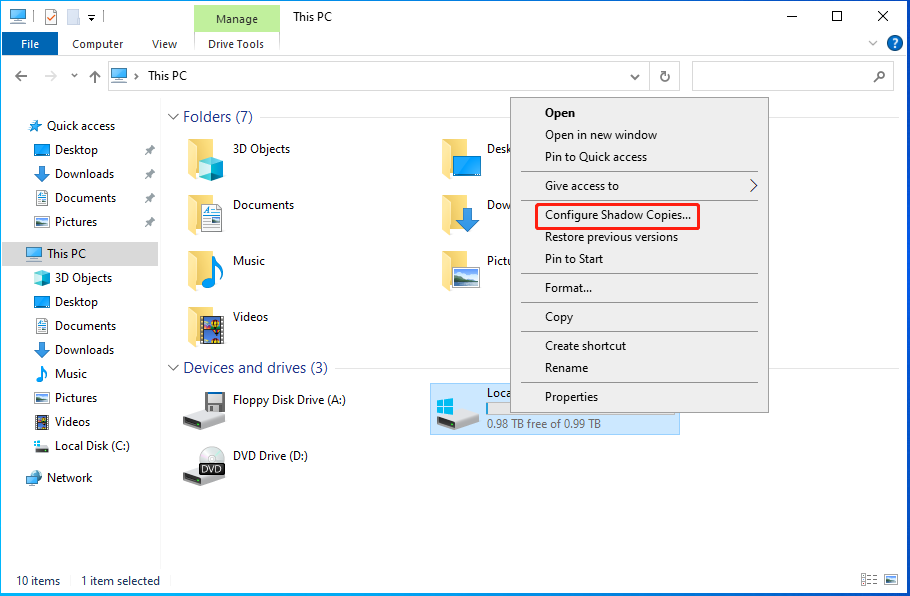
Step 3: Select the shadow copy you want to delete and click the Delete Now button to continue. When you receive a warning message, click Yes to allow it to make changes.
Way 2: Via Disk Cleanup
The method can be applied to Windows 11/10 and Windows Server, that is, delete shadow copies via Disk Cleanup.
Step 1: Type Disk Cleanup in the Search box and click the best-matched result to open it.
Step 2: Choose the drive or partition that you want to delete shadow copies and click OK.
Step 3: Go to the More Options tab. Under the System Restore and Shadow Copies part, click the Clean up… button.
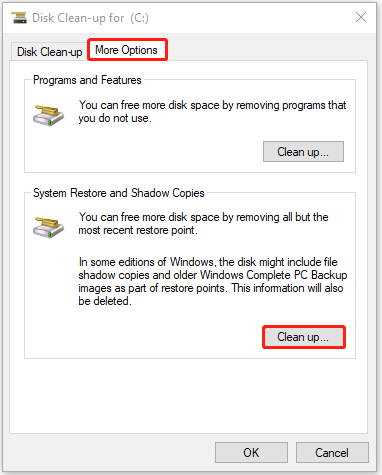
Step 4: When you receive the message, click the Delete button to continue.
Way 3: Via Command Prompt
The vssadmin command can delete all shadow copies or specific shadow copies from a volume. The following provides information about the parameters and meanings of vssadmin.
- /for=: Specifies the volume for which the shadow copy is to be deleted.
- /oldest: Deletes only the oldest shadow copy.
- /all: Deletes all of the shadow copies for the specified volume.
- /shadow=: Deletes the shadow copy specified by ShadowID. To get the shadow copy ID, use the vssadmin list shadows command.
- /quiet: Specifies that the command will not display messages while it is running.
Then, you can remove shadow commands using vssadmin in Command Prompt.
Step 1: Type cmd in the Search box and choose Run as administrator in the right panel.
Step 2: Use the following command based on your needs.
| Command | What it does |
| vssadmin delete shadows /for=c: /all | Delete all shadow copies on drive C: |
| vssadmin delete shadows /for=c: /oldest | Delete the oldest shadow copy on drive C: |
| vssadmin delete shadows /shadow=[Shadow ID] | Delete a specific shadow copy |
![[7+ Ways] Fix VSS was Denied Access to the Root of Volume](https://images.minitool.com/minitool.com/images/uploads/2022/02/vss-was-denied-access-to-volume-root-thumbnail.png)
Resize Shadow Storage to Delete
You can also resize shadow storage to delete shadow copies via vssadmin command. This operation will delete all your shadow copies on the specified volume.
Here is the Syntax:
vssadmin resize shadowstorage /for= /on= [/maxsize=]
- ForVolumeSpec: Specifies the volume for which to adjust the maximum amount of storage space.
- OnVolumeSpec: Specifies the volume storage.
- Maxsize: Should be 1MB or larger and accept the following suffixes: KB, MB, GB, TB, PB, and FB. Or you can use percentages with “%” to define. If no suffix is provided, in bytes.
There is how to run this command:
- Type cmd in the Search box and choose Run as administrator in the right panel.
- Then input the command for example:
vssadmin Resize ShadowStorage /For=C: /On=C: /Maxsize=600MB
Way 4: Delete Shadow Copies using PowerShell
How to delete shadow copies on Windows Server/Windows 11? The last method for you is via PowerShell.
Step 1: Type PowerShell in the Search box and choose Run as administrator.
Step 2: To delete shadow copies using PowerShell, type the command: shadowcopy delete /nointeractive.
Use MiniTool ShadowMaker to Back Up PC
As the alternative to Windows’ built-in backup utility using Volume Shadow Copy, MiniTool ShadowMaker is worth recommending.
The backup software is an all-in-one data protection and disaster recovery solution for PCs. It is compatible with Windows 7/8/8.1/10/11 and Windows Servers. It allows you to back up your systems, important files, folders, partitions, and even the whole disk. Once a disaster occurs, you can restore data with a copy of the backup.
It also enables you to create bootable media to restore your system to a normal state when your computer fails to boot.
MiniTool ShadowMaker TrialClick to Download100%Clean & Safe
Step 1: Launch the software and select Keep Trial on the lower right.
Step 2: On its main interface, switch to the Backup tab.
Step 3: Go to the SOURCE part on the left. Here, your system is selected by default, and you don’t need to choose it.
For data backup, click SOURCE > Folders and Files and select the items you need to back up.
Step 4: Click the DESTINATION rectangle to choose the backup destination.
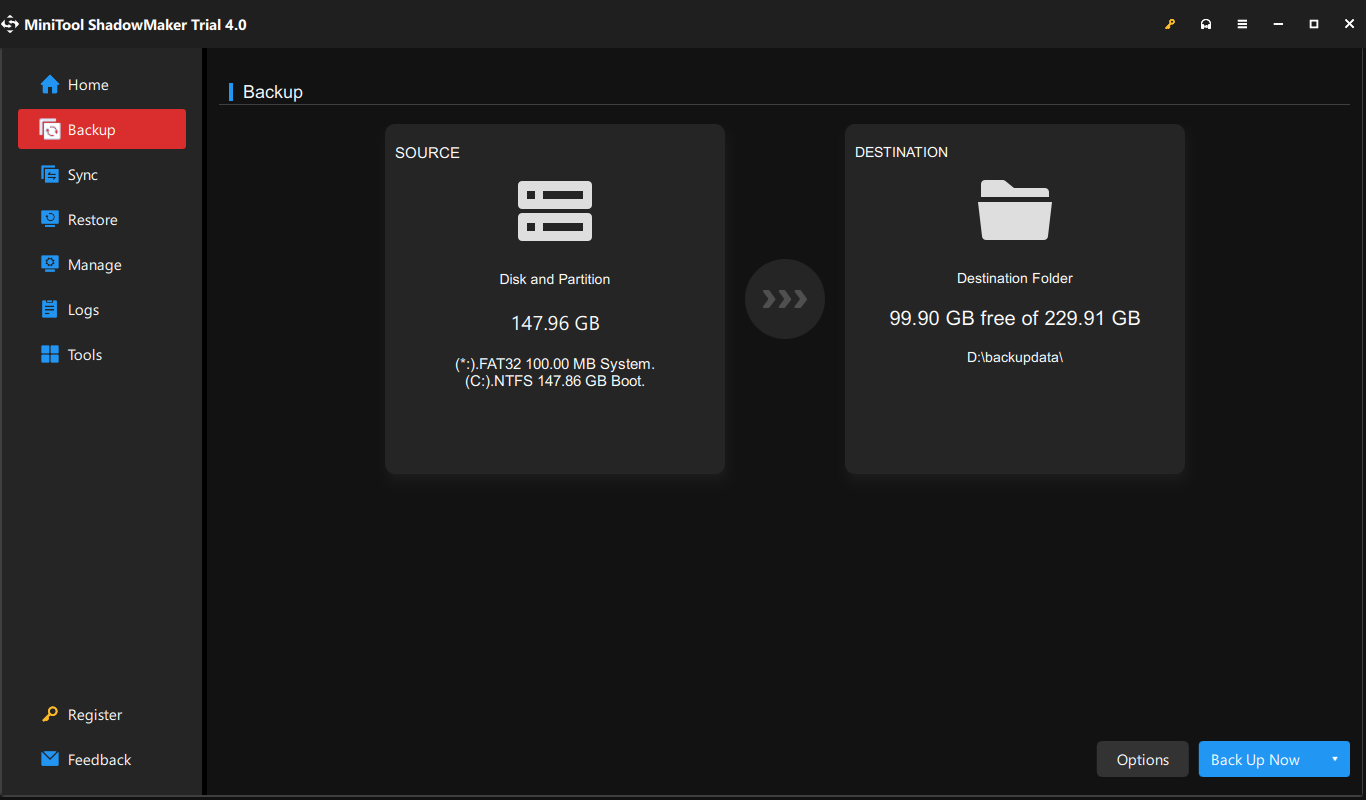
Step 5: Click Back Up Now to start the backup.
Bottom Line
To sum up, this article has shown you how to delete shadow copies to free up space in your Windows 11/10/Server. It also told you how to perform a backup to keep your system and data safe with MiniTool ShadowMaker. If you encounter any question or have any suggestion, feel free to contact us via [email protected].
User Comments :