
In the comprehensive guide, MiniTool introduces how to install Samsung EVO 860/870/970/990 without reinstalling the OS. It involves cloning the system to the new SSD, physically installing the drive, and managing the existing drive after installation.
About Samsung EVO SSDs (860/870/970/990)
Samsung SSDs are highly respected in the industry. The popular lines include 9100 PRO, 990 PRO, 990 EVO, 990 EVO Plus, 980, 980 Pro, 870 EVO, 860 EVO, and other SSDs.
Due to the high speed, reliability, excellent price-to-performance ratio, and power efficiency, the EVO series is favored by customers.
Usually, many users install a Samsung EVO SSD in the PC as the boot drive to improve overall system performance. However, they don’t know how to install it without reinstalling the operating system (OS).
We will offer a Samsung SSD installation guide, especially for the 860/870/970/990 models.

Preparing Your PC for Samsung SSD Installation
Before the installation, follow the steps to prepare your PC.
- Check compatibility and available interfaces: Check your motherboard/PC manual and ensure the motherboard has the proper drive bay or slot for the Samsung EVO SSD 860 and 870 come in 2.5-inch SATA form factor, while 970 and 990 use the M.2 2280 form factor.
- Check the BIOS mode: If you need to install Samsung 990 EVO or 970 EVO as a boot drive, the computer must use the UEFI boot mode since they are NVMe SSDs. To check the BIOS mode, open System Information via Search and view the BIOS Mode item.
- Back up important data: Data loss or corruption can occur due to errors in the cloning software, power outages during the cloning process, and human error. Backing up vital files is a wise precaution. To do that, you can use backup software such as MiniTool ShadowMaker.
- Prepare necessary tools and cables: Prepare a new Samsung EVO SSD; prepare a screwdriver, an anti-static wristband (to prevent static damage), SATA data and power cables, and a SATA-to-USB adapter or M.2 USB enclosure (connect the SSD to a PC while cloning).
- Initialize the Samsung EVO SSD: To use the brand-new solid-state drive, you should initialize it. For this, launch Disk Management via the Win + X menu, right-click the SSD to choose Initialize Disk, and set the partition table to GPT (strongly recommended) or MBR.
After preparation, proceed to learn how to install Samsung EVO without reinstalling the system for optimal performance.
Clone Hard Drive to Samsung 860/870/970/990 EVO
To install Samsung EVO without reinstalling the OS, it is recommended to clone the current drive to the new SSD using cloning software. Then, replace the old drive or add the new SSD as an extra drive.
Disk cloning migrates everything, including the operating system, applications, personal files, and other disk data, to another drive. The target drive is bootable since it is an exact copy of the source drive.
For detailed instructions, refer to our disk copy guide.
Option 1: Use Samsung Data Migration
Samsung Data Migration is a free software designed to clone the entire system from an old disk to a new Samsung SSD. It can make the new SSD bootable and ready to use without reinstalling Windows and programs from scratch.
This software is designed primarily for Samsung SSDs. Specifically, the destination drive must be a Samsung SSD, while the source drive can be any brand of HDD or SSD.
Follow the steps to clone the system disk to a Samsung 860/870/970/990 EVO SSD.
Step 1: Connect your solid-state drive to the computer using a SATA-to-USB adapter (for 2.5-inch drives like 860/870) or M.2 enclosure (for 970/990).
Step 2: Download and install Samsung Data Migration.
Step 3: Launch the software, select a source drive and target drive, then click Start to begin disk cloning.
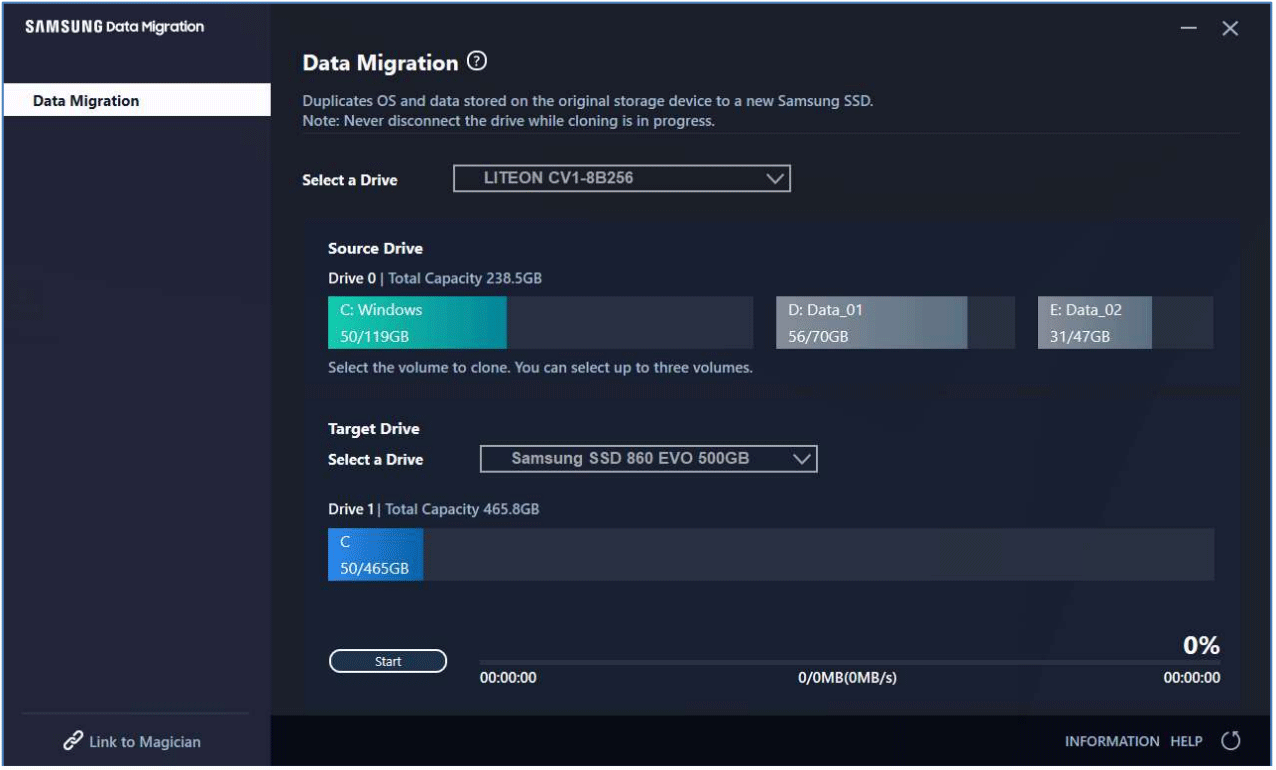
(Image from Samsung)
Wait until the process finishes. Then, skip to the next part to know the subsequent steps for cloning.
Option 2: Use MiniTool ShadowMaker
Alternatively, another hard drive cloning software, MiniTool ShadowMaker, is recommended. This tool offers a comprehensive solution for disk/partition/folder/file/system backup and recovery, file sync, and disk cloning.
MiniTool ShadowMaker provides the Clone Disk feature to transfer the OS, programs, and files from one drive to another. If you need to clone a smaller SSD to a larger one or clone an HDD to an SSD, it is useful. Its simple interface guides you through the migration process step by step.
Importantly, the utility supports sector by sector cloning, which copies all sectors, whether they are used or not. Also, you can configure the software to copy only the used sectors.
What’s more, MiniTool ShadowMaker offers broad compatibility. In detail, it adds support to Windows 11/10/8/7 and Server 2025/2022/2019/2016, and any brands of hard drives, such as Samsung, WD, Kingston, Crucial, SanDisk, Toshiba, Seagate, and so on.
MiniTool ShadowMaker TrialClick to Download100%Clean & Safe
Here is how to clone a hard drive to a Samsung 860/870/970/990 EVO SSD:
Step 1: Use an adapter or enclosure to connect your SSD to the computer and launch MiniTool ShadowMaker.
Step 2: On the left pane, choose the Tools tab.
Step 3: Click the Clone Disk feature to proceed.
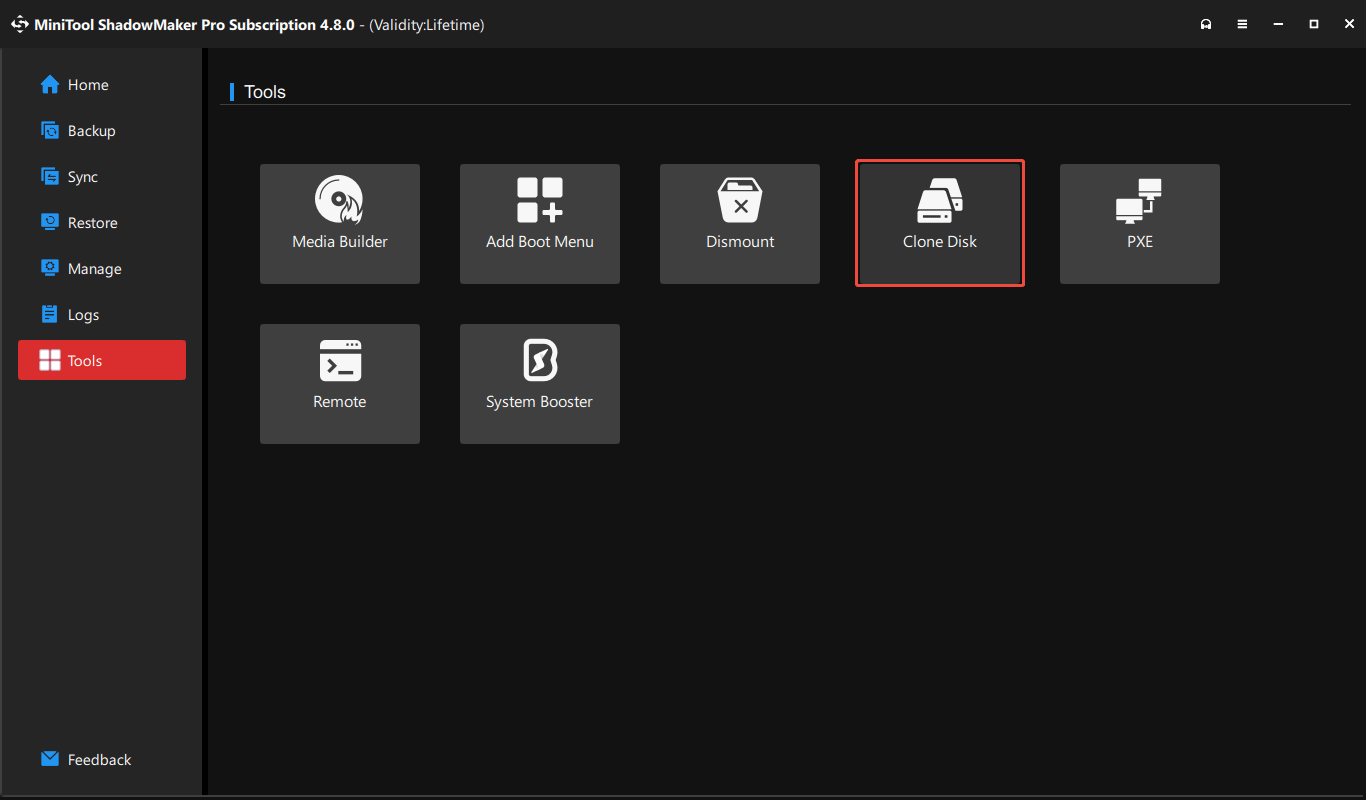
Step 4: Choose the system disk as the source drive and click Next.
Step 5: Select the new Samsung EVO SSD as the target drive and click Start. The cloning process varies by the size of the disk data.
In addition, MiniTool Partition Wizard, a partition manager, can be an assistant for disk cloning. It features Copy Disk to migrate the system and data disk, and Migrate OS to SSD/HD Wizard to clone the system disk or migrate only the system.
After cloning, proceed to install the new Samsung EVO as the primary or additional drive.
How to Replace an Existing Drive with a Samsung EVO SSD
If the computer has only a 2.5-inch drive bay or M.2 NVMe slot, consider replacing the old disk with the cloned Samsung EVO SSD.
Here is how to install Samsung 860 EVO, 870 EVO, 970 EVO, or 990 EVO as the boot drive.
Step 1: Power off the computer and disconnect the power cables.
1. Click the Windows icon and choose Power, then Shut down to power off the PC completely.
2. Unplug all power cables and peripherals, including a keyboard, mouse, printer, and other external devices.
Step 2: Open the computer case.
1. Use a screwdriver to remove screws on the side panel of a desktop or on the bottom cover of a laptop.
2. Remove the case and put it on the side.
3. For a laptop, take out the battery if it is removable.
Step 3: Locate and remove the old SATA drive or M.2 SSD.
For a SATA drive
1. Find the drive in its bay.
2. Unplug the thin, L-shaped SATA data cable and the wider SATA power cable connected to the drive.
3. Unscrew the drive from its mounting bracket or bay and pull it out.
For an M.2 SSD
1. Locate the small, gumstick-sized SSD on the motherboard. Usually, it is under a heatsink.
2. Use a Philips screwdriver to remove the screws holding the heatsink first, then the single screw securing the M.2 drive. Subsequently, the SSD can spring up slightly.
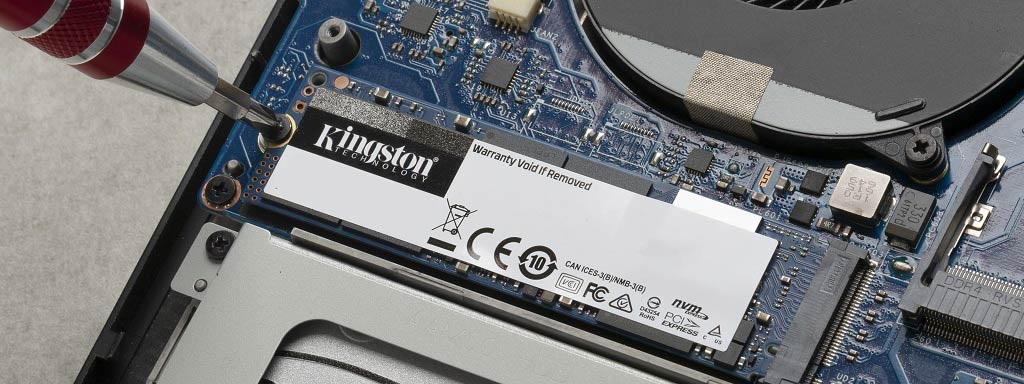
(Image from Kingston)
3. Gently remove the old SSD at an angle.
Step 4: Install a Samsung EVO SSD in the PC.
1. Place the new Samsung 860/870 EVO SSD in the drive bay or the Samsung 990/970 EVO SSD in the M.2 slot where the old drive was located.
2. Reconnect the SATA data cable and power cable (for a SATA drive).
3. Use the same screws to secure the new SSD.
Step 5: Reassemble everything.
1. Close the computer panel or bottom cover and secure it with its screws.
2. Reconnect the battery and all power cables.
Step 6: Verify the system and data integrity.
1. Power on the PC and press Del, F2, F10, or Esc to access the BIOS menu.
2. Ensure the boot mode matches the partition style of the new SSD, such as UEFI for GPT (recommended for the 970 and 990 models).
3. Save the changes, and your computer should recognize the new drive and boot normally.
4. Check if files are accessible and programs are working.
How to Install Samsung EVO SSD as an Additional Drive
Some computers come with two drive slots. In such a case, the best option is to keep both the old drive and the cloned drive:
- Use the new SSD as the boot drive for speed.
- Set the old drive for data storage.
Follow the instructions.
Step 1: Power off the computer and locate an available slot.
1. Shut down the machine and unplug all the power cables.
2. Open the computer case or back panel. If possible, remove the laptop’s battery.
3. Locate the SATA drive bay or the M.2 slot.
Step 2: Install the Samsung EVO SSD.
For Samsung 860/870 EVO
1. Slide the 2.5-inch SSD to the available drive bay and secure it with screws.
2. Attach the SATA data cable to the SSD and motherboard.
3. Connect the SATA power cable from your PSU (power supply unit) to the SSD.
For Samsung 970/990 EVO
1. Locate the M.2 slot on the motherboard. If necessary, remove the heatsink.
2. Insert the SSD into the slot, ensuring the drive’s notch aligns. Then, secure it with the small screw.
3. Reconnect the heatsink.
Step 3: Reassemble the PC.
1. Close the computer case.
2. Reconnect power cords.
Step 4: Configure the BIOS.
1. Power on the computer.
2. Press Esc, Del, F2, or F10 during startup to boot Windows to BIOS.
3. Set the Samsung SSD as the primary boot drive and ensure the SATA mode is set to AHCI.
4. Save the changes and exit BIOS. Windows should boot properly from your SSD.
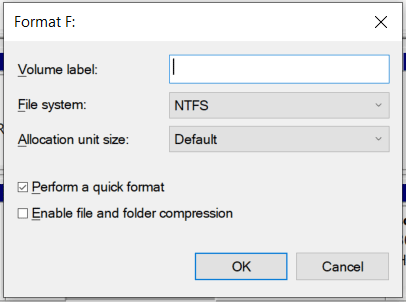
Step 5: Format the old drive for data storage.
1. Right-click the Windows icon and choose Disk Management.
2. Locate the old system drive, right-click on it, and select Format.
3. Set a file system and click OK to start formatting.
After all the steps are finished, the PC performance can significantly improve, as it boots up from an SSD while keeping the old disk for data storage.
Conclusion
This post covers how to install Samsung EVO 860/870/970/990 without reinstalling the OS and what to do after the SSD installation. Follow the instructions to clone the system drive to a Samsung SSD and use it as the boot drive for improved system performance.
When experiencing issues with MiniTool ShadowMaker, send an email to [email protected].
How to Install Samsung EVO FAQ
Step 2: Download the proper NVMe driver depending on the SSD model.
Step 3: Run the executable file and follow the on-screen instructions to finish the installation.
Step 2: Run Disk Management to initialize the disk, such as GPT.
Step 3: Create a new simple volume, assign a drive letter, and format it. Ensure it is usable in File Explorer.
About The Author

Position: Columnist
Vera has been working at the MiniTool Team for over 10 years as a technical editor and content writer. She mainly focuses on disk and partition management, data recovery, Windows backup and restore, and PC troubleshooting. Through in-depth software testing and hands-on experience, she has helped users solve a wide range of computer problems and better protect their data on Windows devices.
User Comments :