
When your PC shows “It looks like Windows didn’t load correctly”, first choose See advanced repair options and run Startup Repair. If this doesn’t work, access Safe Mode, disable hybrid sleep, run DISM, SFC, & CHKDSK, and rebuild the BCD. If the issue persists, back up important files and reset your PC.
It Looks Like Windows Didn’t Load Correctly Windows 11/10
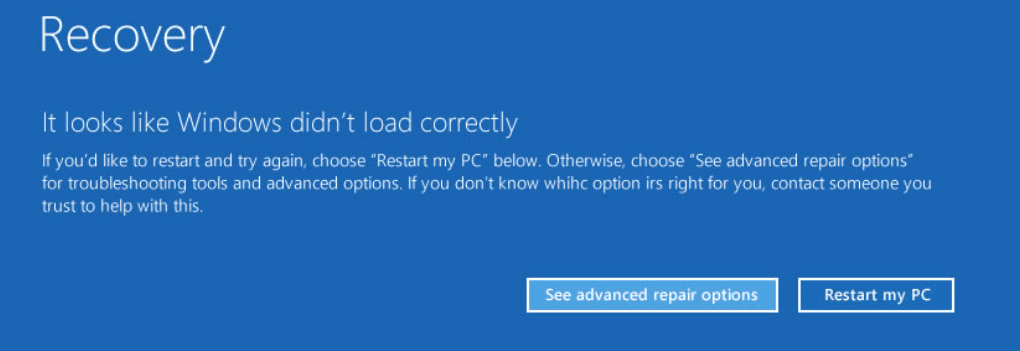
The error message “Recovery it looks like Windows didn’t load correctly” appears on your computer when trying to boot or recover the PC. Sometimes your PC accidentally stops working with a blue screen and after a restart, you get the error. Sometimes Windows not loading correctly appears randomly.
The screen gives you two options — See advanced repair options and Restart my PC. To troubleshoot the issue, click the first one. If you would like to restart and try again, click the second one. The error screen is shown below:
Several factors can trigger this issue, including:
- Corrupted system files
- Damaged Boot Configuration Data (BCD)
- Abrupt shutdowns
- Faulty updates or drivers
- Hybrid sleep or power settings issues
Sometimes you see another error when performing an automatic repair – “Automatic Repair, Your PC did not start correctly." To find solutions, refer to this post - 7 Solutions: Your PC Did Not Start Correctly Error in Windows 10.
How to Fix Windows Not Loading Correctly Windows 11/10
Try the following fixes one by one. Start with Startup Repair, then move on to other troubleshooting methods if the problem persists.
| Situation | Recommended fix |
| The error appeared for the first time | Disconnect non-essential USB devices and restart your PC |
| Windows repeatedly returns to the recovery screen | Run Startup Repair |
| The error started after installing a driver, update, or app | Enter Safe Mode and uninstall the recent item |
| You suspect corrupted system files | Run DISM and SFC |
| An error mentions missing or corrupted BCD | Rebuild BCD |
| Other methods fail | Back up data and reset your PC |
Fix 1: Run Startup Repair
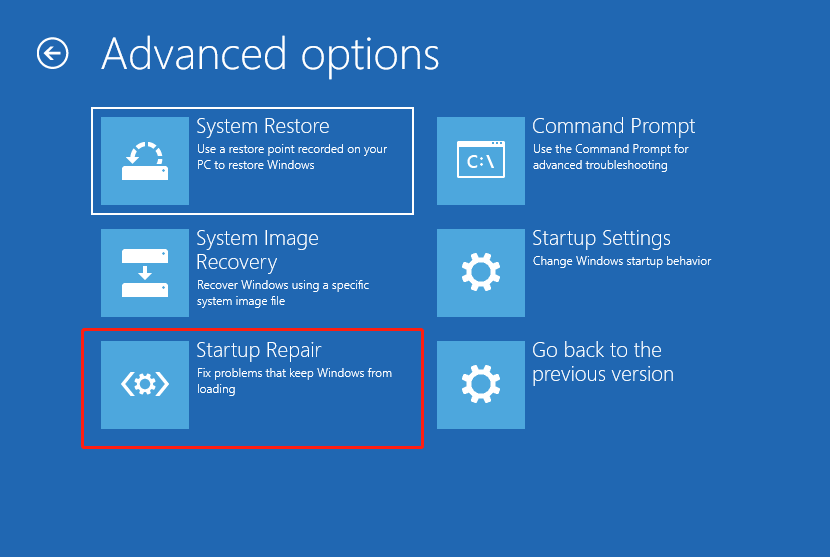
Startup Repair is designed to diagnose and fix common startup problems. When Windows fails to load correctly, try it first.
Step 1: Click See advanced repair options.
Step 2: Go to the Advanced options page and click Startup Repair.
Fix 2: Enter Safe Mode
Safe Mode is a diagnostic mode in Windows and it boots the system with the minimum drivers and services. When it comes to PC troubleshooting, entering Safe Mode is a safe and reliable way. If you are plagued by the issue of Windows not loading correctly, try this way.
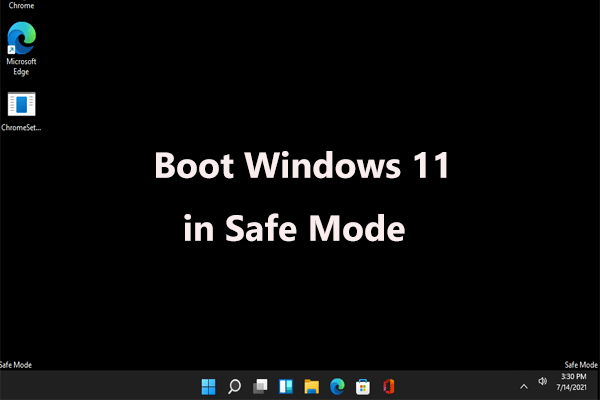
Step 1: On the Recovery page, click on See advanced repair options to enter the troubleshooting interface. Alternatively, you can restart your PC several times when seeing the Windows logo to enter the WinRE page.
Step 2: Click Troubleshoot > Advanced options and you can see several options.
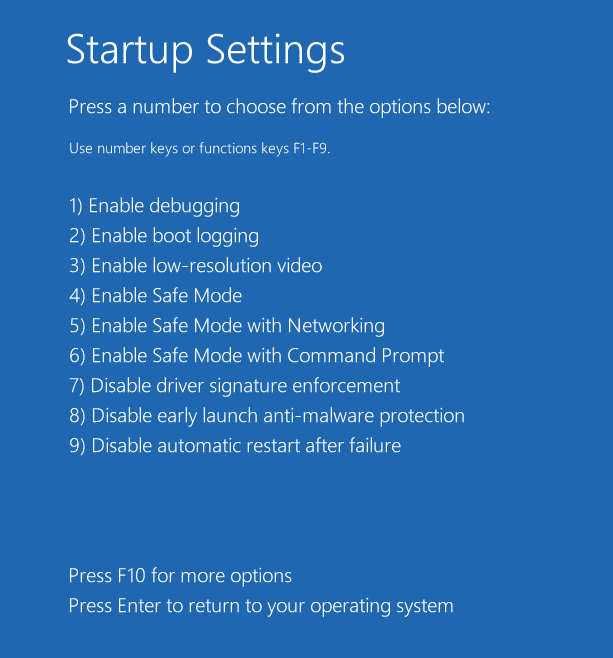
Step 3: Click Startup Settings > Restart. Then, you see the following figure and press F4 or F5 to open Safe Mode.
In Safe Mode, uninstall the recently installed driver, or app.
After that, restart your PC to see if the error “it looks like Windows didn’t load correctly” is fixed. If not, continue the troubleshooting.
Fix 3: Perform System Restore
If the “It looks like Windows didn’t load correctly” error started after a recent driver installation or software change, performing a system restore may help. Ensure you have an available restore point.
Step 1: Click System Restore in WinRE.
Step 2: You can use the recommended restore point or choose to use a different restore point.
Step 3: Then, click Finish to start the restoration operation.
If there are no restore points created previously, this way cannot fix your issue.
Fix 4: Turn Off Hybrid Sleep
According to some users, the Hybrid Sleep feature can cause the error of Windows not loading correctly in Windows 10/11. To fix this issue, make sure you disable Hybrid Sleep and see how to do it:
Step 1: In Safe Mode, type Control Panel into the search box and click this app to open it. View items by large icons.
Step 2: Click Power Options > Change plan settings.
Step 3: Click the Change advanced power settings link to open the Advanced settings tab.
Step 4: Expand Sleep > Allow hybrid sleep and then change On to Off.
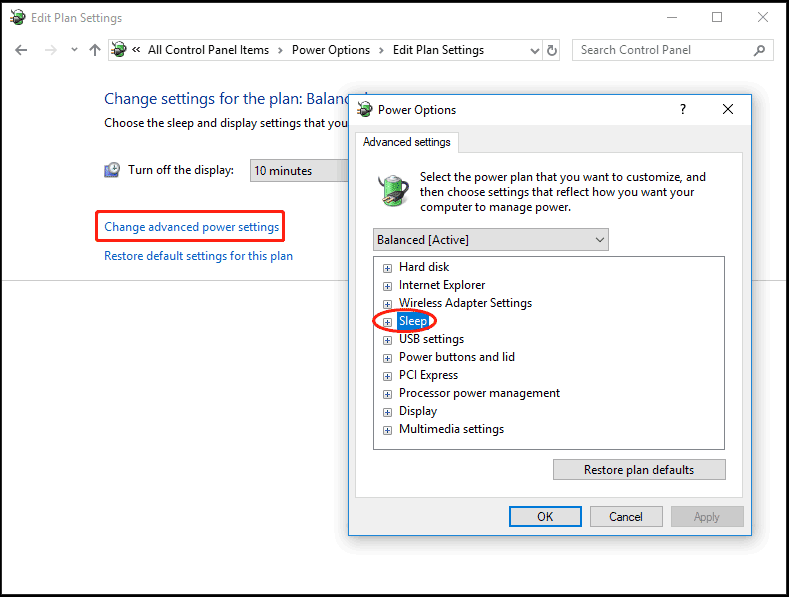
Step 5: Click Apply > OK.
Fix 5: Run DISM and SFC
Sometimes Windows not loading correctly is triggered by corrupted system files. To fix this issue, you need to fix the corruption in the Windows system using DISM and SFC..
Step 1: In Safe Mode, type cmd to the search box, right-click on Command Prompt, and choose Run as administrator. Alternatively, you can boot the PC to WinRE and go to Troubleshoot > Advanced options > Command Prompt.

Step 2: Type Dism /Online /Cleanup-Image /RestoreHealth and press Enter.
Step 3: Type sfc /scannow and press Enter to begin the scan.
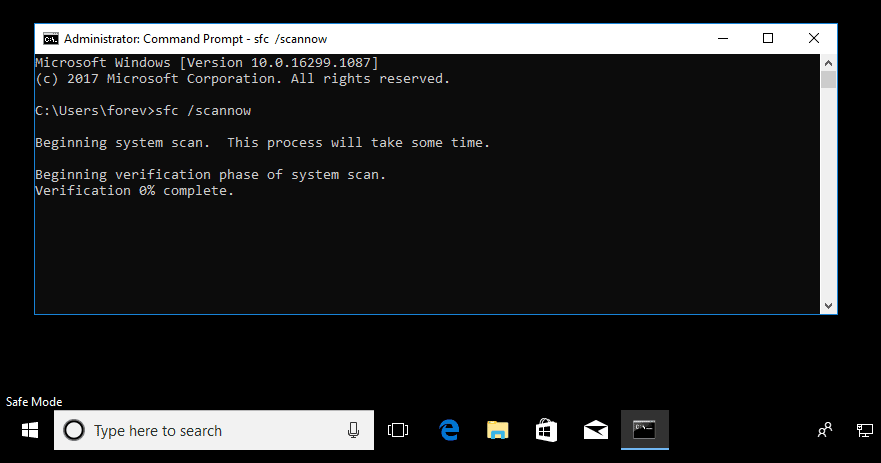
SFC isn’t always working and sometime it may get stuck. If you encounter this issue, go to find solutions from our previous post - Windows 10 SFC /Scannow Stuck at 4/5/30/40/73, etc.? Try 7 Ways.
Fix 6: Run CHKDSK
Sometimes the file system is corrupted or there are bad blocks on the hard drive, as a result, “Recovery it looks like Windows didn’t load correctly” appears on your Windows 11/10 PC. In this case, it is necessary to run the CHKDSK scan.
Running CHKDSK with the /f /r parameter may take a long time, especially on large drives. Back up important files before proceeding, and do not interrupt the scan once it starts.
Step 1: Open Command Prompt (as shown in the above way).
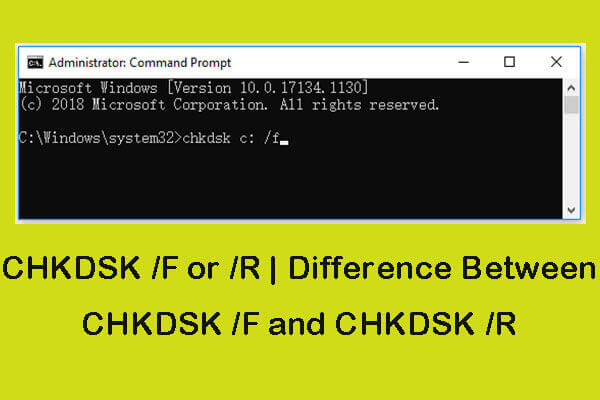
Step 2: Type chkdsk /f /r and press Enter.
- /f: Check for file system errors and fix them.
- /r: Includes the functionality of /f. Additionally, it can scan for bad sectors and recover the readable information.
Fix 7: Rebuild BCD
Try rebuilding the Boot Configuration Data (BCD) if Windows fails to start correctly and you suspect the BCD is missing or corrupted.
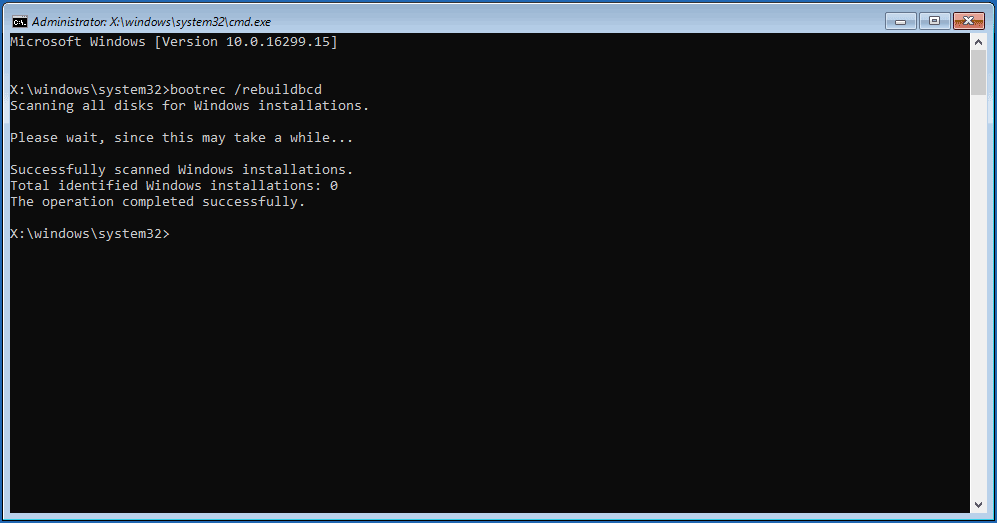
Step 1: In WinRE, go to Troubleshoot > Advanced options > Command Prompt.
Step 2: After opening Command Prompt, type bootrec /rebuildbcd and press Enter.
Fix 8: Reset Your PC
If all of the above ways fail to solve your issue, the last resort to remove “it looks like Windows didn’t load correctly” from Windows 10/11 is PC resetting. This operation can help to reinstall your system.
Windows 11 gives you an option to keep your personal files during the resetting process. But if you save some important files on your desktop, we still recommend you to back up them in advance to avoid unexpected data loss.
Back up Data Before You Do
To back up significant files/folders, you can seek help from a piece of professional and free backup software. MiniTool ShadowMaker is worth trying.
This backup program allows you to easily create a system image, back up your important data or sync files to Google Drive or OneDrive for backup.
To back up your files when encountering the error “it looks like Windows didn’t load correctly”, it is a bit difficult but you can use MiniTool ShadowMaker to create a bootable USB drive on a working PC and boot the unbootable PC from that drive. Then, back up data.
MiniTool ShadowMaker TrialClick to Download100%Clean & Safe
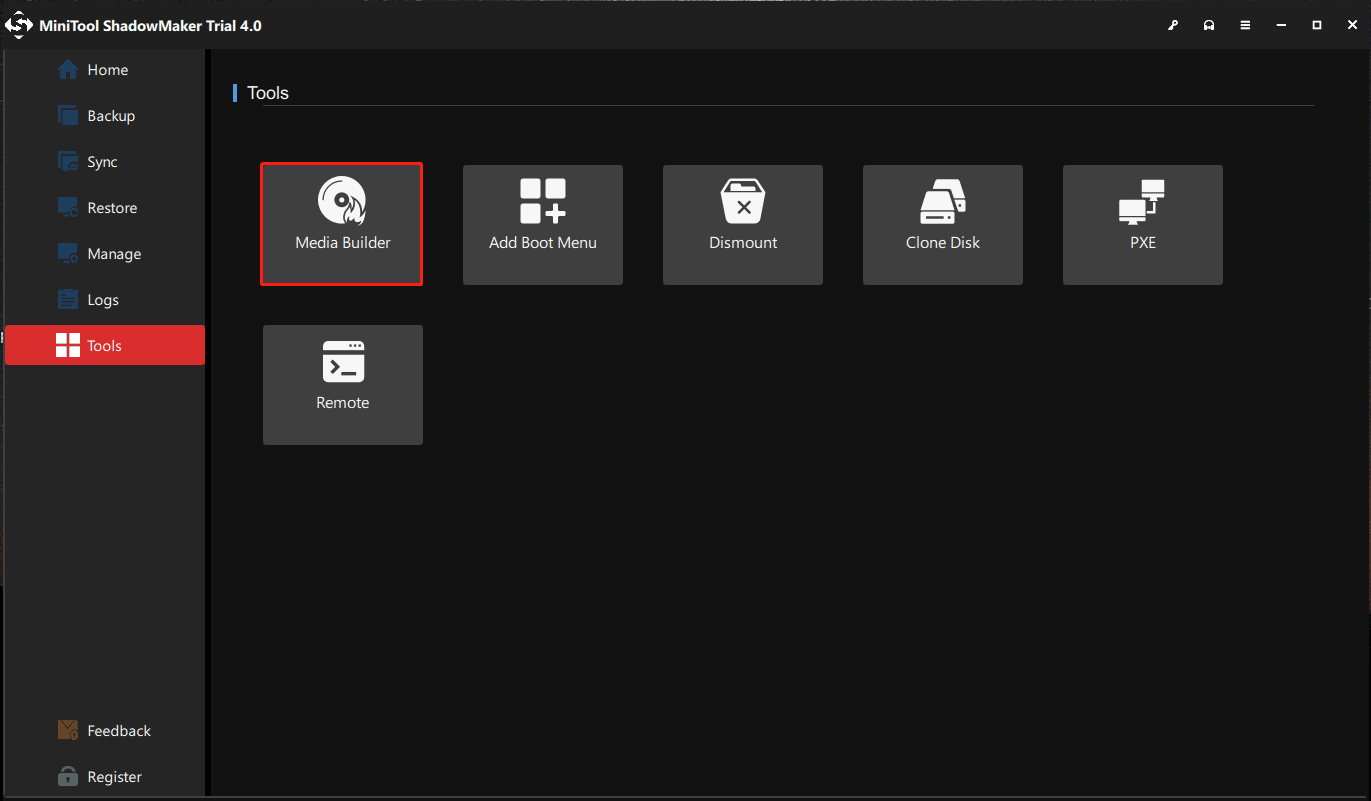
Step 1: Download and install MiniTool ShadowMaker on another PC. Then, launch it to the Tools interface and click Media Builder to create a bootable USB drive.
Step 2: On your problematic PC, go to BIOS, change the boot sequence to let Windows start up from the bootable drive, and then enter the MiniTool recovery environment.
Step 3: Launch MiniTool ShadowMaker to its Backup page, choose files/folders you want to back up, specify a storage path and click the Back up Now button to execute the data backup.
To know more information about the backup steps, refer to our previous post – How to Back up Data without Booting Windows? Easy Ways Are Here.
Reset Your PC
After finishing the file backup, follow the steps below to reset the PC with the error Windows not loading correctly.
Step 1: Boot your PC to WinRE by restarting the machine several times when seeing the Windows logo.
Step 2: Go to Troubleshoot > Reset this PC.
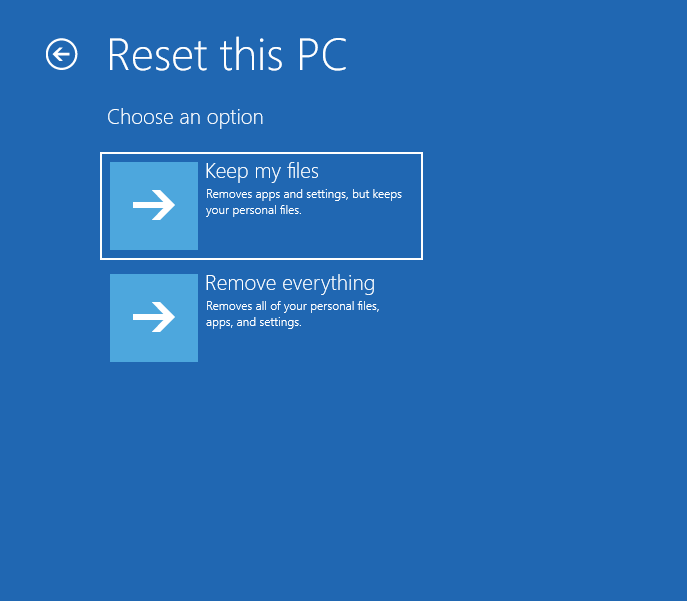
Step 3: Choose the Keep my files option to continue.
Step 4: Select Cloud download or Local reinstall. If you don’t know which one to choose, refer to this post – Cloud Download vs Local Reinstall: Differences on Win 10/11 Reset.
Step 5: Continue the resetting operation by following the on-screen wizards.
Bottom Line
Run your PC but get a blue screen saying “Recovery it looks like Windows didn’t load correctly” in Windows 11/10? To remove this error, try the above solutions.
If you have issues with our software, send an email to us at [email protected].
It Looks Like Windows Didn’t Load Correctly FAQ
About The Author

Position: Columnist
Vera has been working at the MiniTool Team for over 10 years as a technical editor and content writer. She mainly focuses on disk and partition management, data recovery, Windows backup and restore, and PC troubleshooting. Through in-depth software testing and hands-on experience, she has helped users solve a wide range of computer problems and better protect their data on Windows devices.
User Comments :