
What Is Clipboard Hijacking?
What is clipboard hijacking? It is a cyberattack where malicious software secretly monitors or alters the data you copy and paste on your computer. Since the clipboard temporarily stores sensitive information – such as passwords, credit card numbers, and cryptocurrency wallet addresses, hackers exploit this feature to steal or manipulate data without your knowledge.
This attack can lead to financial fraud, data loss, identity theft, and unauthorized access to accounts.
How Hackers Hijack the Clipboard
How do hackers hijack the clipboard on Windows? The following are the common methods:
1. Malware Infection – A virus or spyware runs in the background, logging clipboard activity.
2. Data Interception – The malware scans for sensitive information.
3. Data Replacement – Some malware alters copied data.
4. Exfiltration – The stolen data is sent to the attacker’s server.
Common Types of Clipboard Hijacking Attacks
Here are the common types of clipboard hijacking attacks.
1. Cryptocurrency Address Swapping
How it works: Malware detects a copied crypto wallet address and replaces it with the attacker’s address.
Impact: You may unknowingly send funds to the hacker instead of the intended recipient.
2. Password & Credit Card Theft
How it works: Keyloggers or spyware record clipboard data when you copy passwords or card details.
Impact: Stolen credentials are used for fraud or sold on the dark web.
3. Remote Access Clipboard Manipulation
How it works: Hackers with remote control (via RATs or RDP) modify clipboard content.
Impact: Attackers can insert malicious links or commands into copied text.
4. Fake Clipboard Managers
How it works: Malicious clipboard manager apps claim to enhance productivity but secretly log copied data.
Impact: Personal and financial information is stolen over time.
How to Prevent Clipboard Hijacking Attacks on Windows
Tip 1. Keep Windows and Software Updated
Outdated systems and software vulnerable to exploits. To prevent clipboard hijacking attacks on Windows, you need to keep Windows and software updated. You can update Windows in Settings and update installed software in Microsoft Store.
Tip 2. Use a Reliable Antivirus & Anti-Malware
A strong security suite can detect and block clipboard-monitoring malware to prevent clipboard hijacking attacks on Windows. You can use a reliable antivirus or anti-malware such as Windows Defender, Malwarebytes, Bitdefender or Kaspersky.
Tip 3. Avoid Suspicious Downloads & Links
Many clipboard hijackers spread via pirated software, phishing emails, fake browser extensions, etc. Thus, you had better download software from official sources like Microsoft Store or verified websites.
Tip 4. Disable Remote Clipboard Access
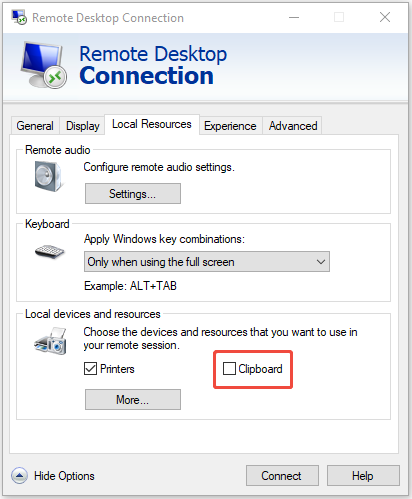
If you use Remote Desktop (RDP), it’s recommended to set a restrict clipboard sharing to prevent clipboard hijacking attacks on Windows. Here is how to do that:
Step 1. Open Remote Desktop Connection.
Step 2. Click Show Options and go to the Local Resources tab.
Step 3. Under the Local devices and resources part, uncheck the Clipboard box.
Tip 5. Be Cautious with Transactions
Since clipboard hijacking often targets crypto users. You need to notice the following before performing transactions.
- Double-check wallet addresses before sending funds.
- Use hardware wallets for better security.
- Enable address whitelisting in crypto exchanges.
Tip 6. Educate Yourself on Phishing & Social Engineering
Many attacks start with deceptive emails or fake software. You need to:
- Recognize phishing attempts.
- Avoid clicking suspicious links.
- Verify sender authenticity before downloading attachments.
Tip 7. Keep Your Files Backed up Regularly (Most Significant)
How to prevent clipboard hijacking attacks on Windows? It is to back up all important files on your computer. Even if your device is attacked by clipboard hijacking, the data that you backed up before will remain safe. And you can then use the backup files to restore the data when your original data is attacked by clipboard hijacking.
First, it is highly recommended to use MiniTool ShadowMaker, which is a piece of Windows backup software. MiniTool ShadowMaker allows you to back up files, folders, disks, partitions, and even the operating system to different locations. It also supports moving Windows to another drive.
You had better back up your data to an external hard drive and make sure that you don’t connect it to your computer when you are not using it. Here are the steps to back up your important files on your computer:
MiniTool ShadowMaker TrialClick to Download100%Clean & Safe
Step 1. Install and launch MiniTool ShadowMaker, then click Keep Trial.
Step 2. Go to the Backup page, click SOURCE, and then select Folders and Files. Check all the files and folders that you need and then click OK.
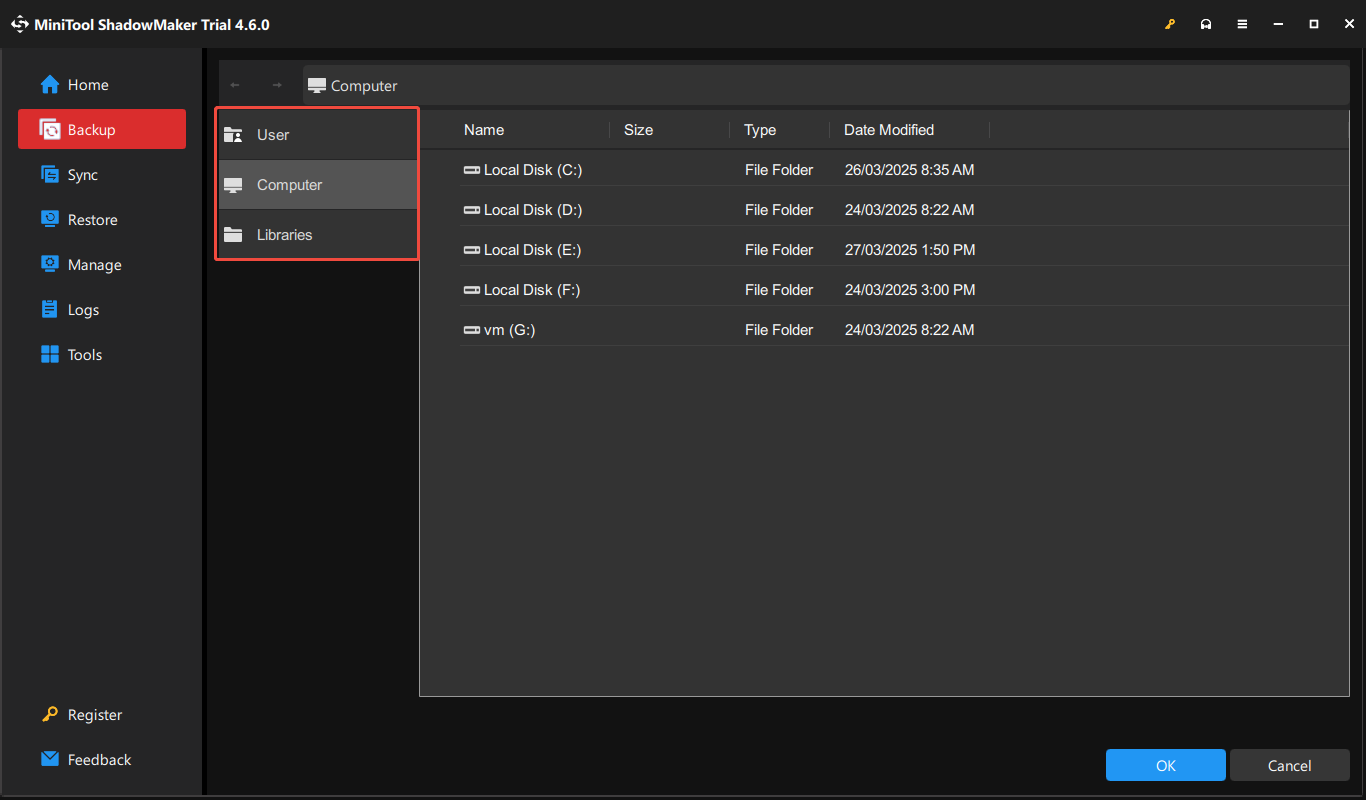
Step 3. Click DESTINATION and then choose the external hard drive as the destination to save the backup image. Click OK to save changes. You should notice that you should connect the external hard drive to your PC before the backup.
Step 4. After you have confirmed the backup source and destination, then click Back Up Now to start to back up your files.
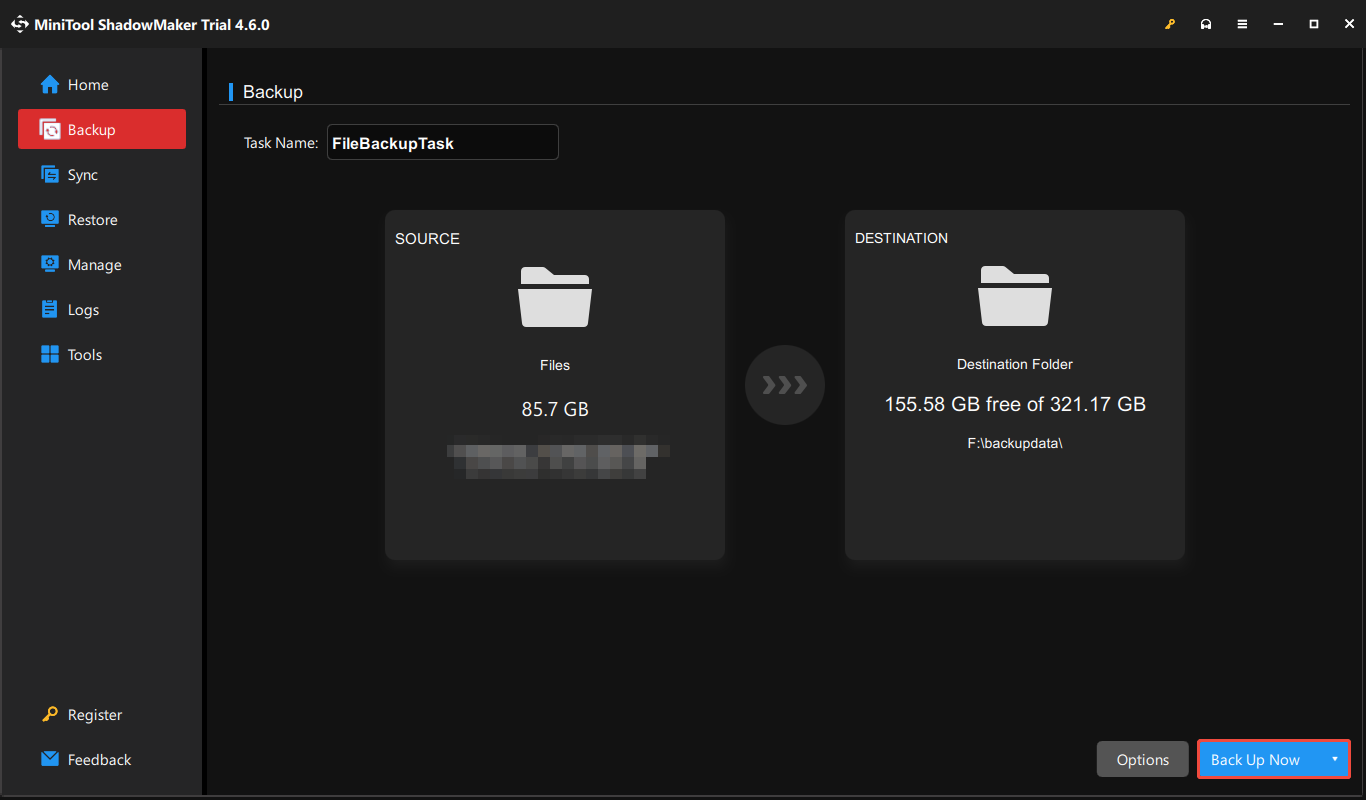
Then you just need to wait for MiniTool ShadowMaker to complete the process.
How to Detect Clipboard Hijacking Attacks
How to detect clipboard hijacking attacks? Please pay attention to these signs.
- Pasted text doesn’t match what you copied.
- Unusual system slowdowns when copying data.
- Unknown processes in Task Manager related to clipboard functions.
- Unexpected changes in pasted content.
Final Words
This post has briefly shown you some basic information clipboard hijacking attacks and you can prevent clipboard hijacking attacks on Windows. Besides, this post also introduces you to a powerful program – MiniTool ShadowMaker, which can help you back up data to protect it.
User Comments :