
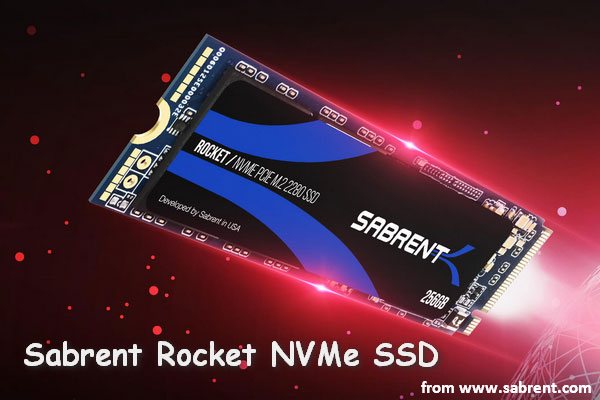
When your system clogs up frequently, it’s time to consider a Sabrent Rocket SSD upgrade. Here comes the question, how to migrate all the contents from the old drive to the new one? In this guide from MiniTool, we will provide several Sabrent SSD clone software for you.
Why Do You Need Sabrent Rocket SSD Upgrade?
Sabrent Rocket SSDs stand out primarily due to the amazing speeds, unmatched reliability, and competitive price point. As a result, they are a top choice when you intend to upgrade your current HDD or SSD.
In the following cases, you might need to upgrade your current hard drive:
- It takes noticeably long to start up or shut down your computer.
- You don’t have a deep pocket to afford a brand-new computer.
- Applications are always lagging and file transfer speed is slow.
- There is more and more data on your hard drive and the disk space is going to run out.
- Unexpected system crashes or error messages appear frequently.
- Your hard drive is so aging that it nears the end of its lifespan but other hardware components still perform well.
Sabrent SSD Clone Software
To ensure a smooth and reliable transfer of your data and entire system to a new SSD, it’s important to choose a handy and powerful clone tool. In this case, you had better choose a third-party software that minimizes the risk of data loss or issues with your new drives, especially when dealing with complex setups or large amounts of data.
Option 1: via Acronis True Image for Sabrent
Like certain SSDs, Sabrent SSDs come with a cloning software called Acronis True Image for Sabrent. With this program, you can create an exact copy of your Sabrent drive or any other brand. After cloning your current disk, you can directly boot from the new SSD for better system performance, speed, and stability.
Here, let me show you how to upgrade your Sabrent SSD with this program:
Step 1. Connect your Sabrent SSD to your computer with a USB port.
Step 2. Go to the official website to download Acronis True Image for Sabrent.
Step 3. After downloading and installing, launch this software.
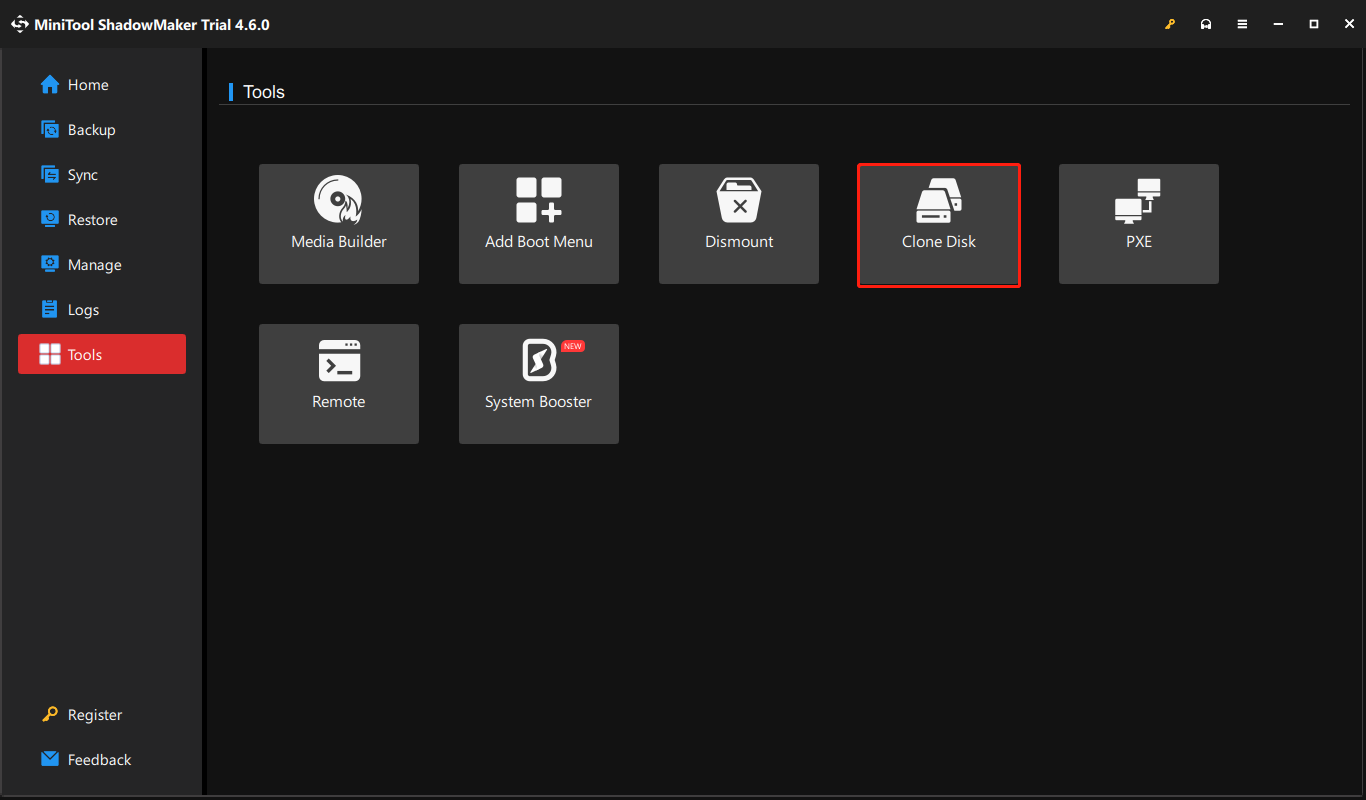
Step 4. In the TOOLS page, click on Clone Disk.
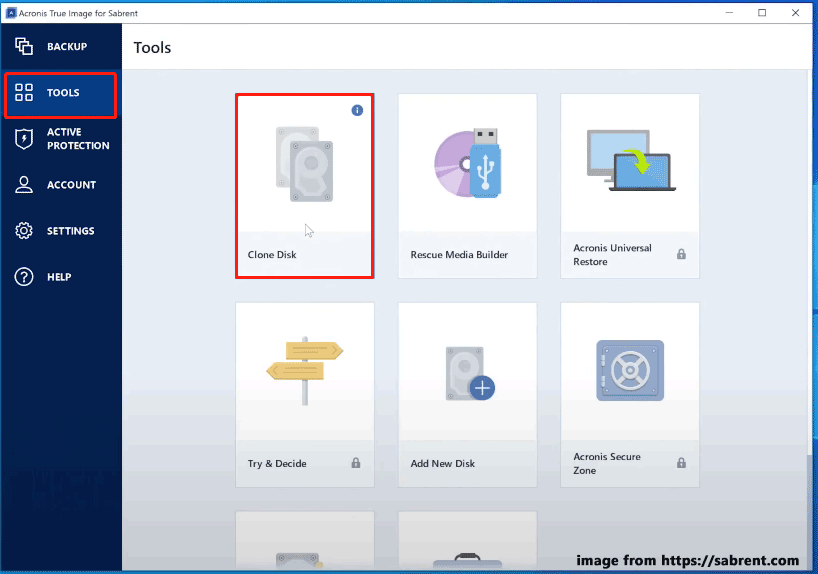
Step 5. Then, there are 2 available clone modes for you:
- Automatic (recommended) – If you select this mode, your existing partitions will be automatically resized to fit the target hard disk.
- Manually – This mode will give you full control over the hard disk cloning procedure, so you can customize the size of the target partition, change the parameters, etc.
Select an option as per your needs and then hit Next to continue. Usually, it’s recommended to select the first option because it is less troublesome, while the manual clone mode offers more flexibility to those who are computer literate.
Step 6. Select your old disk as the source disk and your Sabrent SSD as the destination disk.
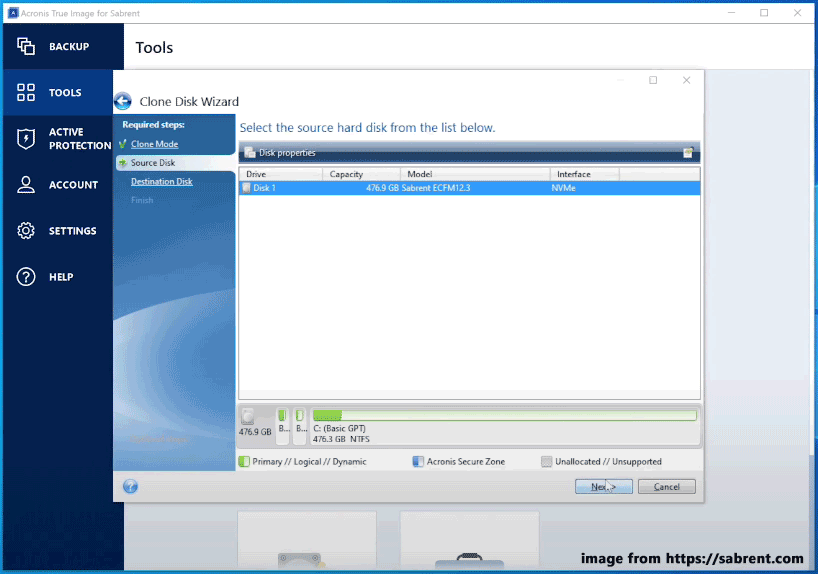
Step 7. After checking all your details, tap on Proceed to start the cloning.
Step 8. Once done, power off your computer, remove the source disk, and then you can boot your computer from the cloned disk.
Option 2: via MiniTool ShadowMaker
When it comes to Sabrent Rocket SSD upgrade, MiniTool ShadowMaker is a go-to choice for most Windows users. This PC backup software is easy to follow and its user interface is self-explanatory. This program supports cloning HDD to SSD and cloning SSD to larger SSD.
After cloning, everything on the old disk including personal files, customized settings, and the operating system will be transferred to the new Sabrent SSD. Compared with a fresh reinstallation, it will save much time and effort.
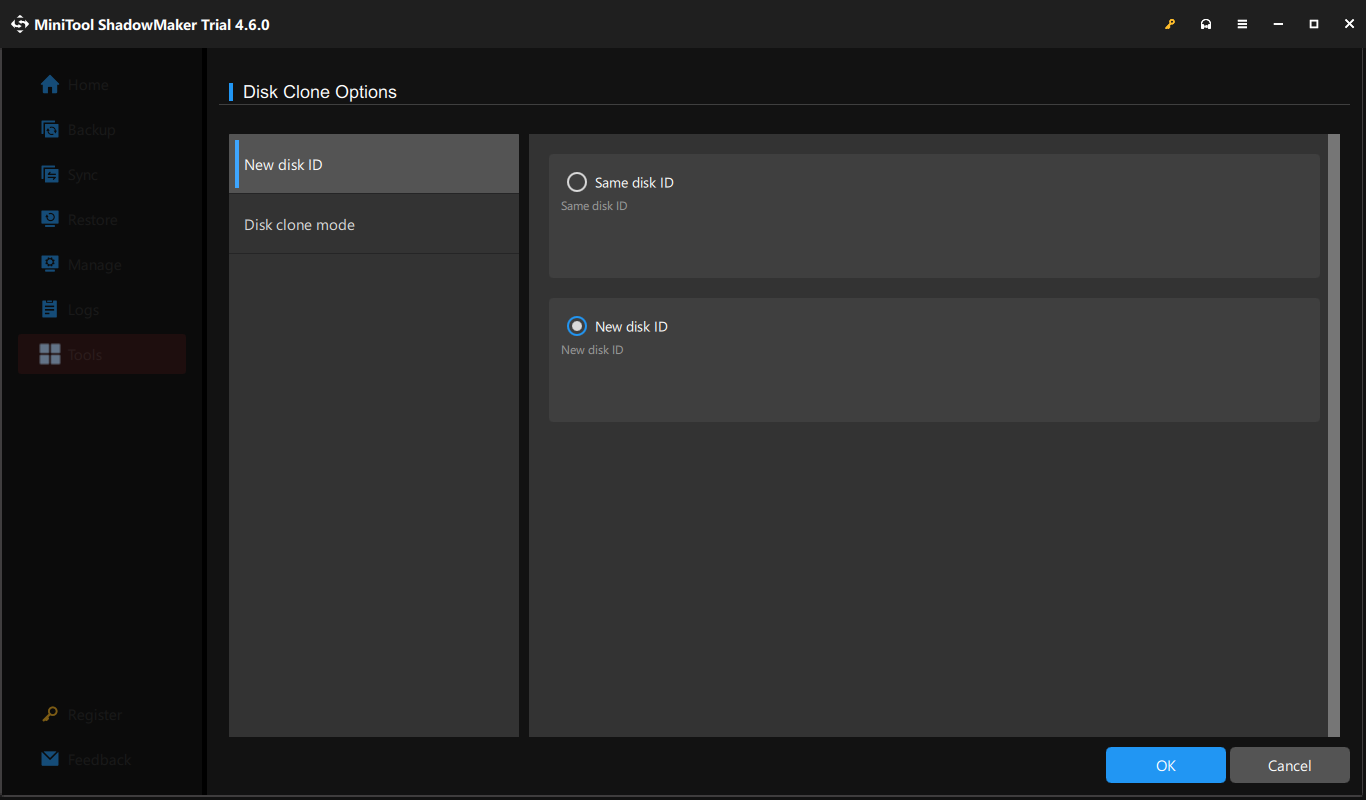
What will impress you the most is that its Clone Disk feature selects New disk ID for the cloned disk by default to avoid the disk signature collision, so the BIOS won’t be confused and it won’t prevent proper booting. Beyond that, MiniTool ShadowMaker supports both sector by sector cloning and used sector cloning, which enables you to choose from according to your situation.
Here’s how to migrate your hard drive with this Sabrent SSD cloning software:
Step 1. Click on the button below to get the free trial.
MiniTool ShadowMaker TrialClick to Download100%Clean & Safe
Step 2. After installation, launch it and hit Keep Trial on the lower right corner to enter its main interface.
Step 3. In the left-hand pane, select Tools and then select Clone Disk.
Step 4. Click on Options to modify some advanced parameters like disk ID for the Sabrent SSD and disk clone mode. If you are a computer beginner, you can skip this step to keep the default options.
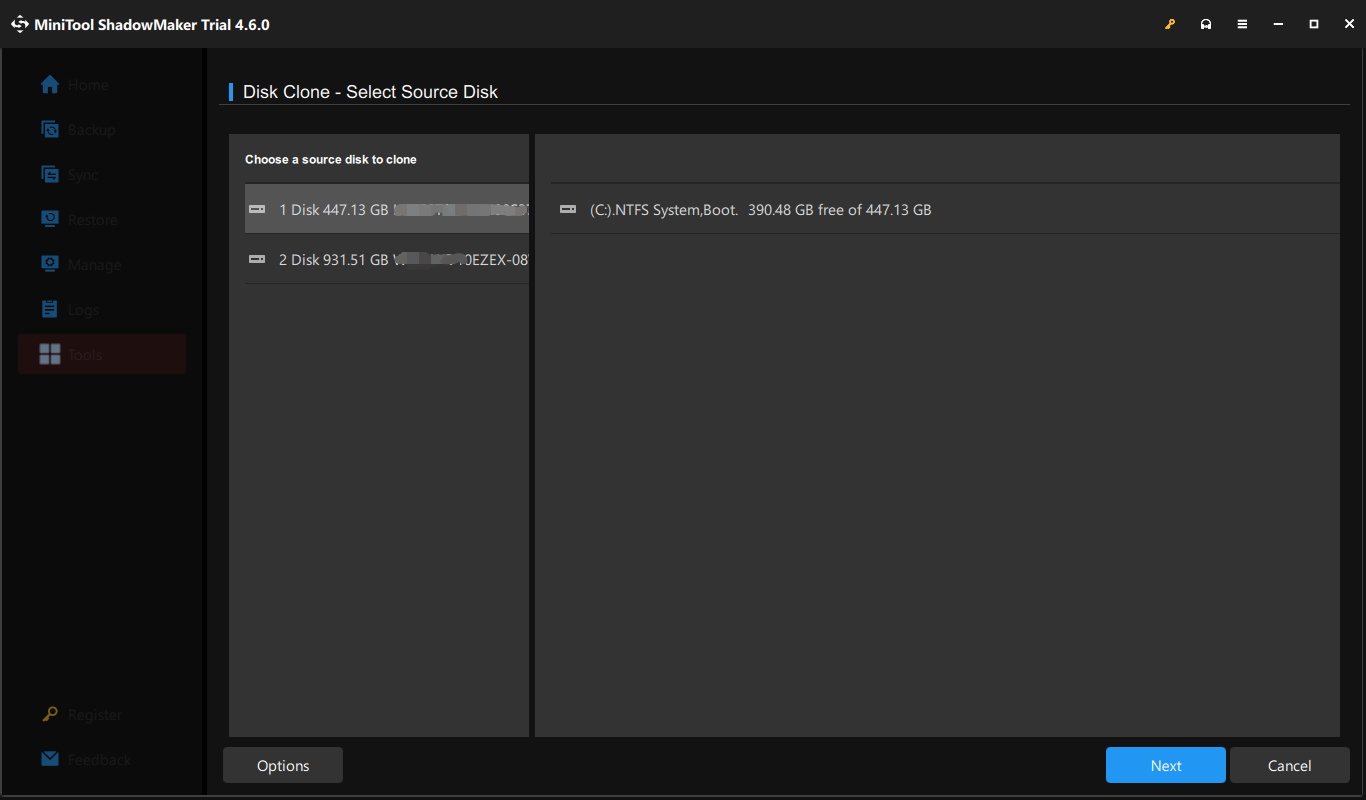
Step 5. Now, it’s time to specify the source disk and target disk. After making your choice, click on Finish to start the process. If you are cloning a system disk, you need to register the software to unlock more powerful features.
Option 3: via MiniTool Partition Wizard
To clone your Sabrent Rocket SSD, you can also rely on MiniTool Partition Wizard. This tool boasts many powerful features in managing your partitions on your computer such as resizing partitions, formatting partitions, extending partitions, converting file systems, and so on. Here’s how to carry out the Sabrent Rocket SSD upgrade with this partition manager:
Step 1. Connect your Sabrent SSD to your computer.
Step 2. Run MiniTool Partition Wizard to enter its main interface.
MiniTool Partition Wizard FreeClick to Download100%Clean & Safe
Step 3. In the right section, select the current disk you are using. In the left action panel, click on Copy Disk.
Step 4. Select the new Sabrent SSD as the target disk and hit Next to continue.
Step 5. Next, you can see 4 available copy options in Copy Disk Wizard:
- Fit partitions to entire disk – the partitions on the source disk will occupy the entire destination disk.
- Copy partitions without resizing – means to keep the size of the source partitions.
- Align partitions to 1MB – can enhance performance for Advanced Format disk & SSD.
- Used GUID Partition Table for the target disk – supports disk larger than 2 TB. To avoid boot issues, please make sure that the partition style of the source disk is the same as that of the old disk.
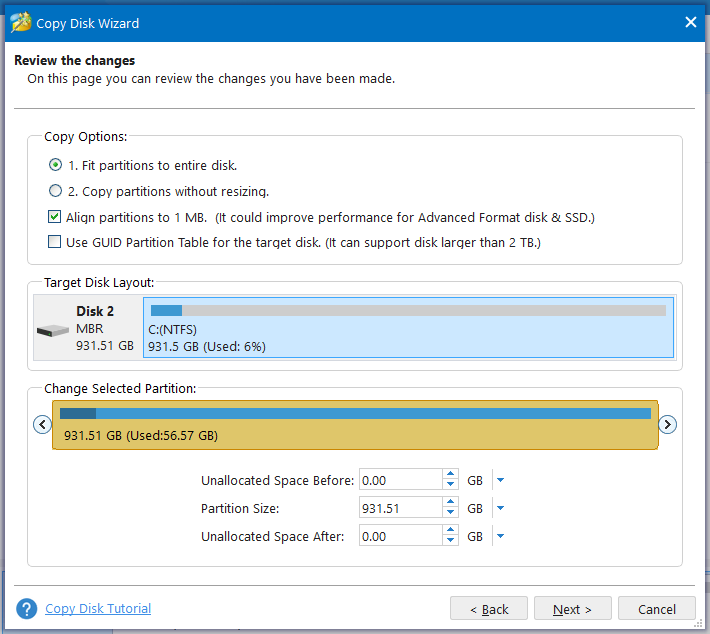
Step 6. After determining the copy options and changing partition layout, this program will remind you to go to BIOS to configure the new disk as the default boot disk after cloning. Click on Finish.
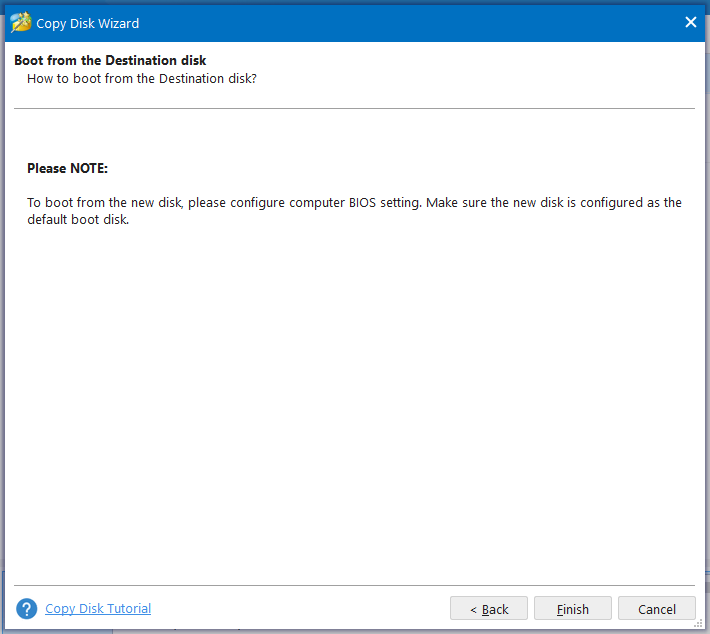
Step 7. Now, you can preview the disk layout of the target disk after cloning. If you are sure to make the change, hit Apply in the lower left corner.
Acronis True Image for Sabrent vs MiniTool ShadowMaker vs MiniTool Partition Wizard
After learning about 3 Sabrent SSD tools, you may be wondering which one to choose. In this part, we will compare the three clone tools on a variety of criteria.
| Acronis True Image for Sabrent | MiniTool ShadowMaker | MiniTool Partition Wizard | |
| Price | 30-day free trial | 30-day free trial | free |
| Items to clone | the entire disk | the entire disk | the entire disk OS only other partitions |
| Supported disk type | simple disks | simple disks | simple disks dynamic disks |
| Preview | not support | not support | support |
Simplicity
As for the ease of use, MiniTool ShadowMaker seems the best choice. With intuitive navigation and minimal distractions, it requires minimal effort and computer knowledge to clone your hard disk.
MiniTool ShadowMaker TrialClick to Download100%Clean & Safe
Migrate OS Only
For those who only want to migrate the operating system from one disk to another, MiniTool Partition Wizard can satisfy your needs. Not only does this program enable you to clone the whole disk to another disk, but also to copy all the data from a selected partition to another without data loss. Moreover, the Migrate OS to SSD/HD feature even makes it easy to only copy the system required partitions.
Choose the Source and Destination
If you don’t know which disk is the source and which is the destination, Acronis True Image for Sabrent is the appropriate solution since it automatically recognizes the partitioned disk as the source and the unpartitioned disk as the destination.
Preview
In terms of this aspect, MiniTool Partition Wizard outperforms the other 2 programs. It allows you to preview the changes before starting the process, which helps you verify if the intended changes are correct and avoid accidentally modifying your disk layout in an undesirable way.
MiniTool Partition Wizard DemoClick to Download100%Clean & Safe
Clone Dynamic Disk
Both Acronis True Image for Sabrent and MiniTool ShadowMaker don’t support cloning a dynamic disk, so obviously, the winner is MiniTool Partition Wizard in this regard. However, unlocking this feature requires a professional and more advanced edition.
We Need Your Voice
After reading this post, now you have a thorough understanding of Sabrent Rocket SSD upgrade. More importantly, we introduce 3 free Sabrent SSD cloning software for you and you can select the one according to your preference, actual needs, and computer proficiency.
Do you have any suggestions about our product? Don’t hesitate to share them with our support team via [email protected]. We are looking forward to your feedback!
Sabrent Rocket SSD Upgrade FAQ
1. Insert the source disk and the target disk into the hard drive bays respectively.
2. Plug the USB cable from the computer.
3 Connect to the power supply and power it on.
4. Press the CLONE button 2 times.
5. When all the lights turn solid blue, it means that the cloning process is complete.
6. Turn off the power and then eject your hard drives.
Samsung SSDs: Samsung Magician Software
Intel SSDs: Intel Data Migration Software
Seagate SSDs: Seagate DiscWizard
Crucial SSDs: Acronis True Image for Crucial
Sabrent SSDs: Acronis True Image for Sabrent
User Comments :