
Western Digital has launched an internal investigation into SMR hard drive failures. This MiniTool article introduces all details about SMR technology, affected WD models, and common failure symptoms. To avoid data loss, back up your drive immediately.
Event: Western Digital Investigates SMR Hard Drive Failures
Recently, several data recovery companies, including 030 Datenrettung Berlin GmbH, have reported malfunctions in Western Digital SMR hard drives. The disk failures may result in permanent data loss.
In response, Western Digital confirmed to German media outlet Heise Online that they have launched an internal investigation.
If you own a WD SMR hard drive, it is essential to understand how the SMR technology works and recognize common signs of disk failure.
First, what is an SMR hard drive?
Understanding SMR Hard Drives
SMR, short for Shingled Magnetic Recording, is a hard drive writing technology. This is its core idea:
Magnetic tracks are arranged like overlapping roof shingles, allowing more data to be stored in the same physical space.
SMR increases storage density by up to 25% without changing the physical size of the drive.
However, it also has limitations.
Because tracks overlap, writing new data can disturb adjacent tracks. If those tracks contain valid data, they must be rewritten as well.
This means the write performance becomes slower, and SMR drives are not suitable for workloads with frequent data writes.
SMR vs CMR: Key Differences
The SMR hard drive was first introduced in September 2013. Here is how it compares to traditional CMR (Conventional Magnetic Recording):
| CMR | SMR | |
| Recording method | Tracks are written side by side without overlap | Tracks are overlapped like roof shingles |
| Read/write performance | Fast and consistent | Showler, especially for frequent rewrites |
| Storage density | Moderate | High |
| Firmware complexity | Simple | Complex |
| Failure risk | Low | High, especially in write-heavy environments |
| Data recovery complexity | Easy due to independent tracks | Hard due to overlapping tracks |
| Best use cases | NAS, RAID, databases | Archival, backup |
Affected WD SMR Models
As mentioned above, SMR hard drive failures are more likely to occur than traditional CMR disks.
According to 030 Datenrettung Berlin GmbH, in 95% of the cases they examined, the mechanical components of WD SMR drives are fully intact.
The root cause is in the secondary converter, a critical firmware in SMR hard drives.
The affected models are primarily concentrated in WD Blue, WD Red, and WD Purple drives released around 2020, with capacities ranging from 2TB to 6TB. Known model numbers include:
- WD Blue (WDx0EZAZ / WDx0EDAZ)
- WD Red (WDx0EFAX)
- WD Purple (WDx0PURZ)
Common Signs of SMR Hard Drive Failures
The most recognizable symptom of a failing WD SMR hard drive is a rhythmic clicking sound. This typically indicates that the read/write head is repeatedly striking or scraping the magnetic platters. This may cause complete physical damage and permanent file loss.
In addition, you should pay attention to the following abnormal symptoms:
- Extremely slow read/write speeds, especially during file transfers.
- Sudden disconnection of the drive during normal use.
- System freezes or performance slowdowns.
- File access failures.
- Programs failing to open.
Even worse, according to 030 Datenrettung Berlin GmbH, many WD SMR hard drive failures occur suddenly without prior warning. This is extremely terrible because you do not have time to act.
Important: Back Up Older WD SMR Hard Drives
If you are using an affected WD SMR hard drive (check the label for the model number), it is strongly recommended to back up your data immediately and frequently.
Backing up files to the same SMR drive is risky because if the drive fails, you could lose both the original data and the backup. To ensure your data is fully protected, always store backups on a separate, reliable disk. This can be an internal or external drive, or even a network-attached storage (NAS) device.
To back up files or disks on Windows 11/10/8/8.1/7, MiniTool ShadowMaker is a good option.
MiniTool ShadowMaker supports backing up individual files and folders, entire partitions or disks, as well as the Windows operating system.
Moreover, it enables you to create full, incremental, and differential backups, helping optimize disk space usage intelligently.
The backup software also includes a flexible scheduling feature, allowing automatic backups to run daily, weekly, monthly, or when logging on or logging off. This is especially suitable for SMR hard drives, which are prone to sudden failures.
With an intuitive interface, MiniTool ShadowMaker makes it easy to back up your disk. Download the SMR hard drive backup software and use it for free for 30 days.
MiniTool ShadowMaker TrialClick to Download100%Clean & Safe
Follow the steps below to back up your SMR hard drive files:
Step 1. Select Backup Source
Launch MiniTool ShadowMaker and click Keep Trial to enter its main interface.
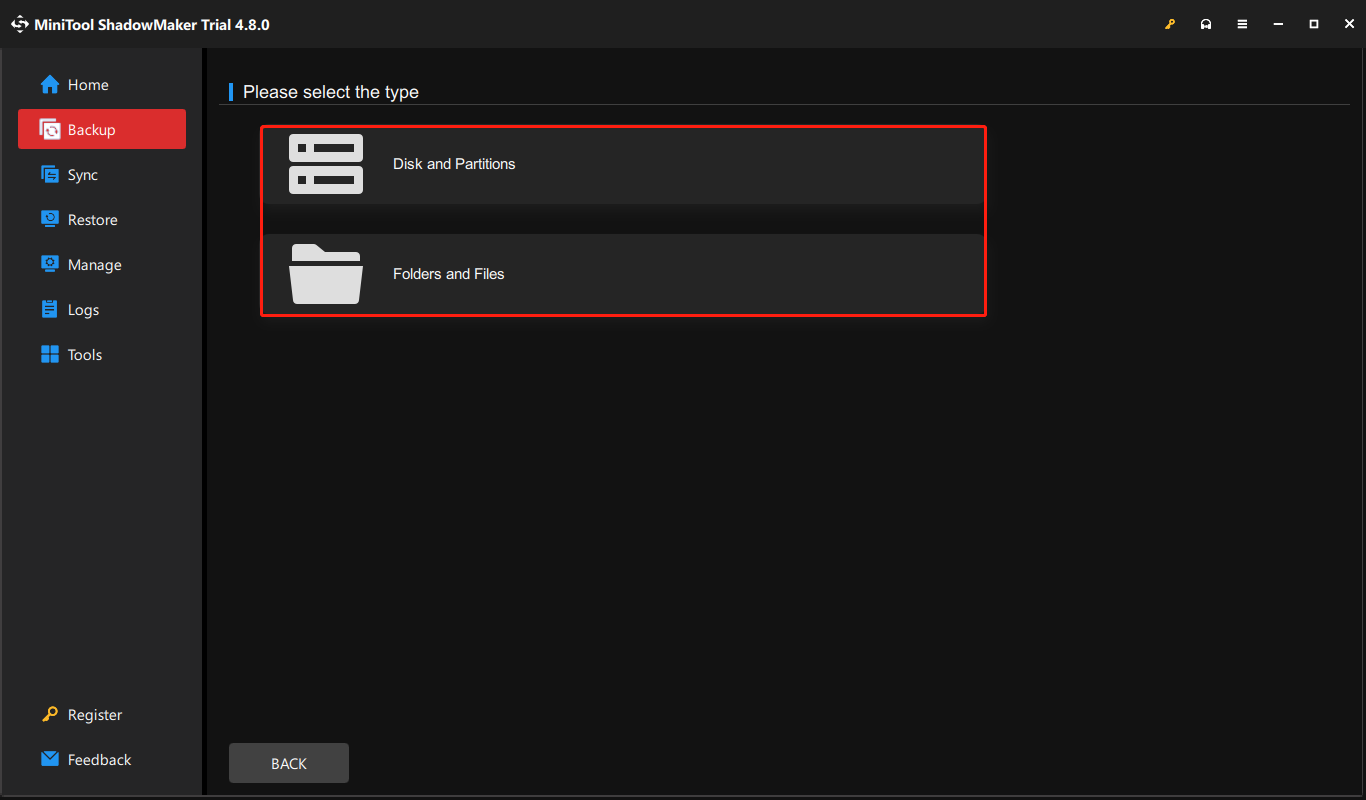
Go to the Backup tab in the left-hand menu. Next, click SOURCE to choose what you want to back up.
- Disk and Partitions: Select entire disks or specific partitions for disk-level backup.
- Folders and Files: Choose individual folders or files for more targeted backup.
Step 2. Specify Backup Destination
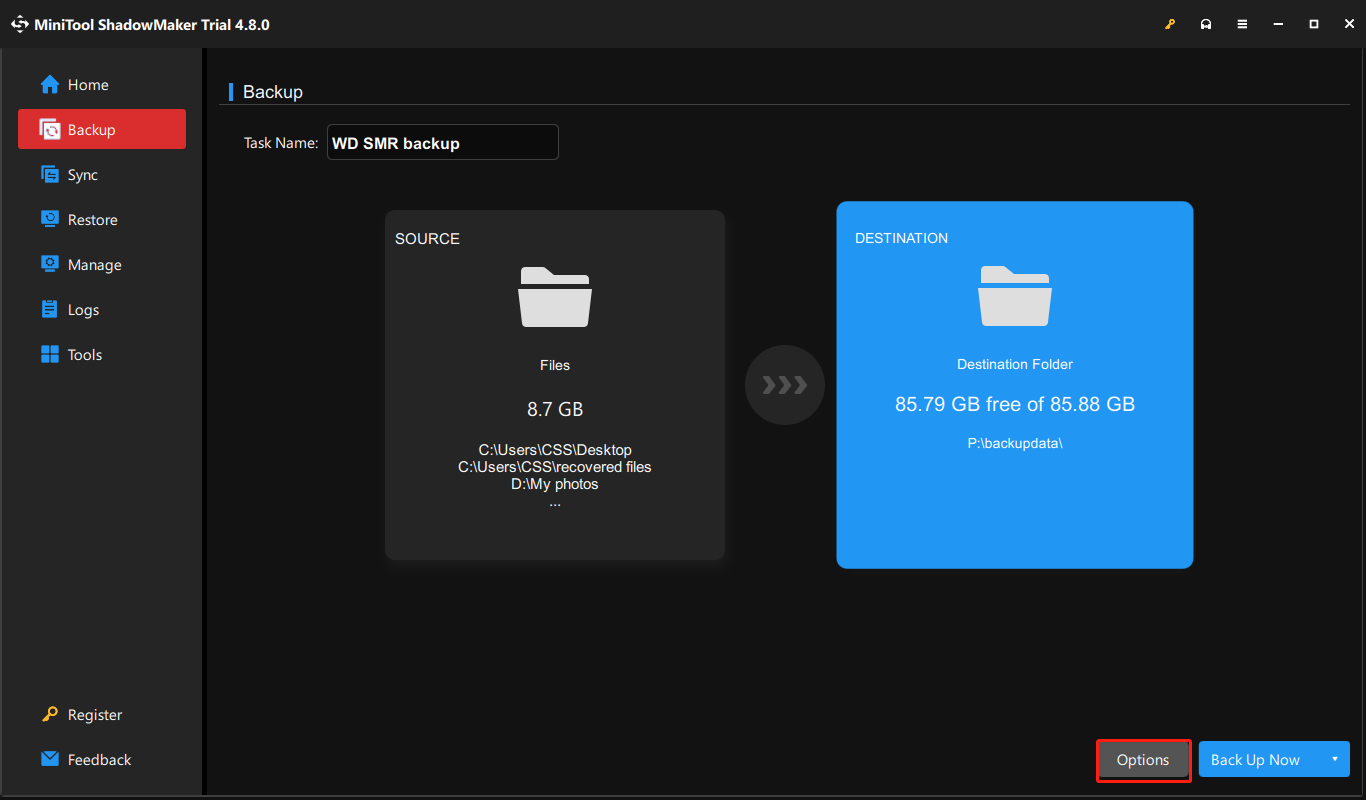
Go to the DESTINATION tab and select the newly inserted disk to store the backup image file.
Make sure the selected location has sufficient free space to accommodate the backup image, especially if you are backing up an entire SMR disk.
Step 3. Start Backup Process
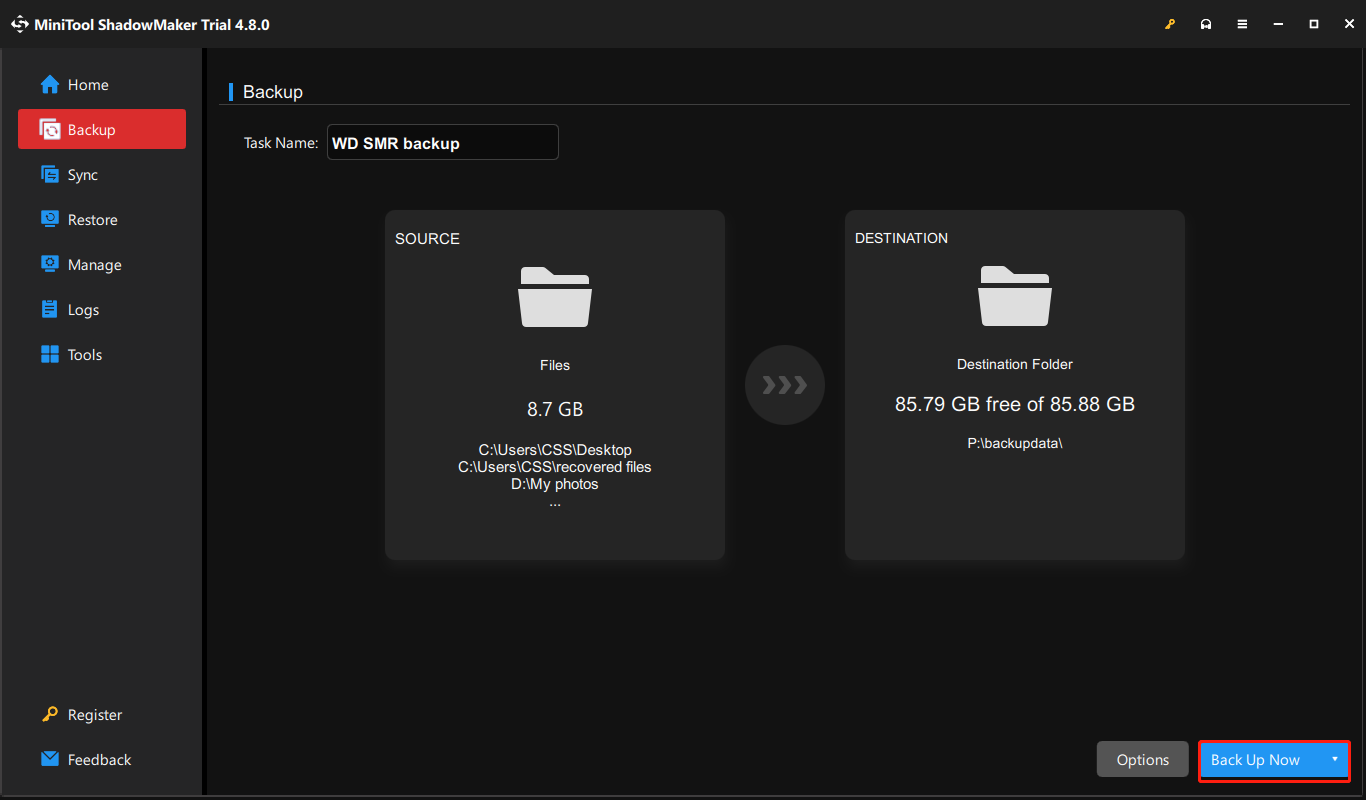
Finally, click Back Up Now to start the backup process. After it is completed, your data is fully protected and ready for recovery if your SMR disk becomes corrupted or files are lost.
How to restore files from the backup image:
Step 1. Launch MiniTool ShadowMaker and go to the Restore tab.
Step 2. Click the Restore button next to the backup file you want to restore.
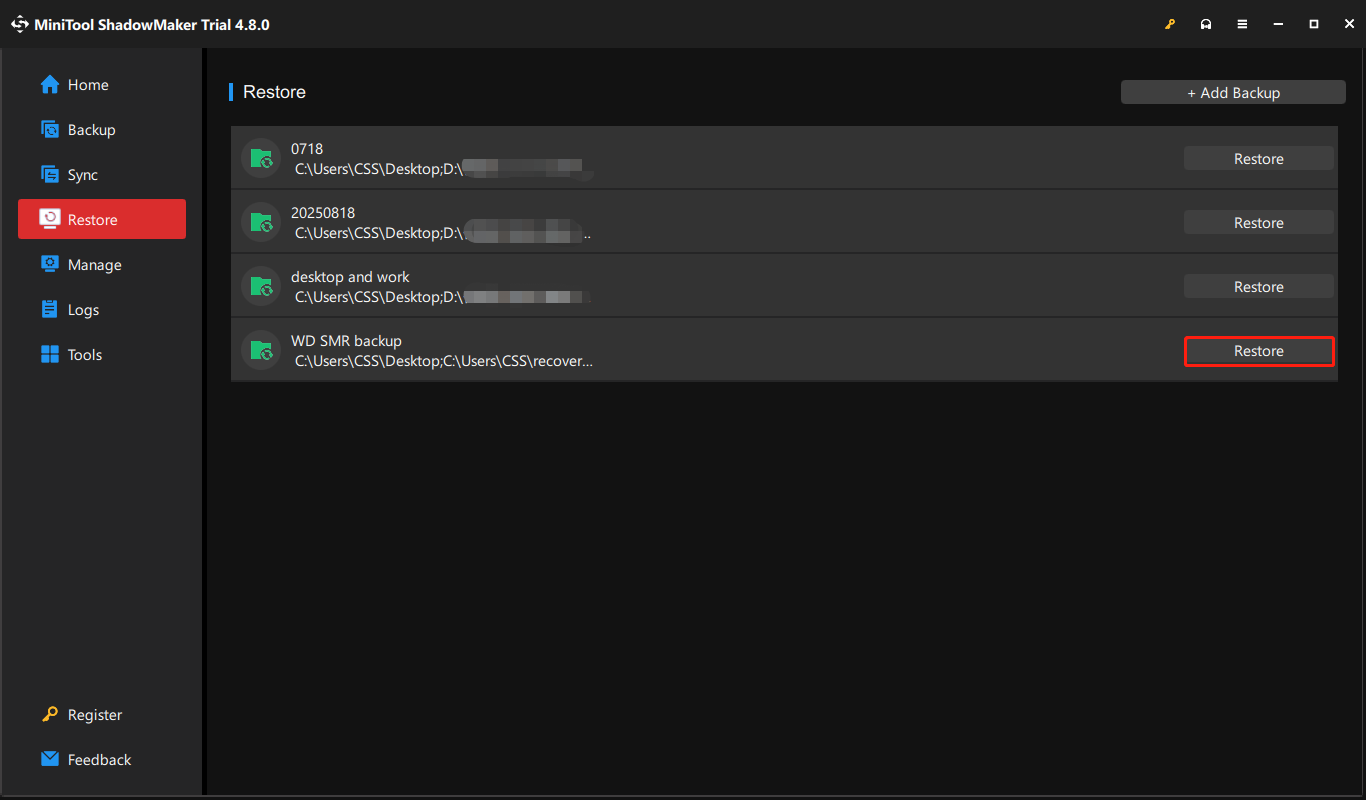
Step 3. Select a backup version and click Next.
Step 4. Select the files you want to restore and click Next.
Step 5. Choose a location to save the restored files and click Start.
Overall, MiniTool ShadowMaker provides a comprehensive solution for file backup and restore. Even in the event of SMR hard drive failures, your data remains protected.
Additional: How to Recover Files From a Failed SMR Hard Drive
If your SMR hard drive has become inaccessible without a backup, stop using it immediately to avoid further damage.
If important files are stored on the drive, try using read-only data recovery software that does not write to the disk during recovery to retrieve your data safely.
For example, MiniTool Power Data Recovery supports recovery from logically corrupted hard drives, RAID arrays, and more. It can recover a wide range of file types, including documents, videos, photos, emails, and others.
Download MiniTool Power Data Recovery Free, which allows 1GB of free data recovery, to perform hard drive recovery.
MiniTool Power Data Recovery FreeClick to Download100%Clean & Safe
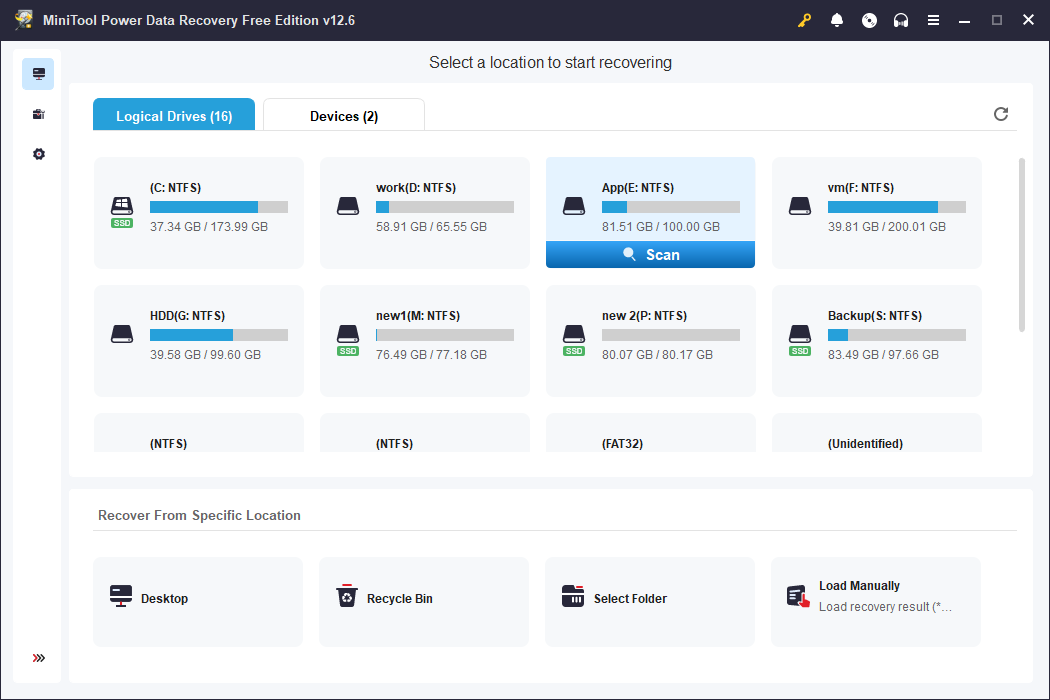
Data recovery from SMR hard drives can be challenging due to their complex firmware structure. Moreover, if SED (Self-Encrypting Drive) is enabled on the disk, file recovery becomes more difficult.
If data recovery software fails to restore your files, contact a professional recovery service as soon as possible. They are equipped with specialized tools to deal with complex failures such as physical damage, firmware corruption, or disk encryption.
Bottom Line
In conclusion, WD SMR hard drive failures are common and can lead to serious data loss. What you should do is take immediate action to create a full backup of your drive.
If possible, replace the risky SMR drive with a more reliable model. As a leading hard drive manufacturer, WD offers many high-quality storage devices. For better reliability, consider choosing a model based on the traditional CMR technology.
If you need assistance while using MiniTool’s software, please contact the support team at [email protected].
About The Author

Position: Columnist
Shirley holds a bachelor’s degree in English and has been an editor at the MiniTool Team for many years. She specializes in IT-related content, with a focus on data recovery, file backup, disk management, and other technical topics. She is committed to delivering clear, accurate, and practical solutions to help users resolve common computer issues.
User Comments :