
Syncing an external hard drive to Google Drive lets you access your external drive files remotely and share them easily. This guide covers three effective methods for cloud sync, including MiniTool ShadowMaker, Google Drive for Desktop, and the command-line tool Rclone.
Can You Sync an External Hard Drive to Google Drive?
Yes, you can sync files and folders from an external hard drive to Google Drive to access them online, share them across devices, or keep an extra copy in the cloud.
There are several ways to do this, including third-party sync software, Google Drive for Desktop, and command-line tools.
The following sections walk you through each method step by step.
Why Sync an External Hard Drive to Google Drive?
An external hard drive is convenient for storing large files. Syncing your external drive to Google Drive offers greater flexibility in managing and accessing your files.
- Access files anywhere: An external drive is only accessible when connected to your computer. Google Drive allows you to access its files and folders from any internet-connected tablet, phone, or another PC.
- Share files easily: You can share files with others through Google Drive, without handing over your external drive.
- Protect important files: An external hard drive can get damaged or go missing. Syncing selected folders or files to Google Drive creates an extra cloud copy if you perform a one-way sync.
What to Check Before Syncing
Before proceeding, check the following things to ensure reliable cloud sync.
- Check your available cloud quota and ensure your Google account has enough free space for files or folders on the external hard drive.
- Connect the external hard drive securely to your computer and keep it plugged in until the sync process is complete.
- Ensure the internet connection is stable to prevent interruptions, failed uploads, or incomplete file transfers.
- Windows may assign a different drive letter to your external drive when you reconnect it. Before starting a scheduled sync task, check if the source path is correct.
How to Sync Your External Drive to Google Drive
MiniTool ShadowMaker vs Google Drive for Desktop vs Rclone: Which Method to Choose?
There are three methods to sync files or folders from an external hard drive to Google Drive. Compare them to find the method that fits you.
| Feature | MiniTool ShadowMaker | Google Drive for Desktop | Rclone |
| Interface | Graphical interface | Graphical interface | Command line |
| Sync direction | One-way (PC to Google Drive/OneDrive) | Two-way | One-way with sync (source to destination) |
| Automation | Scheduled | Continuous | Command-based/Scheduled via scripts |
| Ease of use | Easy | Easy | Advanced |
| Best for | Scheduled one-way cloud sync | Continuous file synchronization | Technical users who need flexible controls |
#1. Run MiniTool ShadowMaker for External Hard Drive Cloud Sync
Best for: Users who want to sync selected files or folders from an external hard drive to Google Drive and schedule automatic sync tasks.
MiniTool ShadowMaker is a file sync tool designed for Windows 11/10 and Windows Server 2025/2022. Its Cloud Sync feature supports syncing selected files and folders from a computer to Google Drive or OneDrive.
If you need to sync files from an external hard drive, it can also be a good option. Connect the external disk to your PC and run the sync task.
Additionally, MiniTool ShadowMaker provides an option to schedule sync tasks to run automatically on a daily, weekly, or monthly basis, or at Windows logon/logoff.
MiniTool ShadowMaker TrialClick to Download100%Clean & Safe
Step 1: Connect your external hard drive to the Windows PC and launch MiniTool ShadowMaker.
Step 2: Go to the Sync tab and choose Cloud Sync.
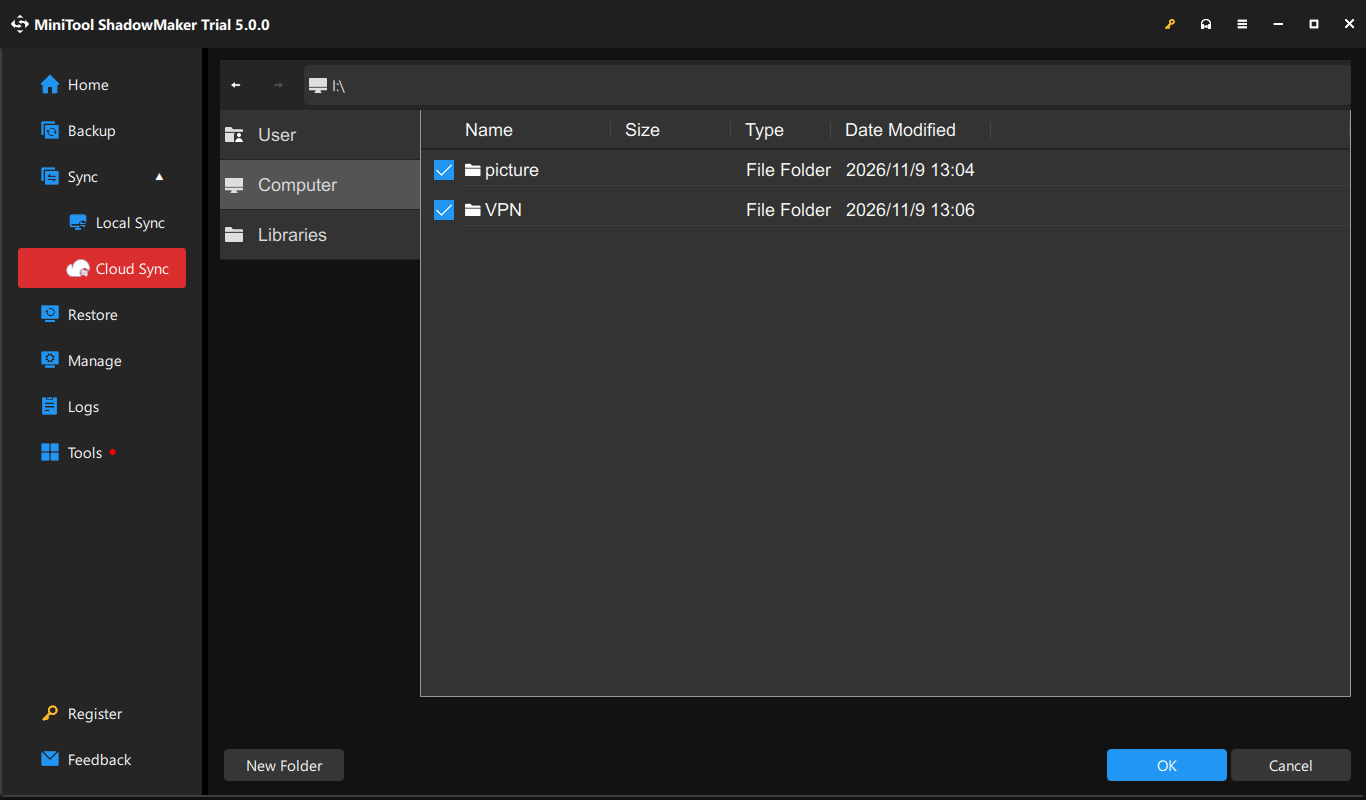
Step 3: Click SOURCE, browse the external hard drive, and choose the files or folders you want to sync.
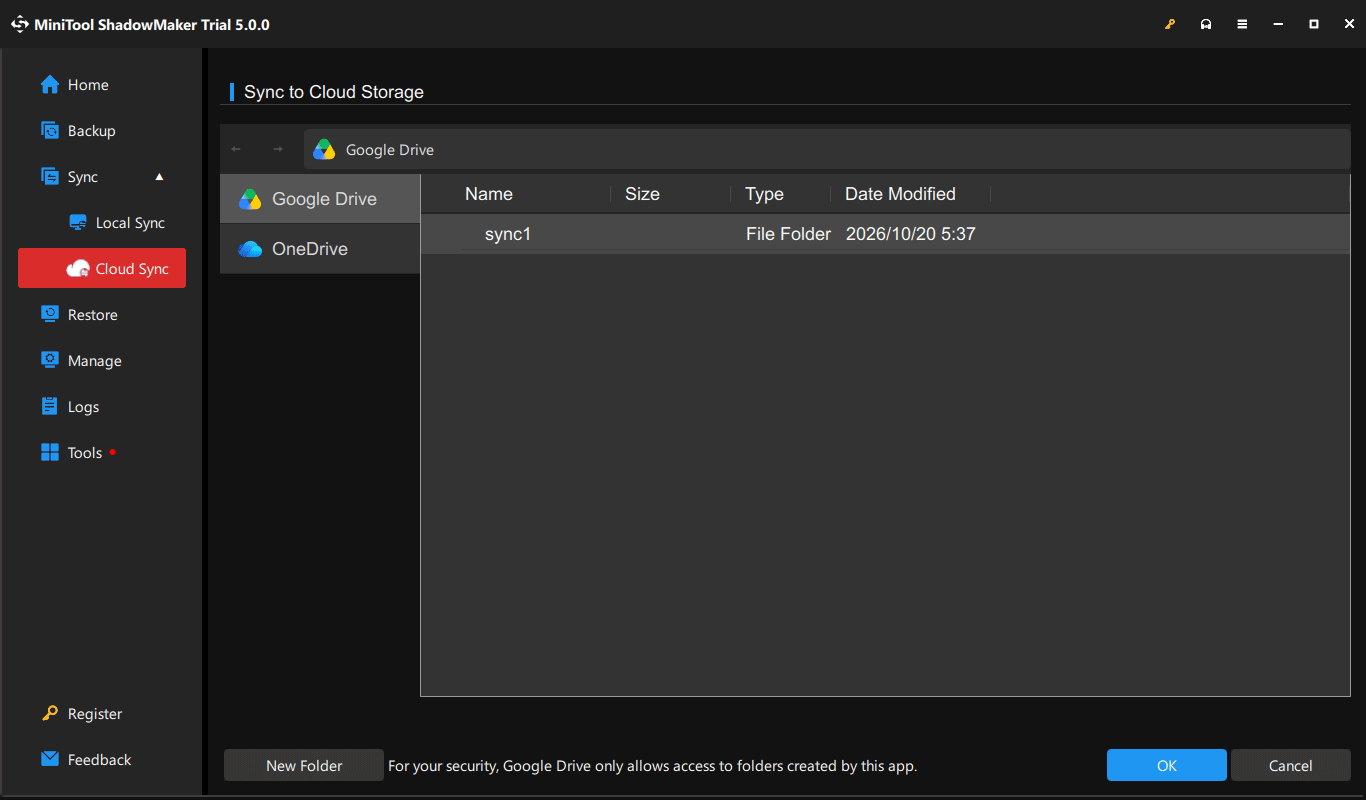
Step 4: Go to DESTINATION > Google Drive, and sign into your Google account.
Step 5: Create a destination folder and choose it.
Step 6: To automatically sync an external hard drive to Google Drive, go to Options > Schedule Settings, enable the option, and configure a plan.
Step 7: Click Sync Now to begin syncing immediately.
#2. Use Google Drive for Desktop to Sync an External Hard Drive
Best for: Users who want to continuously sync files and folders from an external hard drive to Google Drive.
Google Drive for Desktop is the official desktop app for Windows and macOS. It supports adding folders from your computer, including connected external hard drives, and syncing them to Google Drive.
Follow these steps to sync an external hard drive to Google Drive:
Step 1: Download, install, and launch Google Drive for Desktop.
Step 2: Sign in to your account and complete the setup for the first time.
Step 3: Connect the external drive to your PC and click Settings > Preferences.
Step 4: Go to My Computer > Add folder and choose the specific folders you want to sync.
Step 5: Check Sync with Google Drive and click Done > Save.
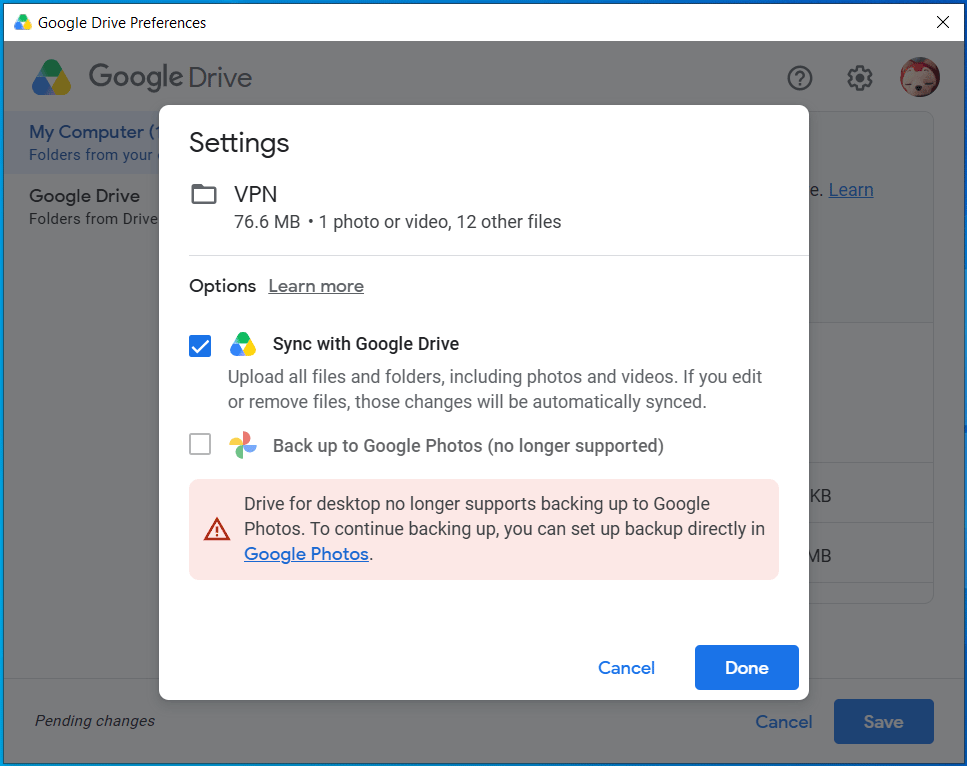
The added folder will be synced to Computers located on the Google Drive website. If you delete a file from that folder on the web, it will also be automatically deleted locally if Mirror files is enabled.
#3. Run Rclone for Google Drive External Hard Drive Sync
Best for: Advanced users who prefer command-line tools and want more control over file synchronization.
Rclone is a free, open-source command-line program that helps manage, sync, and migrate files across over 70 cloud storage services.
It is often recommended in communities like Reddit for automating cloud sync, especially when dealing with large amounts of data on external hard drives.
Here is how to sync an external hard drive to Google Drive.
Step 1: Download Rclone and extract its files to a folder.
Step 2: Open that folder in File Explorer, go to the address bar, type cmd, and press Enter.
Step 3: Type rclone config and press Enter.
Step 4: Follow the official instructions to configure Google Drive remote.
Step 5: Connect the external hard drive to your PC and run the following command to preview changes:
rclone sync “E:\Pictures” “gdrive:ExternalDrive/Pictures” –dry-run -v
- Replace E:\Pictures with the folder on your external drive.
- Replace gdrive with your configured remote name.
- The destination is the ExternalDrive/Pictures folder in Google Drive. Also replace it with your folder.
- –dry-run -v helps test without copying anything.
Step 6: Start syncing by running the command:
rclone sync “E:\Pictures” “gdrive:ExternalDrive/Pictures” –progress
Sync an External Hard Drive to Google Drive FAQ
Final Thoughts
Syncing an external hard drive to Google Drive lets you access your files across devices and keep an extra cloud copy of important files in the cloud.
Run MiniTool ShadowMaker to schedule one-way cloud sync, the Google Drive desktop app for continuous sync, and Rclone for command-line control. Choose the suitable one as needed.
When you encounter issues with our software, feel free to contact us at [email protected].
About The Author

Position: Columnist
Vera has been working at the MiniTool Team for over 10 years as a technical editor and content writer. She mainly focuses on disk and partition management, data recovery, Windows backup and restore, and PC troubleshooting. Through in-depth software testing and hands-on experience, she has helped users solve a wide range of computer problems and better protect their data on Windows devices.
User Comments :