
Quick Answer
The Windows\System32\Config\System is missing or corrupt error usually indicates a Windows registry database is unreadable or damaged.
To fix this issue:
- Run Startup Repair
- Check the drive with CHKDSK
- Repair system files using DISM and SFC
- Restore the registry via Command Prompt
- Reinstall Windows after data backup
About the Windows\System32\Config\System Error
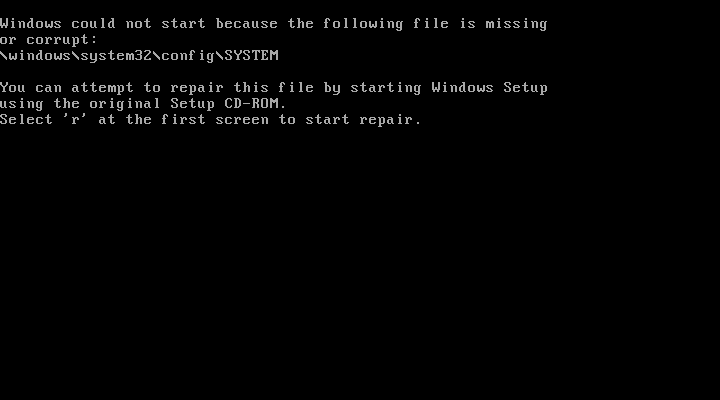
When booting Windows 11/10/8/7/XP, you may see the Windows\System32\Config\System file missing or corrupt error if the system registry file is missing or damaged. The error message is shown below:
Windows could not start because the following file is missing or corrupt:
\Windows\System32\config\SYSTEM
You can attempt to repair this file by starting Windows Setup using the original Setup CD-ROM.
Select ‘r’ at the first screen to start repair.
Additionally, you may also encounter other related error messages.
- The dll is missing or corrupt.
- The registry cannot load the hive file: \SystemRoot\System32\Config\SOFTWARE or its log or alternate.
- Stop error code 0xc000000f.
- System error: When trying to update a password the return status indicates that the value provided as the current password is not correct.
What causes the Windows\System32\Config\System error?
Check the table below to quickly identify the possible causes.
| Possible Cause | Description: |
| Unexpected shutdown | A sudden power loss occurs while the disk is writing. |
| Interrupted updates | Interrupting a major system update can damage core configurations. |
| Failing hard drive | Physical damage to the drive or bad sectors can corrupt system files. |
| Malware infection | Malicious software modified critical system files. |
How to Fix Windows\system32\config\system File Is Missing or Corrupt?
The table below outlines the main solutions and helps you choose the right fix.
| Method | Difficulty | Data Loss Risk |
| Run Startup Repair | Easy | Low |
| Perform a CHKDSK scan | Medium | Low |
| Run SFC & DISM | Medium | Low |
| Restore the registry manually | Challenging | Medium |
| Clean install Windows | Medium | High (Will erase C drive) |
1. Run Startup Repair
In order to solve the error that Windows could not start because the following file is missing or corrupt, you can try running Startup Repair.
- As your computer is unbootable, the installation disc is required. If you already have, ignore this step. If you don’t have one, click here to download the Windows 7 installation disk.
- Connect it to the unbootable computer and boot from it.
- Select the language, time and keyboard input.
- Then choose Repair your computer to continue.
- In the pop-up window, choose Startup Repair to continue.
- Then you can follow the wizard to continue. It will begin to diagnostic your computer. If there are some problems with your computer, it will repair them.
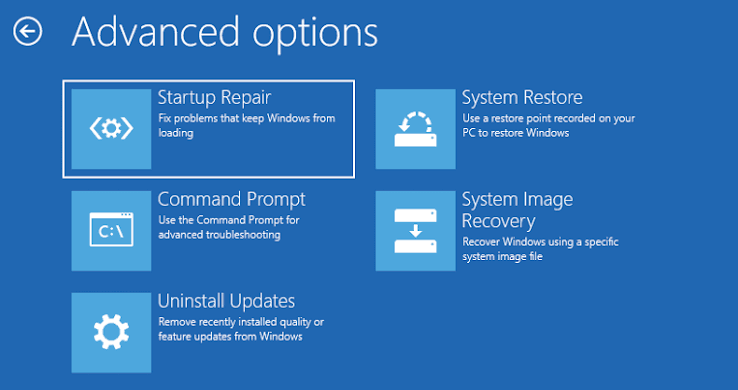
When it is finished, reboot your computer and check whether the error that Windows could not start because the following file is missing or corrupt is solved.
If this solution does not take effect, try other solutions.
2. Run CHKDSK
If there are some problems such as bad sectors on hard drive, you may also encounter the error that Windows could not start because the following file is missing or corrupt. So, in order to fix the Windows\system32\config\system file download error, you can check the hard drive.
- Boot your computer from the Windows installation disc.
- Click Repair your computer.
- Click Command Prompt to continue.
- Then type the command chkdsk c: /r and hit Enter to continue.
Then the chkdsk utilities will begin to scan your hard drive. When the scanning process is finished, reboot your computer and check whether the problem that Windows could not start because the following file is missing or corrupt is solved.
If this solution does not take effect, try the following solutions.
Related article: Top 4 Free Hard Drive Test Tools Every Windows User Must Know
3. Run SFC Tool
Windows may fail to start due to corrupted system files. DISM and SFC can help repair the corrupted or missing Windows\System32\Config\System file.
- Boot the computer from the Windows installation disc.
- Click Repair your computer.
- Select Command Prompt.
- Type the command SFC /scannow /offbootdir=D:\ /offwindir=D:\windows and hit Enter to continue.
Then the System File Checker will begin to scan the corrupt system files on your computer. Please do not close the command line window until you see the message verification 100% complete.
If SFC cannot repair the corrupted files, you can use DISM to clean up and restore the Windows image:
DISM /image:D:\ /cleanup-image /restorehealth
If issues are found, repeat step 4 as recommended by Microsoft.
4. Restore the Registry Manually
Windows\System32\Config\System error can be fixed by replacing it with a clean copy that was created on the hard drive when Windows was installed.
Before proceeding on, you had better back up the current registry files so that they could be restored if anything goes wrong.
Now, here is the tutorial.
1. Open Command Prompt as the way listed above.
2. Type the following commands and hit Enter after each command.
md tmp
copy c:\windows\system32\config\system c:\windows\tmp\system.bak
copy c:\windows\system32\config\software c:\windows\tmp\software.bak
copy c:\windows\system32\config\sam c:\windows\tmp\sam.bak
copy c:\windows\system32\config\security c:\windows\tmp\security.bak
copy c:\windows\system32\config\default c:\windows\tmp\default.bak
3. After that, you can delete the current registry files.
delete c:\windows\system32\config\system
delete c:\windows\system32\config\software
delete c:\windows\system32\config\sam
delete c:\windows\system32\config\security
delete c:\windows\system32\config\default
4. Then you can repair the registry hives from the repair folder.
copy c:\windows\repair\system c:\windows\system32\config\system
copy c:\windows\repair\software c:\windows\system32\config\software
copy c:\windows\repair\sam c:\windows\system32\config\sam
copy c:\windows\repair\security c:\windows\system32\config\security
copy c:\windows\repair\default c:\windows\system32\config\default
After that, exit the command line window and reboot your computer to check whether the error that Windows could not start because the following file is missing or corrupt is solved.
If the above solutions are not effective, you can try the last solution.
5. Perform a Clean Reinstallation
If the above methods fail, reinstalling Windows may be necessary. Back up your personal files beforehand, as the process may erase data.
#1. Back Up Data
For data backup, we recommend third-party software, such as MiniTool ShadowMaker. It supports backing up files and folders in Windows 11/10/8/7/XP. Besides, it can create bootable media, allowing you to perform backups even when Windows fails to start.
MiniTool ShadowMaker TrialClick to Download100%Clean & Safe
1. Launch MiniTool ShadowMaker on a working PC.
2. Go to Tools > Media Builder and follow the on-screen instructions to create a bootable USB drive.
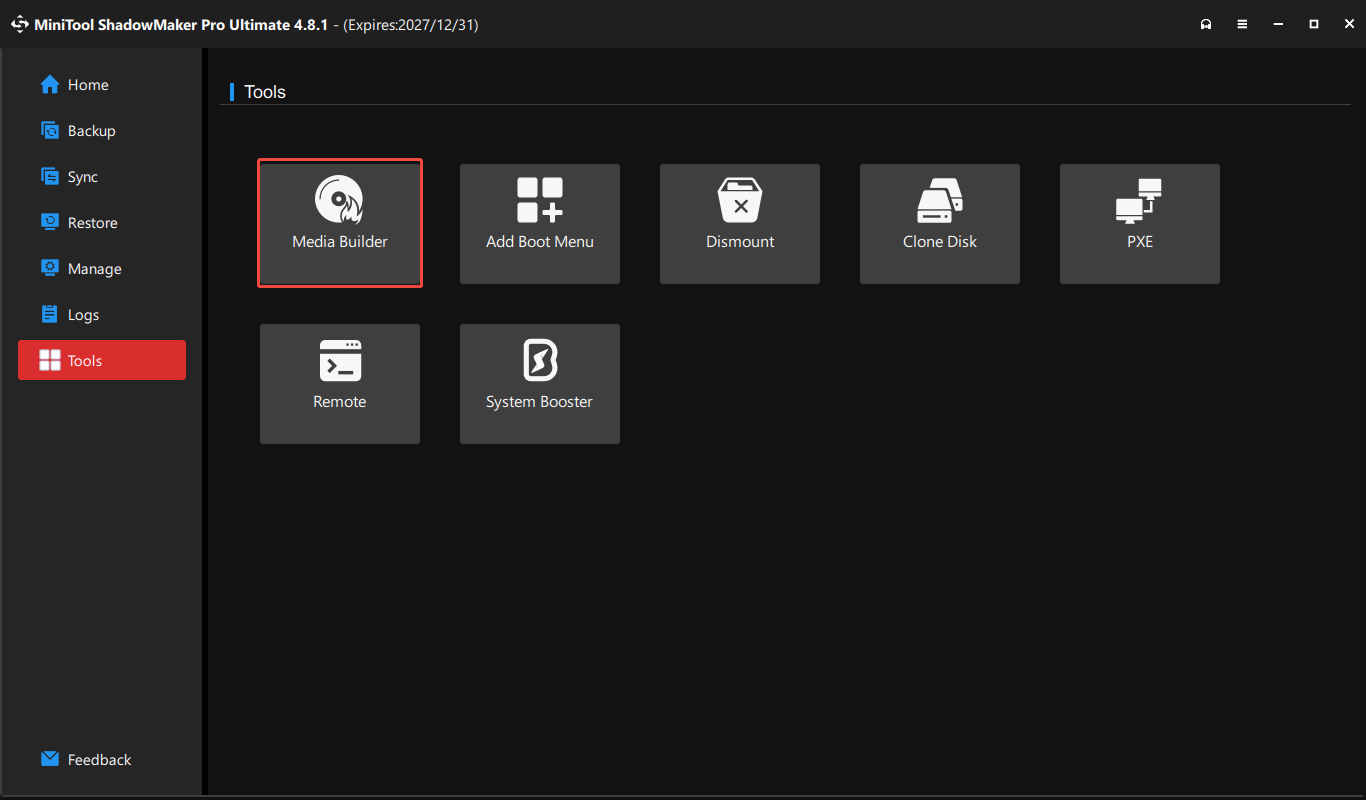
3. Boot the unbootable Windows from the USB drive.
4. Launch this software and go to the Backup tab.
5. Click SOURCE and DESTINATION to choose the files you want to back up and select a drive to save the backup image.
6. Click Back Up Now to begin the process.
#2. Clean Install Windows
After completing the backup, follow the steps to perform a clean installation.
- Boot the computer from the Windows installation disk.
- Select language, time and keyboard input.
- On the next page, click Install Now.
- Then check option I accept the license terms and click Next.
- Next, choose which type of installation you want. It is recommended to choose Custom (advanced).
- Next, select the drive to install Windows and click Next.
Then you can follow the wizard to complete Windows installation. When the process is finished, the computer can boot normally and you also have fixed the problem that Windows could not start because the following file is missing or corrupt.
After fixing the problem that Windows failed to load because the system registry file is missing or corrupt, it is recommended to create a system image. In this way, it can effectively safeguard your computer and files. In addition, you can directly restore your computer to a normal state when encountering some problems or coming across the issue that Windows could not start because the following file is missing or corrupt again.
To create a system image, MiniTool ShadowMaker is able to do that. And you can read the post: How to Back up Windows to Safeguard Your Computer? Try MiniTool! to know more detailed operation instructions.
MiniTool ShadowMaker TrialClick to Download100%Clean & Safe
Fixed – WindowsSystem32ConfigSystem Is Missing or CorruptClick to Tweet
Bottom Line
To sum up, this post has introduced what is the error that Windows could not start because the following file is missing or corrupt. This post also has shown 5 ways to fix the error that Windows\system32\config\system is missing or corrupt.
If you have any better solution to solve the error that Windows failed to load because the system registry file is missing or corrupt, you can share it in the comment zone.
If you have any problem with MiniTool ShadowMaker, please feel free to contact us via the email [email protected] and we will reply to you as soon as possible.
Windows Could Not Start Because the Following File Is Missing or Corrupt FAQ
- Use a recovery drive.
- Use bootable system installation drive.
- Use bootable CD/DVD or USB drive.
- Reboot PC to the Last Known Good Configuration.
- Use Bootrec.exe to fix boot sequence.
- Run SFC and DISM to repair system file corruption.
- Perform a clean install.
You can read the post How To Fix The System Registry File Is Missing Or Corrupt Error to know more detailed operation.
- Run Startup Repair.
- Scan hard drive errors.
- Run SFC tool.
- Restore the registry manually.
- Perform a clean installation.
There are three common reasons that corrupt the Windows registry.
- Freeware.
- Tampering of the Windows Registry.
- User’s incorrect installation of programs.
- Open Registry Editor window.
- At File, click Import.
- Then browse and selected backup registry files you want to restore.
- Click Open.
- Once the process is finished, restart your computer and log back in the operating system.
You can read the post How to Backup and Restore Registry in Windows 10 (2020) to know more detailed operation instructions.
About The Author

Position: Columnist
Vera has been working at the MiniTool Team for over 10 years as a technical editor and content writer. She mainly focuses on disk and partition management, data recovery, Windows backup and restore, and PC troubleshooting. Through in-depth software testing and hands-on experience, she has helped users solve a wide range of computer problems and better protect their data on Windows devices.
User Comments :