
What are you gonna do if you find that your video cannot be played or is corrupted due to DAT file loss? If you are searching for methods to restore the video to its normal state, you can delve into this MiniTool article to obtain some solutions to recover Canon DAT files or repair the video.
Is your Canon camera suddenly shutting down or malfunctioning while recording videos, causing the video to disappear and become a DAT file? Is the absence of a specific DAT file preventing the video from playing? Are you trying to recover deleted DAT files or fix unplayable videos? The following content tells you the details.
Things You Should Know About DAT Files
What Is a DAT File
A DAT file is a data file that contains specific information about the program used to create it. This file has the .dat file extension, which is a universal format that can contain any information – video, audio, PDF, and almost any other type of file. It is usually a plain text, video, or binary file. Many programs create and open .dat files for use by the application, not by the user.
What Are DAT Files Used For
Now let me give you a full overview of what the DAT file is used for. In most cases, the DAT files are temporary data files generated by the camera when recording. They only contain raw video stream data and do not contain encoding information.
DAT files are usually generated when the camera encounters abnormal conditions during recording, such as battery failure, operational errors, or camera failure. These abnormal conditions cause the camera to fail to complete the normal video recording process and fail to process and save the data in normal MOV or MP4 formats. So, the camera will store these interrupted videos as DAT files.
The main purpose of a DAT file is to store videos, but it has some other functions:
- Game data: Video games save graphics, sound effects, and other data to a DAT file.
- User information: In applications such as e-mail and QQ, DAT files are used to store user information.
- Log files: In some applications, DAT files are used as log files to record the program’s running status or error information.
Why DAT File Loss Happens
There are many reasons for DAT file loss. You can review these common reasons to figure out which might be responsible for your data loss.
- Accidental deletion: You mistakenly deleted important DAT files. This is the easiest situation to recover from.
- Hardware failure: Hardware problems such as disk damage and server downtime may cause database files to fail to be read normally.
- Virus attack: A malware or virus attack causes files to be encrypted, tampered with, or deleted outright. So, the DAT file loss will occur.
- Unofficial modifications: If you made unofficial modifications to your DAT files, they may be lost.
In this article, our topic is how to make the video play normally which cannot be played due to DAT file loss. You may think why the video cannot play when the DAT file is missing? This is because the DAT file stores the metadata or time code required for video playback. So, in this case, you need to recover DAT file in Canon camera to solve the problem.
Before You Do: Recover Canon Video Files From Backups
Nowadays, backup tools are becoming more and more convenient, and many people choose to back up important files, especially those in the camera. So, first of all, check if you have a backup for your videos. If you happen to have backed up them, then you can recover them easily. You just need to open your backup device and copy your lost video to a new location. Then you are free to access and play them.
On the other hand, if you have no backup, you don’t have to worry either, the following method will surely help you recover Canon DAT files successfully.
If you find that the DAT files in your camera are lost, don’t worry, you can check if your camera has a built-in recovery feature. Some high-end camera models are equipped with a built-in recovery feature that can help you get back recently deleted videos to a certain extent. If you have just accidentally deleted a DAT file, you can try to recover it quickly with this recovery feature. If your camera doesn’t have this feature or this feature doesn’t work for your lost DAT file, then you can keep reading and try the method below to recover Canon DAT files.
Recover Canon DAT Video File Using MiniTool Power Data Recovery
In recent years, with the development of computer technology, data recovery software has become more and more powerful, and there are many recovery tools on the market, among which the most suitable for DAT file recovery is MiniTool Power Data Recovery.
As a professional data recovery tool, MiniTool Power Data Recovery provides targeted recovery solutions in the event of accidental deletion, formatting, or Recycle Bin emptying due to its deep scan technology and efficient recovery performance. This powerful recovery software supports a wide range of storage media recovery such as hard drive recovery, USB flash drive recovery, etc., and can adapt to data retrieval tasks in different scenarios.
It also supports a variety of file types, including but not limited to documents, pictures, videos, etc. Having strong compatibility, it is compatible with Windows 11/10/8.1/8.
It has an intuitive interface designed to be user-friendly, and the operation process is clear and concise, making it easy for even beginners to get started. One thing you need to pay attention to is that this free file recovery software can recover 1GB of files for free. Now click on the following button to download and install it on your computer to recover Canon DAT files.
MiniTool Power Data Recovery FreeClick to Download100%Clean & Safe
When the installation is done, follow the instructions below to recover deleted DAT file.
Step 1: Insert your SD card where lost DAT files were stored to the computer.
Step 2: Launch the recovery software and scan your SD card.
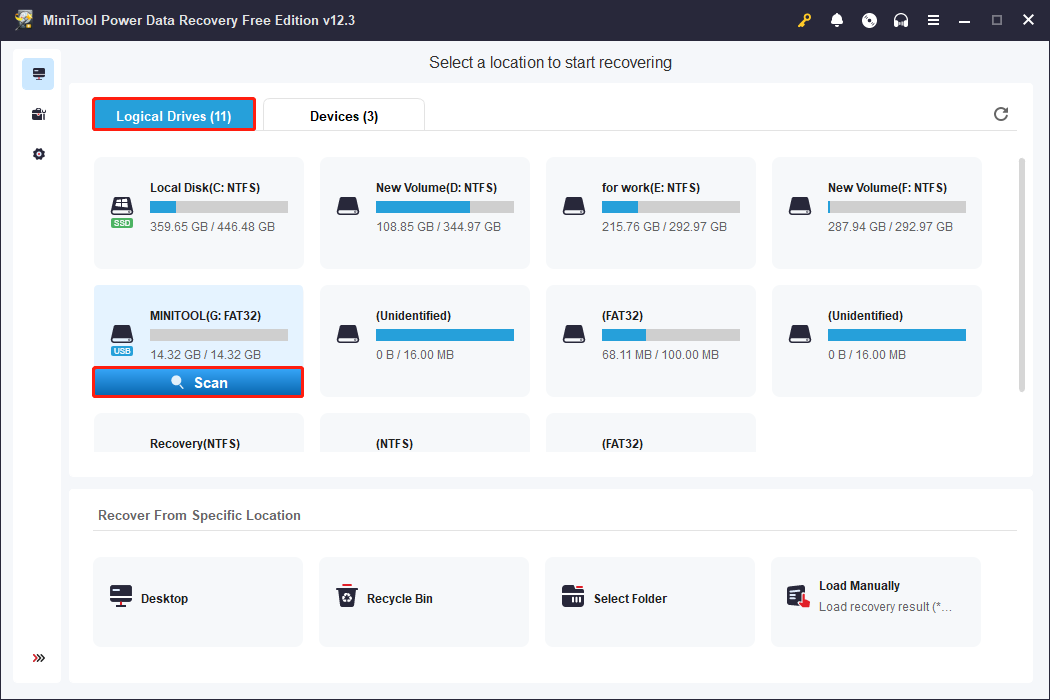
Launch the MiniTool Power Data Recovery software. After loading the disk information, you will enter the main interface. In the Logical Drives tab, you need to find the SD card, hover your cursor to the section, and click on Scan to scan for data.
Step 3: Find the required DAT files using the built-in features.
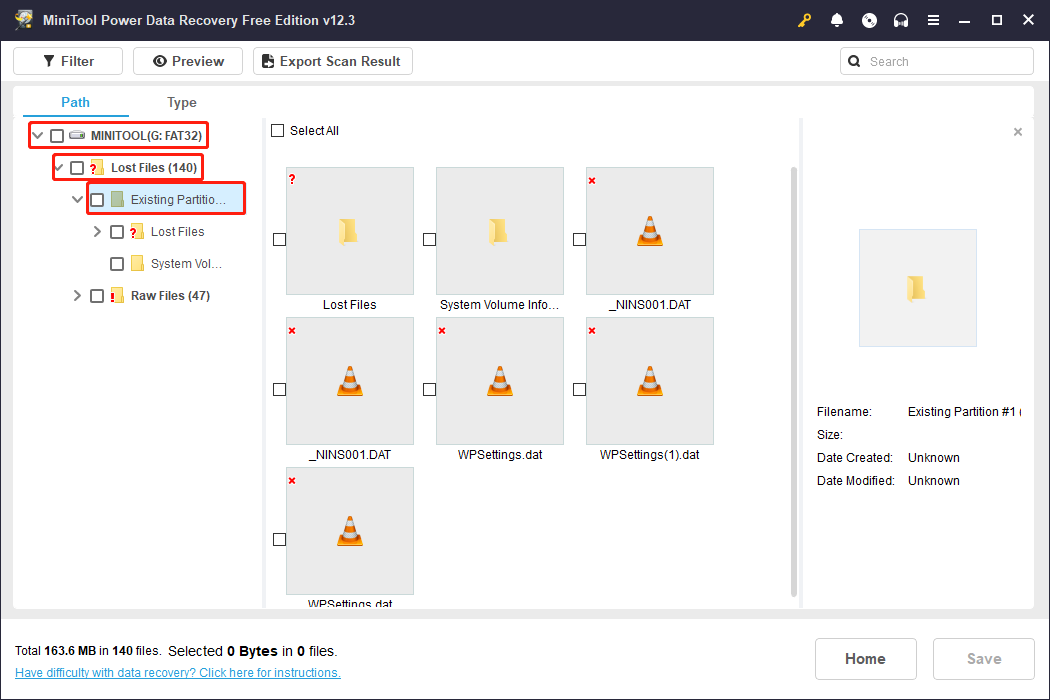
To get the most complete scanning results, you should wait for the scan process to be completed. After the scan ends automatically, all data in your SD card will be shown here.
By default, the data are listed by their paths under the Path tab. This section generally includes Existing Files, Lost Files, and Deleted Files. You can expand the corresponding folders to find the wanted files one by one. For the scan results of my SD card, I should double-click on it and Lost Files and select Existing Partition. All the DAT files will be displayed.
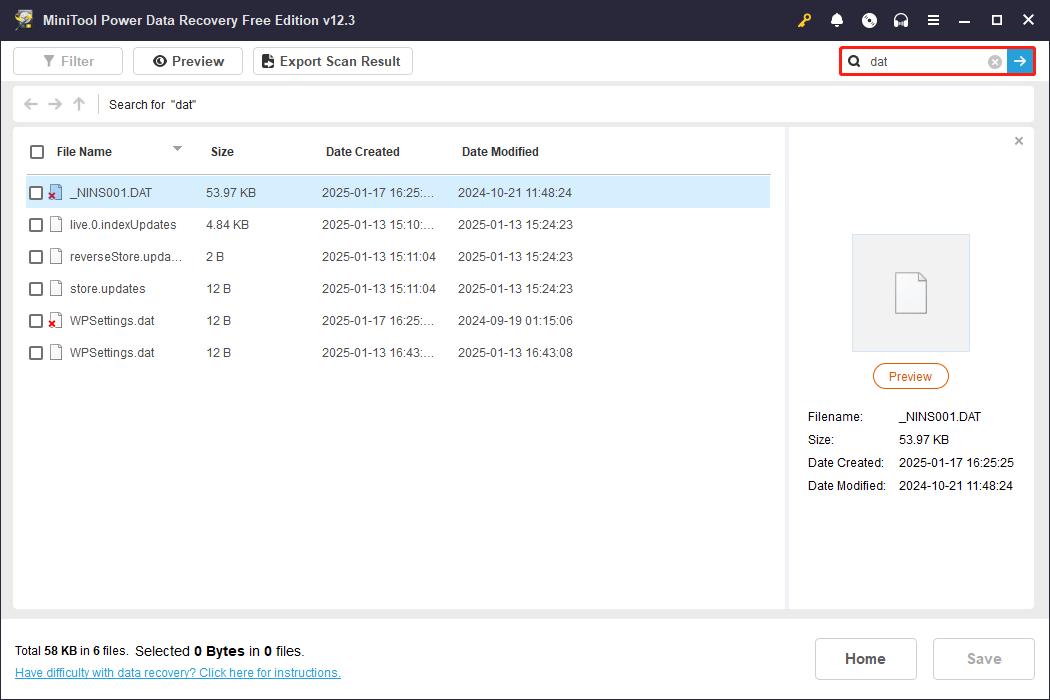
If there are a large number of files here, it may be a little time-consuming to find the targeted DAT files from the path list. There is a feature called Search that can help you locate the files you want at the fastest speed.
The Search feature in the upper-right corner helps you get the most relevant files by filtering out all unnecessary files. Hover your cursor on the box, click on it, type the file extension dat in the box and press Enter. All DAT files will show up and you can choose the needed files from the list.
Step 4: Tick all the targeted DAT files and save them to a new location.
Tick all the boxes for the wanted DAT files and click on the Save button to recover Canon DAT files. When the directory window pops up, choose a new location instead of the original place to store the recovered DAT files and click on OK.

When the recovery completes, a window will pop up with information about the size of the recovered file and the free remaining recovery capacity.
How to Repair Corrupted Video Files
If the DAT files have been restored but the video still doesn’t play, you can try repairing the corrupted videos. The following content will show you how to repair corrupted videos from Canon camera.
Fix 1: Repair Videos Using VLC Media Player
VLC Media Player is not only a player but also has a built-in video repair feature. When the video is played, VLC will remind you if the video is corrupted. Here is how to repair video files using this tool. Now visit VideoLAN’s official website in your browser to download and install VLC Media Player to get ready.
Step 1: Open the VLC Media Player software and click on Tools > Preferences.
Step 2: On the top, switch to the Input & Codecs section.
Step 3: Scroll down to the Damaged or Incomplete AVI File section and choose Always fix from the drop-down menu.

Step 4: Finally, click on the Save button to make the change take effect.
Once you complete these steps, the VLC will automatically fix the issues in the video files.
Fix 2: Convert the Video to Another Format
Converting the video format can fix the corrupted video. This is mainly because file corruption can be caused due to format incompatibility or conversion errors. By converting the corrupted video to another format, it is sometimes possible to bypass the corrupted part of the original video and thus successfully open and edit it. Let me show you how to convert corrupted videos using MiniTool Video Converter, which supports many formats such as MP4, AVI, MKV, 3GP, MOV, etc.
Step 1: Download and install the converter and launch the software.
MiniTool Video Converter FreeClick to Download100%Clean & Safe
Step 2: In the main interface, click on Add Files to add the video file you want to convert.
Step 3: After adding the target video file, choose the format you want from the Convert all files to drop-down menu, and then click on Convert to get started.

Step 4: When the conversion process ends, switch to the Converted tab and click on Show in folder to check the video.
In the end, I strongly recommend that you back up your data (not only DAT files but also other important files) using MiniTool ShadowMaker, which can effectively prevent you from being unable to use your data due to data loss or damage. Click on the following button to download and install it on your computer.
MiniTool ShadowMaker TrialClick to Download100%Clean & Safe
Final Thoughts
When you encounter that the video cannot play due to the DAT file loss, you can try the methods listed in this article. For example, you can recover video from your backup directly. If you have not backed up, you can try to recover Canon DAT files using MiniTool Power Data Recovery. Its powerful recovery function makes file recovery a breeze.
Suppose there is no effect after the DAT file recovery, in that case, you need to repair the video file in several ways, such as using VLC Media Player to fix it or converting the video to another format via MiniTool Video Converter. I hope these methods can work for you.
If you have any suggestions or confusion when using MiniTool products, you can send them to us via [email protected].
User Comments :